
Power on and power off
Audience: everyone. Page: Cloud Phones → My Phones.
Creating a cloud phone only creates a record. It runs in the cloud — and starts consuming boot quota — once you power it on.
1. Reading the status
Every phone in the list carries a status badge. Transitional states pulse and refresh themselves, so you never need to reload the page.
| Status | Meaning | What you can do |
|---|---|---|
| Creating | Being built | Wait |
| Stopped | Built, or powered off | Power On |
| Starting | Booting | Wait |
| Running | Up and running | Remote control, install apps, Root / ADB, power off |
| Stopping | Shutting down | Wait |
| Recycled | Reclaimed after a seat expired | Restore once you have a free seat |
| Create Failed / Error | Something went wrong | Contact support |
Besides these you may also see statuses passed through from the underlying platform, such as Host Upgrading, Host Offline, Initializing, Rebooting, Maintaining and Agent Offline. They mean the host or controller behind that phone is under maintenance; the action buttons disappear for the moment and come back on their own.
2. Powering on
Click Power On on the row. There is no confirmation step — it goes straight through.
You get "Power-on command sent" and the status runs Starting → Running. In practice a phone takes a few tens of seconds.
Three pre-flight checks run first, and any one of them can block the boot:
| Check | Message when it fails |
|---|---|
| The current status allows booting | 当前状态不可开机 (Cannot power on from the current status) |
| A proxy is bound | 未绑定代理,无法开机,请先绑定代理 (No proxy bound — bind one first) |
| A free monthly slot or some runtime minutes exist | 没有可用的包月开机名额或临时开机时长,无法开机,请购买包月开机数或临时时长 (No boot quota — buy boot slots or runtime minutes) |
If you already bought monthly boot slots and they are simply all held by running phones, the message says exactly that: 包月开机名额已被正在运行的云手机占满,且临时开机时长已用完。请先关闭一台,或购买临时时长/更多包月开机数 — powering one phone off frees a slot.
Once the checks pass, the bound proxy is pushed to the device and the boot is triggered. If the push fails the boot is refused with 代理下发中台失败,已阻止开机以避免真实出口 IP 泄漏 — that is deliberate: better not to boot at all than to let the device go online through the data centre's real egress.
These server-side messages are not localised yet and appear in Chinese even with the interface in English; the translations above are for recognition.
3. Powering off
Click Power Off. A small confirmation bubble appears next to the button asking Power off phone "name"?; it only executes after Confirm.
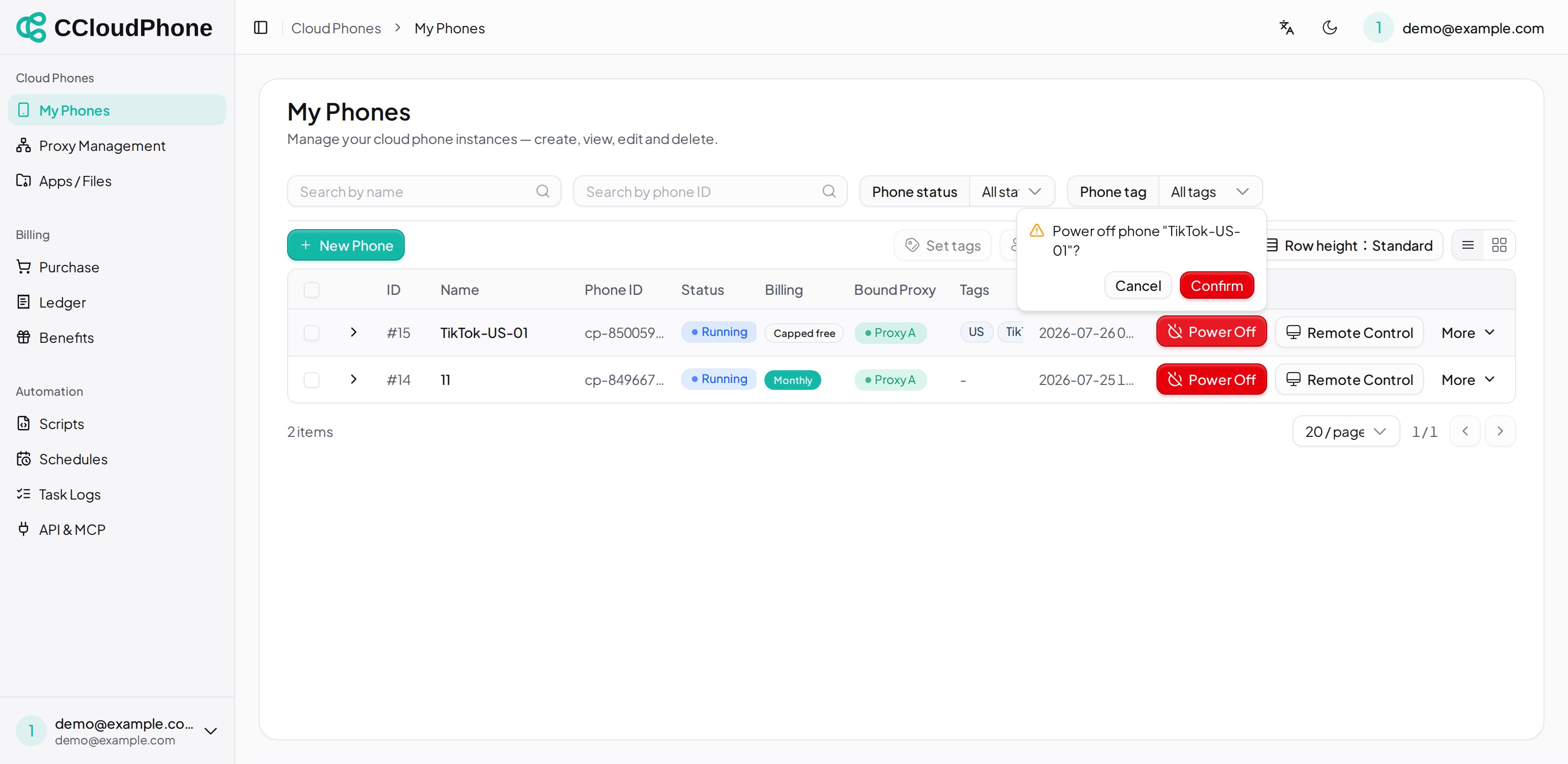
You get "Power-off command sent" and the status runs Stopping → Stopped.
After it stops:
- It no longer holds a monthly boot slot and no longer burns runtime minutes.
- Its data and installed apps are untouched and are there next time you boot.
- It still occupies an instance seat.
Only a Running phone can be powered off; in other states the button is not shown.
4. When the system powers a phone off for you
Two cases, both recorded in the Cost Log:
- Runtime minutes ran out: the segment is not charged and the instance is shut down. Top up and you can boot it again.
- The instance seat expired with no free seat to take over: the instance is stopped and moved to the recycle bin.
To hear about it in advance, enable the Low balance, Expiring soon, Expired and Instance recycled notifications under Account → Notification settings.
5. Related actions
The More menu on each row also has:

- Run Logs — every power-on-to-power-off session for that phone, with duration and shutdown reason (Normal shutdown / Container fault / Server fault / Controller fault). Start here when a phone "stopped by itself".
- New Device (in the remote-control window's More menu) — wipes the data and reinstalls the system, keeping the proxy binding. The result is effectively a brand-new device. Not reversible.
- Destroy — deletes the instance permanently, with a confirmation. Destroying frees the seat for a new phone. This entry only appears when the phone is not running (Stopped / Created / Create Failed / Recycled); power a running phone off first.
6. Next
Last updated: Jul 26, 2026