
Controlling one phone
Audience: everyone. Prerequisite: the phone is Running. Path: Cloud Phones → My Phones → Remote Control.
Remote control means seeing and operating the phone's screen in your browser. It is all web — there is no client to install.
1. Opening remote control
In My Phones, a running phone shows a Remote Control action. Click it.
A separate window opens, titled "Remote Control — your phone name". The live screen is on the left and a vertical toolbar on the right:
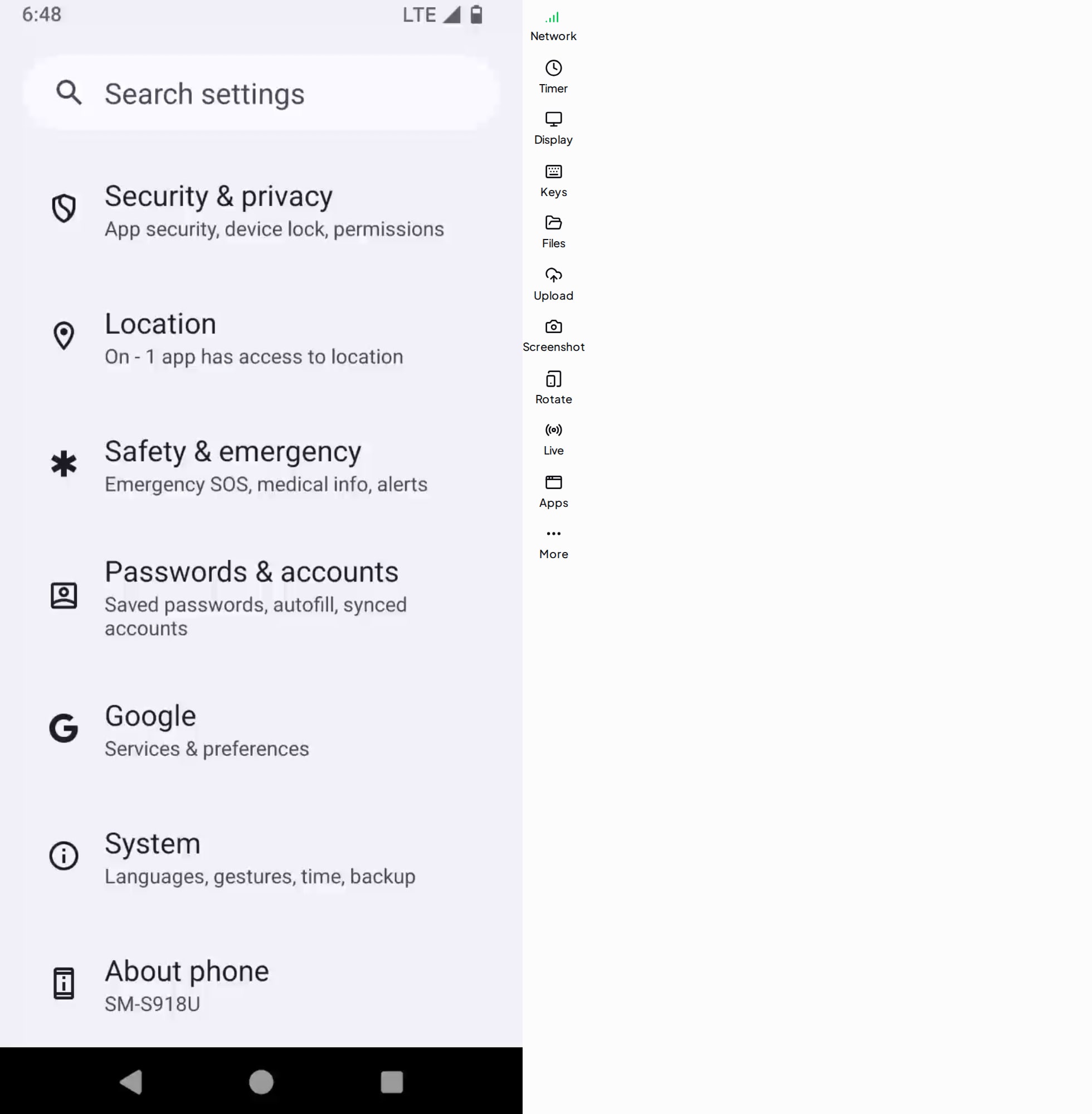
The screen is streamed over WebRTC. If the screen area reports a failure, try More → Reconnect first; if it still will not connect, check that your local network permits WebRTC or try a different network.
If the device is already powered off when you open the window, it says "Device powered off · remote control disconnected" and offers Power on, which dispatches a boot and tells you "Power-on requested. Reopen remote control once it has started."
2. Operating the device
This is the part you will use most, and the rules are simple:
- Tap and swipe: click and drag directly on the screen with your mouse, just like a finger.
- Typing: once connected, type with your physical keyboard.
- Non-Latin and long text: don't type it — use
Ctrl+Vto paste from your local clipboard into the device. - Getting text out:
Ctrl+Ccopies the device clipboard back to your machine. The browser asks for clipboard permission the first time; if you deny it you get "Failed to read local clipboard. Please allow clipboard permission in the browser and retry."
The Keys panel provides the hardware buttons you cannot tap on screen:
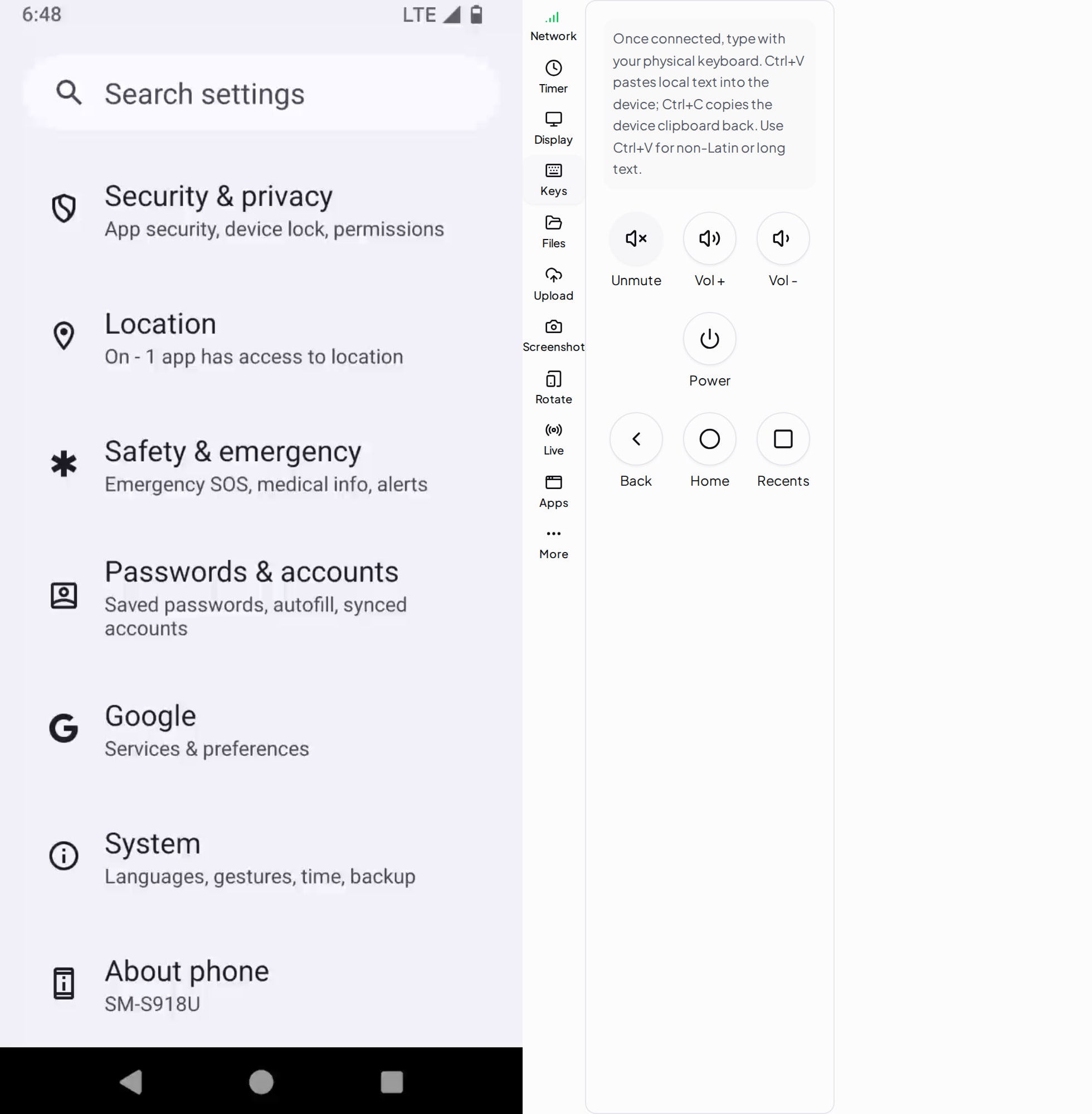
| Button | Effect |
|---|---|
| Back / Home / Recents | The three Android navigation keys |
| Vol + / Vol - | Device volume |
| Power | Simulates the power button (screen off / wake) |
| Mute / Unmute | Mutes audio played locally |
3. What is on the toolbar
| Tool | What it does |
|---|---|
| Network | Connection quality — Good / Fair / Poor — plus live latency in ms |
| Timer | How long this phone has been powered on |
| Display | Resolution, quality and FPS, plus Fullscreen |
| Keys | The hardware buttons above |
| Files | Browse the device's folders; upload, download and delete |
| Upload | Quick upload, always into /sdcard/Download |
| Screenshot | Capture the current screen and download it |
| Rotate | Switch between portrait and landscape |
| Live | Feed your local camera and microphone to the phone |
| Apps | Install and uninstall apps |
| More | Reconnect, New Device |
3.1 Display
Resolution, quality and FPS are all adjustable. On a poor connection, lower the quality and FPS for a more responsive picture; raise them when you need detail. Each change reconnects that phone.
3.2 Files
The Files panel is a folder browser: move around, refresh, select all, download selected files, or delete them (not reversible, with a confirmation). You can also drag local files straight onto the panel to upload into the current folder.
The Upload panel is the simplified version and only uploads to /sdcard/Download. It also offers Pick from Library, which pushes files you already uploaded under Apps / Files straight onto the phone instead of sending them from your machine again.
3.3 Apps
The Apps panel has three tabs: My Apps, App Market and Installed.
- Install in My Apps or App Market gives you "Install command sent"; already-installed apps show Reinstall.
- Uninstall in Installed asks for confirmation, then executes.
- With many apps, use the search box to filter by app or package name.
You do not have to open remote control for this: More → App Manager in the list does the same thing.
3.4 Live (camera / microphone injection)
Feeds your local camera and microphone to the cloud phone so apps there treat them as their own. Camera and mic toggle independently, each with its own device picker, plus a Mirror (selfie) option.
Prerequisites: the page must be HTTPS (production already is), the browser must be granted camera / microphone permission, and the phone must be connected with its control channel ready.
3.5 New Device
Under More. It wipes the data and reinstalls the system, keeping the proxy binding. The confirmation spells it out: "Reset this phone to a new device? Data will be wiped and the system reinstalled (proxy kept)."
This cannot be undone — afterwards you have a brand-new device with no accounts, apps or files. Use it when switching the phone to a different line of work, or when you suspect the current environment has been flagged.
4. Common problems
| Symptom | Fix |
|---|---|
| It says the device is powered off | Click Power on, wait for Running, then reopen |
| The picture stutters | Lower quality and FPS under Display; check latency under Network |
| Non-Latin text will not type | Use Ctrl+V to paste instead of typing |
Ctrl+C does nothing |
The browser has not been granted clipboard permission — allow it and retry |
| Rotate does nothing | "Rotate failed: control channel not ready" — reconnect first |
5. Next
Last updated: Jul 26, 2026