
How CCloudPhone charges
Audience: anyone about to pay, or trying to work out why a bill looks the way it does. Pages: Billing → Purchase / Ledger / Benefits.
This article covers the billing rules and how to read your bill. It deliberately contains no prices — prices, discounts and plans change, so the live quote on Billing → Purchase is the authority.
1. One wallet, four resources
Go to Billing → Purchase. Your balance sits at the top; the four cards below are everything you can buy:

| Resource | What it decides | How it is billed |
|---|---|---|
| Instance Seats | How many cloud phones you can create | Monthly, effective from purchase |
| Monthly Boot Slots | How many phones can run at the same time | Daily |
| Runtime Minutes | Per-minute usage when no boot slot is free | One-off purchase, never expires, used until gone |
| Library Storage | How many app packages and files you can store | Capacity plan |
The balance is a single wallet: top it up and you can spend it on any of the four. The top-up itself cannot be paid from the balance — use an online payment method for that — but resources can. Which payment methods are open is whatever the page shows.
2. Seats and boot quota are two different bills
This is the part most people conflate, so it gets its own section.
- Instance seats govern how many you have. Five seats means five cloud phones. Those five keep occupying their seats even when all are powered off.
- Boot quota governs how many run at once. You could own fifty phones; how many can run depends on your monthly boot slots and runtime minutes.
Hence the two common shapes:
- Phones that run continuously: buy enough seats plus enough monthly boot slots. Those phones do not burn runtime minutes while running.
- Phones you only run occasionally: buy seats plus runtime minutes, and pay for what you use.
Buying or renewing seats includes a bundle of runtime minutes, scaled by seat count and months, so you never end up with a seat you cannot boot even once. The amount appears in the order summary.
3. Exactly how a boot is charged
Four rules, all printed at the top of the Cost Log page:
- One minute is charged only after a full minute of uptime. Anything shorter is free.
- A boot takes an idle monthly slot first; only when no slot is free does it start burning runtime minutes.
- Each phone has a daily runtime-minute cap (currently 200 minutes — the purchase page is authoritative), counted on UTC+8 days. Past the cap, that phone keeps running free for the rest of the day.
- When runtime minutes run out, the segment is not charged and the instance is shut down automatically. Top up and you can power it on again.
Monthly slots are a shared pool, not tied to a specific phone: they are taken in boot order, first come first served. That is why the "Renew Monthly Boot Slots" page does not show "which slot belongs to whom" — it lists which phones currently hold a slot, and that list changes as phones start and stop.
Powering off stops the meter. It is the most direct cost control you have.
4. Where to read the bill
4.1 Cost Log — how a boot was charged
Billing → Ledger aggregates by boot session: one power-on to power-off is one row.
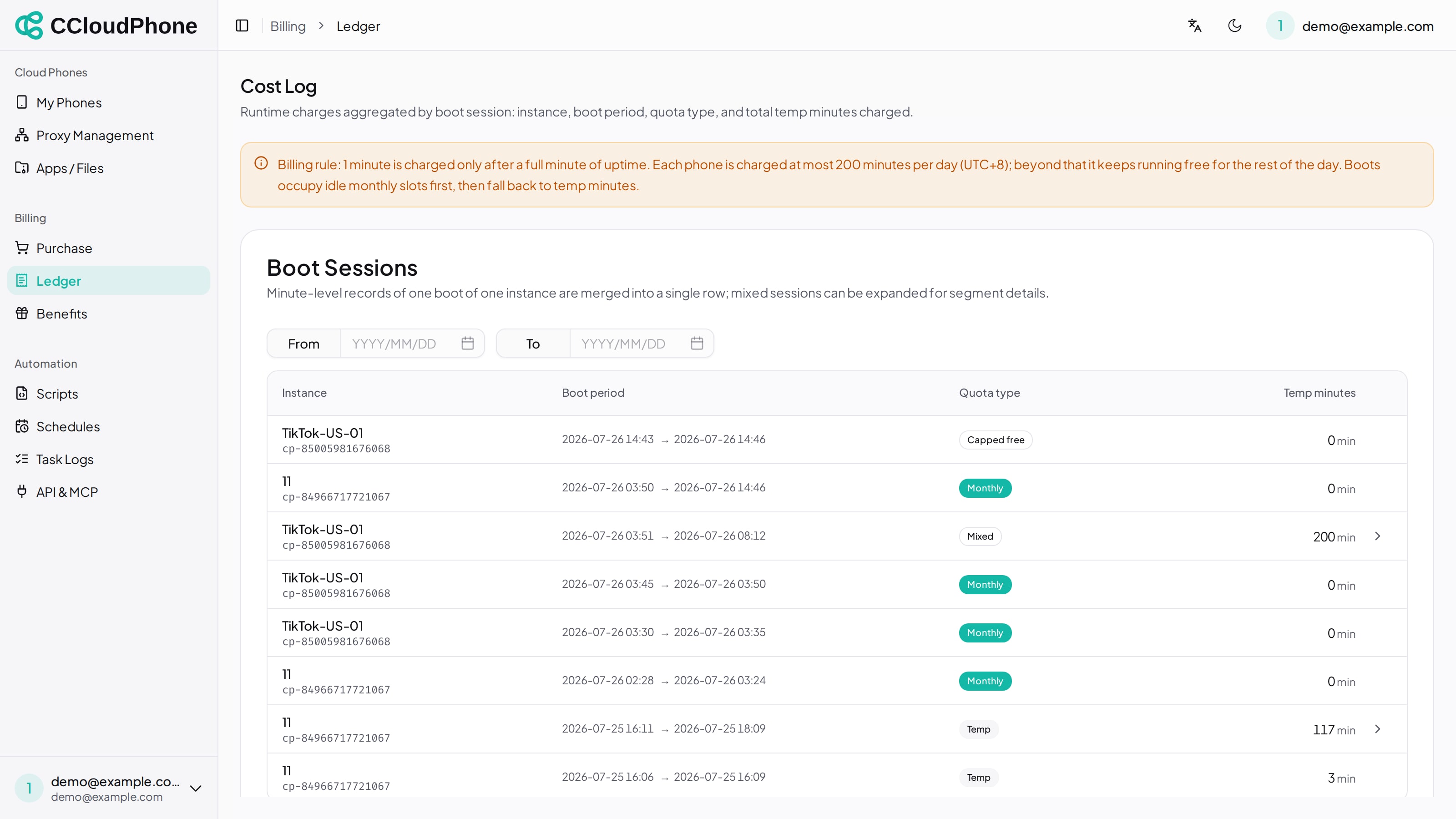
| Column | Meaning |
|---|---|
| Instance | Which phone (name plus phone ID) |
| Boot period | Power-on time → power-off time; still-running sessions show Running |
| Quota type | Monthly / Temp / Capped free / Out of minutes / Mixed |
| Temp minutes | Minutes charged for that session; sessions on a monthly slot show 0 |
Rows marked Mixed expand to show the segments — a session can change type mid-way if a slot is taken over by another phone, or if the daily cap is reached. Each type carries an explanation, for example Temp: "This instance did not get a boot slot (the allowance was full with earlier-powered instances, or none was available), so it was charged temp minutes per minute."
4.2 Order History — where the money went
The lower half of Billing → Purchase is Order History, filterable by status and date. Each row expands into line items (item, quantity, duration, unit price, amount).
Orders are one of three states: Pending, Paid, Expired. A pending order can be resumed with Continue payment.
5. What happens when things expire
| What expires | Consequence |
|---|---|
| Instance seat | The instance first tries to move to another free seat; with none, it is stopped and moved to the recycle bin, kept 30 days by default and restorable if you top up seats in time. After that it is cleaned up and the data is gone |
| Monthly boot slots | Your concurrent-run ceiling drops immediately. A running phone that loses its slot switches to runtime minutes, and is shut down if there are none |
| Runtime minutes | No expiry |
| Library storage plan | Capacity drops back; going over quota locks pushing |
Reminders go out by SMS / email before expiry. Choose how you receive them under Account → Notification settings.
6. Practical ways to spend less
- Power phones off when you are not using them. Stopped phones cost no boot quota, only a seat.
- Use monthly boot slots for anything long-running — cheaper than burning runtime minutes continuously. Use runtime minutes for short tasks instead of buying a slot for them.
- Buy in bulk: seats and boot slots both have quantity tiers, and longer terms discount further. The order summary shows the discounted unit price live.
- New accounts should check Billing → Benefits first; anything you claim lands in your account immediately.
7. Next
Last updated: Jul 26, 2026