
Binding and changing a proxy
Audience: everyone. A proxy is mandatory — without one a phone cannot power on. Pages: Cloud Phones → Proxy Management / My Phones.
1. Why a proxy is mandatory
A cloud phone's egress does not use the data centre's shared network; it goes through a proxy you specify. That way each phone has its own IP and your accounts are not linked to each other by a shared egress.
So the product makes it a hard constraint: a phone without a bound proxy can be created and can stay in your list, but Power On is refused with 未绑定代理,无法开机,请先绑定代理 (No proxy bound — bind one before powering on.)
The only protocol supported today is SOCKS5. You supply the proxies yourself (bought or self-hosted); we do not resell them.
One practical rule: one dedicated IP per cloud phone. Sharing one IP across several phones ties those accounts together on the network dimension and weakens the isolation. The binding table has a Bound column for exactly this reason.
2. Adding a proxy
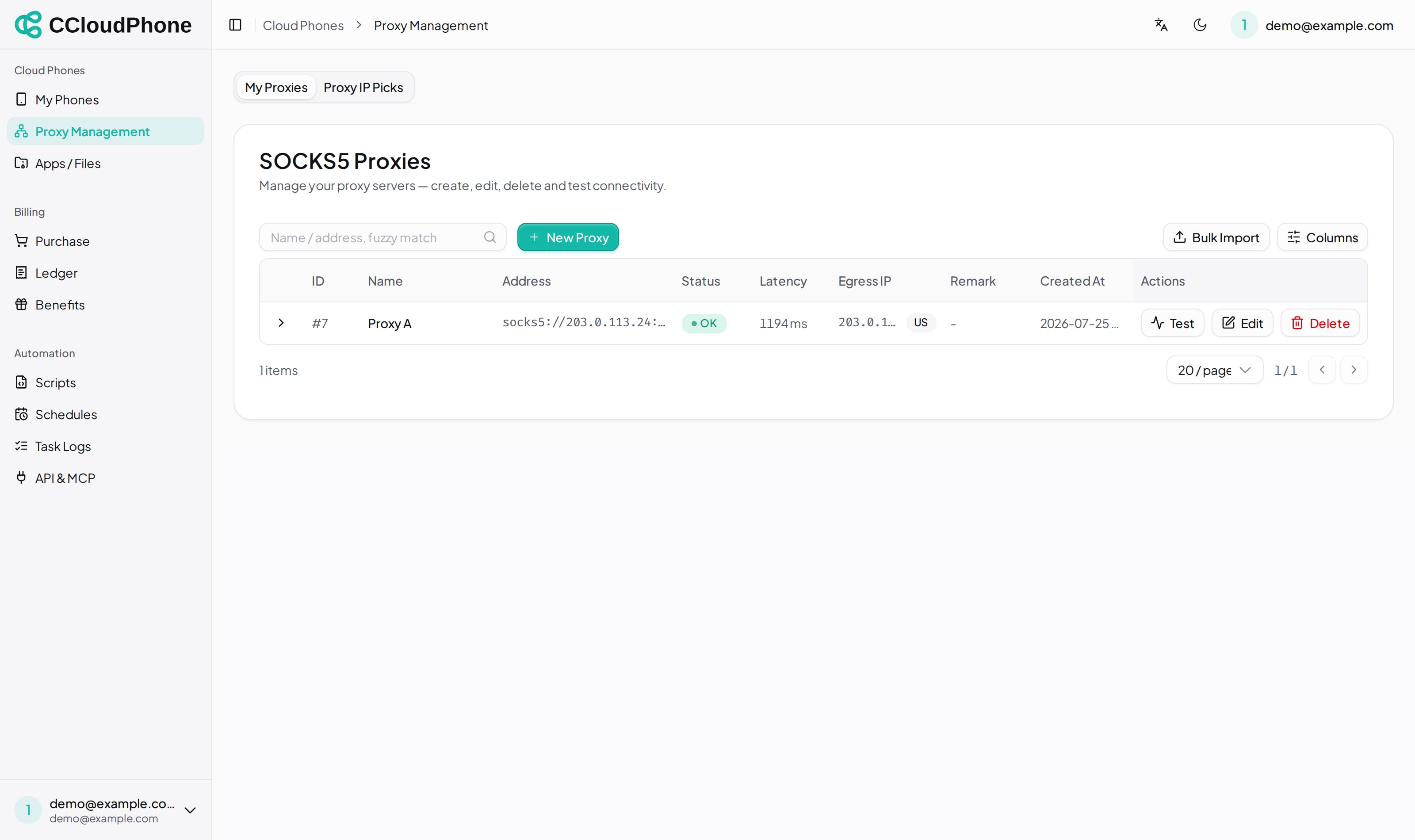
Go to Cloud Phones → Proxy Management:
Click New Proxy:
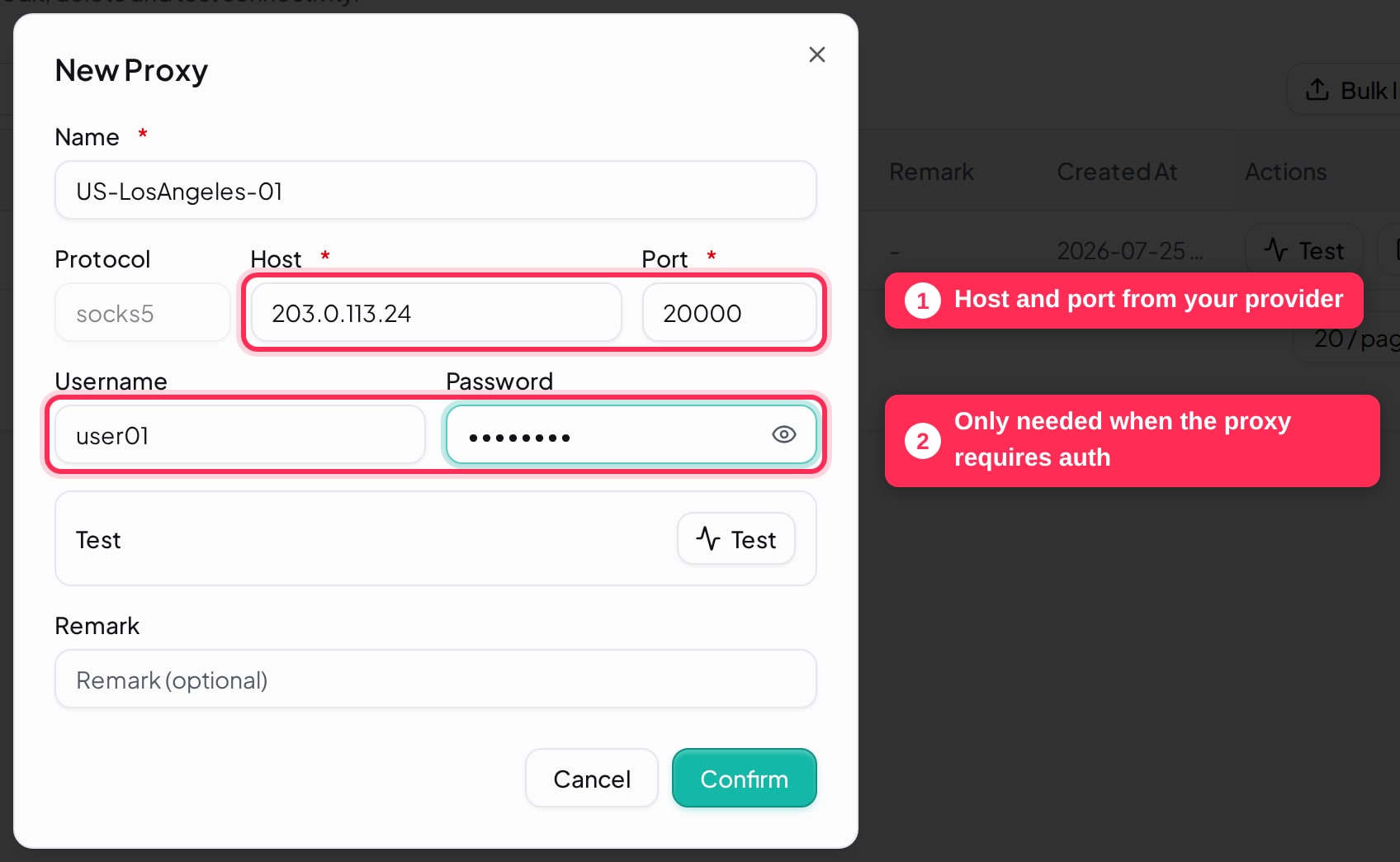
| Field | Notes |
|---|---|
| Name (required) | Anything you will recognise — region plus a number works well |
| Protocol | Fixed to socks5, not editable |
| Host (required) | IPv4 address or domain. Private, loopback and link-local addresses are rejected |
| Port (required) | 1–65535 |
| Username / Password | Only if the proxy requires authentication; leave blank otherwise |
| Remark | Optional |
After saving you see "Saved. Checking proxy connectivity in the background…" and, a moment later, the status, latency, egress IP, region and ASN are filled in.
Bulk import
With many proxies, click Bulk Import and paste one per line. Five formats are accepted (protocol defaults to socks5):
name,host:port
host:port
host:port:user:pass
socks5://user:pass@host:port
user:pass@host:port
The leading name is optional; without it the name defaults to host:port. After parsing you get "N valid proxies parsed", and unrecognised lines are listed by line number and ignored.
3. Reading the status light
The Status column has three values:
| Status | Meaning |
|---|---|
| OK | The latest probe connected and the egress IP is filled in |
| Failed | The latest probe timed out or was refused |
| Untested | Not probed yet; it will refresh shortly |
To check immediately, click Test on the row. Success reads "Proxy is reachable; egress IP & geo info updated"; failure reads "Proxy unreachable (connection failed or timed out)" with a specific reason. Common ones:
| Message | Meaning |
|---|---|
| Failed to resolve proxy address | DNS cannot resolve the host — check what you typed |
| Invalid proxy address: private / loopback / link-local addresses are not allowed | You entered an internal address, which is not permitted |
| Failed to reach target through proxy (timed out or refused) | The proxy itself is unreachable, or the credentials are wrong |
| Could not parse egress IP | The proxy connects but no egress IP comes back — usually a broken proxy service |
The little dot shown on phone rows and in the binding table is the same probe result. Hover it for latency, egress and last-checked time. A background sweep keeps it fresh; you do not have to click anything.
The probe is advisory. A proxy showing Failed can still be bound, but you will be warned: "The selected proxy failed its latest check — you can still bind it, but the phone may fail to connect on boot."
4. Binding a proxy to a phone
4.1 At creation time
In the New Phone dialog, the Bound Proxy switch is on by default; click a row in the table to select one. See How to create a cloud phone.
4.2 Binding later, or swapping
Go to Cloud Phones → My Phones, open More → Edit on the phone, pick a different proxy in the table and click Confirm.
The dialog reminds you: "Without a bound proxy the phone cannot power on; please bind one."
To unbind, switch Bound Proxy off and confirm — turning the switch off and confirming really does unbind, it is not treated as "leave unchanged".
4.3 When a swap takes effect
The binding lives in your account; it is pushed to the device at power-on. At that moment the system hands the bound proxy to the phone and then boots it. If the push fails, the boot is refused with 代理下发中台失败,已阻止开机以避免真实出口 IP 泄漏 (Failed to push the proxy upstream; boot blocked to avoid leaking the real egress IP.) — deliberately fail-closed: better not to boot than to let the device use the data centre's real egress.
So swapping the proxy on a running phone requires a power cycle before the new proxy is used.
5. Editing and deleting
- Edit: change the name, host, port or credentials. Leaving the password blank keeps the existing one.
- Delete: asks you to confirm,
Delete proxy "name"?. Deleting does not check whether phones are bound to it, so check yourself first — phones whose proxy was deleted will fail to power on until you bind a new one.
6. Next
Last updated: Jul 26, 2026