

What Is a Cloud Phone? A Beginner's Guide to How Cloud Phones Work in 2026
What Exactly Is a Cloud Phone?
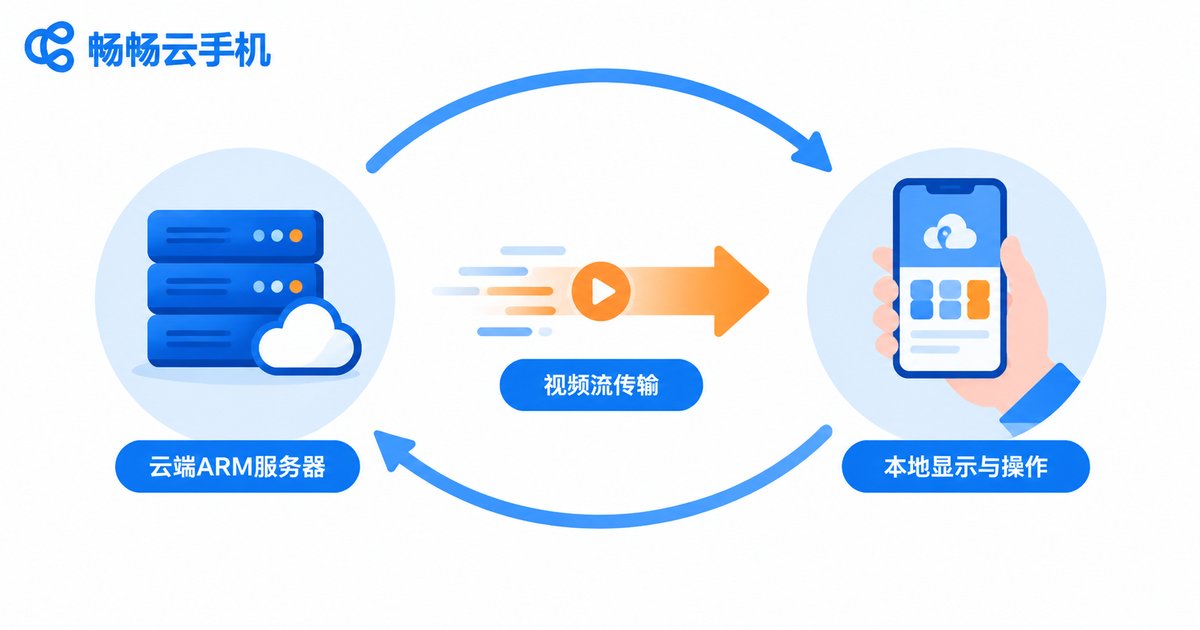
In simple terms, a cloud phone is an Android smartphone that lives in a cloud data center. It has a processor, memory, and storage just like any phone, and it can install apps and run games — except that hardware sits on servers in a data center, not in your pocket. The phone or computer in your hands does only two things: display the picture coming from the cloud, and send your actions back to it.
Think of it as remotely controlling a phone that physically lives in a server room. You stay at home while the device runs hundreds of kilometers away, yet it feels almost exactly like holding it in your hand.
How a Cloud Phone Works: Three Simple Stages
The whole workflow can be broken into three steps. Understand these, and you understand cloud phones.
Stage 1: ARM servers create independent virtual phones. Data centers are filled with ARM-based servers. Through virtualization, one physical server can run many isolated Android systems at the same time. Each one is an independent cloud phone with its own storage and app data, just like a real standalone phone.
Stage 2: The screen is compressed into a video stream. While the cloud phone runs, its screen output is encoded in real time into a video stream and sent over the network to your device. This uses the same family of technology as live video streaming — only the picture is a phone interface.
Stage 3: Your controls are sent back instantly. Every tap and swipe you make travels back over the network to the cloud phone. It performs the action in the cloud and streams the new picture back. The whole loop completes in a fraction of a second, so it feels like using a local phone.
In one sentence: computing happens in the cloud, display happens locally. That is both the working principle of a cloud phone and the source of all its advantages.
Cloud Phone vs. Physical Phone vs. Emulator
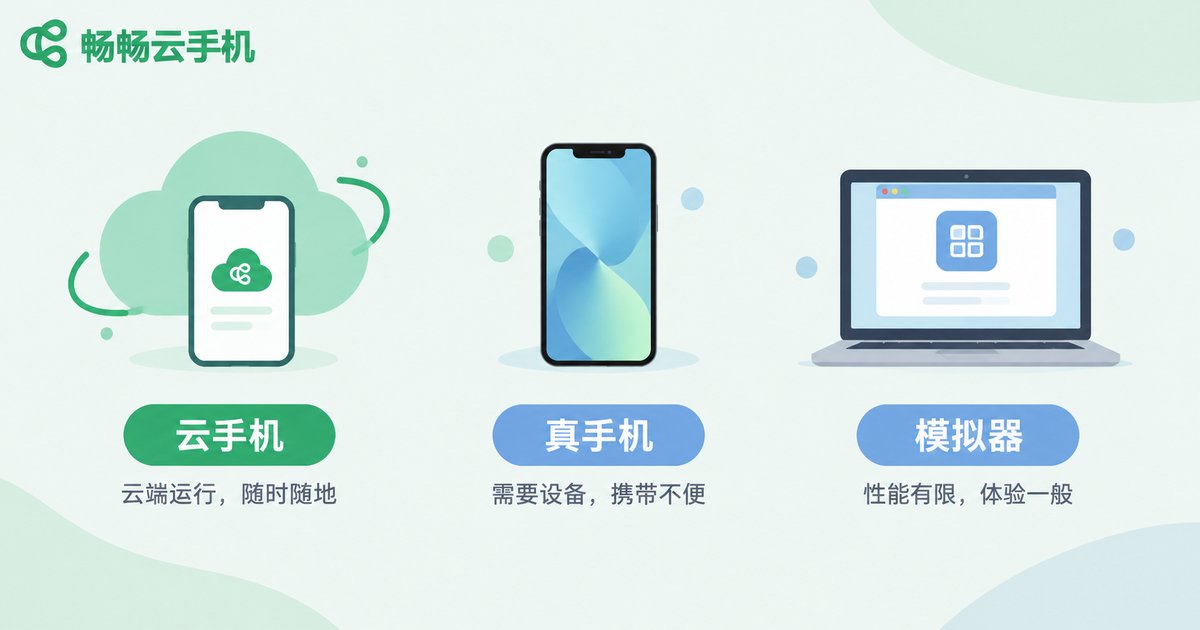
Beginners often compare cloud phones with emulators. In fact, the three are very different:
| Aspect | Cloud Phone | Physical Phone | PC Emulator |
|---|---|---|---|
| Where it runs | Cloud servers | In your hand | Your computer |
| Hardware needs | Just an internet connection | Depends on the phone | Depends on the PC |
| Running many instances | Easy to scale | Needs multiple devices | Consumes local resources |
| Always-on operation | Online around the clock in the cloud | Phone must stay powered on | Stops when the PC shuts down |
| Heat and power use | Almost none locally | Noticeable heating over time | Relatively high power draw |
The key takeaway: a cloud phone separates computing power from the screen. The heavy lifting happens in the cloud, while your local device acts as a lightweight display. That is why an ordinary phone can smoothly run a large mobile game — the game is not actually running on your phone.
What Do People Use Cloud Phones for in 2026?
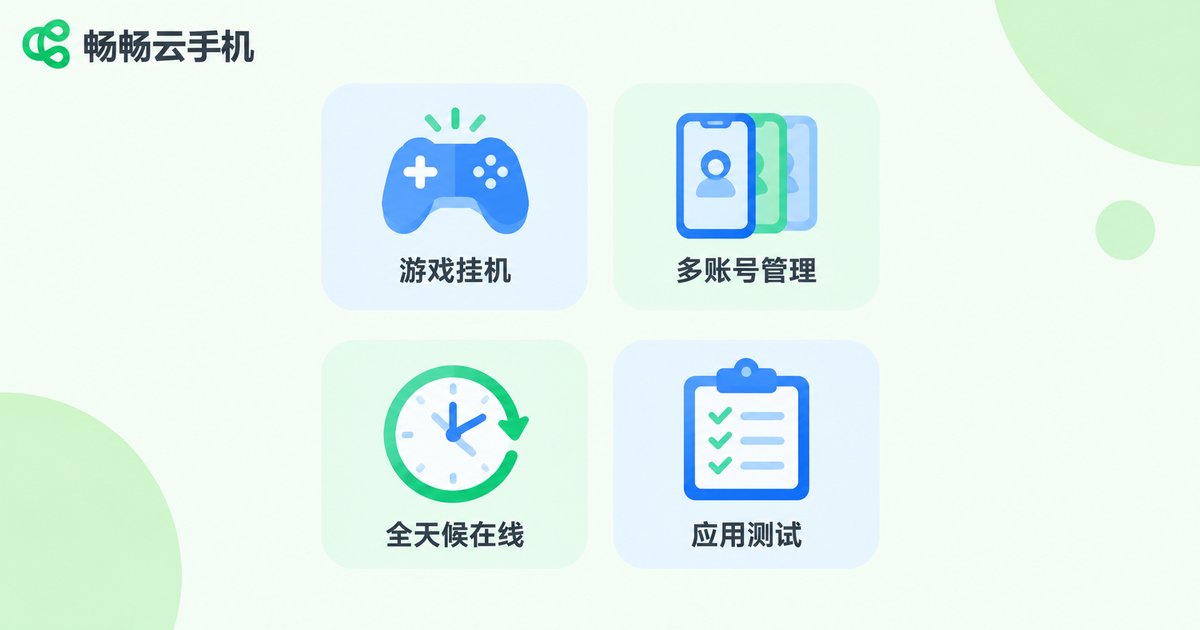
Once the principle is clear, the use cases follow naturally: anything that needs a phone to stay online for a long time is a good fit for the cloud.
Idle gaming and daily quests: Keep your game running on a cloud phone — daily tasks, dungeons, and rewards — while your local phone is free to shut down or take calls. Log in later to collect the results.
Multi-account management: People running e-commerce stores, social media, or communities often juggle many accounts. One cloud phone account can manage multiple isolated cloud phones, each with its own environment, so accounts never interfere with each other.
Always-on apps and automation: Apps that must stay online long term, such as check-in or monitoring tools, can run on a cloud phone around the clock without draining your local battery or memory.
App testing: Developers can quickly verify how an app behaves in different environments without buying a pile of test devices.
How to Get Started as a Complete Beginner
Getting started is easier than you might expect. Taking ChangChang Cloud Phone (ccloudphone) as an example, the process looks like this:
Step 1, create an account: Visit the official website ccloudphone and register your account.
Step 2, add a cloud phone: Add a cloud phone from the console — like booting a brand-new phone, you reach the Android home screen within moments.
Step 3, install apps: Install the apps you need and sign in to your game or app accounts.
Step 4, connect anytime: From then on, sign in with the same account from a phone, tablet, or computer to see your cloud phone's screen at any time; your actions sync to the cloud in real time.
When choosing a provider, beginners should focus on three things: streaming smoothness, running stability, and how convenient multi-instance management is. ChangChang Cloud Phone offers a clean interface and a low learning curve, which makes it a friendly starting point for first-time users.
Frequently Asked Questions
Q: Does a cloud phone require a powerful local device?
No. All computing happens in the cloud, so your device only needs to play a video stream smoothly. An ordinary phone or even an aging device works fine.
Q: Does a cloud phone use a lot of data?
Yes, some. It streams live video, similar to watching a live broadcast. Wi-Fi is recommended; mobile data is fine too if your plan allows.
Q: If I go offline or power off, does the cloud phone keep running?
Yes. The cloud phone lives in a data center; your device is only a display. Offline, you simply cannot see the screen, but apps and games keep running in the cloud, and everything is still there when you reconnect.
Q: Are my accounts and data safe on a cloud phone?
Reputable providers isolate and store data securely. Choose a trusted platform such as ChangChang Cloud Phone, protect your passwords, and avoid logging in on unfamiliar devices.
Q: Can a cloud phone make calls with a SIM card?
No. Cloud phones have no physical SIM slot. They are designed for apps and games; calls and text messages still belong to your physical phone.


