

How to Use a Cloud Phone? A Complete Beginner Tutorial: From Sign-Up to 24/7 App Hosting
What Is a Cloud Phone? A One-Minute Overview
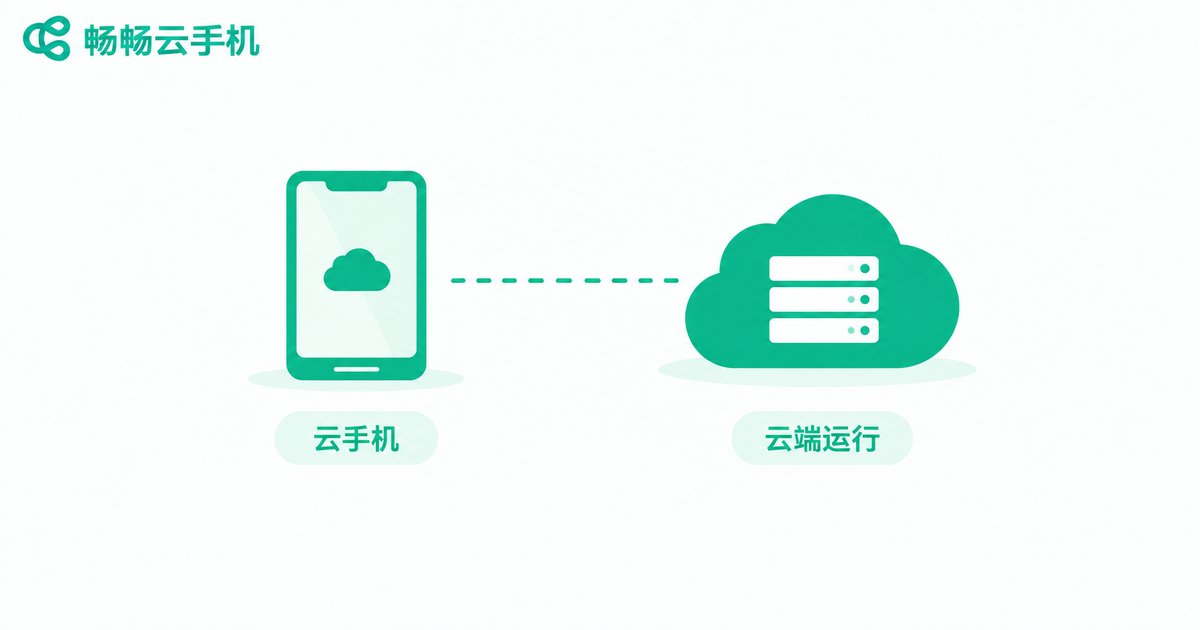
If you are new to cloud phones, here is the simplest way to think about it: a cloud phone is an Android phone that runs in a data center instead of in your hand. It has a complete Android system, and you connect to it remotely from your own phone, tablet, or computer. You can install apps, log in to accounts, and play games just like on a real device.
The key difference is that all the computing happens in the cloud, so it does not drain your local phone's battery, data, or performance. Even if you switch off your own phone, the cloud phone keeps running in the data center — which is exactly what makes app hosting possible.
Step 1: Create Your Account in Three Minutes
Using ChangChang Cloud Phone (official site: ccloudphone.com) as an example, the sign-up process is very simple:
1. Download the ChangChang Cloud Phone app from the official website or your app store, or use the web version on your computer;
2. Open the app, register with your mobile number and a verification code, then log in;
3. After logging in, go to the device list and follow the on-screen guide to finish the initial setup.
Tip: the mobile number you register with is your login credential, so it is best to use a number you check often, in case you ever need to recover the account.
Step 2: Choose a Cloud Device and Enter the Desktop
After registering, you need a cloud device to get started. Activate a cloud phone from your device list, wait a few seconds for it to boot, and you will see a familiar Android home screen — icons, wallpaper, status bar, almost identical to a regular Android phone.
If it is your first time, start with one standard device to get familiar with the workflow, then add more devices later based on your needs.

Step 3: Learn the Basic Controls
The touch logic of a cloud phone is nearly identical to a real phone. Beginners should focus on three things:
Tap and swipe: tap and swipe directly on the screen, exactly like a local phone;
Back and home: use the on-screen virtual buttons or the floating ball to navigate;
Files and clipboard: use the built-in upload and clipboard sync features to move verification codes or links into the cloud phone.
Take a few minutes to browse the system settings and adjust the resolution and performance mode to whatever feels comfortable.
Step 4: Install Your Apps
Once inside the cloud phone, install apps the same way you would on a regular Android device: search and install from the app store inside the cloud phone, or upload an APK file and install it manually. After installation, log in to your accounts — the app data is saved on that cloud device, so you will not need to log in again the next time you connect.
Step 5: Set Up Hosting and Keep Apps Online 24/7
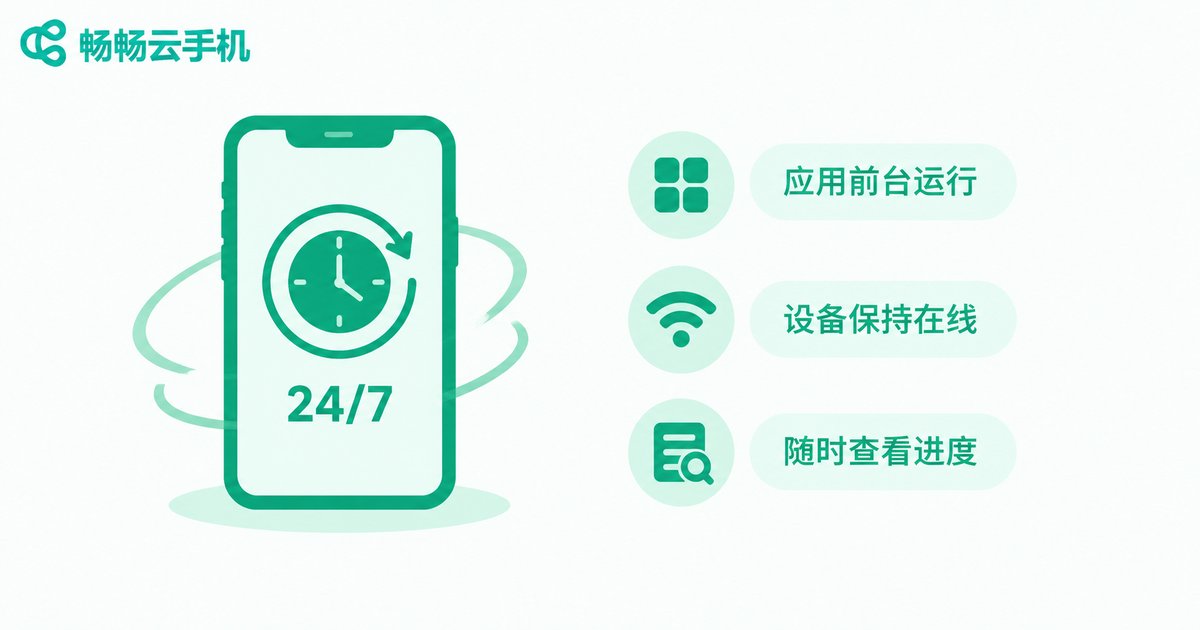
Hosting is the core use case of a cloud phone — your game or app keeps running in the cloud while your local phone is free to shut down. Beginners can follow three simple steps:
1. Keep the app in the foreground: open the game or app you want to host and stay on the target screen;
2. Check the device status: before disconnecting, confirm the device is running — after you disconnect, the cloud phone keeps running in the data center;
3. Check back anytime: reconnect whenever you like and you will return to the exact screen where your session was running.
During hosting, the cloud phone is powered and connected by the data center, so local power cuts, network drops, or a dead battery will not interrupt it — that is why cloud hosting is more stable than hosting on a physical phone.
Local Phone vs Cloud Phone: A Quick Comparison
| Item | Hosting on a Local Phone | Hosting on a Cloud Phone |
|---|---|---|
| Battery | Drains your battery, generates heat | Powered by the data center, zero local drain |
| Uptime | Affected by shutdowns and network drops | Online 24/7 |
| Multi-account | One phone, one account | Run multiple cloud devices in parallel |
| Local resources | Heavy usage affects daily life | Uses none of your local resources |
Common Beginner Mistakes to Avoid
Mistake 1: thinking disconnecting means shutting down. Disconnecting only ends your remote view; the cloud device keeps running, which is the foundation of hosting.
Mistake 2: switching between too many accounts on one device. Frequent switching can trigger risk controls; keep one main account per device.
Mistake 3: ignoring the device status. When you no longer need a session, manage the device status from your device list as a good habit.
Why We Recommend ChangChang Cloud Phone
There are many cloud phone products on the market, but for beginners we recommend starting with ChangChang Cloud Phone. It is beginner-friendly: you can download it from the official website or app stores, and activate a device by following the guide after signing in. The desktop is a native-style Android interface that feels just like a real phone, and the cloud devices are deployed in professional data centers with stable connectivity — well suited for long hosting sessions. Whether you want to host games, keep apps online, or run several devices in parallel, start with one device and experience it yourself. Official site: ccloudphone.com.

FAQ
Q: Does a cloud phone need very fast internet?
No. Everyday use does not demand much bandwidth; regular home Wi-Fi or 4G/5G is enough, and faster networks simply make the stream smoother.
Q: Will my game keep running after I disconnect?
Yes. Disconnecting only closes your remote view — the cloud device keeps running in the data center, which is exactly how hosting works.
Q: Is a cloud phone safe? Could my account be stolen?
Choose a reputable provider and protect your login credentials. Register with a mobile number you use often and never share your account with others.
Q: How many accounts can one cloud phone hold?
One cloud device works like one real phone, so it is best to keep one main account per device. For multiple accounts, activate multiple cloud devices and log in separately.
Q: Which configuration should a beginner choose?
Start with a standard configuration for everyday apps and casual games, then move to a higher configuration if you later play demanding games or need to run many devices.


