
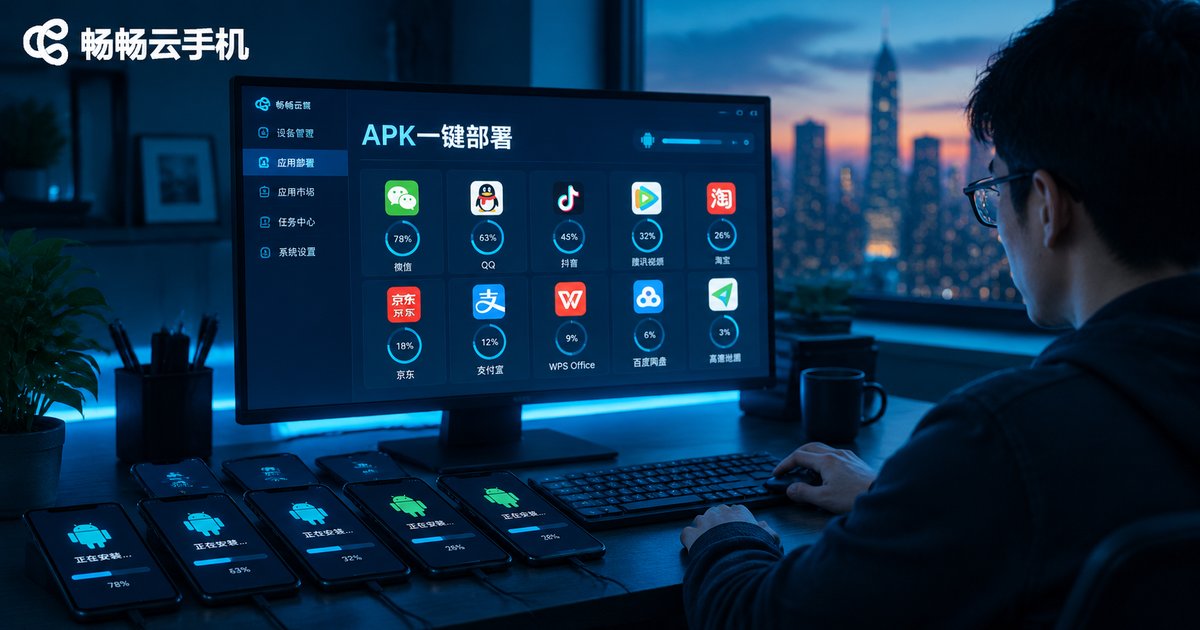
Cloud Phone App Installation Tutorial: APK Upload and Batch Deployment Explained
Why Installing Apps on a Cloud Phone Is Different
First-time cloud phone users often wonder: without a physical device, how do apps get installed? The principle is simple — a cloud phone is essentially an Android device running in the cloud. It supports APK installation packages just like a regular Android phone; the only difference is that instead of tapping an app store icon, you upload an APK and install it.
For users who only need one or two apps, the process is straightforward. But if you manage dozens or even hundreds of cloud phones — for multi-account operations, game multi-boxing, or app testing — batch deployment becomes the key to efficiency. This illustrated guide walks you through the complete workflow, from preparing an APK to deploying it across your entire fleet.
Step 1: Prepare Your APK File
An APK is the standard installation package format for Android apps, similar to an .exe file on a PC. Before installing an app on a cloud phone, you need to obtain the APK file. There are three common sources:
1. The app's official website: Many apps offer direct APK downloads on their official sites — the recommended channel with fresh versions and higher security.
2. Trusted third-party distribution channels: If the official site does not provide an APK, choose a well-reviewed platform with strict review policies, and check the version number and update date before downloading.
3. Your own build artifacts: Developers and testers often need to deploy self-packaged APKs to cloud phones for compatibility testing — a classic batch deployment scenario.
Security reminder: APKs from unknown sources may carry malicious code. Before uploading, verify the file size and version number, and consider test-installing on a single cloud phone first before rolling out to all devices.
Step 2: Install an APK on a Single Cloud Phone
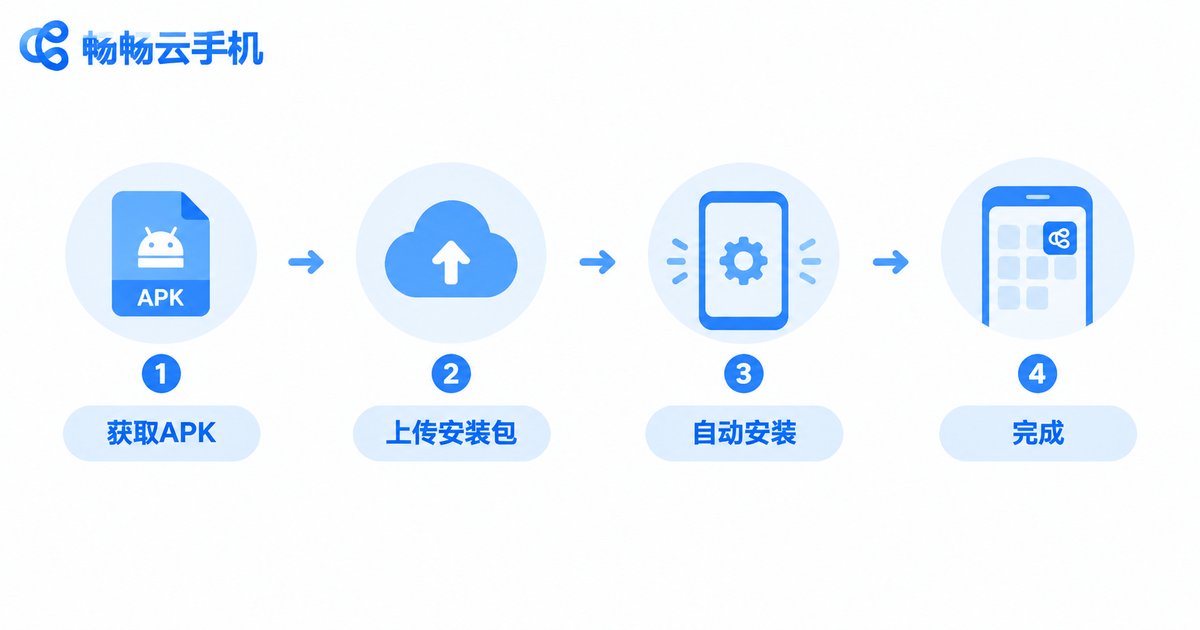
Let's start with the basics — installing an app on one cloud phone. Using ChangChang Cloud Phone (ccloudphone) as an example, the process takes four steps:
Step 1: Log in to the ccloudphone console, locate the cloud phone you want to manage, and open its device detail page.
Step 2: Find the 'App Management' or 'Upload App' entry in the function menu. The naming may vary slightly between versions, but the location is easy to spot.
Step 3: Click the upload button, select the APK file prepared on your local machine, and wait for the upload to finish. Speed depends on file size and your network bandwidth.
Step 4: Once the upload completes, the system installs the app automatically. Within seconds, the new icon appears on the cloud phone's home screen, ready to use.
The whole process feels like transferring a file to a regular phone — except everything happens in the cloud, consuming none of your local device's resources.
Step 3: Batch Deployment — Upload Once, Install Everywhere
Single-device installation is easy; the real highlight is batch deployment. Imagine installing the same app on 50 cloud phones — uploading one by one is simply impractical. That is where batch deployment comes in.
The logic is intuitive: upload the APK to the cloud app library once, select the target cloud phones, and push with one click. The system processes all installation tasks in parallel — you just wait for the results.
| Comparison | Manual install, one by one | Batch deployment |
|---|---|---|
| Time for 50 devices | Over 1-2 hours | Done in minutes |
| Upload operations | 50 uploads | 1 upload |
| Error risk | Missed devices, mixed versions | Unified version, fully controlled |
| Best for | A few devices | Many devices, team workflows |

ccloudphone: Effortless App Distribution
Among cloud phone services, ChangChang Cloud Phone (ccloudphone) offers solid support for APK upload and batch deployment: upload an APK once and it stays in your cloud app library, ready to be distributed to any number of cloud phones at any time. Combined with device grouping, you can manage different app sets per business line — for example, operational tools on Group A devices and games on Group B.
For multi-account operators, ccloudphone's multi-instance management and batch operations dramatically cut repetitive work; for testers, quick device reset ensures every test starts from a clean environment. If juggling apps across many devices is giving you a headache, visit the official ccloudphone website to learn more.
Installation Failed? Common Causes and Fixes
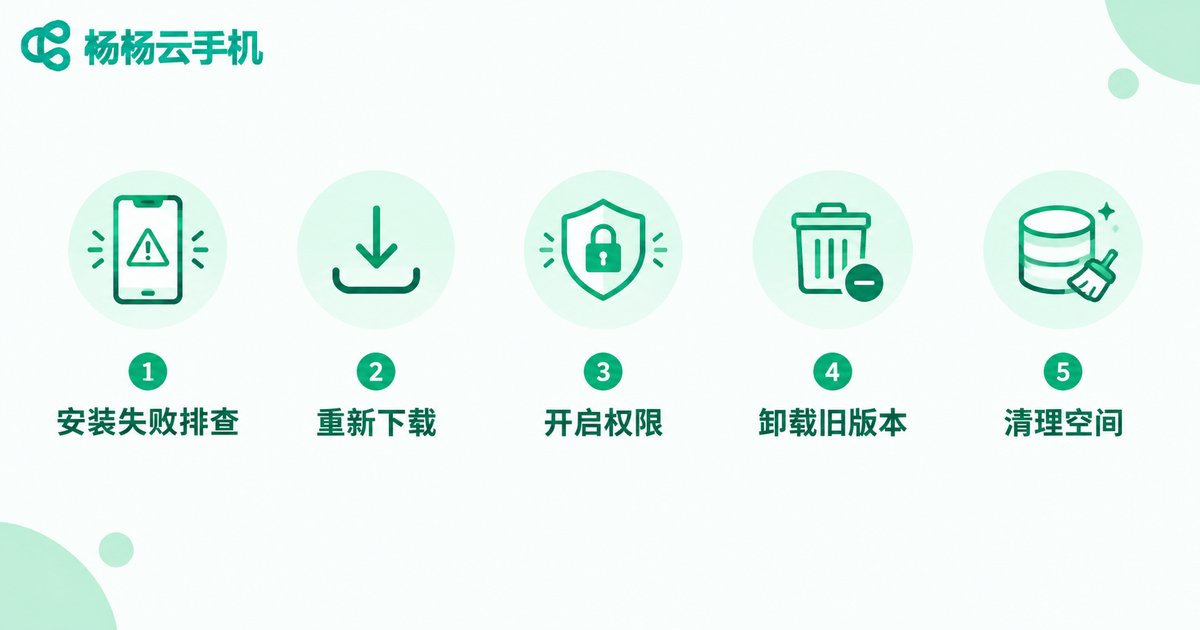
Occasionally a few devices may fail during batch deployment. Do not panic — most issues follow predictable patterns:
| Symptom | Likely cause | Fix |
|---|---|---|
| Parse package error | Incomplete or corrupted APK download | Re-download the APK and verify the file size |
| Install blocked | Unknown-source installation not allowed | Enable unknown app installation in cloud phone settings |
| Signature conflict | An app with a different signature already exists | Uninstall the old version before deploying |
| Insufficient storage | Cloud phone disk is full | Remove unused apps and data, then retry |
| Version incompatibility | APK requires a higher Android version | Use a compatible APK or adjust device configuration |
One good habit to build: test-install on 1-2 devices before every batch rollout. Confirming everything works first keeps the risk as low as possible.
FAQ
Q: Can I install apps directly from an app store on a cloud phone?
Some cloud phones include a built-in app store for direct search and install, but niche apps and internal test builds usually can only be installed via APK upload — mastering APK deployment gives you far more flexibility.
Q: Is there a limit on how many devices batch deployment covers?
With ccloudphone, batch deployment can push apps to multiple cloud phones under your account at the same time; the practical scale depends on the number of devices you own, which is more than enough for everyday operations.
Q: Can an uploaded APK be reused?
Yes. Once uploaded, the APK stays in your cloud app library. When you add new devices or reset existing ones, you can redeploy directly from the library without re-uploading.
Q: Does installing apps cost extra?
APK upload and installation are basic cloud phone features with no extra charges — they only consume the device's own storage.
Q: Will apps be lost after resetting a cloud phone?
Yes. A reset works like restoring factory settings, wiping the apps and data on that device. But since the APK remains in the app library, redeploying takes only a few minutes.


