
How to Record Cloud Phone Scripts? A Beginner-Friendly Automation Tutorial
What Is Cloud Phone Script Recording?
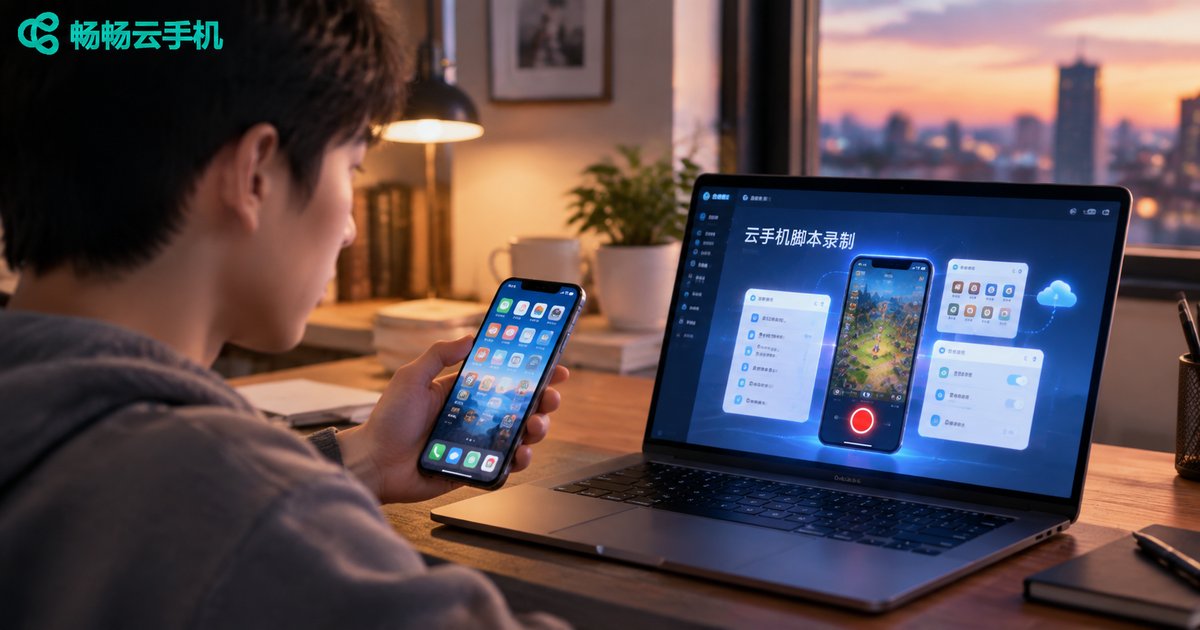
In simple terms, script recording captures your manual operations on a phone and turns them into a repeatable automation workflow. Every button you tap, every swipe you make, and how long you wait in between — the system logs it all in order. Next time you need the same actions repeated, just run the script and the cloud phone completes each step for you.
The biggest advantage is the zero learning curve: no coding or programming knowledge required. If you can use a smartphone normally, you can build a working automation script. For anyone who grinds daily quests in games or checks in across multiple apps every day, recording scripts means handing repetitive work over to the machine.
Three Preparations Before You Record
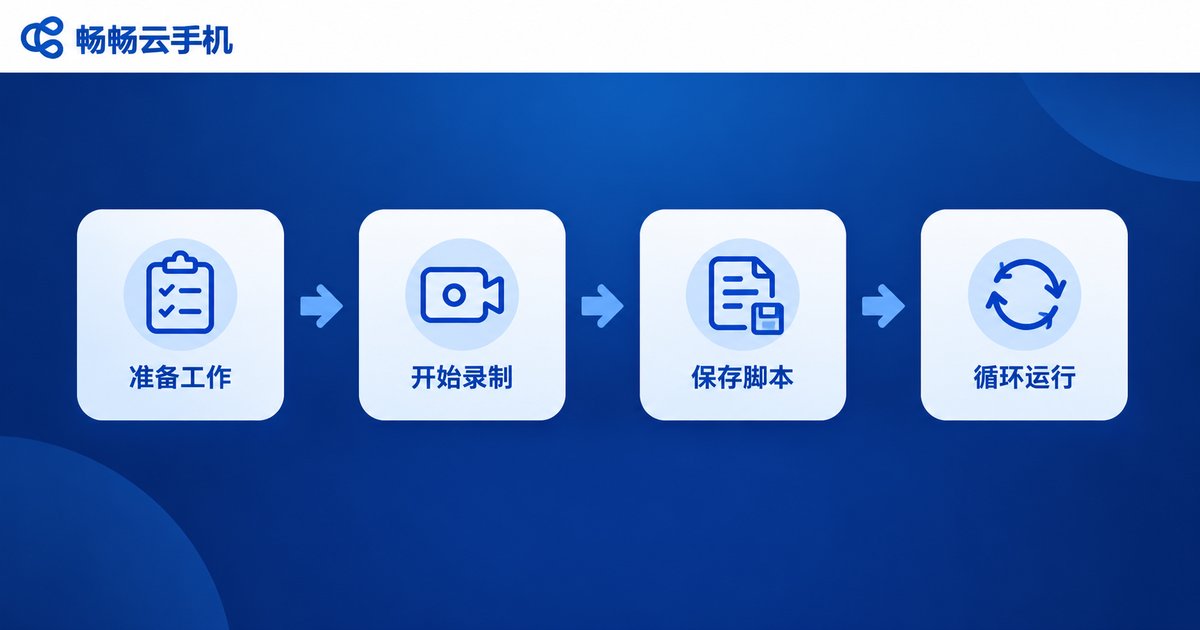
Before hitting record, complete the following preparations so your first script works on the first try:
First, get a stable cloud phone. Scripts often need to run for long hours. A cloud phone stays online in the cloud around the clock, and tasks keep running even when your local phone is powered off — an ideal environment for automation.
Second, install and log into the target app. Install the app you want to automate inside the cloud phone, finish logging in, and stay on the screen where your workflow begins.
Third, walk through the full workflow manually. Perform the whole process once yourself and note every step: where to tap, how long to wait, how far to swipe. With the flow in mind, recording becomes effortless.
Step-by-Step: Record Your First Script in 5 Steps
Now for the core part. The process is as easy as recording a voice memo — just follow along:
Step 1: Open the recording feature. Go to the script tool panel on your cloud phone and tap the start recording button. The system enters recording mode.
Step 2: Operate as you normally would. Tap, type, and swipe on the cloud phone screen as usual. Every action is automatically logged as a script step.
Step 3: Stop and save. When the workflow is complete, tap stop, give your script a memorable name such as Daily Check-in, and save it.
Step 4: Run a playback test. Execute the script once and watch whether it completes every action as expected. This step is essential for catching problems early.
Step 5: Fine-tune and launch. Adjust wait times or tap positions based on the test, then set loop counts or scheduled tasks and let the script run automatically.

Post-Recording Debugging: Make Your Script Stable
Many beginners launch their scripts right away, only to find them stuck halfway. The usual culprit is that loading speeds during playback differ from the moment of recording. These debugging tips will greatly improve stability:
1. Add wait time after key steps. For example, wait two to three seconds after tapping the claim reward button, so the next action does not fire before the screen finishes loading.
2. Prefer element matching over fixed coordinates. If your script tool supports locating buttons by name or element properties, use it — the script will still find its target even when the layout shifts slightly.
3. Add random delays to repeated actions. Slightly randomized intervals feel more human and reduce the risk of triggering risk-control systems.
4. Use small loops instead of one giant recording. Split a big task into several small scripts, test each one, then combine them. When something breaks, it is much easier to locate.
| Method | Difficulty | Stability | Best for |
|---|---|---|---|
| Pure manual operation | None | Stable but time-consuming | Occasional users |
| Recorded script | Beginner-friendly | Stable after tuning | Daily repetitive tasks |
| Hand-coded script | Requires coding | Flexible and powerful | Advanced users |
What Can Cloud Phone Scripts Do for You?
Once you master recording, you will find automation fits into many scenarios:
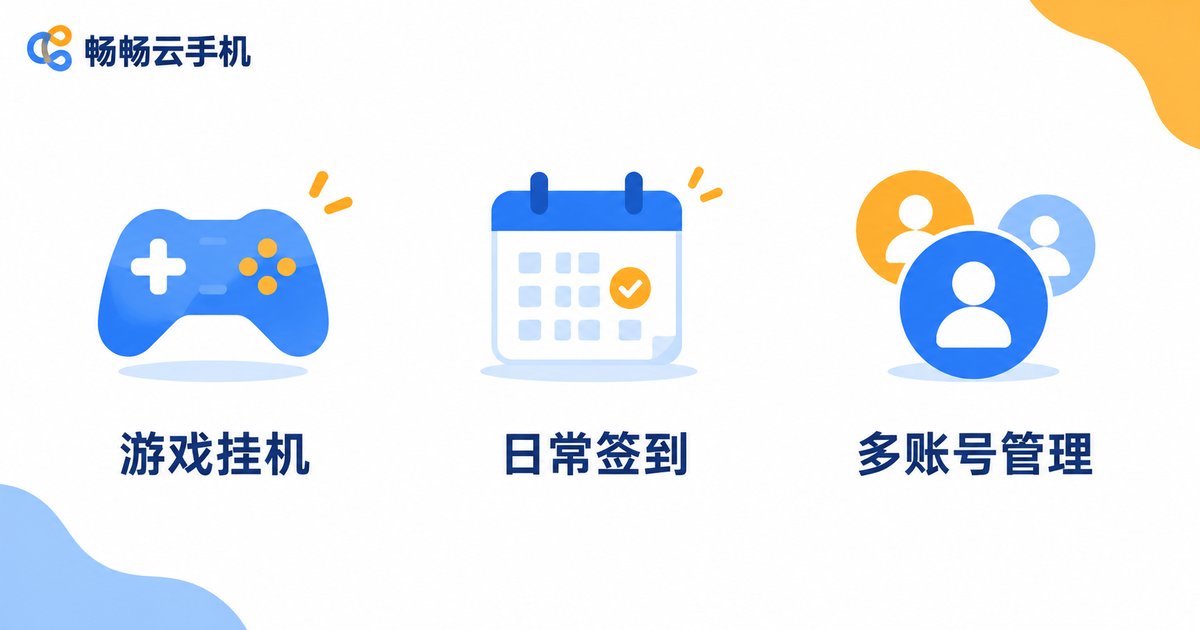
Game AFK farming: auto-complete dailies, run dungeons, and collect stamina — your character levels up while you sleep;
Daily routines: check-ins, punch cards, and point collection across multiple apps, all done in one click;
Multi-account management: paired with cloud phone multi-instance, one script manages many accounts and doubles your efficiency.
Why Run Scripts on a Cloud Phone?
The same script delivers a very different experience on a cloud phone versus your own device:
Online around the clock. Cloud phones run on remote servers, so powering off or losing connection on your local phone never interrupts your scripts — overnight AFK is no problem at all.
No local resources consumed. Scripts run in the cloud, so your own phone's battery, data, and performance stay untouched for everyday use.
Effortless multi-instance management. When multiple accounts need to run simultaneously, you can manage many cloud devices and batch-run scripts from one place.
If you are choosing a cloud phone, try ChangChang Cloud Phone (ccloudphone). It offers a stable cloud runtime environment with script automation support, accessible anytime via web or app — a great fit for beginners who want to deploy recorded scripts for long-term AFK tasks. For details, refer to the official website.

FAQ
Q: I am a complete beginner — can I really learn script recording?
Absolutely. Recording a script works just like recording audio: press record, perform the actions, stop and save. No programming knowledge is needed. Follow the five steps above and you will build your first script in about ten minutes.
Q: Will my script keep running after I turn off my local phone?
Yes. Scripts run on the cloud phone — that is, on remote servers — while your local device is just a remote control. As long as the script is running in the cloud phone, powering off or locking your local phone changes nothing.
Q: My script keeps tapping the wrong spots during playback. What should I do?
First, check whether you added wait time after key steps — tapping before the screen finishes loading is the most common cause of misalignment. Then switch to element-based targeting instead of fixed coordinates wherever possible.
Q: Can one script run on multiple cloud phones at the same time?
Yes. Sync the script to multiple devices and run them in batch — one of the main advantages of cloud phone multi-instance setups, ideal for multi-account management.
Q: Could recorded scripts get detected by apps?
There is always some risk. Keep operation frequency reasonable, add random delays, and avoid intense nonstop mechanical loops around the clock. Mimicking a natural usage rhythm is much safer.


