
Cloud Phone Multi-Instance Tutorial: How to Run Multiple Apps on One Device
What Is Cloud Phone Multi-Instance?
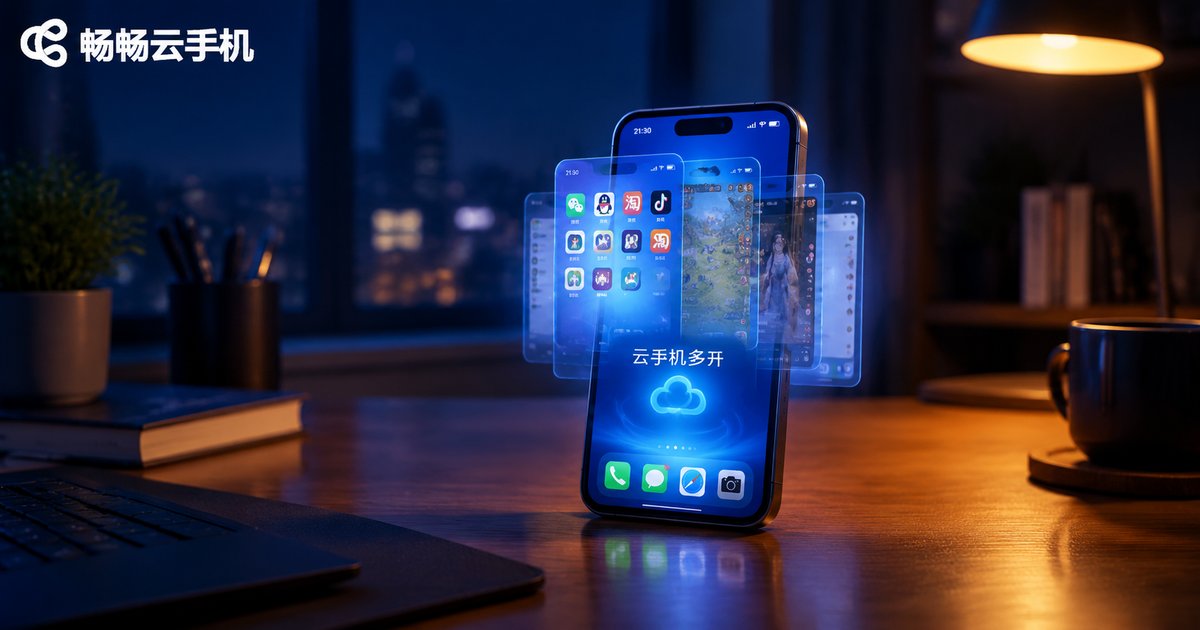
Cloud phone multi-instance means running multiple cloud phone sessions at the same time on a single physical device. Each cloud phone is an independent Android environment running in the cloud, with its own system, apps, and data. You can play a game on one cloud phone while another one handles background tasks, with no interference between them.
Unlike traditional emulator multi-opening, cloud phones do all the computing and storage on cloud servers. Your local device only displays the screen and sends touch commands, so the number of instances is barely limited by local hardware.

Why Use a Cloud Phone for Multi-Instance?
Many people first think of PC emulators for multi-opening, but they often run into problems: insufficient specs, lag, overheating, and memory pressure. Cloud phone multi-opening avoids these limits entirely. Here is a quick comparison:
| Item | Emulator Multi-Open | Cloud Phone Multi-Instance |
|---|---|---|
| Hardware dependency | Depends on local PC specs | Runs in the cloud, no local load |
| Power and heat | High load, runs hot | Local device stays cool |
| Tasks after shutdown | Stop when the PC turns off | Cloud keeps running |
| Mobile management | PC only | Manage from phone or tablet |
Preparation Before Setup
Before configuring anything, we recommend three things:
1. Define your goal: Are you running multiple game accounts or managing multiple apps? Different scenarios need different instance counts and configurations.
2. Plan the instance count: Beginners should start with 2-3 cloud phones and scale up gradually to keep management simple.
3. Prepare a stable network: Cloud phones connect over the internet, so a stable Wi-Fi connection makes setup and daily management much smoother.
Step-by-Step Multi-Instance Configuration
Here is a complete walkthrough using CCloudPhone as an example:
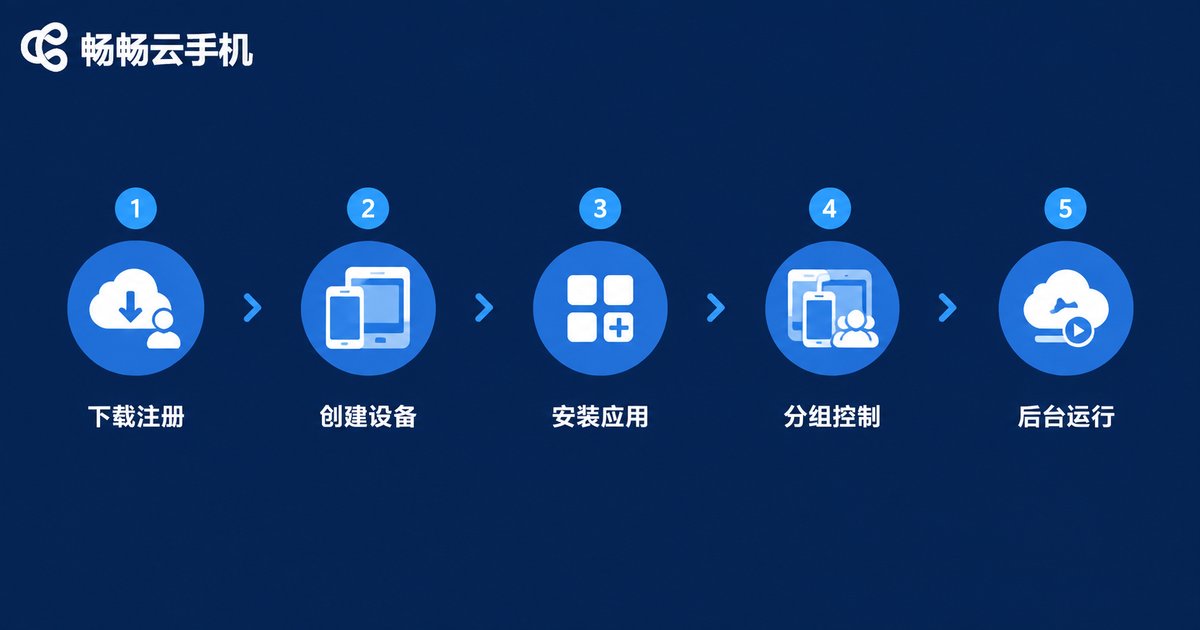
Step 1: Download and register. Get the CCloudPhone app from your app store or the official website, then sign up with your phone number.
Step 2: Create multiple cloud phones. Open the device list, tap to add devices, and create as many cloud phone instances as you need. Name each one clearly so you can tell them apart.
Step 3: Install apps on each instance. Enter each cloud phone separately, install the apps you need, and log in to the corresponding accounts. Data is fully isolated between instances.
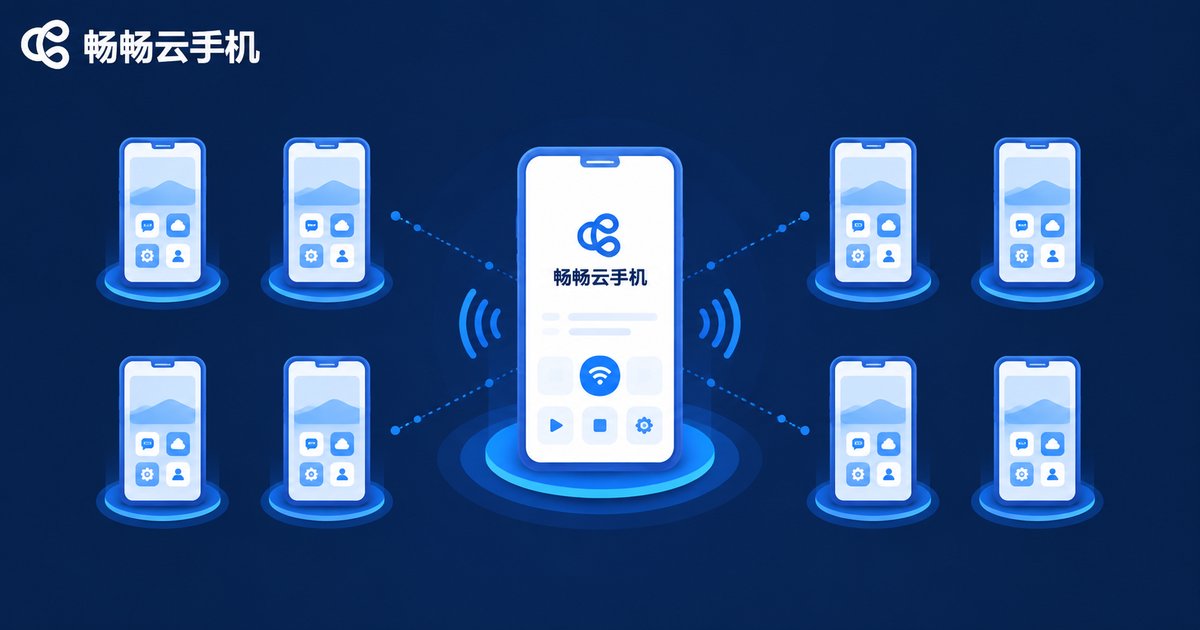
Step 4: Manage with group control. CCloudPhone supports group control, letting you view and operate multiple cloud phones from one screen and batch-run actions such as launching apps or clearing background tasks.
Step 5: Keep tasks running in the background. Cloud phone instances keep running on cloud servers. Even if you close the app or power off your local device, cloud apps stay online for true 24-hour background running.
Practical Tips for Stable Multi-Instance Running
To keep multi-opening smooth and stable, try the following:
Label each instance: Give each cloud phone a clear purpose tag, such as Game 1 or Task 2, so management stays simple at a glance.
Stagger heavy tasks: If several instances run batch jobs, start them at different times to avoid simultaneous peak load.
Clear backgrounds regularly: Enter each instance from time to time to close unused background apps and keep performance smooth.
Monitor device status: Check the online status of each instance in the CCloudPhone device list and restart any instance that behaves oddly.
Why Choose CCloudPhone for Multi-Instance?
CCloudPhone is built for multi-instance and background task scenarios, with stable cloud instances and easy group control. Whether you are a gamer running multiple accounts or need to manage apps in batches, visit the official website ccloudphone.com to learn more and get started quickly.
FAQ
Q: How many cloud phones can one device run?
A: There is no hard limit. The practical number depends on how many cloud phone instances you have activated. Start with 2-3 and scale up as needed.
Q: Does multi-opening drain local battery and data?
A: No. Cloud phones run on cloud servers, and your local device only streams the screen and sends touch commands, so battery and data usage stay low.
Q: Do tasks keep running after I close the app?
A: Yes. Cloud phone instances run on cloud servers around the clock, so closing the local app does not stop cloud tasks.
Q: Do instances interfere with each other?
A: No. Each cloud phone is a fully independent environment, and apps, accounts, and data are completely isolated.
Q: Is multi-opening suitable for beginners?
A: Start with 1-2 instances to learn device creation, app installation, and group control, then expand once you are comfortable.


