
What Is Phone Super Device? Where to Enable It and How to Use It
What Is Phone Super Device?
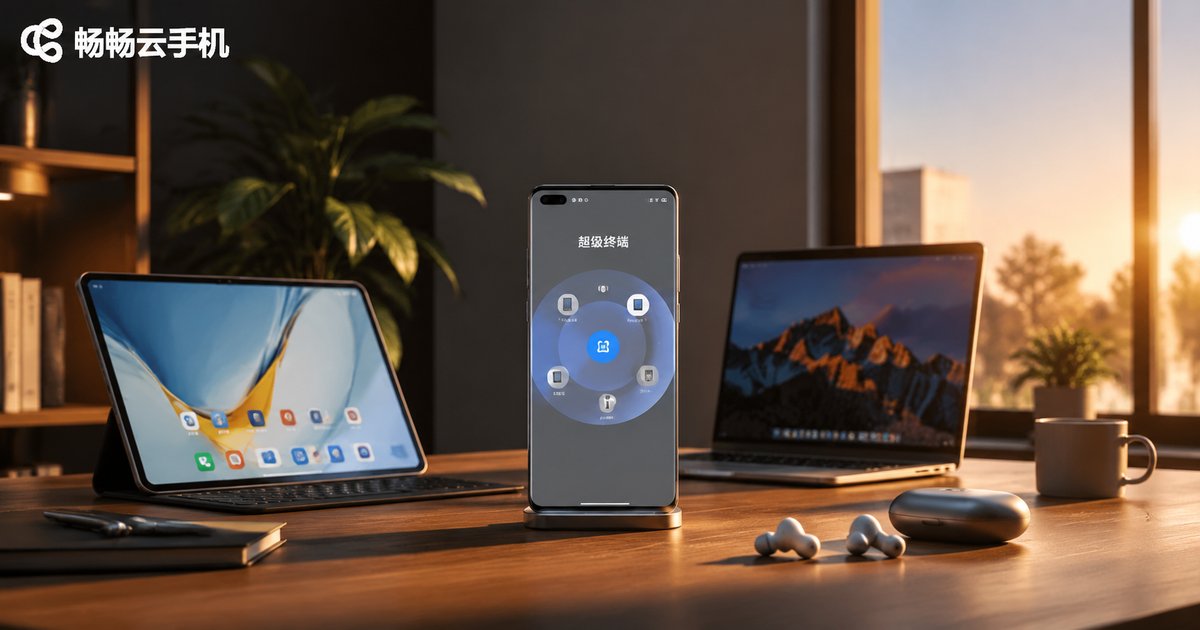
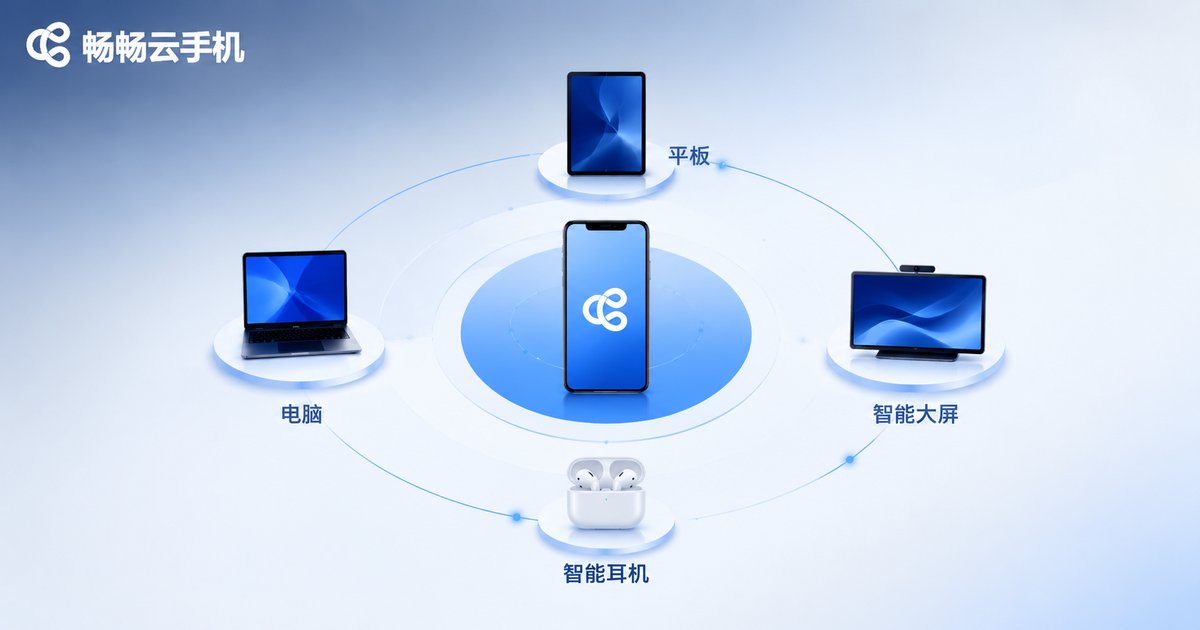
Super Device is a multi-device collaboration feature introduced by HarmonyOS. The core idea is simple: it brings your phone, tablet, computer, smart screen, earbuds and other devices together so they can work as one.
Think of Super Device as a 'device friend circle': all device icons are arranged around your phone. To use a device, simply drag its icon toward the center, and the two devices connect automatically—no complicated pairing or setup required.
What Can Super Device Do?
The value of Super Device lies in capability sharing—the strengths of each device can be borrowed by the others:
| Combination | What You Get |
|---|---|
| Phone + Tablet | The tablet becomes an extended screen for your phone with seamless app streaming |
| Phone + Computer | Control your phone from the PC and drag files between them with your mouse |
| Phone + Smart Screen | Mirror videos and games to the big screen with one tap |
| Phone + Earbuds/Speaker | Switch audio instantly between devices |
Where to Enable Super Device
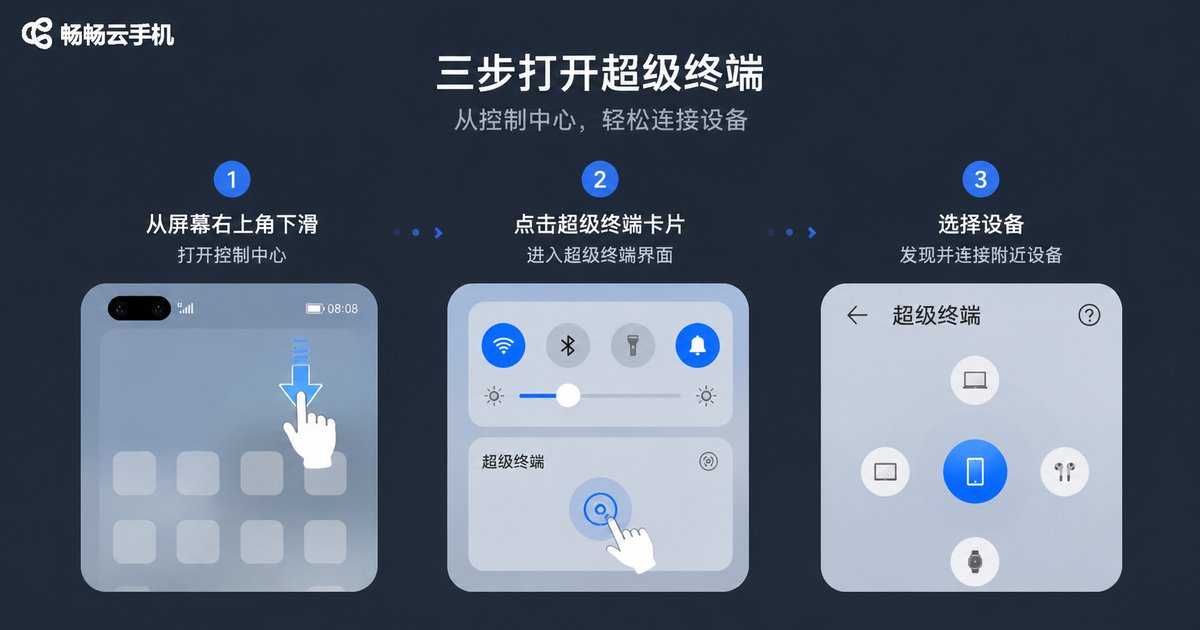
The entrance to Super Device is hidden in the Control Center. Here is how to find it:
Method 1: Control Center (Recommended)
1. Swipe down from the top right of the screen to open the Control Center;
2. Find the 'Super Device' module (a circular panel with device icons orbiting around it);
3. Tap it to enter the Super Device panel.
Method 2: System Settings
1. Open 'Settings';
2. Go to 'More connections' or 'Super Device';
3. Toggle on the 'Super Device' switch and enable options such as 'More devices' as needed.
Before you start: make sure all devices are signed in to the same account with Bluetooth and WLAN enabled, otherwise they will not discover each other.
How to Use Super Device: Step by Step
Once inside the Super Device panel, you will see your phone at the center surrounded by nearby connectable devices. The usage can be summarized as 'drag, choose, disconnect':
Step 1: Drag to connect. Drag the target device icon toward the phone icon in the center. Release, and the system completes the connection automatically—usually within a few seconds.
Step 2: Choose a collaboration mode. After connecting, pick the feature that matches the device type, such as 'Multi-screen Collaboration' for a computer or 'Wireless Projection' for a smart screen.
Step 3: Disconnect. When you are done, drag the device icon away from the center, or tap disconnect in the Control Center.
Practical Tips for Using Super Device
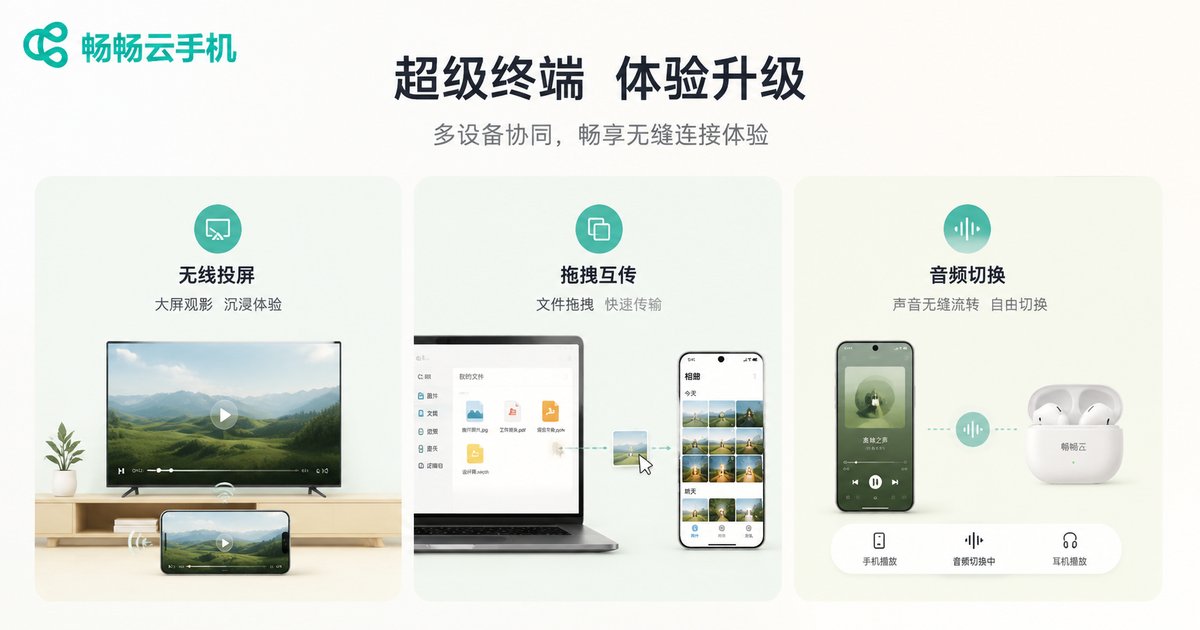
1. Audio streaming is the most-used feature. After putting on your earbuds, drag the earbuds icon toward your phone in Super Device, and the sound switches from the speaker to your earbuds instantly—much faster than digging through Bluetooth menus.
2. Ditch the data cable for file transfers. Once your phone and computer are connected, simply drag files from the PC into the phone window with your mouse. It is far faster than traditional Bluetooth transfers.
3. Mind the distance. Super Device relies on Bluetooth to discover devices. If devices are too far apart, they may not appear. Keep them within about 10 meters.
Phone Doesn't Support Super Device? A Cloud Phone Is Another Path
Super Device is currently designed mainly for the HarmonyOS ecosystem. If your phone runs a different system and cannot enjoy native multi-device collaboration, you can approach the problem from another angle—use a cloud phone to gain a 'second device'.
Take ccloudphone as an example: it provides a virtual phone that stays online 24/7 in the cloud. You can log in and use it anytime on your phone, tablet or computer, with app data stored in the cloud for a seamless experience across devices. For users who want to run multiple accounts at the same time or keep applications online around the clock, a cloud phone—just like Super Device—breaks the limit of 'one device, one task at a time'.
FAQ
Q: Super Device cannot find my other devices. What should I do?
Check three things first: whether all devices are signed in to the same account, whether Bluetooth and WLAN are both on, and whether the devices are too far apart. If they still do not appear, toggle Bluetooth off and on again on each device and retry.
Q: Does Super Device consume mobile data?
Connections and collaboration between devices happen mainly over the local network, so normal use does not consume much data. For data-heavy actions like screen mirroring, a WLAN environment is recommended.
Q: Can older phone models get Super Device through an update?
Super Device requires system-level support, which depends on the system version available for your model. Once your device upgrades to a supporting version, the feature becomes available.
Q: Do cloud phones conflict with Super Device?
No. Super Device is a collaboration feature between local devices, while a cloud phone is a cloud-based virtual device service. They complement each other: local devices handle collaboration and productivity, while the cloud phone handles multi-account operation and round-the-clock availability.


