
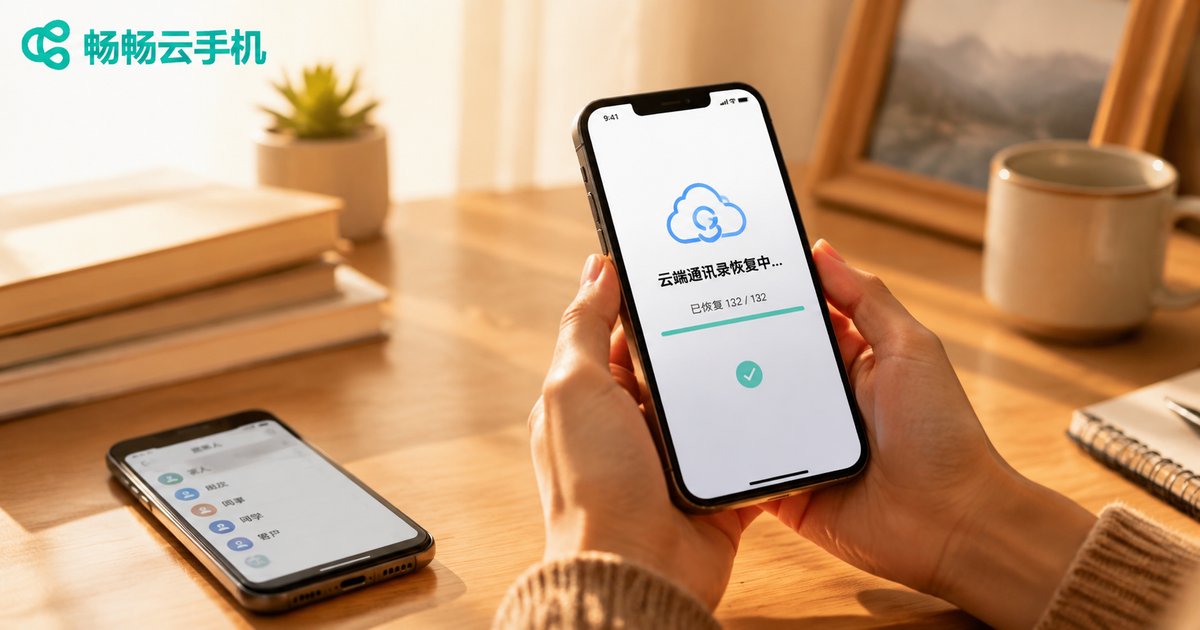
How to Restore Cloud Contacts to a New Phone? Complete Data Migration Tutorial
Your Contact List Is the Last Thing You Want to Lose When Switching Phones
Unboxing a new phone is always exciting—until you turn it on and face the first challenge: how do you move hundreds of contacts over? Photos can transfer slowly and chat history can be skipped, but once contacts are lost, work connections, client resources, and family numbers may be gone for good. The good news: if your contacts were ever synced to the cloud, restoring them to a new phone takes only a few minutes. This tutorial walks you through the entire device-switching data migration process.
Before Migration: Verify Your Cloud Backup Is Complete
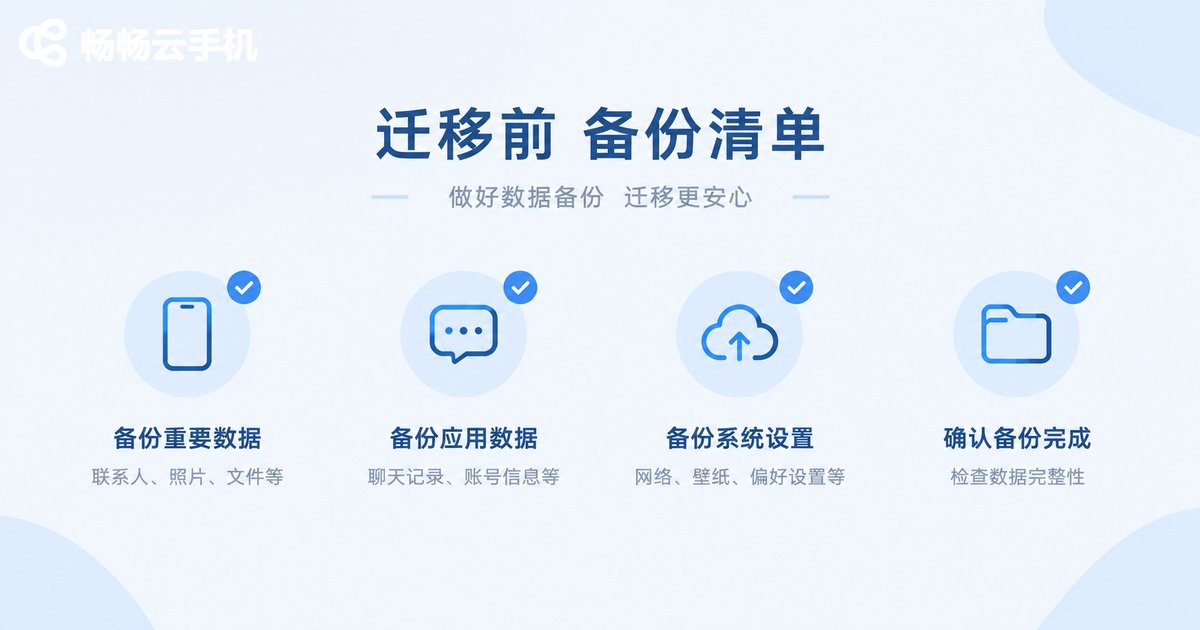
Before starting the migration, spend two minutes on a quick check to avoid discovering incomplete data halfway through:
- Open the cloud service settings on your old phone, confirm the contact sync switch is enabled, and check the last sync time;
- Log in to the same account on the cloud service's web management page and verify the cloud contact count matches your phone;
- Check whether some contacts exist only on the SIM card or in local storage—these need to be exported separately;
- Make sure you can still log in to your old account; bind a phone number or email as a recovery method if necessary.
With this step done, the restoration process should go smoothly.
Three Main Methods to Restore Cloud Contacts to a New Phone
Different situations call for different approaches. The three methods below cover the vast majority of switching scenarios.
Method 1: Built-in System Cloud Sync (Most Recommended)
Both Android and iPhone come with built-in cloud sync. When activating your new phone, sign in with the same account used on the old one, choose 'restore from cloud' or simply enable contact sync, and contacts will download automatically. Over Wi-Fi, the whole process usually finishes within minutes, and avatars, notes, and groups are all fully preserved.
Method 2: SIM Card Import
If you have a small number of contacts (SIM cards typically store only around 200 entries), you can write contacts to the SIM card and import them on the new phone. This works as an emergency option but is not recommended for long-term use—SIM cards only store names and numbers, so avatars, emails, and notes are lost.
Method 3: Export a vCard File
In your old phone's contact settings, choose 'export contacts' to generate a .vcf file, send it to the new phone via a chat app or cloud drive, then tap to import. This method doesn't rely on any cloud account and is especially useful for cross-brand and cross-system migration.
| Method | Best For | Data Completeness | Difficulty |
|---|---|---|---|
| System cloud sync | Same brand or same OS | Fully preserved | ★ Easiest |
| SIM card import | Fewer than 200 contacts | Names and numbers only | ★★ |
| vCard file export | Cross-brand, cross-OS | Fully preserved | ★★ |
Cross-Platform Migration: Android to iPhone and Vice Versa
Cross-system migration is where most problems occur. Besides the vCard method above, both platforms offer official migration tools: iPhone guides you through transferring data from an Android device during setup, and major Android manufacturers generally provide 'one-click switch' apps that import contacts from iPhone. Three tips for success: keep both devices fully charged, connect them to the same Wi-Fi, and avoid locking the screen or switching apps during the transfer.
Restoration Failed? Check These Four Common Causes
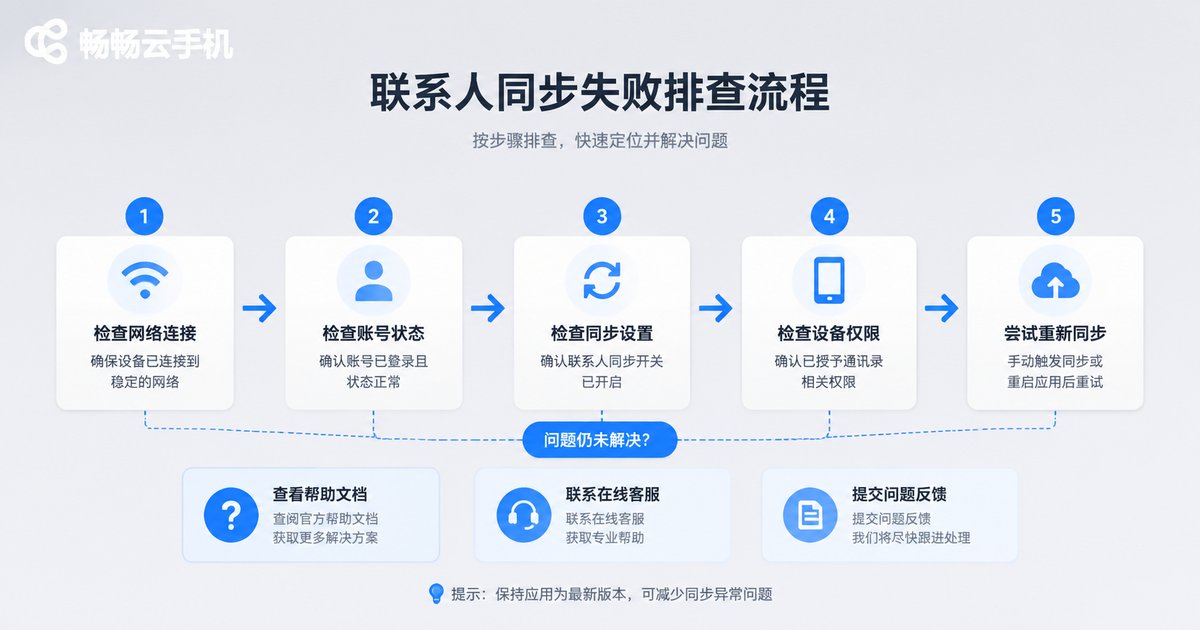
- Account mismatch: the new phone is signed in with a different account than the one used for syncing, so the data simply isn't there;
- Sync switch off: some phones disable contact sync by default after restoration—turn it on manually in settings;
- Unstable network: cloud sync needs a stable connection; switch to Wi-Fi and sync again;
- Display filters: some contact apps only show contacts from one account by default—check the display settings to make sure all accounts are selected.
If you've checked all of the above and it still doesn't work, log in to the cloud service's web page and manually export a vCard file as a fallback.
A Smarter Approach: Keep Your Data in the Cloud Permanently
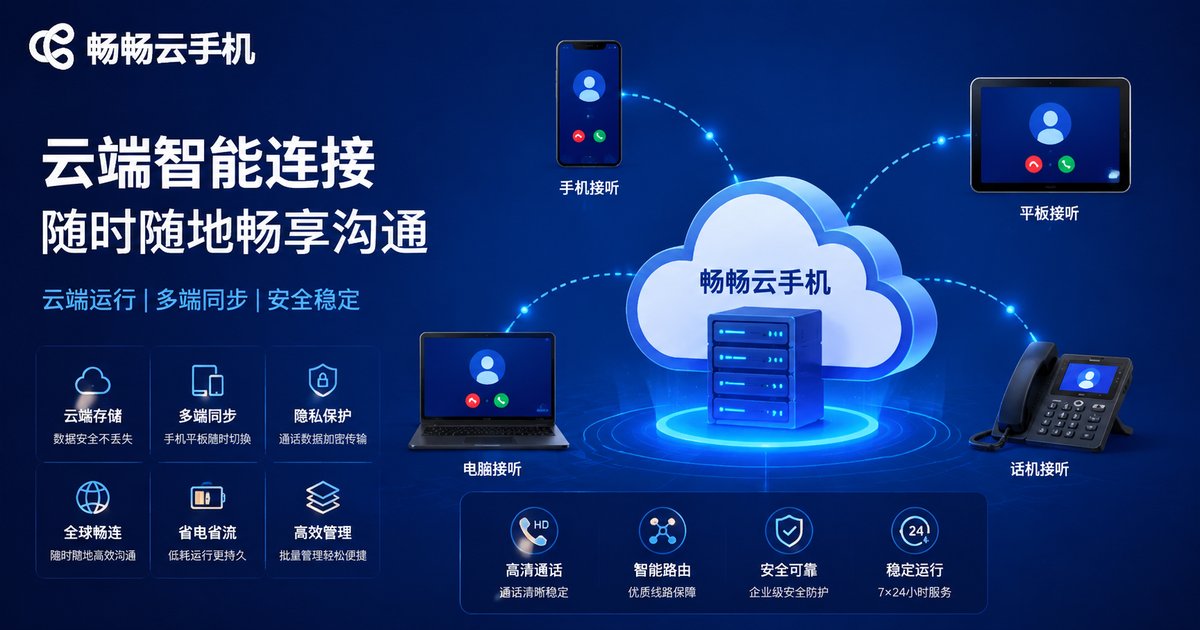
At its root, switching anxiety comes from data being locked inside a single device. If you want your apps, game progress, and work files to follow you anywhere, take a look at ccloudphone. It runs a complete Android phone on cloud servers that you access from any device—apps and data live in the cloud, so switching devices requires no re-migration. Install the client on your new phone, sign in, and everything is exactly where you left it. For frequent upgraders, multi-device workers, or anyone who wants to lighten the load on old devices, this is a more thorough solution than traditional migration.
FAQ
Q: Contacts are duplicated after restoration—what should I do?
Contact settings usually include a 'merge duplicate contacts' feature that cleans them up in one tap. You can also deduplicate in batches on the cloud web version before syncing.
Q: My old phone is gone—can I still recover my contacts?
As long as cloud sync was enabled before, sign in with the original account on your new phone to restore them. If you never synced, try requesting call records from your carrier and manually re-enter important numbers.
Q: Will restoring from the cloud overwrite existing contacts on my new phone?
Most cloud services merge rather than overwrite, but to be safe, export your current contacts as a vCard backup before restoring.
Q: Avatars and notes disappeared after restoration—why?
This usually means the data passed through a SIM card. SIM cards only store names and numbers; avatars, emails, and other details require cloud sync or a vCard file.
Q: Will app data in ccloudphone be lost when I change devices?
No. Cloud phone apps and data are stored on cloud servers; after switching local devices, just sign in to the client again to continue—no migration needed.


