
Where Is the Phone Cloud Service Login Entrance? Login Methods for All Major Brands
What Is a Phone Cloud Service, and Why Do You Need to Sign In?
A phone cloud service is the cloud platform that each phone maker bundles with its system. It does three main things: automatic backups (contacts, photos, notes), syncing across devices (keeping your phone, tablet, and computer consistent), and Find My Device (locating, ringing, or remotely locking a lost phone).
Whether you are migrating to a new phone, recovering deleted contacts, or tracking a lost device, the first step is always signing in to your maker's account. The good news: the login entrance is surprisingly consistent across brands — it almost always lives at the very top of the Settings app. Here is how each brand handles it.
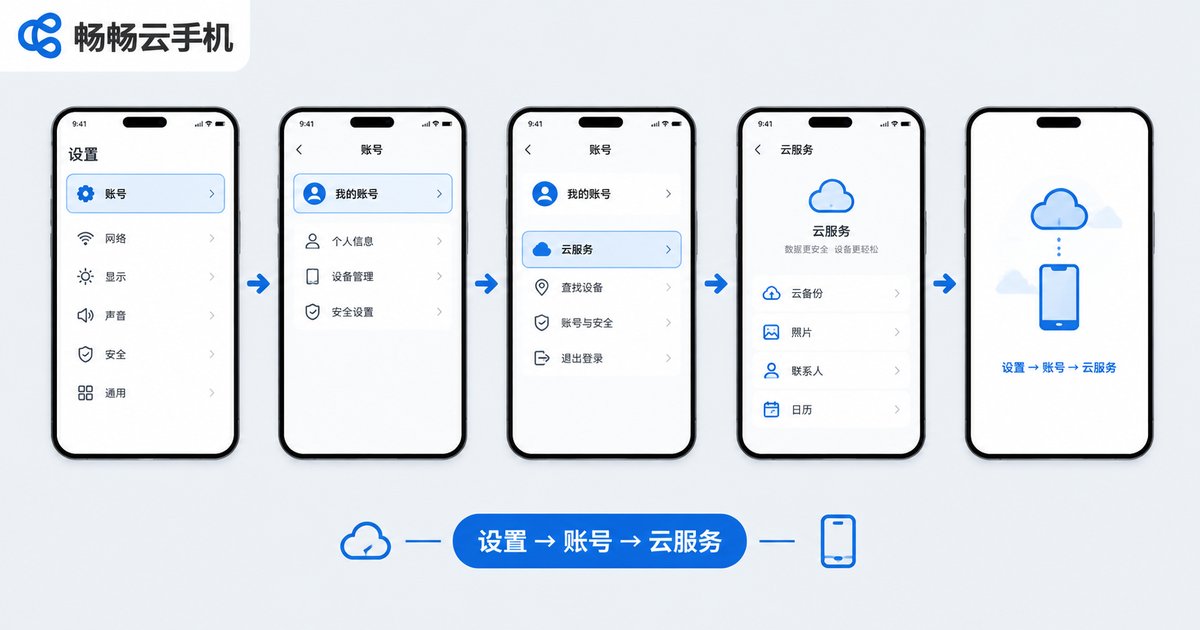
Quick Reference: Login Entrances for Every Major Brand
| Brand | On the Phone | Web Portal |
|---|---|---|
| Apple | Settings → Apple Account | icloud.com |
| Huawei | Settings → Huawei Account → Mobile Cloud | cloud.huawei.com |
| HONOR | Settings → HONOR Account → Cloud | cloud.honor.com |
| Xiaomi / Redmi | Settings → Mi Account → Cloud | i.mi.com |
| OPPO / OnePlus | Settings → OPPO Account → Cloud | cloud.oppo.com |
| vivo / iQOO | Settings → vivo Account → Cloud | cloud.vivo.com |
| Samsung | Settings → Samsung Account | account.samsung.com |
The pattern is clear: open Settings and tap the account avatar or name at the very top, then look for Cloud or Cloud Storage — that is where you sign in and manage everything.
Apple iPhone: Signing In to iCloud
On the phone: Open Settings. If you see your name at the top, you are already signed in — tap it to manage iCloud. If you see the sign-in prompt, tap it and enter your Apple ID and password. Once signed in, toggle photos, contacts, notes, and other sync options under iCloud.
On the web: Open icloud.com in a browser, enter your Apple ID and password, then confirm the verification code sent to a trusted device. You can then view photos, contacts, and Find My from any computer.
Huawei / HONOR: Signing In to Mobile Cloud
Huawei phones: Go to Settings → tap Huawei Account at the top → Mobile Cloud, where you can enable sync and backup for the gallery, contacts, and notes.
HONOR phones: The path is identical: Settings → HONOR Account at the top → Cloud. The web portals are cloud.huawei.com and cloud.honor.com respectively, both letting you manage cloud data and locate devices.
Xiaomi / Redmi: Signing In to Xiaomi Cloud
On the phone: Go to Settings → tap Mi Account at the top → Cloud, where you can manage sync for the gallery, contacts, messages, and notes.
On the web: Visit i.mi.com and sign in with your Mi Account to locate your device, erase data remotely, or browse your cloud gallery — especially useful when a phone goes missing.
OPPO / OnePlus / vivo / iQOO: Signing In
OPPO and OnePlus: Go to Settings → OPPO Account at the top → Cloud. OnePlus phones use the same account system, and the web portal is cloud.oppo.com.
vivo and iQOO: Go to Settings → vivo Account at the top → Cloud, with the web portal at cloud.vivo.com. Both support automatic backup and Find My Device once signed in.
Cannot Sign In? Four Common Problems and Fixes
1. Forgotten password: Tap the Forgot Password option on the login page and reset it via your bound phone number or email — the whole process takes only a few minutes.
2. Verification code never arrives: Check your signal and spam folder first. If the bound number is no longer in service, file an appeal through official support to rebind it; some services also offer email verification as a fallback.
3. Account locked: Too many wrong password attempts trigger protection. Follow the on-screen identity verification to unlock, or contact the maker's official support if that fails.
4. Second-hand phone stuck on the previous owner's account: The previous owner must sign out on their device or via the web portal before you can sign in with your own account. Always confirm this on the spot when buying a used phone.
A Cloud Service Is Not a Cloud Phone
People often confuse a phone cloud service with a cloud phone. Simply put: a cloud service backs up and syncs data for the physical phone in your hand, while a cloud phone runs an entire phone in the cloud that you control remotely from your current device.
If the latter is what you need — running multiple app instances, keeping games farming around the clock, or staying online 24/7 — take a look at ChangChang Cloud Phone (ccloudphone): no extra hardware required. After signing in on the official website, you get an independent phone in the cloud with data stored remotely and none of your local storage used. For features and plans, refer to what is shown on the official ccloudphone website.
FAQ
Q: Where exactly is the phone cloud service login entrance?
Open Settings and tap the account avatar or name at the very top, then choose Cloud or Cloud Storage. Nearly every major brand follows this same path.
Q: Can I sign in to the cloud service from a computer instead of a phone?
Yes. Every maker offers a web portal — icloud.com, cloud.huawei.com, i.mi.com, and so on. Sign in with the same account in a browser to view and manage your cloud data.
Q: What if I forgot my cloud service password?
Tap the Forgot Password option on the login page, verify with your bound phone number or email, and set a new one. If the phone number is no longer active, appeal through official support to rebind first.
Q: Does signing in to a cloud service use a lot of data?
Signing in itself barely uses any data. Heavy data usage only occurs when syncing large files like photos and videos, so enable automatic backup over Wi-Fi when possible.
Q: How do I restore cloud backup data on a new phone?
Sign in with the same maker's account on the new phone, choose the restore-from-cloud-backup option during setup, or enable sync manually in the cloud service — your data will download automatically.


