
How to Download and Install a Cloud Phone? A Detailed Android Installation Guide
What Is a Cloud Phone and Why Android Users Love It
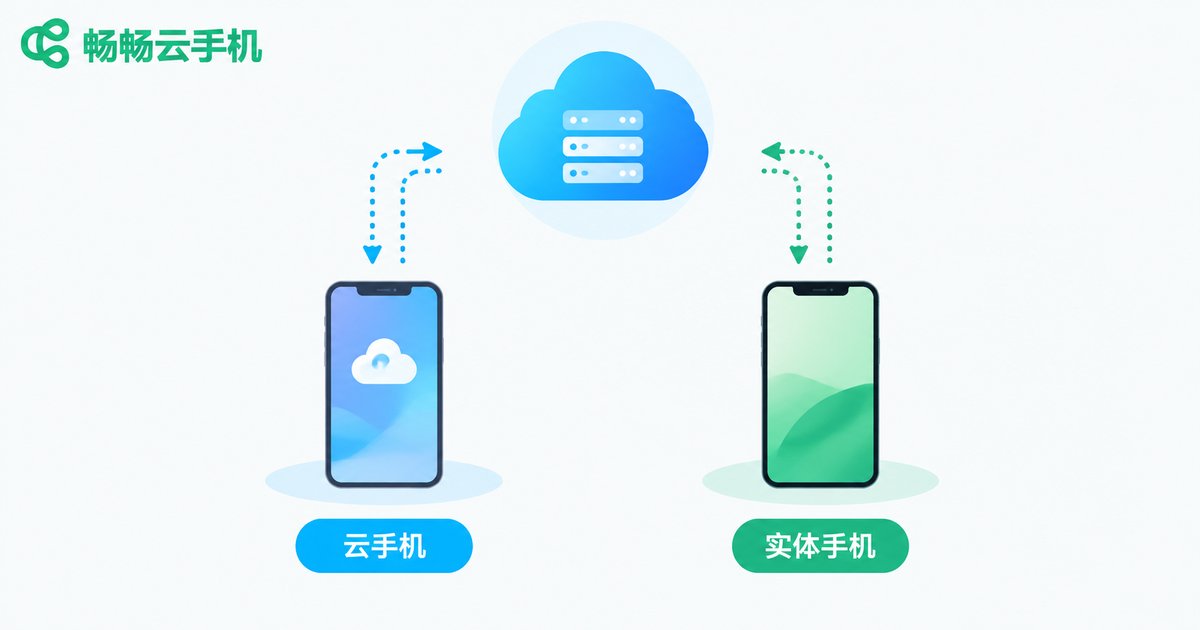
A cloud phone is, simply put, a virtual Android phone running on cloud servers. The biggest difference between it and your physical phone is that all apps, games, and data are stored in the cloud, taking up no local storage and consuming no local battery. With just a cloud phone app installed on your Android device, you can access one or even multiple cloud phones anytime, anywhere.
For users who love gaming, need to run multiple accounts, or have underpowered devices, a cloud phone is a nearly zero-threshold solution. The table below gives you a quick overview of how a cloud phone compares with a physical phone:
| Comparison | Cloud Phone | Physical Phone |
|---|---|---|
| Storage | Stored in the cloud, no local space used | Uses local storage |
| Battery | Almost no local battery drain | Noticeable drain |
| Online status | Runs in the cloud around the clock | Offline when powered off |
| Multi-instance | Create multiple instances | One system per device |
Preparations Before Download and Installation
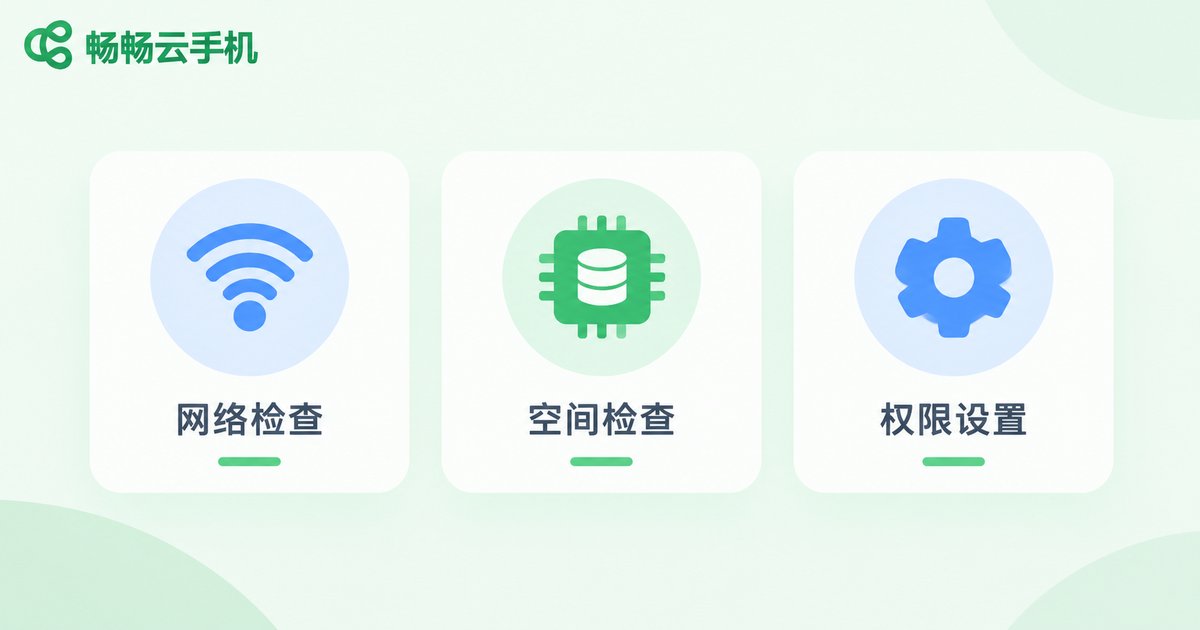
Before you start, check the following points to avoid problems during installation:
1. Check your network: A cloud phone requires a stable connection. Wi-Fi or a strong 4G/5G signal is recommended.
2. Confirm storage space: The app itself is small, but keep at least 200MB of free space.
3. Allow installation permissions: If you download the package from the official website, enable the installation permission in your phone settings.
Step-by-Step Installation Guide for Android Devices
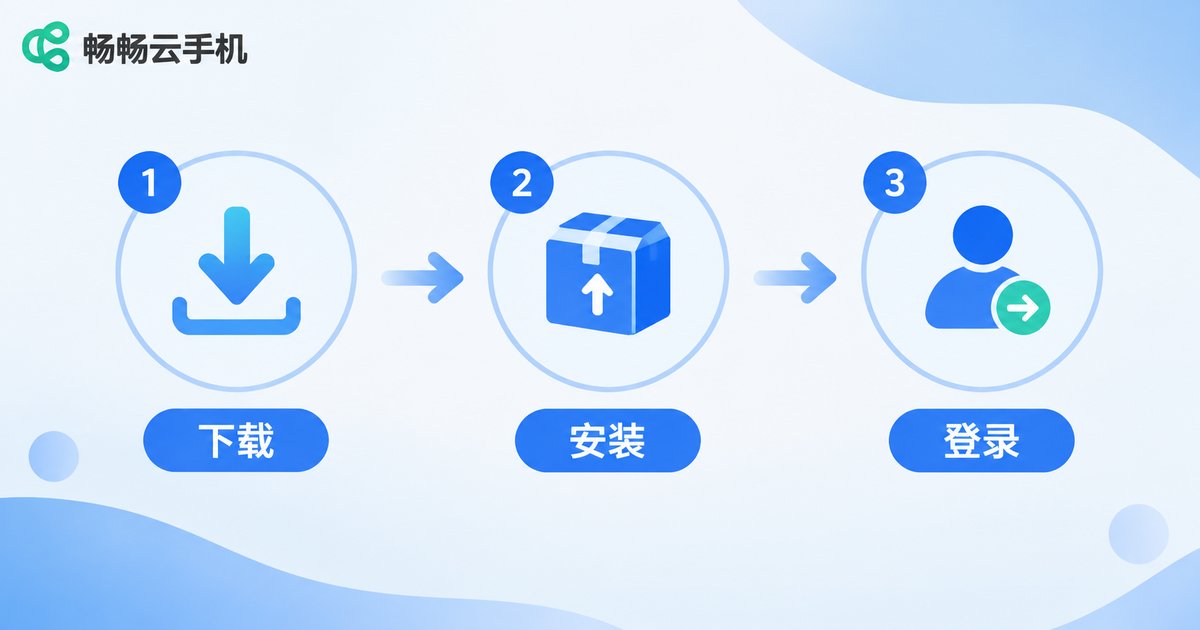
The whole process is very simple and takes only three steps:
Step 1: Get the installation package
Open your browser and visit the ChangChang Cloud Phone official website, find the Android download entry, and tap to download the package. You can also search for ChangChang Cloud Phone in major app stores.
Step 2: Install the app
Once downloaded, tap the package and follow the on-screen prompts to install. It only takes a few seconds. If a security prompt appears, just choose to continue.
Step 3: Register and log in
Open the app, register with your phone number, and log in. Once logged in, you can create your first cloud phone.
How to Use Your Cloud Phone After Installation
After logging in, you will see your cloud phone in the device list. Tap to enter it, and you can use it just like a real Android phone: download games, install apps, and log into accounts. The cloud phone stays online in the cloud around the clock, so even if you close the app or power off your phone, cloud tasks keep running.
If you need to manage multiple accounts at the same time, you can add more cloud phone instances inside the app. It is ideal for idle gaming and multi-account operation.
Why We Recommend ChangChang Cloud Phone
Among many cloud phone products, ChangChang Cloud Phone has become a popular choice for many Android users thanks to its smooth experience and stable cloud performance. Its clean interface is easy to get started with, and even beginners can finish installation and setup quickly. Whether it is idle gaming, multi-account management, or app testing, it handles everything with ease.
If you are looking for a reliable cloud phone, visit the ChangChang Cloud Phone official website and give it a try.
FAQ
Q: Is installing a cloud phone free?
Downloading and installing the app is free. You can try basic features after registration; some advanced configurations may require payment.
Q: Will installing a cloud phone slow down my phone?
No. All computing happens on cloud servers; your local device only handles video streaming and touch input, so the impact on performance is minimal.
Q: How many cloud phones can I run on one device?
After installing the cloud phone app on your Android device, you can create multiple cloud phone instances inside the app. The exact number depends on the service configuration you choose.
Q: Will I lose data in the cloud phone?
Cloud phone data is stored on cloud servers. As long as your account is in normal use, the data is retained, so you do not need to worry about migration when switching phones.
Q: What if the installation shows a parse package error?
This usually happens when the package is incompletely downloaded. Delete it and download the latest version from the official website again.


