
How to Deploy an OpenClaw Agent on a Cloud Phone: AI Automation Integration Workflow
Why Run an OpenClaw Agent on a Cloud Phone?
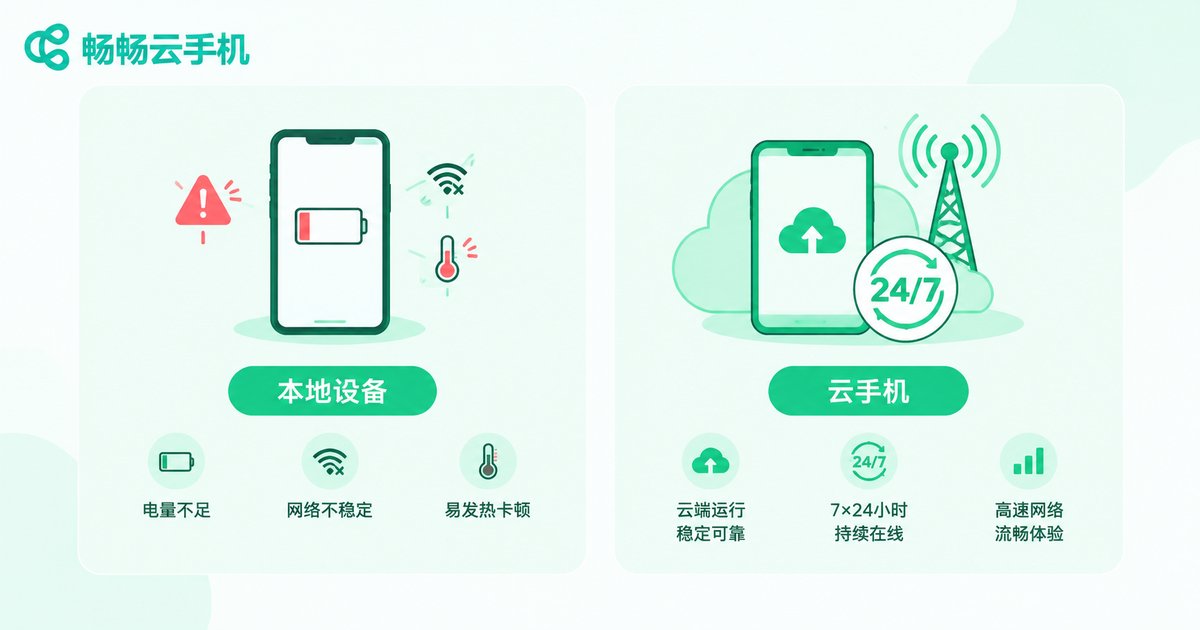
OpenClaw is a popular open-source AI agent framework. It connects to your favorite messaging channels and turns a large language model into a digital worker that takes commands, gets things done, and stays online around the clock. Most people first try installing it on a personal phone or PC, but within days they hit three practical problems: the device can never sleep — an agent is only useful when it responds instantly, yet keeping your phone awake 24/7 means heat and battery drain; the environment is messy — an agent performs all kinds of automated actions, and running it beside your banking and social apps feels risky; scaling is painful — running several agents in parallel would mean buying several phones.
A cloud phone solves all three at once. A cloud phone is a real Android device running in the data center — no local battery, no local storage, online around the clock. Deploy OpenClaw on a cloud phone and you get a never-offline foundation for AI automation.
What You Need Before Deployment
No programming background is required — just four things:
| Item | Details |
|---|---|
| Cloud phone | We recommend ChangChang Cloud Phone — a real Android environment that keeps apps running in the background long term |
| LLM API key | OpenClaw calls a large language model, so apply for an API key on your model platform in advance |
| Messaging account | An account on the chat channel you want your agent to join |
| Terminal app | Install a terminal emulator such as Termux inside the cloud phone to get a command line |
Step-by-Step: Deploying OpenClaw on a Cloud Phone
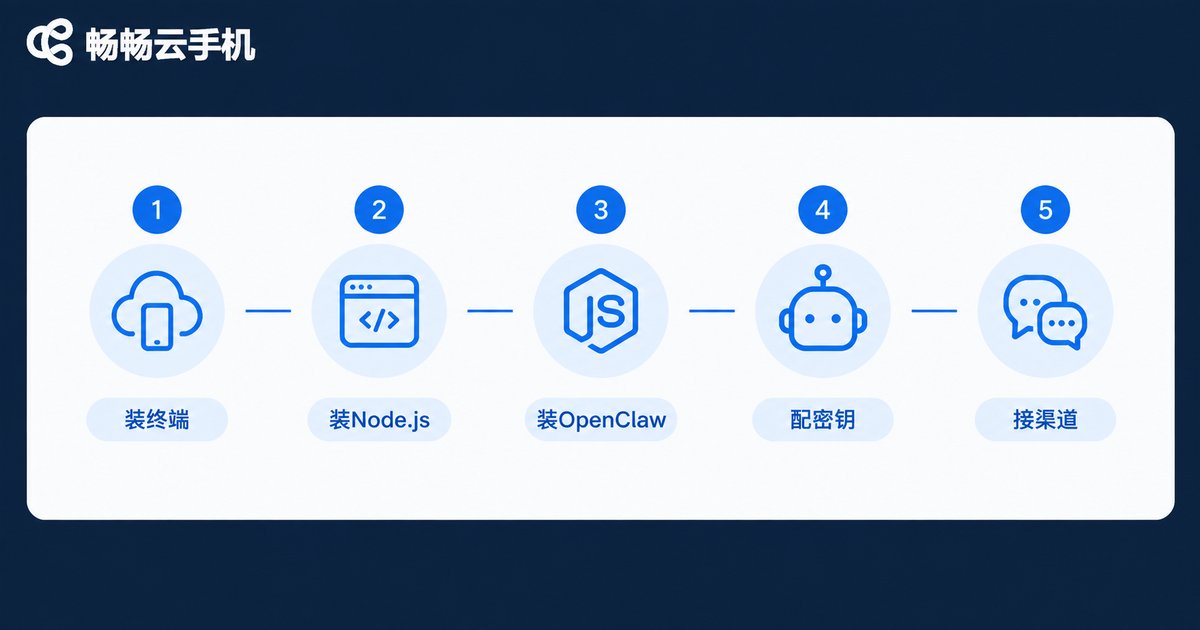
The whole process takes about 15 minutes. Follow these five steps.
Step 1: Activate the cloud phone and set up a terminal. Launch ChangChang Cloud Phone, install the Termux terminal emulator from the app store, and open it — you now have a Linux-style command line.
Step 2: Install Node.js. OpenClaw runs on Node.js (version 22+ recommended). In Termux, run:
pkg update && pkg upgrade -y
pkg install nodejs-lts -y
node -v
When you see the version number, the environment is ready.
Step 3: Install OpenClaw. One command does it:
npm install -g openclaw@latest
openclaw --version
Step 4: Run the onboarding wizard. Follow the prompts to enter your LLM API key, pick your messaging channel, and confirm the workspace directory:
openclaw onboardStep 5: Start the gateway and keep it alive. Launch the OpenClaw gateway (it listens on port 18789 by default):
openclaw gateway startOnce the gateway is up, switch the cloud phone to the background. This is where the cloud phone shines: you can shut down your own PC and phone while the agent keeps working in the cloud.
AI Automation: Put Your Agent to Work
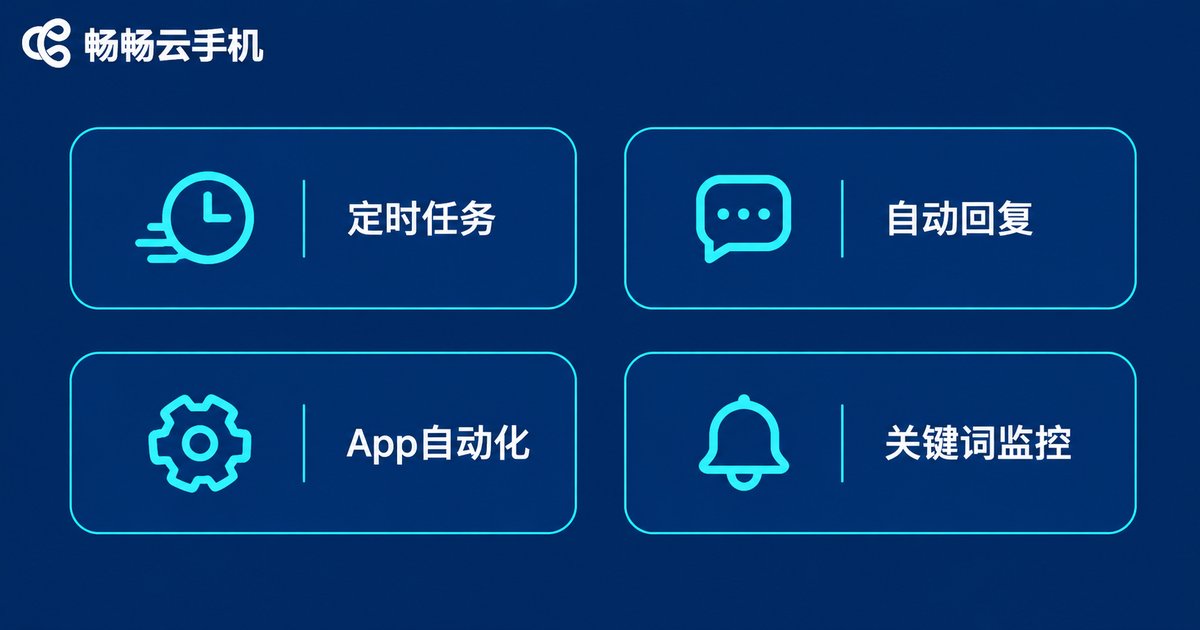
Deployment is just the beginning. These four scenarios are the most popular ways to combine a cloud phone with an OpenClaw agent:
1. Scheduled reports: have the agent send a daily digest, weather update, or to-do reminder at a fixed time — a perfect personal assistant.
2. Auto replies: once connected to a messaging channel, the agent answers frequently asked questions automatically, handling support triage or community management.
3. In-app automation: apps installed inside the cloud phone work with the agent to handle check-ins, clock-ins, and content publishing — the biggest advantage over local deployment, because the agent finally gets real 'hands'.
4. Keyword monitoring: let the agent watch specific groups or channels and alert you the moment a keyword appears.
Here is an example of a scheduled task in the OpenClaw configuration (check the official docs for exact syntax):
schedule:
  - name: morning-report
    cron: '0 8 * * *'
    prompt: 'Compile my to-do list and send me a morning briefing'
From One Agent to an Agent Fleet
Once the first agent works, level up. Cloud phones let you manage multiple devices at once — open one per task: one for customer replies, one for content publishing, one for message monitoring, each running its own independent OpenClaw instance without interference. With batch management, a single person can operate an entire fleet of digital workers.
Why We Recommend ChangChang Cloud Phone
ChangChang Cloud Phone is a practical host for OpenClaw agents: a real-device Android environment where tools like Termux and Node.js install and run normally; long-term background support so the agent gateway is not killed when the screen is off; and the ability to manage multiple cloud phones at once for smooth scaling from one agent to a fleet. Just search for ChangChang Cloud Phone to visit the official website and get started.
FAQ
Q: Will OpenClaw lag on a cloud phone?
No. OpenClaw itself is a lightweight gateway — the heavy lifting is done by the LLM API in the cloud. A mid-range cloud phone runs a single agent smoothly.
Q: Does the cloud phone need root?
No. Termux installs Node.js and OpenClaw without root access. Just follow the steps in this guide.
Q: Will the agent go offline if I shut down my own devices?
No. The agent runs on the cloud phone. As long as your local messaging app has internet, you can talk to it anytime; the gateway stays online as long as the cloud instance runs.
Q: How many agents can one cloud phone run?
We recommend one instance per cloud phone for stability. Need more? Open additional cloud phones and manage them in batch.
Q: Is it safe to store my API key on a cloud phone?
The key stays inside your own cloud environment. Avoid sharing configuration screenshots, and rotate your keys regularly.


