
How to Use a Cloud Phone on iPhone: Installation and Connection Guide for Apple Devices
What Is a Cloud Phone and Why iPhone Users Need One
In simple terms, a cloud phone is an Android phone that runs on cloud servers. It is not in your hand — it sits in a data center, and you control it remotely through your iPhone screen. For Apple users, this means you can use Android apps and games without buying an Android device. All the computing happens in the cloud, so your iPhone barely uses any storage, stays cool, and saves battery.
People commonly use cloud phones for 24/7 background tasks, multi-account management, and Android gaming. Your iPhone acts only as a display and controller, while the cloud device does all the work.
Before You Start: Preparation Checklist
The whole process is simple. You only need three things:
1. A networked iPhone: iPhone 8 or newer works fine; keeping iOS up to date gives a better experience.
2. A stable network: Wi-Fi or a strong 4G/5G signal keeps the stream smooth.
3. A ccloudphone account: sign up with a phone number in about a minute.
Local Operation vs Cloud Phone: What Is the Difference?
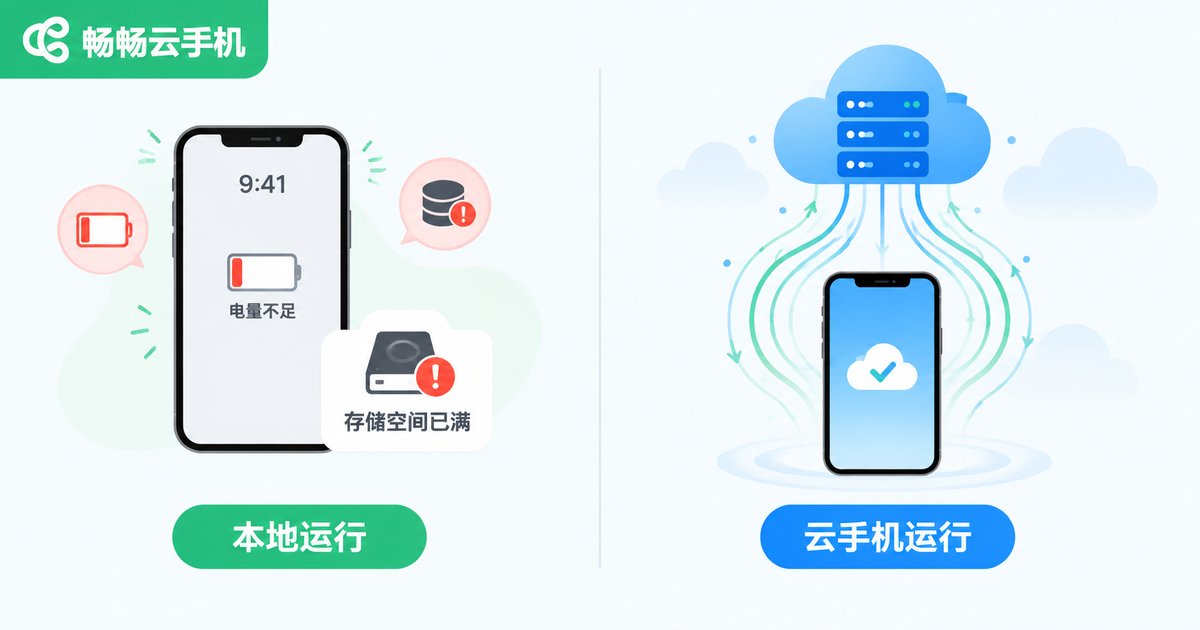
One comparison table says it all — here is why more and more people move their apps to the cloud:
| Item | Running Locally | Running on Cloud Phone |
|---|---|---|
| Storage | Takes up phone space | Almost no local storage used |
| Battery | Drains quickly | Load handled by the cloud, saves power |
| Heat | Gets hot over long sessions | Minimal local load |
| Uptime | Depends on the phone being on | Online 24/7 |
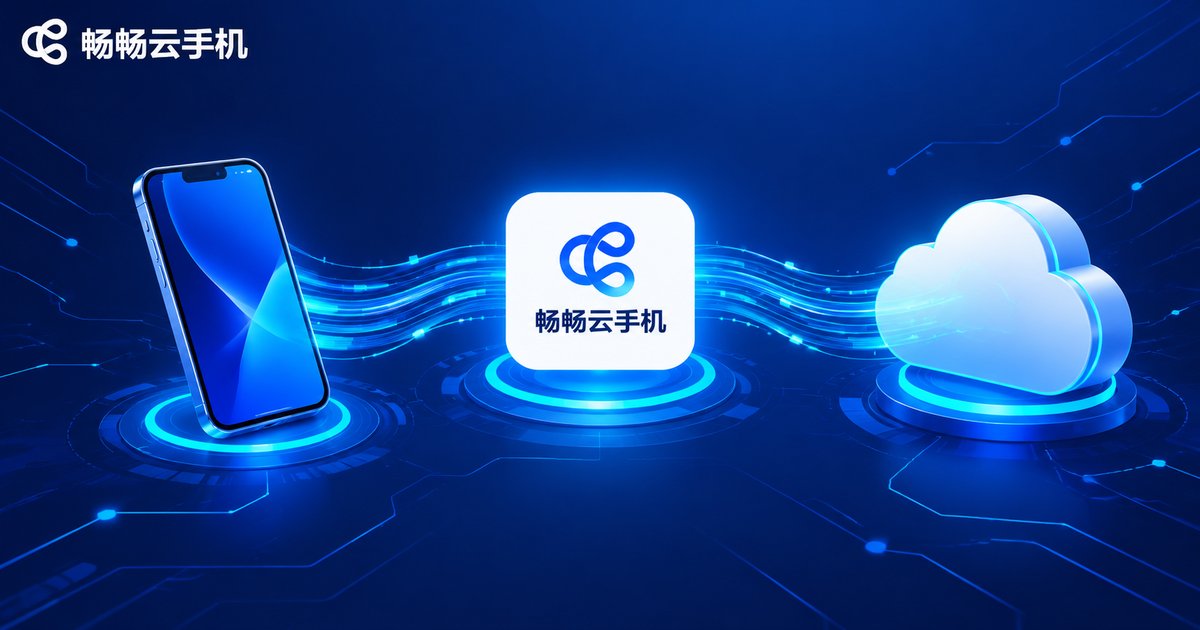
As you can see, a cloud phone keeps computing and storage in the cloud, while the iPhone only displays the picture and sends your taps, which greatly reduces the local load.
Step 1: Download and Install ccloudphone
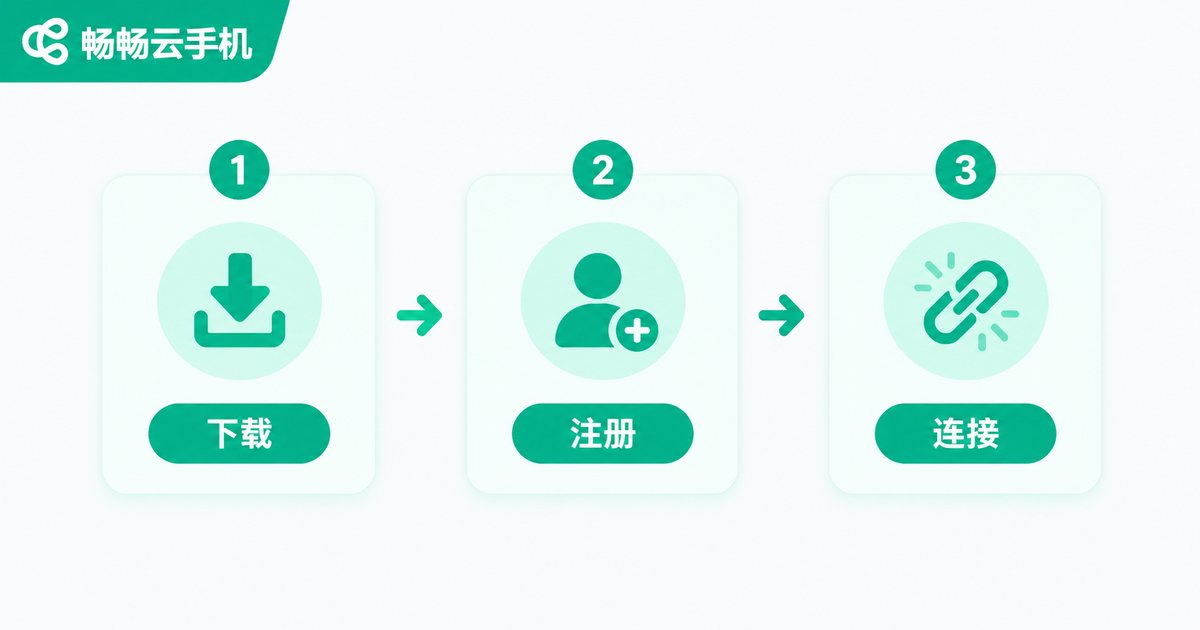
Open the App Store on your iPhone, search for ccloudphone, and tap Get on the official app. You can also install it through the download entry on the ccloudphone official website. Once installed, the ccloudphone icon will appear on your home screen.
Step 2: Register and Log In
Open the app and register with a phone number verification code, then set a password and log in. If you already have an account, just sign in — your data stays in sync under your account.
Step 3: Connect to Your Cloud Phone and Start Using It
After logging in, pick a cloud phone from the device list and tap to enter. Within seconds you will be connected to your cloud device. You will see a complete Android desktop where you can tap, swipe, long-press, install apps, and sign in to accounts just like on a regular Android phone — every action syncs to the cloud in real time.
When you are done, there is no need to shut anything down. The cloud phone stays online on the server, and everything will be exactly as you left it the next time you log in.

Practical Tips for Using a Cloud Phone on iPhone
1. Prefer Wi-Fi: the cloud phone stream depends on your network; the steadier the connection, the more responsive it feels.
2. Make use of cloud uptime: put long-running tasks in the cloud phone; locking or even powering off your iPhone does not affect the cloud device.
3. Separate your accounts: keep work and personal accounts on different cloud devices so they never interfere with each other.
4. Clean up regularly: cloud devices also have storage limits; removing unused apps and cache keeps everything smooth.
Why We Recommend ccloudphone
Among cloud phone services, ccloudphone is particularly friendly to Apple users: the iOS app is easy to install, connections are fast, the picture is sharp, and controls feel responsive. Cloud devices stay online around the clock, covering background tasks, multiple devices, and multi-account management. Registration takes only a minute, and beginners can follow the steps above to get started right away.
If you are looking for a hassle-free way to run Android apps on your iPhone, ccloudphone is well worth trying.
FAQ
Q: Will a cloud phone lag on iPhone?
It mainly depends on your network. On Wi-Fi or a strong 4G/5G connection, everyday use and most apps run smoothly; when the network fluctuates, picture quality adjusts automatically to keep things fluid.
Q: Does a cloud phone take up iPhone storage?
Hardly any. Locally you only install the ccloudphone app itself; apps and data live on the cloud device.
Q: Does the cloud phone keep running after I close the app?
Yes. Cloud phones run on cloud servers, so even if you close the app or power off your iPhone, the cloud device stays online and tasks keep going.
Q: How many accounts can one cloud phone hold?
One cloud phone is an independent Android environment for one account. For multiple accounts, add more cloud devices and manage them separately.
Q: Is my data on the cloud phone safe? Will it be lost?
Data is stored in the cloud and available whenever you log in. As a good habit, avoid storing sensitive information on the cloud phone and keep your account credentials safe.


