
Can iPhone Use a Cloud Phone? A Complete Guide to Cloud Phones on iOS
Can an iPhone Use a Cloud Phone? The Short Answer
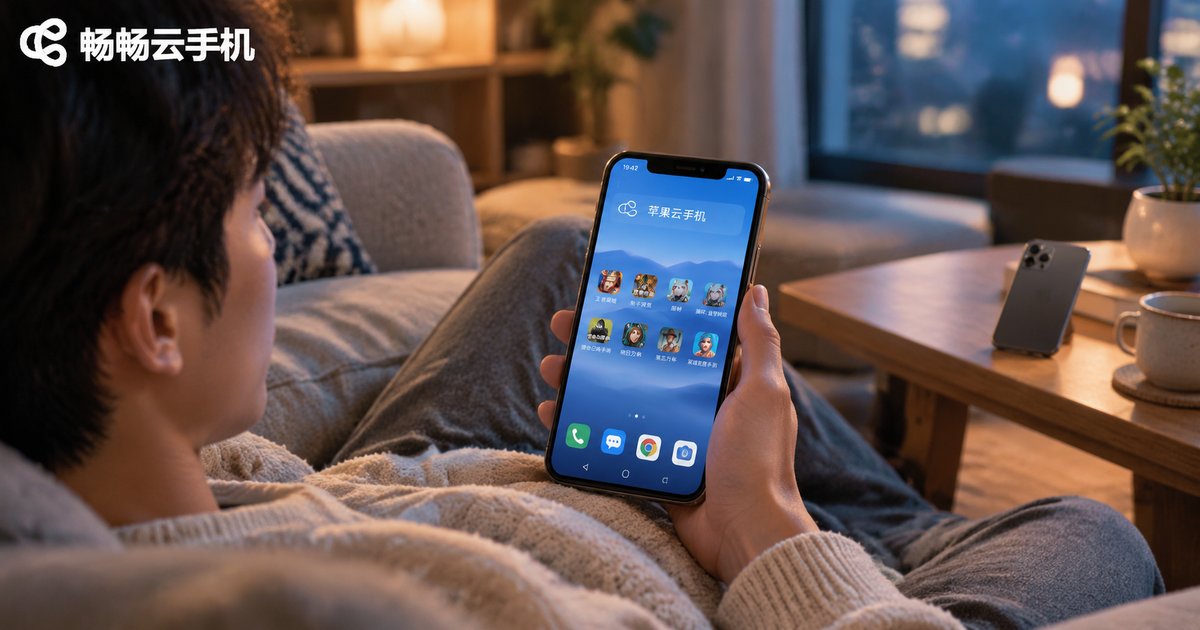
Yes, and it is far simpler than most people expect. A cloud phone is a virtual smartphone running on remote servers: its system, apps, and data all live in the cloud, while your iPhone is only responsible for receiving the video stream and sending your taps and swipes, much like watching a livestream you can actually control. Whether you use an iPhone, iPad, or Mac, as long as you have an internet connection, you can run a full Android phone from the cloud.
Why Would an iPhone User Need a Cloud Phone?
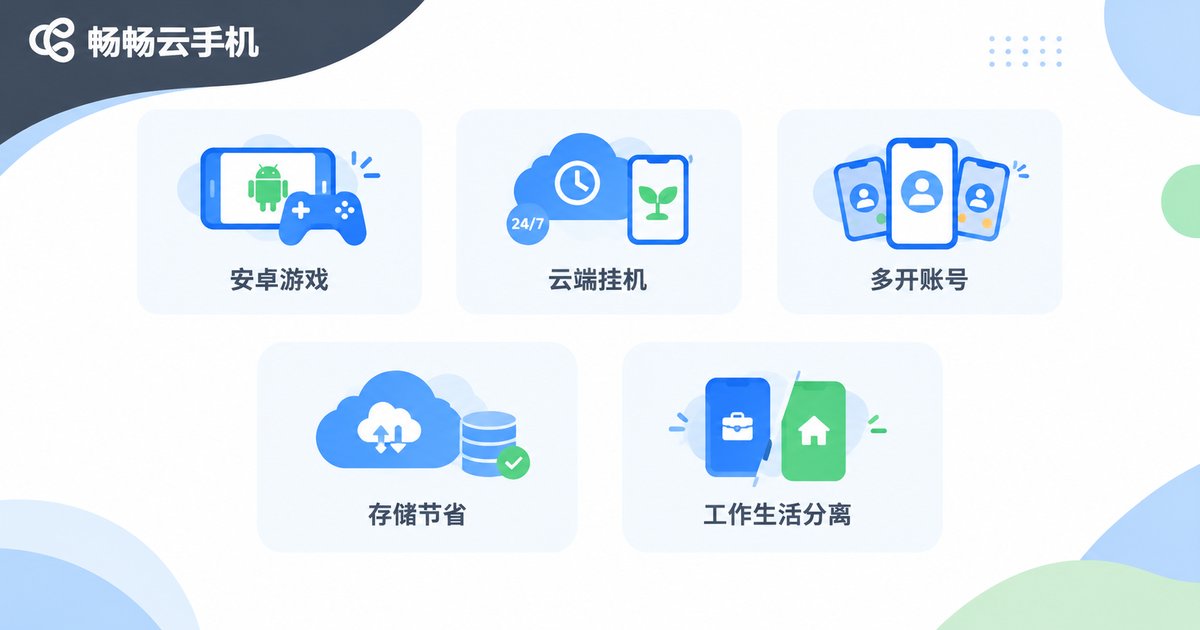
Many Apple users wonder why they would need a cloud phone when their device already works well. In practice, the use cases are broader than you might expect:
1. Play Android games on an iPhone: Many popular mobile games are Android-only, or Android and iOS servers do not share progress. With a cloud phone, your iPhone can log into the Android servers and play alongside your friends.
2. 24/7 cloud idle farming: A cloud phone lives in a data center. It never overheats your device or drains your battery, so daily quests, check-ins, and resource collection can run around the clock, which is perfect for idle and simulation games.
3. Multiple accounts at once: Every cloud phone is an isolated environment, so you can run alt accounts without buying a second physical phone.
4. Save local storage: Large games are installed in the cloud, leaving your precious iPhone storage untouched and keeping the device cool.
5. Separate work from life: Move work-related apps into the cloud phone and let your iPhone stay a clean, personal device.
What You Need Before Getting Started on iOS
Good news: using a cloud phone on an iPhone requires no jailbreak and no configuration profiles. The preparation is minimal:
| Item | Requirement | Notes |
|---|---|---|
| Device | iPhone or iPad | A reasonably recent system version; older models work too |
| Network | Stable Wi-Fi or 5G | The screen is streamed in real time, so a stable connection means a smoother experience |
| Account | Cloud phone platform account | Register once, then sign in from phone, tablet, or computer |
Step-by-Step: Using a Cloud Phone on an iPhone
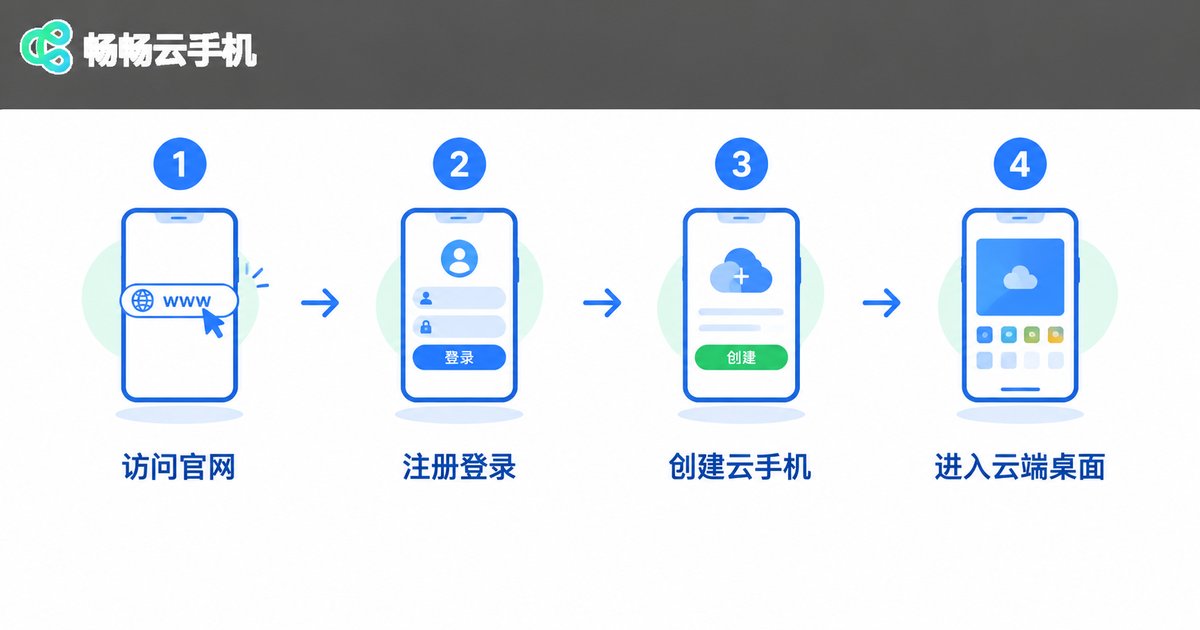
Here we use ChangChang Cloud Phone (ccloudphone) as an example. The whole process usually takes only a few minutes:
Step 1: Open the official entrance. In Safari on your iPhone, visit the ChangChang Cloud Phone website (ccloudphone).
Step 2: Register and log in. Complete the sign-up as prompted, then log in to reach the device management page.
Step 3: Create a cloud phone. Pick a configuration that matches your needs and tap create. In a few seconds, a brand-new cloud phone is ready.
Step 4: Enter the cloud desktop. Once inside, you will see an Android home screen almost identical to a real phone. Tap, swipe, and navigate just as you would on a physical device.
Step 5: Install apps and start. Download the games or apps you need inside the cloud phone. All data stays in the cloud, so switching devices never interrupts your progress.
What It Actually Feels Like on an iPhone
In real-world use, smoothness on iOS comes down to two factors: network quality and cloud phone configuration. On a stable Wi-Fi connection, everyday operations and idle or turn-based games feel nearly lag-free. For fast-paced action games, stay close to your router or switch to 5G.
It is also worth noting that a cloud phone is a fully independent Android device. Everything you do happens in the cloud, completely isolated from your iPhone, so there is no risk of data conflicts.
A Few Practical Tips
1. Prefer Wi-Fi: Use Wi-Fi at home or in the office for a more stable stream without consuming mobile data.
2. Offload long tasks to the cloud: Let tasks that need to stay online run inside the cloud phone. Your iPhone can be locked or even powered off without interrupting progress.
3. Choose configurations wisely: A standard configuration is enough for everyday apps; pick higher specs only for demanding games. Paying for what you need is the most cost-effective approach.
4. Log out properly: Sign out normally when you finish, and avoid operating the same cloud phone from multiple devices at the same time.
FAQ
Q: Is a cloud phone iOS or Android?
Mainstream cloud phones run Android, which is exactly their value: they let iPhone users access the Android ecosystem and freely install Android apps.
Q: Do I need to jailbreak my iPhone?
No. The cloud phone is accessed through a browser or client, and the iPhone only displays the stream and forwards input. Nothing about your system is modified.
Q: Will it lag on an iPhone?
Smoothness depends mainly on your network. On Wi-Fi or 5G, daily use and idle games run smoothly; when the network fluctuates, image quality adjusts automatically to keep controls responsive.
Q: Is my data safe in a cloud phone? Can it be lost?
Data is stored on cloud servers, which is safer than keeping it only on a phone. As long as your account exists, you can recover everything after switching devices.
Q: Can I log in from an iPad or Mac too?
Yes. With a browser and internet access, an iPad, Mac, or Windows PC can all sign in to the same cloud phone with data synced in real time.
Q: How much does a cloud phone cost?
Cloud phones are generally priced by configuration and usage duration. See the official ChangChang Cloud Phone website (ccloudphone) for current pricing, and choose what fits your needs.


