
How to Use a Cloud Phone: Download, Install, and Login Step by Step
What Is a Cloud Phone? Understand It Before You Start
When people first hear the term cloud phone, they often wonder: how can a phone run in the cloud? The idea is simple — a cloud phone is a virtual Android phone running on cloud servers, with its own system, storage, and network. You control it remotely from your current phone or computer, while all apps and data live in the cloud and take up zero space on your local device.
Because everything runs in the cloud, a cloud phone can stay online 24/7 and supports multiple devices at the same time. Your cloud tasks keep running even when your local phone is offline or powered off. It is perfect for multi-account gaming, app cloning, and keeping work and personal life separate. Below, we use ccloudphone as an example to walk you through every step of downloading, installing, and logging in.
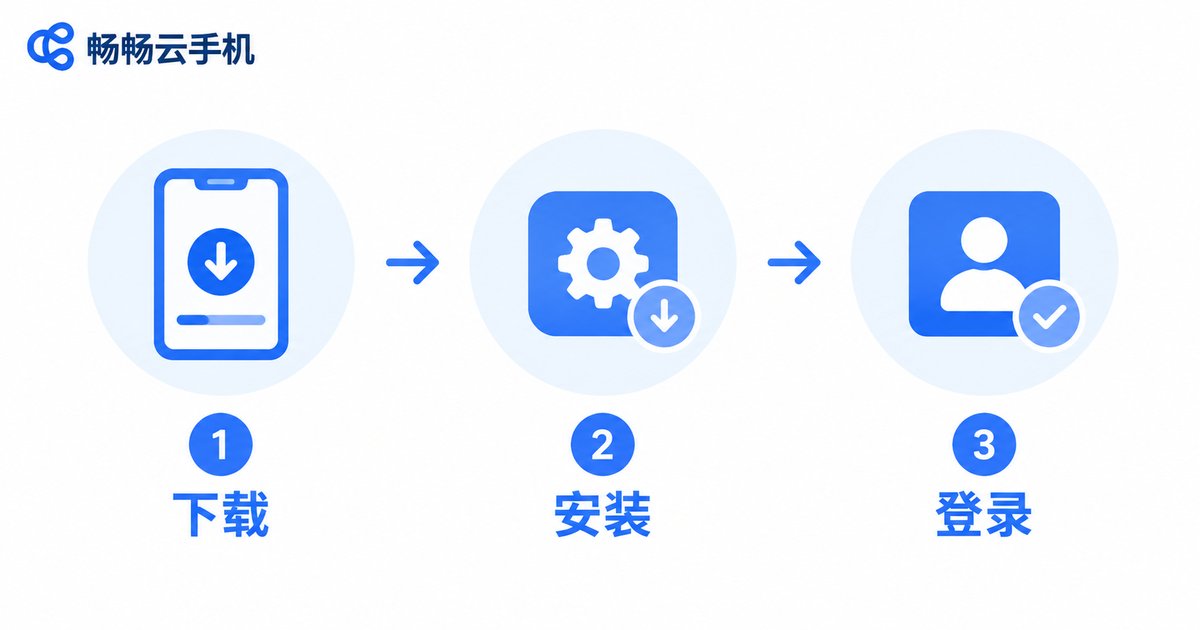
Step 1: Download the Cloud Phone App
Downloading is the first step, and the key is just two words: official channels. Taking ccloudphone as an example, you can get the latest installation package from its official website, or search for ccloudphone in your phone's built-in app store.
Two reminders here: first, stick to the official website or the official app store and avoid unknown third-party download sites; second, before downloading, make sure the package matches your phone's operating system. The whole process is no different from installing any regular app and usually takes less than a minute.
Step 2: Installation and Permission Settings
Once the package is downloaded, tap it to start the installation. Some phones will ask whether to allow installation from this source — since you downloaded it from an official channel, simply allow it.
During installation, the app will request a few basic permissions, such as network access and storage. These are used to connect to cloud servers and save necessary cache files, so it is recommended to grant them; otherwise the experience may be affected. When installation finishes, the ccloudphone icon appears on your home screen. Tap it to get started.
Step 3: Register and Log In to Your Account
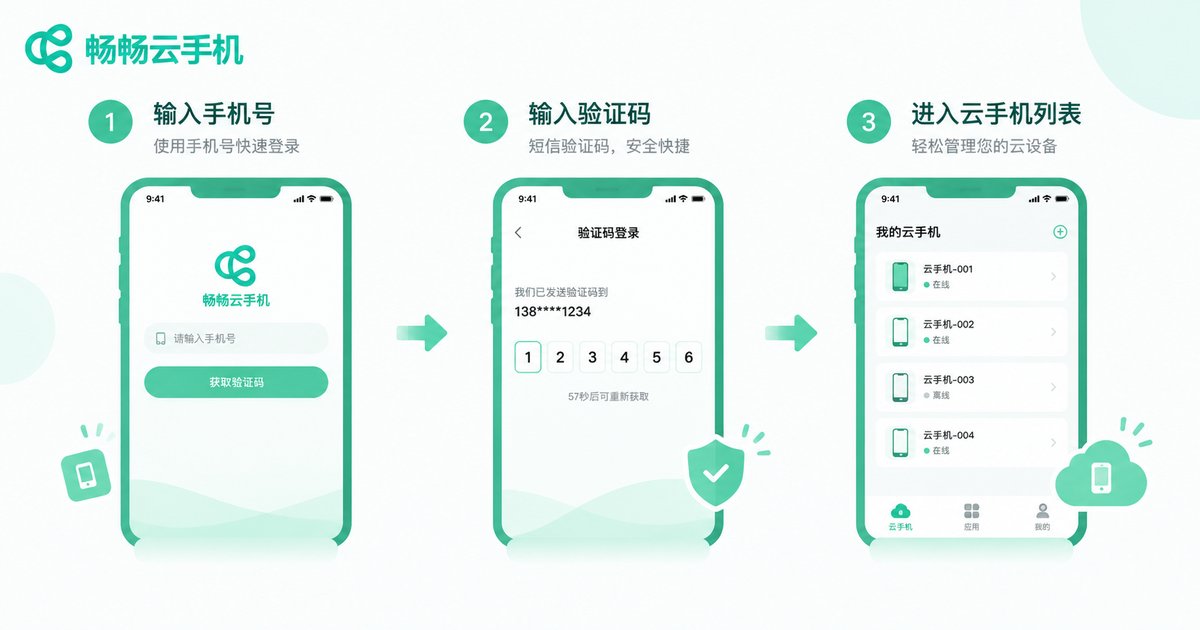
After opening the app, you will be guided to register or log in. The most common method is phone number + verification code: enter your phone number, request the code, type it in, and your account is created in seconds. Existing users can simply log in with their account and password.
Here is a small tip: after registering, keep your account details safe. All apps, game progress, and files in your cloud phone are tied to your account — your account is your identity in the cloud. Whenever you switch to a new device, just log in with the same account and everything syncs right back.
Step 4: Choose a Cloud Device and Start Using It
After logging in, you will see the device list. Select a cloud device and tap to enter. After a short loading time, a complete Android phone interface appears on your screen — that is your cloud phone.
From here, everything works just like a real phone: download games and tools from the app store, sign in to your everyday social and gaming accounts, and adjust system settings freely. All processing happens in the cloud while your local phone only handles video streaming and touch input, which means even an older phone can run it smoothly.
Handy Tips After Setup
Once download, installation, and login are done, these beginner tips will help you get more out of your cloud phone:
1. Run multiple apps: Need several game or social accounts? Open app clones inside your cloud phone and turn one device into many.
2. Keep tasks running: Cloud phones keep apps running on the server, so idle farming and daily game tasks continue while your local phone is locked or even turned off.
3. Sync your data: Cloud data follows your account. Log in on any device and pick up right where you left off, with no fear of losing progress.
| Comparison | Cloud Phone | Physical Phone |
|---|---|---|
| Storage usage | Runs in the cloud, no local space needed | Uses local storage |
| Online time | Supports 24/7 cloud uptime | Limited by battery and heat |
| Multi-instance | Run multiple devices at once | One phone is one phone |
| Device switch | Log in to sync instantly | Manual data migration |
Why We Recommend ccloudphone
There are many cloud phone products on the market, but for beginners, ccloudphone is a great first choice. Its app is lightweight and the interface is clean, the registration and login flow is smooth, and even first-time users can find their way around quickly. The cloud devices run stably with responsive controls, making it well suited for game idle farming, multi-account use, and other common scenarios.
Most importantly, ccloudphone is beginner-friendly: every step from download to login comes with clear guidance, and help is available through official channels whenever you need it. If you are ready to try a cloud phone, starting with ccloudphone is the easiest path.
FAQ
Q: Is a cloud phone free?
Cloud phone services usually offer different plans. Check the official ccloudphone page for current details, and try it first before choosing what fits your needs.
Q: Does my local phone need high specifications?
Not at all. Since all computing happens in the cloud, your local phone only needs to stream the screen smoothly — even older models work fine.
Q: Will I lose data stored in the cloud phone?
No. Data is stored in the cloud and tied to your account. As long as you log in with the same account, your apps and files are preserved.
Q: How many cloud phones can one account run?
The exact number depends on the official ccloudphone policy. You can view and manage your cloud devices in the device list after logging in.
Q: How is a cloud phone different from an Android emulator on PC?
An emulator relies on your computer's performance, while a cloud phone runs on cloud servers — it uses no local resources, can be accessed anywhere from your phone, and saves power.


