
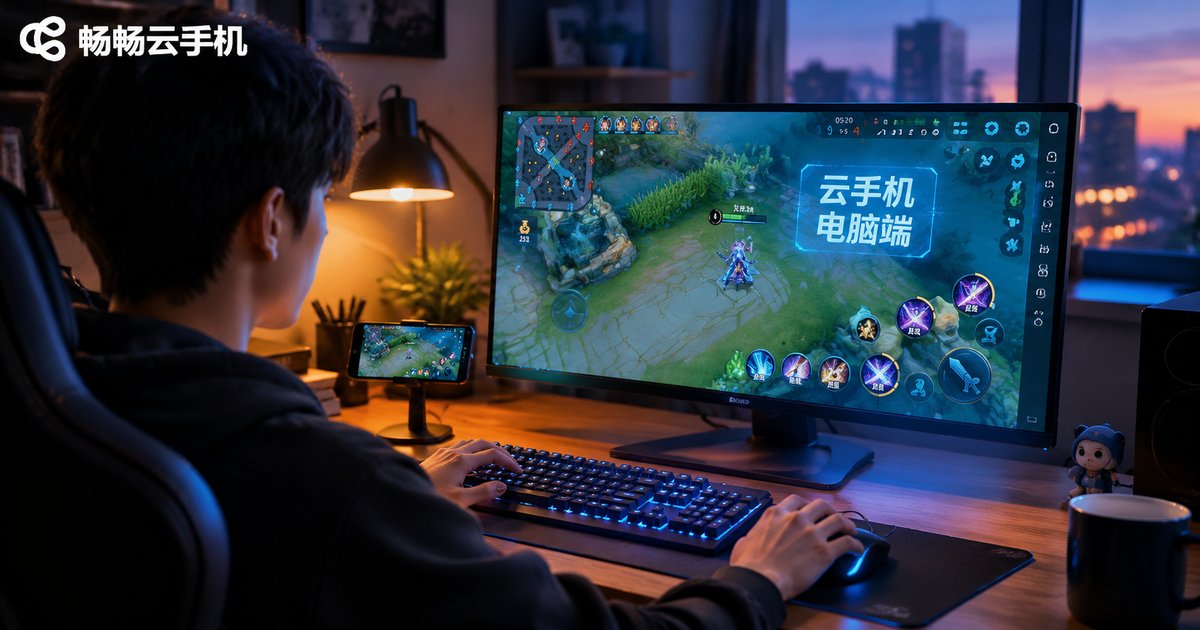
How to Use a Cloud Phone on PC: Big-Screen Control, Shortcuts, and Peripheral Setup
Why Use a Cloud Phone on Your PC?
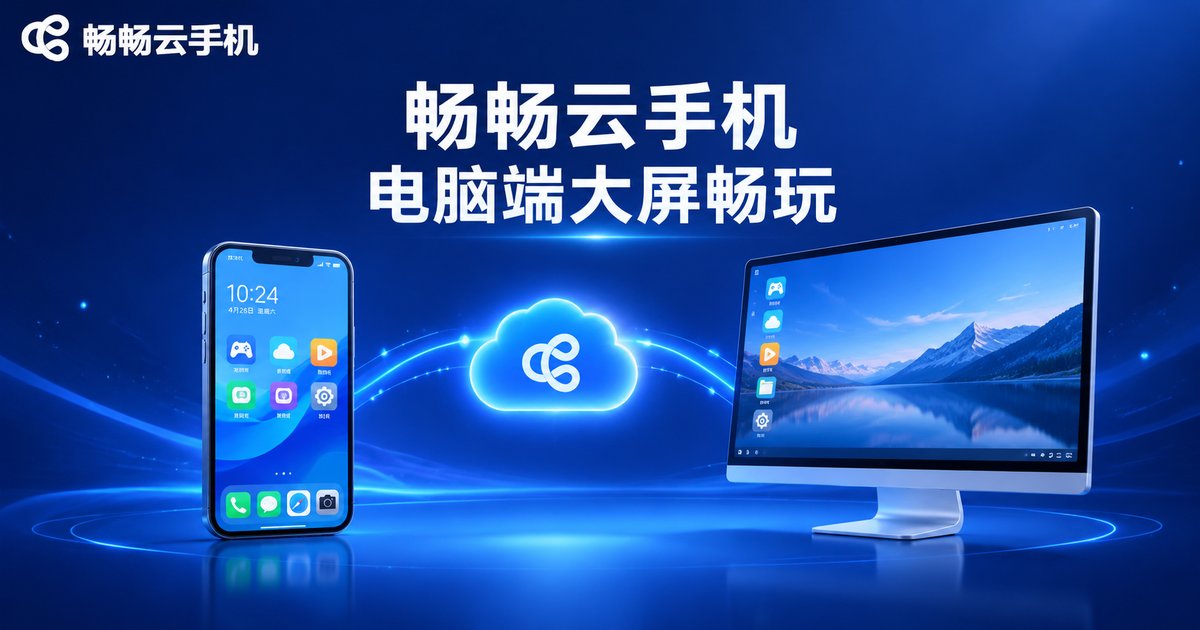
Many people first try a cloud phone by controlling it from another phone, but the PC client is the proper way to experience a cloud phone. The cloud phone itself runs in a data center; whatever device sits in front of you is only a window for display and control. With a large monitor, keyboard, and mouse, you see more clearly, tap more precisely, and type much faster — whether you are idling, trying out a graphics-heavy mobile game, or managing multiple devices at once.
In one sentence: the cloud phone does the computing, while the PC handles viewing and control. With that in mind, the big-screen settings, shortcuts, and peripheral setup below become easy to understand.
Step 1: Download the Client and Sign In
Take ChangChang Cloud Phone (ccloudphone) as an example: visit the official website, go to the PC client download page, install and launch the program, then sign in to see the list of your cloud devices. Click any device and its screen is streamed to a window on your PC in real time, feeling almost identical to using a real Android phone.
On first use, check two things: pick a streaming quality in settings that matches your bandwidth, and prefer a wired connection or stable Wi-Fi for lower latency and a steadier picture.
Big-Screen Operation: Fullscreen, Multi-Window, and Layouts
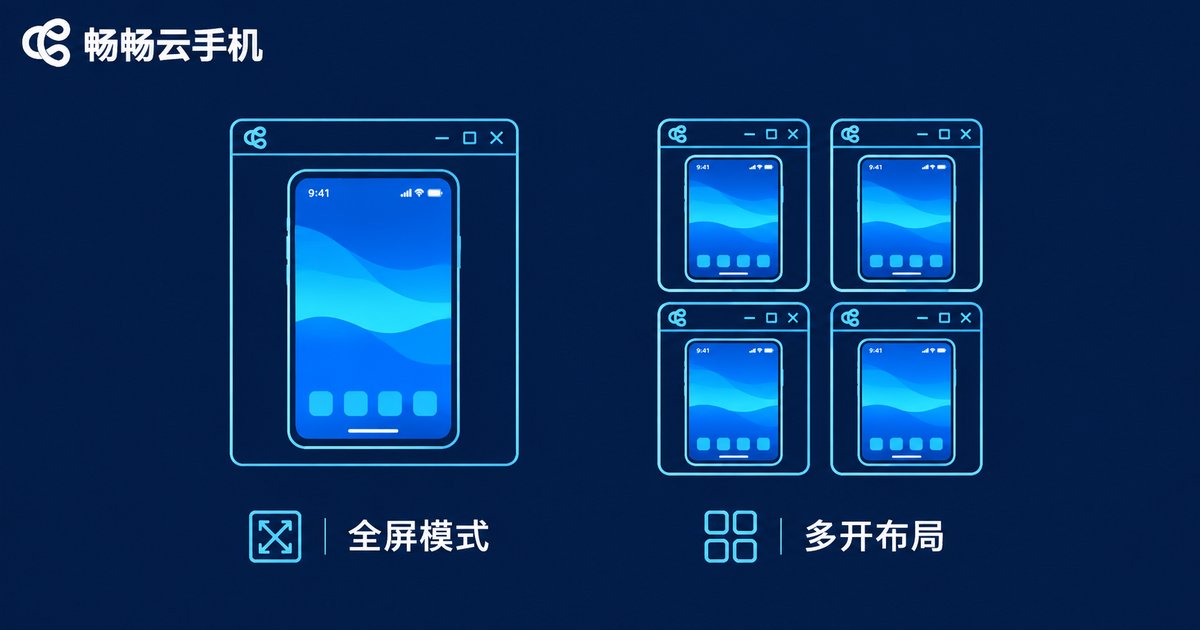
The biggest advantage of the PC client is screen size. Used well, these display modes make a real difference:
| Display mode | Best for | Key point |
|---|---|---|
| Single fullscreen | Focusing on one game or video | Double-click the window or use the fullscreen button for full immersion |
| Tiled multi-window | Idling on several cloud phones | Windows arrange automatically so every device stays visible |
| Main plus background | One active device, others idling | Enlarge and pin the window you are actively using |
Tip: near fullscreen, the picture is centered at phone aspect ratio, so black bars on the sides are normal. For a fuller image, set the resolution inside the cloud phone to a 16:9-style ratio, then go fullscreen.
Shortcuts: Turn Touch into Keystrokes
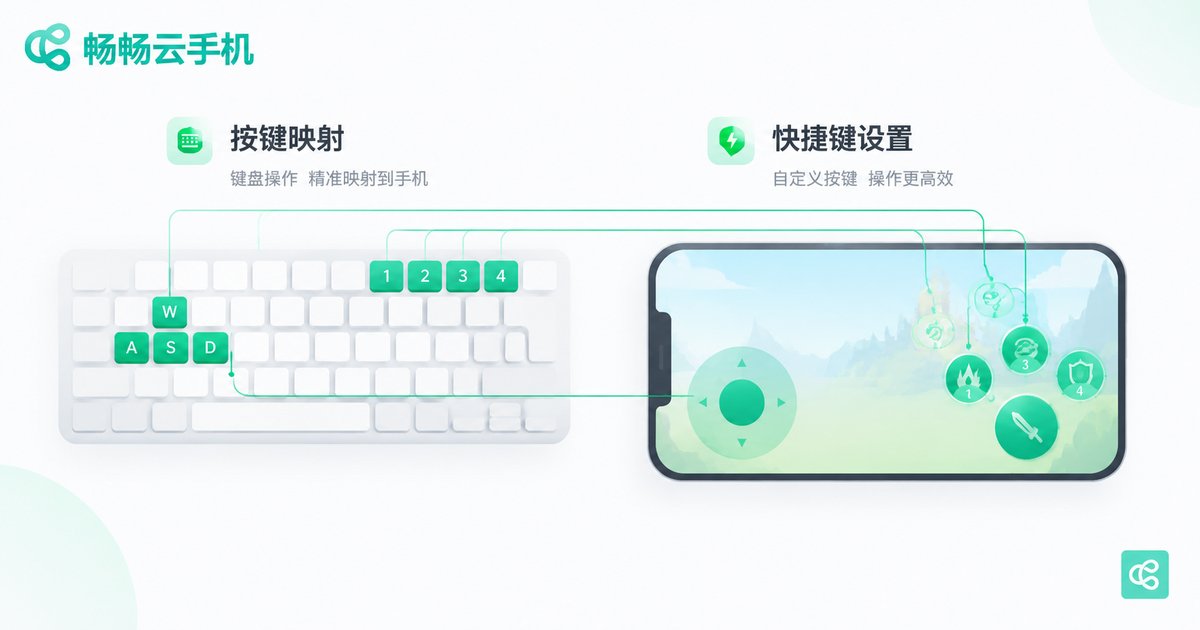
The PC client ships with a shortcut system that maps common virtual buttons to your keyboard. The table below lists common default examples (they may vary slightly between versions — check the shortcut panel inside the client; every binding is customizable):
| Action | Common default | Notes |
|---|---|---|
| Fullscreen on / off | F11 | Switch to big-screen mode instantly |
| Back | Esc | Equivalent to the phone back button |
| Home | F1 | Jump straight to the cloud phone home screen |
| Recent apps | F2 | Open the recent tasks list |
| Screenshot | Ctrl+Shift+S | Save the current cloud phone screen |
| Volume up / down | F5 / F6 | Adjust the cloud phone media volume |
The advanced move is key mapping: on the game screen, bind the virtual joystick to WASD and skill buttons to number keys, then move and cast like in a PC game — far more precise than tapping with a finger. Once a mapping profile is saved, it applies automatically the next time you launch the game.
Peripherals: Keyboard, Mouse, Gamepad, and More
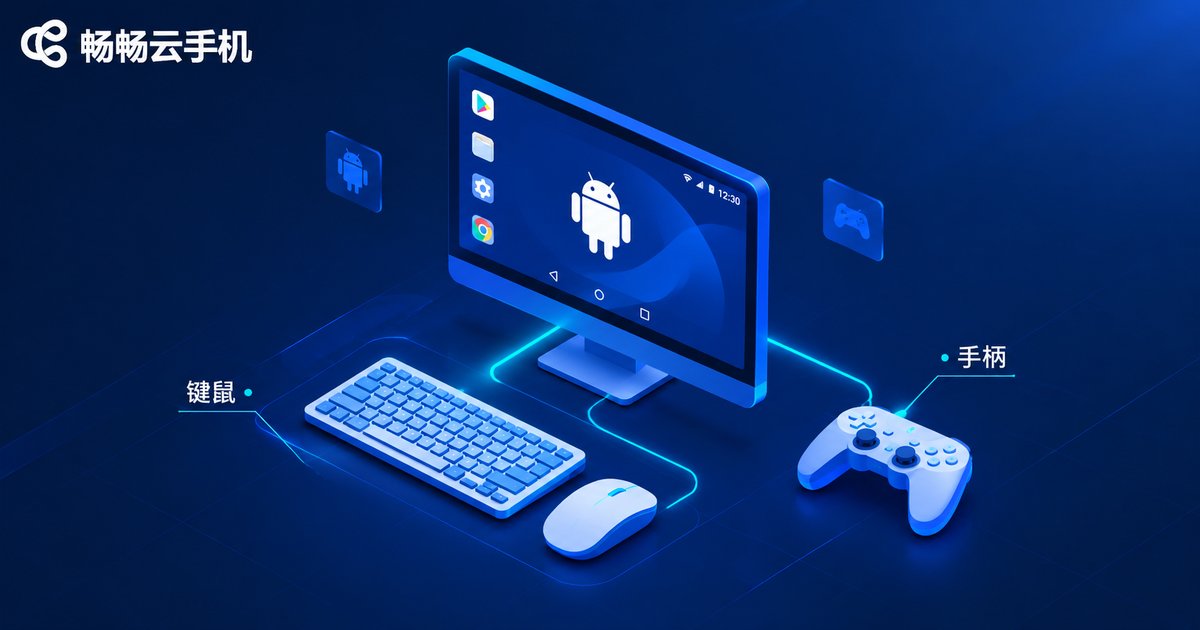
The peripheral logic is simple: input devices connected to your PC are forwarded to the cloud phone. Four categories matter most:
1. Keyboard and mouse: by default, a mouse click acts as a tap on the screen, while the keyboard handles text input and mapped keys. Settings let you adjust mouse sensitivity and pointer visibility.
2. Gamepad: plug a standard controller into the PC, then map its buttons to the virtual buttons of your game in the client key settings — especially great for racing and fighting games.
3. Camera and microphone: when an app inside the cloud phone needs video or voice, grant the client access to your PC camera and microphone in settings; the cloud device then behaves as if it had its own.
4. Multi-instance use: with several cloud phones open, keyboard and mouse act on the currently focused window — click a window and your input goes to that device only, with no cross-talk.
Why We Recommend ChangChang Cloud Phone
Among cloud phone services, ChangChang Cloud Phone (ccloudphone) is specifically optimized for the PC experience: a lightweight client, adjustable streaming quality, and intuitive multi-window management. Combined with key mapping and gamepad support, big-screen gaming and around-the-clock idling feel effortless. Because the device lives in the cloud and stays online 24/7, shutting down your PC never interrupts running tasks — something local emulators cannot offer.
If you spend long hours at a computer and need an Android device that is always ready, treat the cloud phone as a virtual second phone for your PC. Visit the ChangChang Cloud Phone official website for features and plans.
FAQ
Q: If I sign in to the same account on PC and phone, is my data synced?
Yes. The cloud phone lives in the cloud; the phone app and PC client are just different remotes for the same device, so apps and game progress stay identical in real time.
Q: Does my PC need to be powerful?
No. All computing happens in the cloud and your PC only renders the stream — any machine that plays online video smoothly is enough. Network quality matters far more.
Q: Can I change the shortcuts?
Yes. In the client shortcut panel, every default binding can be replaced with your own combination, effective immediately after saving.
Q: How many cloud phones can one PC run at once?
It depends on the number of devices in your plan and your bandwidth. For multi-instance use, prefer a wired connection and lower the stream quality per window to keep everything smooth.
Q: Will the latency be high?
Latency comes mostly from the network. With a wired connection and a nearby node, everyday use and most mobile games run smoothly; for competitive titles, avoid peak network hours.


