
2026 Cloud Phone Migration Guide: How to Reconnect Accounts and Data After Switching Devices
Switching Devices: The Real Worry Is Losing Accounts and Data
Getting a new phone or computer should be exciting, yet many people's first reaction is anxiety: game accounts demand fresh verification, chat histories are a pain to move, and months of idle-farming progress might vanish. If the old device also holds work apps, migration becomes even more daunting.
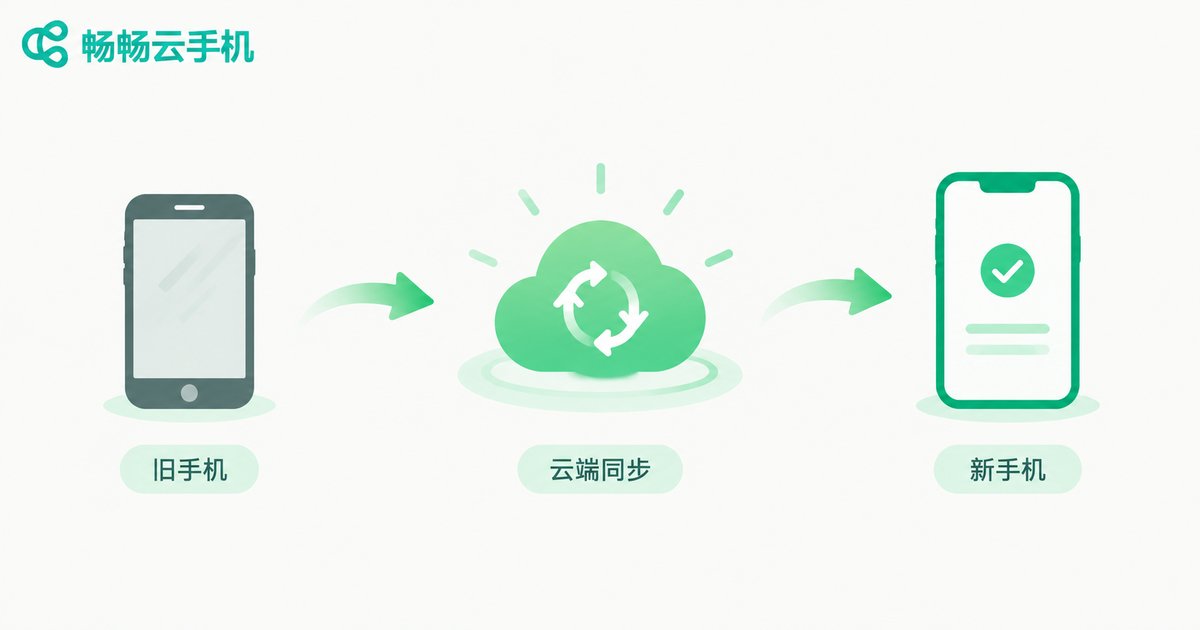
Traditional migration means juggling backups and restores between old and new devices, then signing in to each app one by one. One slip along the way and your data may end up incomplete. Cloud phones change the game entirely — because your “phone” never lived inside the device in the first place. It lives in the cloud.
Why Cloud Phones Are Naturally Migration-Proof
A cloud phone runs a complete Android system on remote servers. Your apps, accounts, and data all live in the cloud, not in your local device. The phone in your hand is merely a display and a remote control.
That means when you switch devices, you do not need to move any data at all. Simply sign in with the same account on the new device, and your cloud phone appears exactly as you left it — apps intact, sessions intact, idle-farming tasks still running. This is exactly why more and more users choose services like ccloudphone: devices may change often, but your cloud data and progress stay online around the clock.
Before Migrating: A 3-Minute Preparation Checklist
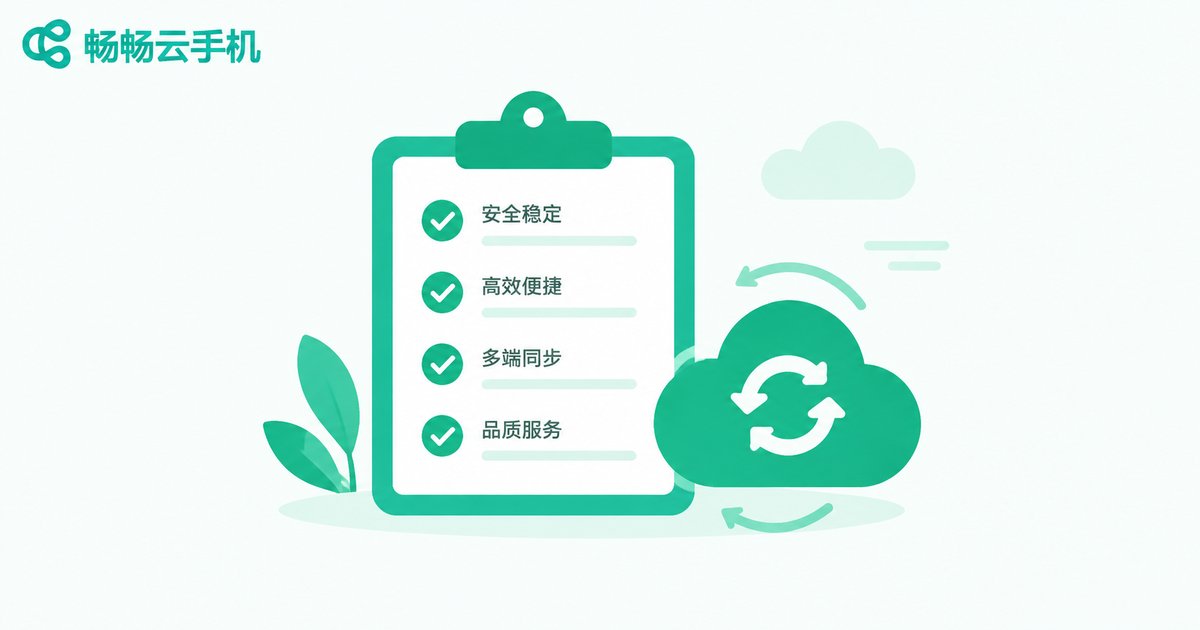
Cloud phone migration is simple by design, but a few small preparations make the handover even smoother:
1. Confirm your account can still log in. Check that the phone number or email tied to your cloud phone account can still receive verification codes, so you do not get stuck at the login step.
2. Note down important app credentials. App sessions inside a cloud phone are usually preserved, but a few apps may require re-verification due to their own security policies. Keeping those passwords handy costs nothing.
3. Check your network. For the first sign-in on a new device, a stable Wi-Fi connection makes everything load faster and more smoothly.
| Comparison | Manual migration | Cloud phone migration |
|---|---|---|
| Where data lives | Local device | Cloud servers |
| Switching devices | Back up, restore, re-login one by one | Just sign in with the same account |
| Idle-farming tasks | Interrupted during the switch | Keep running in the cloud |
| Risk of data loss | Easy to miss items in backups | Data stays in the cloud, low risk |
Three Steps to Reconnect Accounts and Data
Using ccloudphone as an example, the whole migration boils down to three steps:
Step 1: Open ccloudphone on your new device. Whether it is a new phone or a computer, install the ccloudphone app or reach your cloud phone through the official website.
Step 2: Sign in with your original account. Use exactly the same credentials or verification method as before. Once logged in, your list of cloud phone devices appears just as it was.
Step 3: Open a cloud phone and check your apps. Inside, you will find the same apps, files, and login sessions as before the switch — and your game idle-farming tasks are still running.
The whole process usually takes only a few minutes. No cables, no backups, no restores.
After Migration: A Quick Post-Switch Review
Once you are back inside your cloud phone, take a minute to run through this short list:
App login sessions: Open your frequently used apps one by one to confirm they are still signed in. If an app asks for re-verification, just follow the prompts.
Game progress and idle tasks: Check character levels and resource output, and confirm your idle-farming settings are still as you left them.
Files and documents: Verify that files and screenshots saved inside the cloud phone are intact. For extra peace of mind, back up important files to cloud storage as well.
For Frequent Device Switchers: Let Your Data Follow Your Account
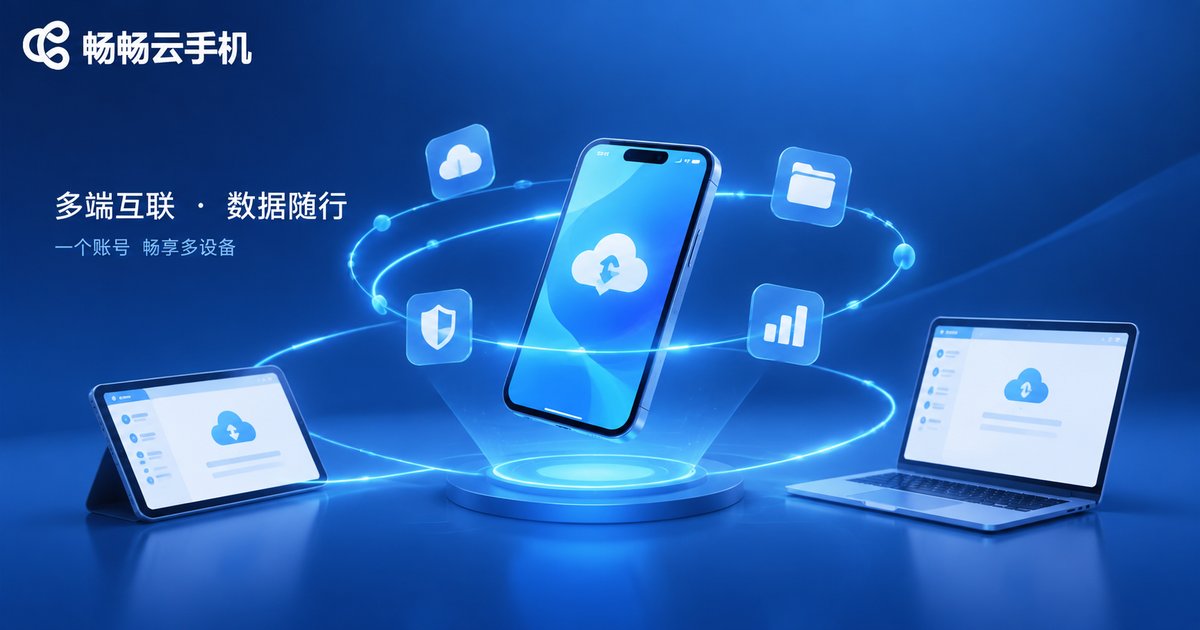
Devices get upgraded, but your accounts and data should always stay yours. The greatest value of a cloud phone is setting the “phone” free from hardware — you change the device, while the cloud phone stays online unchanged. If you switch phones often, work across multiple devices, or need long-term game idle farming, visit the ccloudphone official website to learn more, and turn your next device switch into a five-minute task.
FAQ
Q: Will I lose data in my cloud phone after switching devices?
No. Cloud phone data is stored on cloud servers, independent of your local device. As long as you sign in with the same account, your apps, files, and login sessions remain exactly as they were.
Q: Can the old and new devices be logged in at the same time?
Yes. Cloud phone services generally allow one account to stay signed in on multiple devices, so you can manage the same cloud phone from either one. To avoid conflicting in-app actions, it is best not to have several people operate the same cloud phone from different places at once.
Q: Do I need to sign in to the apps inside the cloud phone again?
Most apps keep their login sessions, so no re-login is needed. A few apps may ask for re-verification due to their own security policies — this is normal; just follow the prompts.
Q: Will game idle-farming be interrupted during migration?
No. A cloud phone keeps running in the cloud, so idle tasks continue while you switch devices. Whenever you log back in, you will see the latest progress.
Q: Is the experience different when moving from a phone to a computer?
The interface differs slightly, but the system and apps inside the cloud phone are identical. On a large screen with keyboard and mouse, gaming and work can actually feel more efficient.


