

How to Back Up and Restore a Cloud Phone: Data Management, Migration and Key Precautions
Why You Should Not Put Off Cloud Phone Backups
Many people treat a cloud phone as a second phone: game alt accounts, everyday social apps, and work accounts all live inside it. The longer you use it, the more valuable the chat histories, game progress, and customer records become. If data is lost due to an expired device, accidental cleanup, or an account issue, the damage is often bigger than expected.
Unlike a physical phone, a cloud phone keeps its data on cloud servers and does not depend on any single device. That is an advantage — switching phones or computers never loses your data. But if you perform a factory reset, delete apps, or leave the device inactive long enough to be recycled, the data can still be wiped. Building a regular backup habit is a basic skill for every cloud phone user.
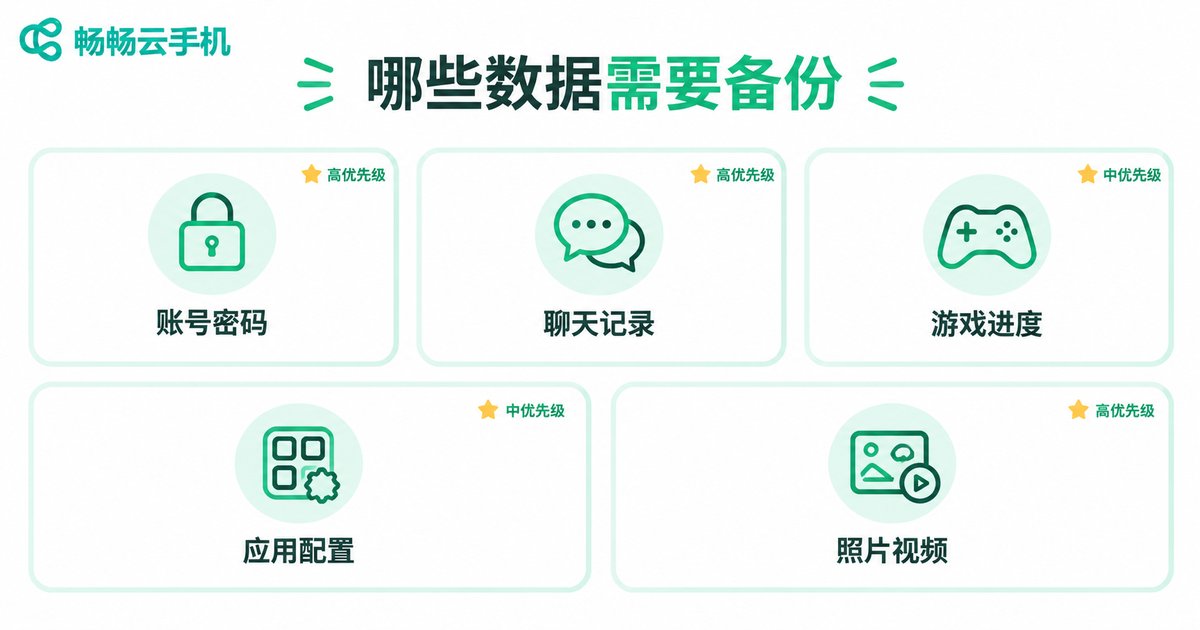
First, Know Which Data Is Worth Backing Up
Take inventory before you back up — not everything needs saving. Generally, priorities run from high to low like this:
| Data Type | Typical Content | Backup Priority |
|---|---|---|
| Account credentials | Passwords and verification methods for games and social apps | Highest — nearly impossible to recover once lost |
| Chats and business records | Chat histories and customer conversations | High — tied to business activities |
| Game progress | Character levels, equipment, purchase records | High — rebuilding an account is costly |
| App configurations | Automation settings and login states of frequently used apps | Medium — reconfiguring takes time |
| Photos and videos | Screenshots and material files | As needed — back up important assets |
A special reminder: besides storing credentials in your cloud phone, keep a copy in a dedicated password manager. The cloud phone covers device-side safety, while you cover password safety — double insurance is the safe play.
Three Common Ways to Back Up a Cloud Phone
There are three main routes for backing up data in a cloud phone — pick the one that fits your scenario:
Method 1: In-app cloud sync. Most mainstream apps offer cloud backup, such as account binding in games or chat history sync in social apps. It is the most effortless option: data follows the account and is restored as soon as you sign in on another device.
Method 2: The cloud phone's built-in backup or snapshot feature. Some cloud phone products support full-device or app-level backup, packing your current app list and data into a saved snapshot that can be restored with one click — especially handy for full-device migration.
Method 3: Manual export to a cloud drive or local storage. For documents, photos, and videos, use the file manager inside the cloud phone to upload to a cloud drive or send to your primary device, then import them back when needed. Flexible and controllable, but with more steps.
A quick comparison of the three:
| Method | Best For | Pros | Cons |
|---|---|---|---|
| In-app cloud sync | Game and social app data | Automatic and effortless | Depends on app support |
| Cloud phone backup feature | Full device or app data | Fast restore, ideal for migration | Limited by product features |
| Manual export | Documents, photos, videos | Flexible and fully controllable | More steps, easy to miss items |
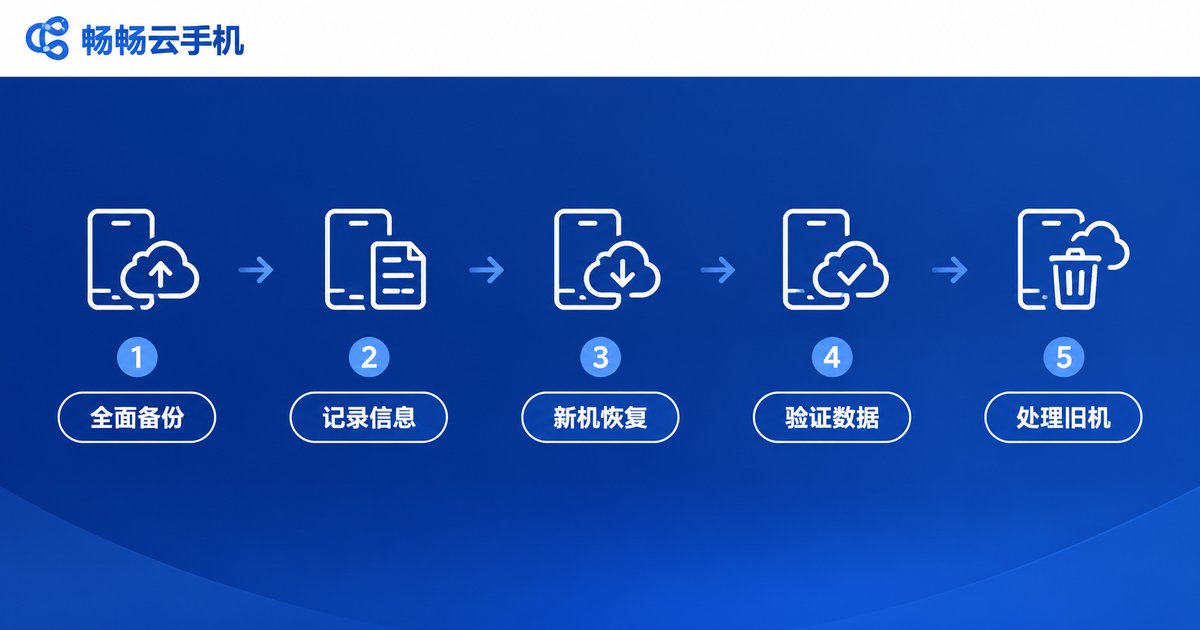
The Complete Migration Process in Five Steps
Whether you are moving to a new cloud phone or transferring data from one cloud phone to another, following these five steps keeps you safe:
Step 1: Full backup before migration. On the old cloud phone, confirm one by one that accounts, chat histories, and game saves have cloud sync enabled; manually export files to a cloud drive. Back up more rather than less.
Step 2: Record key information. Screenshot the account credentials, bound phone numbers, and common settings of the apps in your old cloud phone. If re-verification is required during migration, these will save you.
Step 3: Sign in on the new device and restore. Reinstall the apps on the new cloud phone, sign in with the original accounts, and enable data sync; import files from the cloud drive back to the right locations.
Step 4: Verify data integrity item by item. Do not rush off after restoring. Open your chat apps and scroll through the history, log into games to confirm character data, and check that files are complete. Fix any problems early.
Step 5: Retire the old device only after everything checks out. Cancel or reset the old cloud phone only after all data has been verified on the new one. Never reverse the order — wiping the old device first and then finding data missing on the new one leaves you in a very passive position.
Precautions for Backup and Restore
The process is not hard, but there are pitfalls to avoid:
1. Keep the network stable. Backup and restore are essentially data transfers; a dropped connection can leave backup files incomplete. Move large files during periods of good connectivity.
2. Avoid operating on multiple devices at once. During migration, try not to log into the same account on both the old and new cloud phones and use them heavily at the same time — some apps' sync mechanisms may create data conflicts.
3. Be careful with factory reset. A cloud phone's reset function wipes the apps and data on the device. Before resetting, make sure important data has been backed up and the backup can actually be opened elsewhere.
4. Take account security seriously. Backup files often contain account information. Enable two-step verification on your cloud drive so a leaked backup does not turn into an account risk.
5. Back up regularly, not just once. Data keeps accumulating. Set a rhythm: check the sync status of critical business data weekly and do a full backup monthly.
The Right Cloud Phone Halves the Hassle
Much of the backup hassle actually comes from unreliable devices. If the cloud phone service itself is stable and your data sits safely in the cloud over the long term, the backup work you need to do shrinks dramatically.
With ChangChang Cloud Phone (ccloudphone), apps and data run and are stored in cloud data centers, independent of any physical phone you own: a dead battery, a lost phone, or an upgrade on your local device never touches the data inside your cloud phone. Sign in from any device and pick up right where you left off. For users who keep long sessions or manage multiple accounts, this data-lives-in-the-cloud model naturally lowers the risk of data loss.
When using ChangChang Cloud Phone, pair it with the app-level backup methods above: enable official cloud sync for games and social apps, and export important files to a cloud drive on a schedule. Stable cloud operation plus solid backup habits is the complete answer to data safety. For details on features and plans, visit the official ccloudphone website.
FAQ
Q: Will data be deleted immediately after my cloud phone expires or is canceled?
Policies vary by product; there is usually a retention period, but do not count on it. Backing up important data before expiration is the safest approach.
Q: If I switch to a new physical phone, will the data in my cloud phone remain?
Yes. Cloud phone data lives on cloud servers, independent of your physical device. Log in with the same cloud phone account on the new phone and your original environment is still there.
Q: My chat history is incomplete after migration. What should I do?
First confirm whether chat history sync was enabled and completed on the old device, then verify you signed in with the correct account on the new one. Some apps only sync recent messages; older records may need to be exported manually from the old device.
Q: Can I download data from my cloud phone to my own phone?
Yes. Files, photos, and videos can be exported through a cloud drive or in-app sharing. Runtime data of the apps themselves, such as game progress, generally migrates through each app's own account sync mechanism.
Q: How often should I back up?
It depends on how critical your data is and how often it changes. Check idle-game accounts weekly; for business data involving customer communication, sync daily and run a full backup weekly.


