

How to Manage Cloud Phone Storage: Cleaning, Expansion and File Archiving
Why Cloud Phone Storage Needs Active Management
Many people assume that because a cloud phone runs in the cloud, storage is effectively unlimited. In reality, every cloud phone instance is allocated a fixed storage quota. The system itself, installed apps, game resource packs, chat history and caches all gradually eat into that space. Once storage nears capacity, the most visible symptoms are failed app installations, stuck game updates and noticeably slower performance. The good news: compared with a physical phone, a cloud phone offers far more flexibility — you can clean it up, upgrade its capacity, or archive files to the cloud. The key is having a clear management strategy.
First, Find Out What Is Taking Up Space
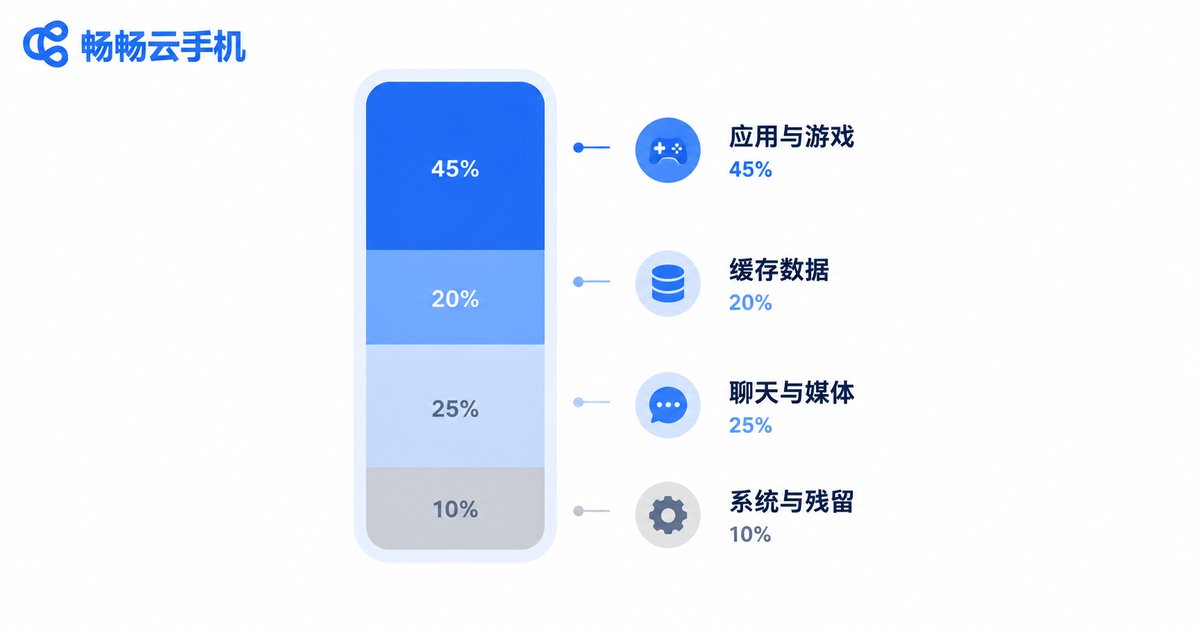
Before deleting anything, run a quick storage audit. Open Settings on your cloud phone and check the storage breakdown. You will usually find space consumed by four major categories:
| Category | Typical Content | How to Handle |
|---|---|---|
| Apps and games | Installers, game resources | Uninstall unused ones to free space |
| Cached data | Video, image and web caches | Safe to clear, rebuilt automatically |
| Chat and media files | Photos, videos, voice notes, documents | Review, then archive or delete |
| System and leftovers | Update packages, uninstall残留 | Partially clearable |
In most cases, caches and long-accumulated media files are the biggest space killers. This is especially true when a cloud phone is used for gaming or running multiple apps — a single game resource pack can easily weigh several gigabytes.
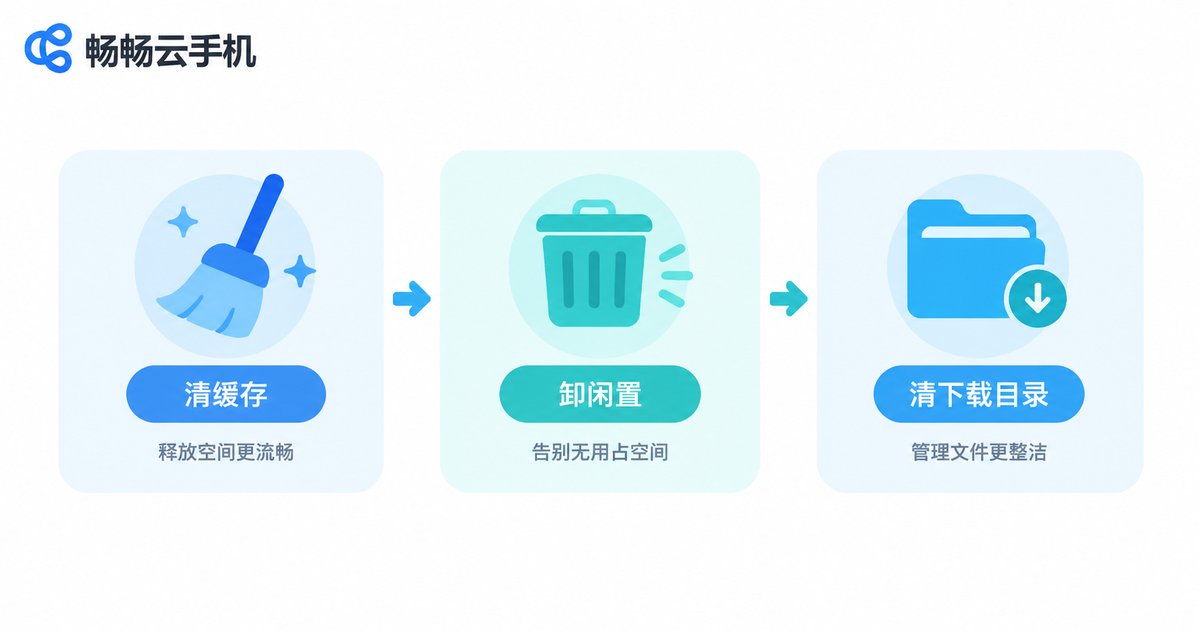
Routine Cleanup: Three Steps to Free Up Space
Step 1: Clear caches. Go into each app's storage settings and clear the cache, starting with video apps, browsers and large games. Clearing the cache does not touch account data; content simply reloads once.
Step 2: Uninstall idle apps. Remove any app you have not opened in over a month. Many people keep a pile of backup apps on their cloud phone that they rarely use, yet those apps hold onto space all year.
Step 3: Empty the download folder. Installation packages and archives lose their value once used. Clear the downloads folder regularly so duplicate files do not stack up.
Make cleanup a fixed habit — five minutes a week is far easier than a rescue mission after storage fills up.
Expansion: When Should You Upgrade?
If space is still tight after a thorough cleanup, your current configuration no longer matches your usage. Watch for these signals:
Game resource packs repeatedly warn about insufficient space, forcing you to uninstall other apps first; you need to run several large apps at once and a single instance clearly cannot fit them; chat history and work files keep piling up with nothing left to delete.
This is where cloud phones beat physical phones: expanding capacity does not require buying a new device. Take ChangChang Cloud Phone (ccloudphone) as an example — different plans correspond to different storage and performance configurations, so you can upgrade directly when space runs short. If one instance truly is not enough, you can also run multiple cloud phone instances and split gaming, work and other workloads across them, spreading the storage pressure naturally. For the exact storage specs of each plan, check the latest details on the ChangChang Cloud Phone official website (ccloudphone) and choose based on your real usage rather than paying for capacity you will never use.
File Archiving: Give Important Data a Safe Home
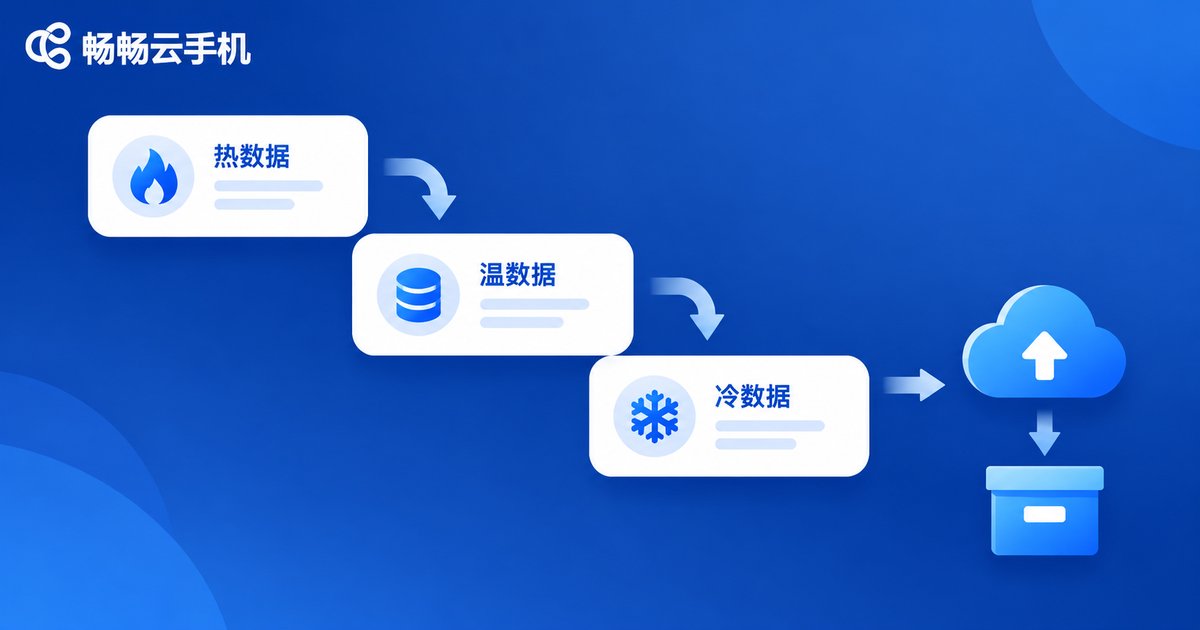
Cleanup handles the present; archiving protects the past. Cloud phone data already lives in the cloud — a natural archiving advantage — but a proactive three-tier system works best:
Hot data: apps in active use and recent files, kept on the cloud phone itself for instant access.
Warm data: chat history and project files you rarely open but cannot delete, exported and packed regularly to cloud drive or local computer storage.
Cold data: old files you almost never view, compressed and archived separately, retrieved only when needed.
The greatest value of archiving is disaster recovery: if an instance ever needs to be reset or replaced, your important files already exist in a second copy, so there is no panic. Set one fixed day each month for archiving and stick to the rhythm.
A Quick Reference: Your Storage Management Rhythm
| Frequency | Action | Purpose |
|---|---|---|
| Weekly | Clear caches and the download folder | Free up temporary space |
| Monthly | Uninstall idle apps and archive files | Control long-term growth |
| Quarterly | Audit storage and evaluate expansion | Match configuration to real needs |
Storage management is not difficult — consistency is what matters. Build cleanup, expansion and archiving into a fixed routine, and your cloud phone will stay smooth for the long run while your important data always has a backup.
FAQ
Q: Will clearing the cache delete my game progress?
No. Game progress is usually stored in account data or cloud saves. Clearing the cache only removes temporarily loaded images and videos, which the game re-downloads automatically.
Q: Can files be recovered after a cloud phone reset?
A reset wipes the data on that instance, so always export and archive important files in advance. With regular backups, accidental resets become harmless.
Q: When space runs low, should I clean up or upgrade?
Do a full cleanup first and see the result. If warnings keep appearing afterward, your needs have genuinely grown — upgrading or adding another cloud phone instance is the calmer path.
Q: Can files be shared between multiple cloud phone instances?
Yes, via a cloud drive as a relay, or by exporting and importing between instances. Keeping shared materials in one cloud drive location avoids duplicate copies eating space on every instance.


