
How to Log Into WeChat on Cloud Phone? A Step-by-Step Guide to Multi-Account Cloud Login
Why Use a Cloud Phone to Log Into WeChat?
Many e-commerce operators, community managers, and foreign trade professionals need to keep multiple WeChat accounts online simultaneously. The traditional approach means buying several physical phones or using desktop emulators. The former is expensive, and the latter stops working the moment your PC shuts down. A cloud phone, on the other hand, runs a full Android environment on remote servers. You only need a laptop or a single phone to access the cloud workspace and operate WeChat, 24/7 without interruption.
Even more importantly, each cloud phone instance has its own independent IP address and system environment, effectively simulating multiple real devices and significantly reducing the risk of multi-account detection.
Preparation Before You Log In
Before you start, make sure the following are in place:
1. Register and sign in to ccloudphone
Visit the ccloudphone official website and complete your account registration. Once logged in, you will see your assigned cloud device list in the dashboard.
2. Confirm your cloud device is powered on
In the dashboard, select the corresponding cloud phone instance and click 'Power On'. The first boot takes about 30 seconds; afterwards the device stays online.
3. Install WeChat
On the cloud phone home screen, open the app store, search for 'WeChat', and install it. If it is not available in the store, download the WeChat APK on your local computer and upload it via the dashboard's 'File Upload' feature.
4. Prepare a local device
Your phone or laptop needs to be able to open WeChat normally for QR code authorization. Make sure your network connection is stable.
Single-Account Login: Four Simple Steps
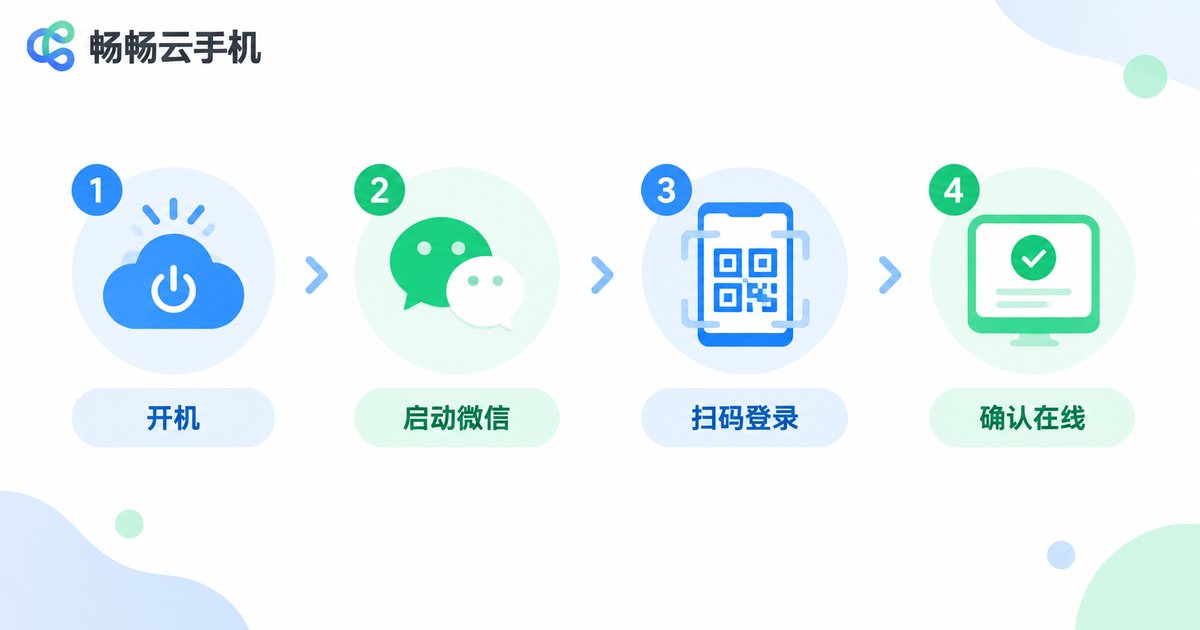
Here is how to log into one WeChat account on a ccloudphone instance:
Step 1: Open the cloud phone desktop
In the ccloudphone dashboard, click 'Remote Connect'. Your browser will display the cloud phone desktop. You can operate it with a mouse and keyboard, just like a local phone.
Step 2: Launch WeChat
Find the WeChat icon on the cloud phone home screen and double-click to open it. The first launch performs initialization; wait a few seconds for the login screen to appear.
Step 3: Scan the QR code
WeChat will display a QR code on the cloud phone. On your local phone, open WeChat, tap the '+' icon in the top-right corner, select 'Scan', and scan the QR code. Once your local phone confirms, the cloud phone's WeChat is logged in.
Step 4: Verify online status
After a successful login, the cloud phone shows the chat list. Even if you close the browser or shut down your local computer, WeChat on the cloud phone remains online and continues to receive messages.
The entire process takes less than two minutes, often faster than logging in on a local phone since there is no unlock or loading delay.
Multi-Account Simultaneous Login: Core Workflow
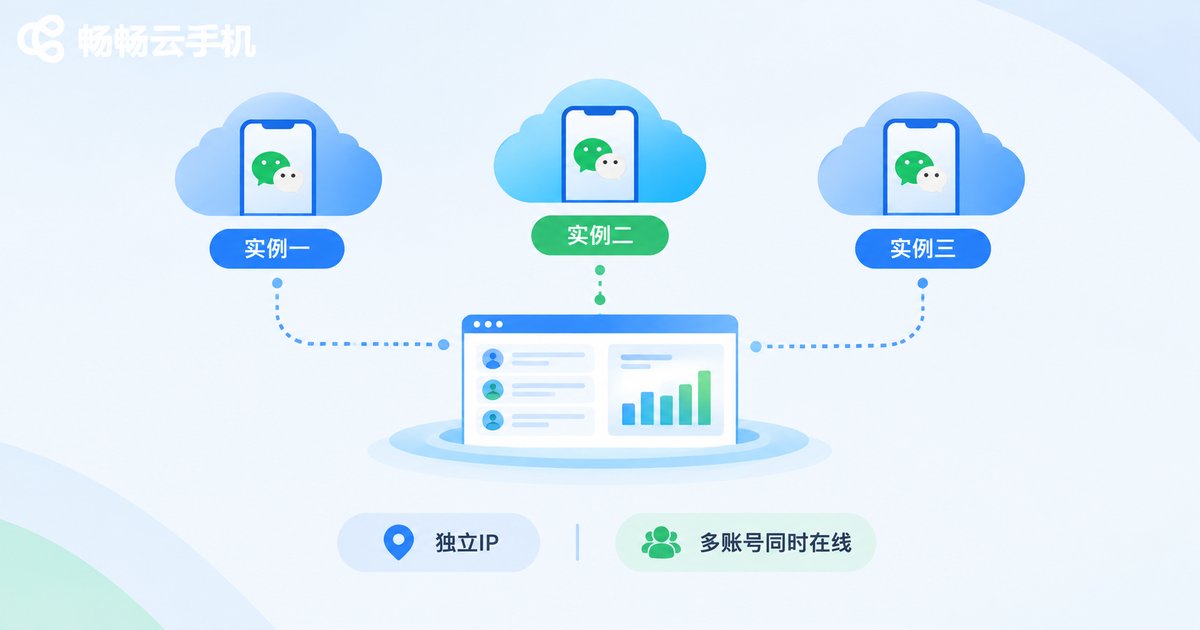
This is where cloud phones truly shine. Suppose you need three WeChat accounts online at the same time:
1. Create multiple cloud phone instances
In the ccloudphone dashboard, go to 'Device Management' → 'Add Device' and create three separate cloud phones. Each instance runs an independent Android system with its own IP address.
2. Install and log in on each instance
Repeat the four-step login process on each cloud phone. Important: when scanning the QR code, use the local phone that corresponds to the specific WeChat account to ensure a one-to-one match.
3. Enable keep-alive settings
On each cloud phone, go to WeChat → 'Me' → 'Settings' → 'General' → 'Auxiliary Features' and enable options like 'Shake to activate'. ccloudphone itself supports 24/7 operation, so no additional configuration is needed to stay online.
4. Daily monitoring and management
In the dashboard you can open multiple remote windows simultaneously to check messages from different accounts. You can also set up notifications so your local device alerts you when new messages arrive.
Advantages of ccloudphone for Multi-Account Management
| Criteria | Multiple Local Phones | Desktop Emulator | ccloudphone |
|---|---|---|---|
| Device cost | Several hundred to thousands per phone | Free but consumes PC resources | Per-instance rental, cost-effective |
| Uptime | Requires constant charging | Offline when PC shuts down | 24/7 cloud operation |
| IP independence | Same IP under one WiFi | Shared PC IP | Unique IP per instance |
| Convenience | Must arrange multiple phones | Clunky window switching | Browser multi-window management |
| Data security | Phone loss risk | Depends on local PC | Cloud storage, multi-device access |
As the table shows, ccloudphone offers the lowest overall cost and highest stability for multi-account scenarios, making it ideal for operators who need long-term WeChat multi-instance operation.
Post-Login Tips and Best Practices
Avoid frequent account switching: Do not repeatedly log out and in with different accounts on the same cloud phone instance. Assign one account per device.
Keep WeChat updated: Periodically check for WeChat updates in the cloud phone app store. Running the latest version reduces the chance of triggering risk controls.
Choose the right configuration: ccloudphone offers different performance tiers. A basic configuration is sufficient for everyday WeChat chatting. If you need to run multiple apps simultaneously, select a higher-tier plan.
Use the file transfer feature: To transfer images or files to the cloud phone, use the dashboard's upload/download tools. No third-party software is required.
Frequently Asked Questions
Q: Will WeChat on a cloud phone disconnect?
ccloudphone runs on cloud servers with 24/7 uninterrupted operation. Unlike a local phone, it will not go offline due to battery drain or network loss. As long as your cloud phone instance is powered on, WeChat stays connected.
Q: How many WeChat accounts can one cloud phone instance log in to?
We recommend one WeChat account per cloud phone instance. For multiple accounts, simply create additional instances. Each runs independently without interference.
Q: Does it matter if my local phone and the cloud phone are on different networks during QR code login?
No. QR code login only requires your local phone to reach the WeChat server. Once authorization is complete, the cloud phone maintains its own independent connection regardless of network differences.
Q: Can WeChat on a cloud phone receive voice messages?
Yes. ccloudphone supports full audio functionality. Voice messages are received and played normally. You can listen directly through the browser remote connection.
Q: What if I accidentally log out of WeChat on the cloud phone?
Simply reopen WeChat on the cloud phone and scan the QR code again with your local phone. As long as the WeChat account on your local phone is active, you can re-authorize the cloud phone at any time.


