
How to Use a Cloud Phone: A Complete Beginner's Guide from Zero to Proficient
What Is a Cloud Phone?
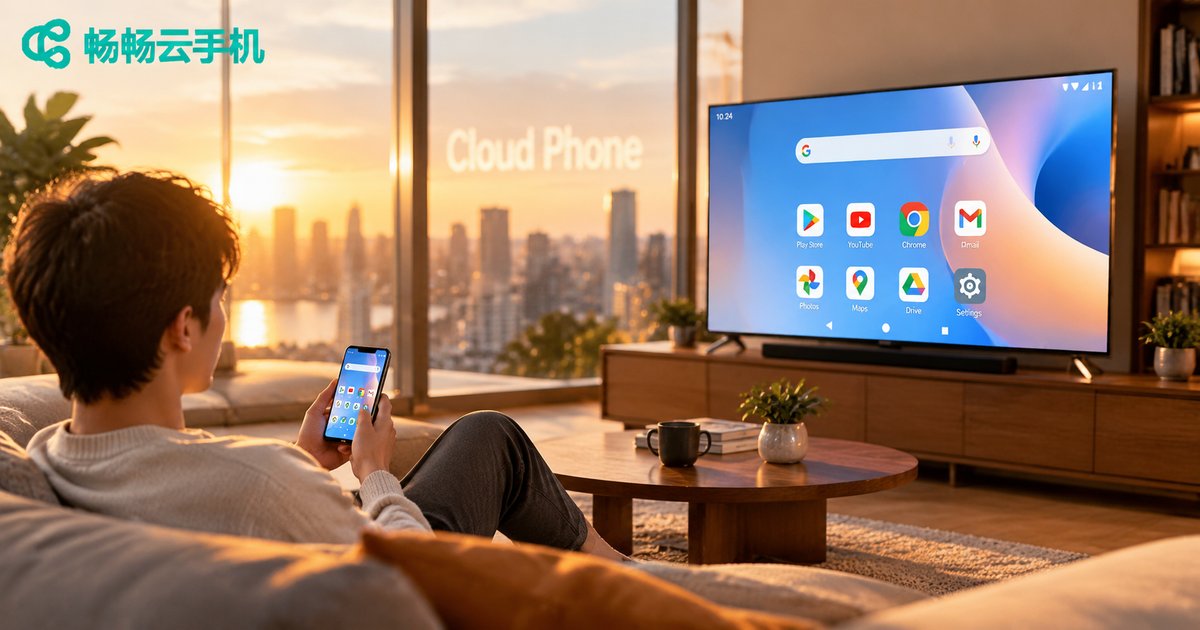
In simple terms, a cloud phone is a real Android device hosted on a remote server. You don't need to buy any physical hardware — all you need is a smartphone, tablet, or computer with an internet connection to remotely control a virtual phone. It runs a full Android system, so you can install apps, play games, and handle daily tasks just like on a local device.
Think of a cloud phone as a 24/7 always-on remote phone — even if you turn off your local device, tasks on the cloud phone keep running.
| Comparison | Local Phone | Cloud Phone |
|---|---|---|
| Hardware cost | Requires purchasing a physical device | On-demand, no hardware investment |
| Uptime | Stops when powered off | Runs continuously 24/7 |
| Multi-instance | Limited to a single device | Run multiple instances simultaneously |
| Control endpoint | Local device only | Phone / Tablet / PC |
What Scenarios Are Cloud Phones Best For?
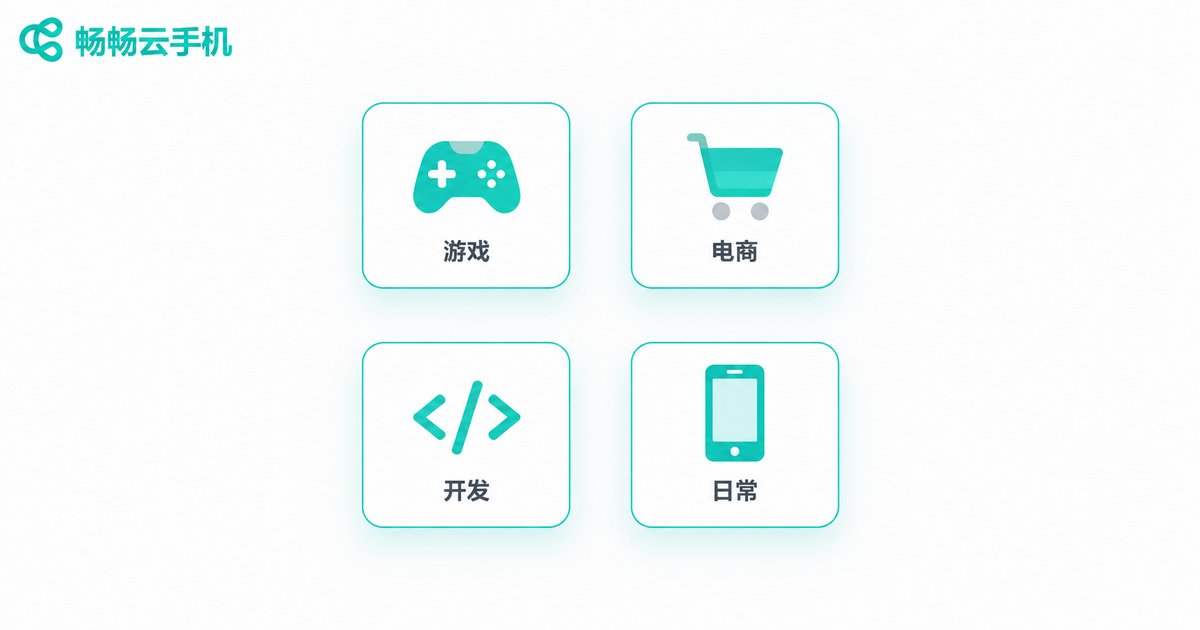
Cloud phones cover a wider range of use cases than most people expect:
Game Players: Run multiple game accounts, farm dungeons on autopilot, and keep resources collecting around the clock — your local phone is finally free.
E-commerce & Marketing Teams: Manage multiple store accounts at scale and automate repetitive workflows for a several-fold efficiency boost.
Developers & QA Testers: Spin up test environments with different configurations in seconds — no need to stockpile physical devices.
Everyday Users: Run heavy apps smoothly on an aging device, or use mobile apps directly from your desktop.
Step 1: Sign Up and Create Your Cloud Phone
Using CcCloudPhone (ccloudphone) as an example, the whole process takes less than three minutes:
1. Visit the website and register
Go to the CcCloudPhone website and sign up with your phone number or email. The system will automatically allocate your initial resources.
2. Choose a configuration and create an instance
In the dashboard, click Create Cloud Phone and select CPU, RAM, and storage based on your needs. For everyday use or light gaming, the default configuration is more than sufficient.
3. Wait for initialization
After confirming, the system provisions your cloud phone and completes OS setup within seconds. A brand-new Android device will appear in your list with a Running status.
Step 2: Connect and Basic Operations
Once your cloud phone is ready, you can connect in several flexible ways:
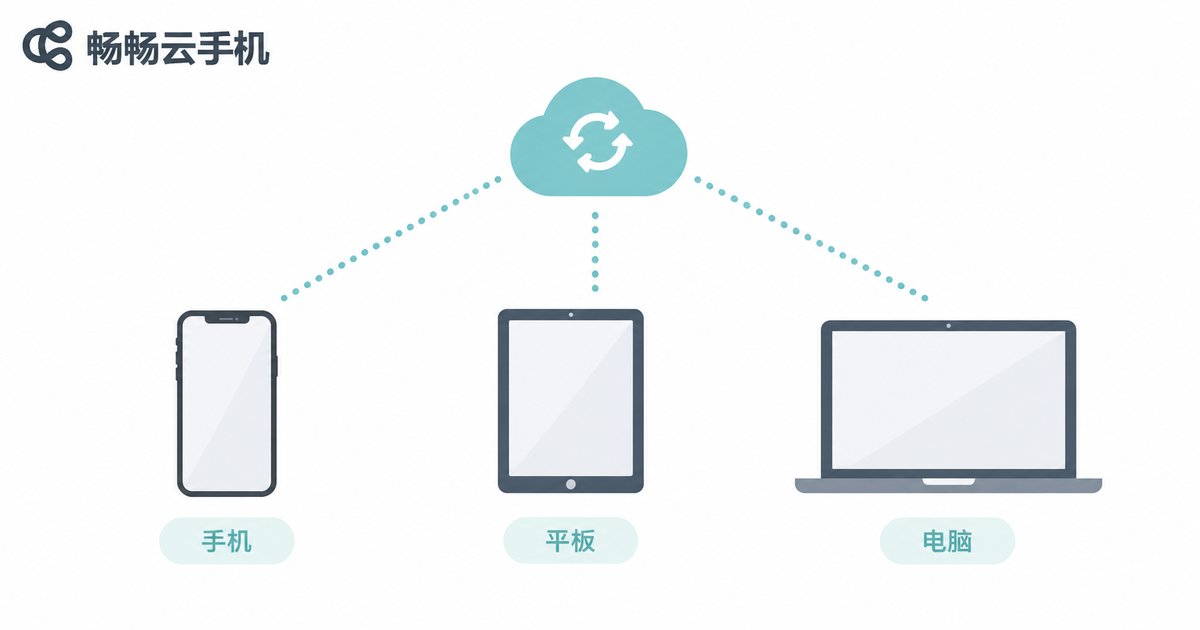
From a phone or tablet: Download the CcCloudPhone client, log in with the same account, and you will see your cloud phone ready to control. The latency is extremely low — swiping, tapping, and typing feel just like a real device.
From a computer: Open the desktop client or the web-based console to operate your cloud phone with a mouse and keyboard. This is ideal for heavy typing or screenshot workflows.
Basic operations include:
• Install apps: Download APK files through the cloud phone's file manager, or use the client's Install App feature to upload and install directly.
• Screen mirroring & recording: View the cloud phone screen in real time and record it with one click.
• File transfer: Move photos, documents, and other files between your local device and the cloud phone.
Step 3: Advanced Workflows
Once you are comfortable with the basics, try these advanced features:
Multi-instance management: Create multiple cloud phones simultaneously, each running a different account or task. CcCloudPhone supports batch operations — execute the same command across all devices with one click to save massive amounts of time.
Scripts & automation: For repetitive tasks (scheduled check-ins, auto-taps), use scripts to automate execution. The cloud phone keeps running in the background so you don't have to watch the screen.
Scheduled remote tasks: Set up timed power on/off and scheduled app launches, turning your cloud phone into a 24/7 assistant.
Frequently Asked Questions
Q: How does the cloud phone experience compare to a local phone?
For everyday use and light gaming, the difference is virtually imperceptible. CcCloudPhone uses low-latency transmission technology, so controls feel highly responsive. Only in demanding competitive games might you notice a subtle difference.
Q: If my local connection drops, will tasks on the cloud phone stop?
No. The cloud phone runs on a remote server. If your local connection drops, you simply cannot view or operate it temporarily, but all tasks continue running. Everything is back to normal once you reconnect.
Q: What apps can I install on a cloud phone?
Any standard Android APK works, including games, social media, e-commerce, and productivity apps. CcCloudPhone provides a complete Android environment with excellent compatibility.
Q: What configuration should a beginner start with?
Start with the default configuration to get familiar with the platform, then upgrade based on your actual needs. If you mainly use it for idle tasks or light workloads, the basic configuration offers the best value.


