
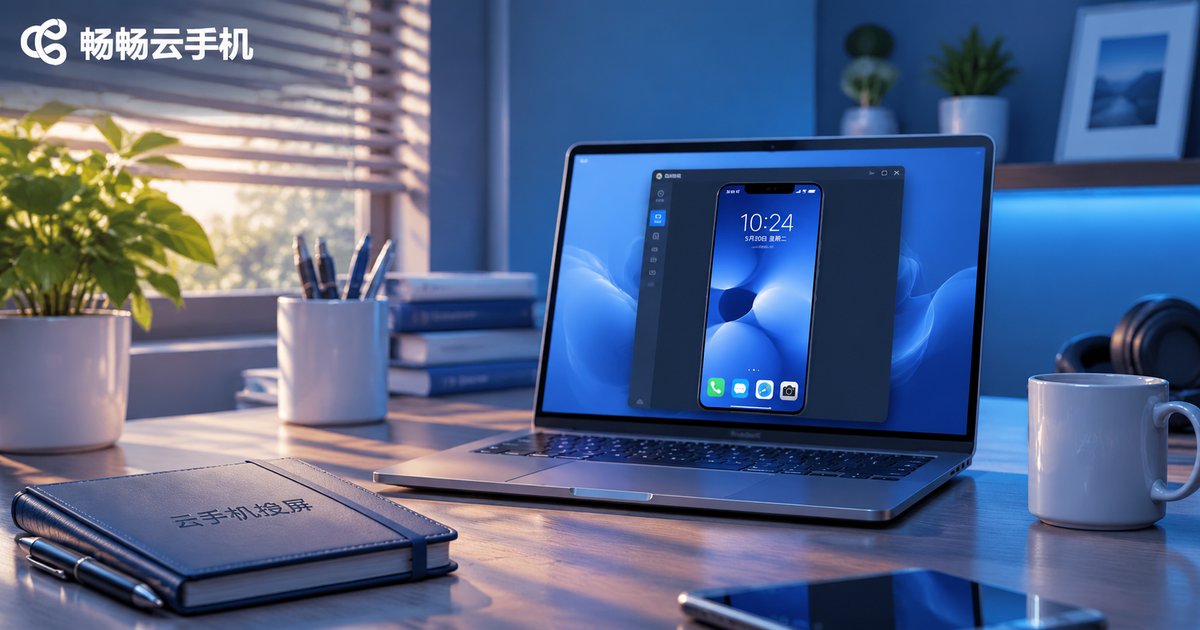
How to Cast a Cloud Phone to PC? The Key Difference Between the Two Methods Is Latency
First, Understand What a Cloud Phone Cast Actually Does
When people first hear about casting a cloud phone to a PC, they often wonder: the phone is not even in my hand, so what exactly is being cast?
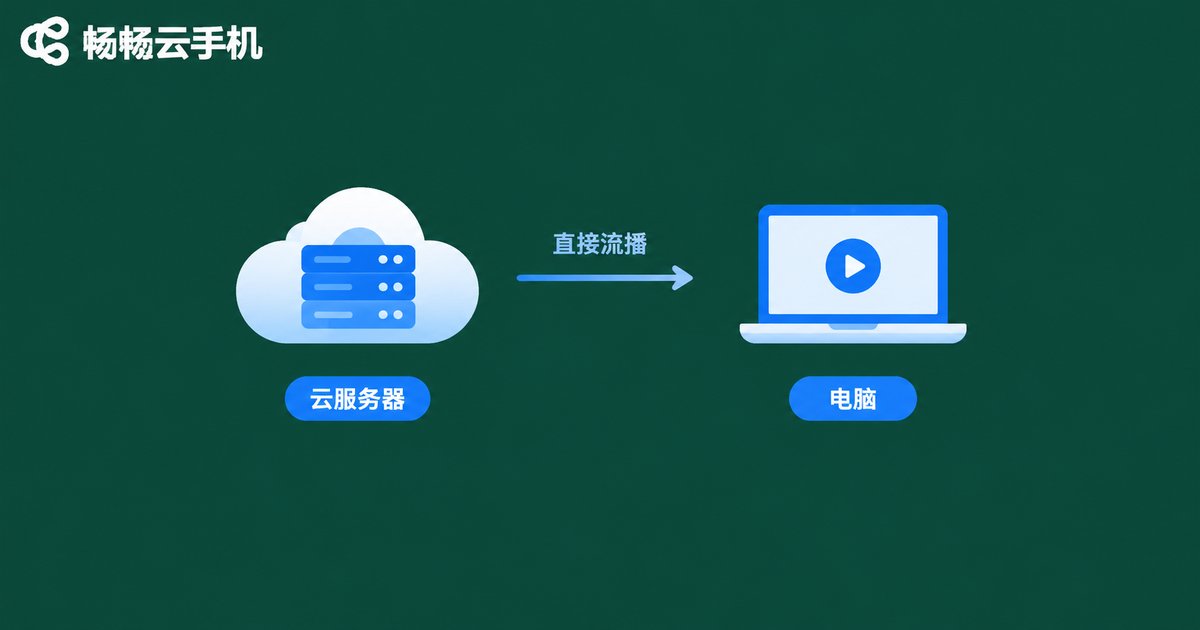
A cloud phone does not run on your computer. It runs on a server in the cloud, with the system, computing power and storage all live there. What you see on screen is the server encoding the rendered frame into a real-time video stream and pushing it over the network to your display. Casting is essentially moving a live video stream onto your monitor.
Once you understand that, you can see why two methods both called “casting” can feel completely different: it all depends on how the path in between is built.
Method 1: Direct Console or Client Streaming
This is the simplest route. Log into the ccloudphone web console in a browser, or use the desktop client, and the cloud phone screen appears right away. One click on the mouse and you are operating it, just like a phone window inside your PC.
The difference is in the routing: the provider builds its own streaming channel and pushes the picture straight into your browser or client. There is no extra “capture, transcode, resend” step in the middle, so the path is the shortest possible.
Typical characteristics:
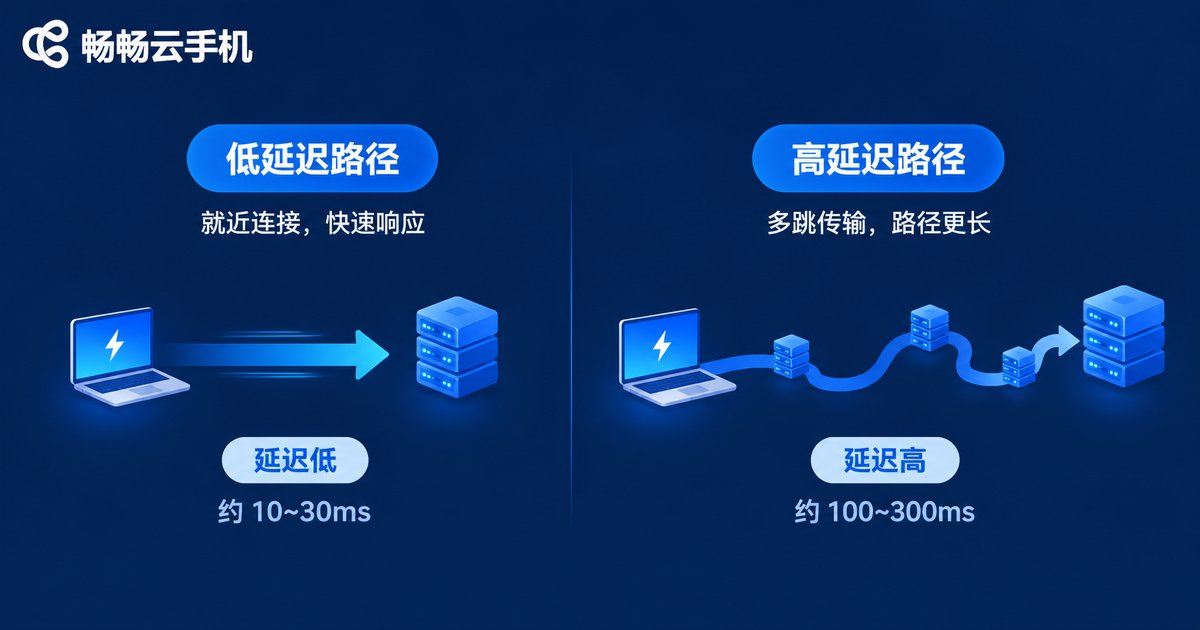
· Low latency, usually within tens of milliseconds, so swipes and taps feel responsive;
· No extra software, just open the browser;
· Multi-window support, several cloud phones visible at once;
· Audio and video stay in sync without extra configuration.
Method 2: Third-Party Software or ADB Screen Capture
The other common approach is to “capture” the cloud phone screen first and then send it to the PC through a third-party tool. This might mean connecting over ADB and taking screenshots, or using a generic mirroring tool.
This process adds several steps: the cloud phone renders the frame → the screen is captured → the image is encoded → it is transferred over ADB or the tool → the PC decodes it → the picture is displayed. Every step takes time, and the latency adds up.
The characteristics are equally clear:
· Higher latency, because the action and the picture often feel half a beat apart;
· More setup, requiring debugging mode, port configuration and tool connections;
· Limited frame rate, since screenshot-based streaming rarely reaches high frame rates;
· Possible dropped frames and compression artifacts, with blurry text.
The Core Difference: Latency
Put the two side by side and the gap becomes obvious:
| Item | Direct Console / Client | Third-Party / ADB Capture |
|---|---|---|
| Route | Provider's own streaming channel | Capture, transcode, second transfer |
| Typical latency | Low, tens of milliseconds | High, hundreds of milliseconds |
| Responsiveness | Swipes and taps roughly in sync | Noticeable lag |
| Frame rate | Higher, smooth | Lower, prone to stutter |
| Setup effort | Log in and go | Debugging and connection |
| Multi-instance | Native multi-window | Requires extra setup |
| Stability | Higher | Depends on tools and network |
If your goal is scrolling, idle tasks or managing many accounts, tens of milliseconds versus hundreds of milliseconds is a completely different experience. The first feels like using a phone; the second feels like watching a video.
Where the Latency Actually Comes From
To reduce latency, you need to know where it is spent. A full casting chain has five stages:
1. Rendering: the cloud server draws the frame;
2. Encoding: the frame is compressed into a video stream;
3. Network transfer: from the server to your PC;
4. Decoding: the PC restores the stream into a picture;
5. Display: the final output on the monitor.
Direct streaming keeps these five stages as short as possible. Screen capture or ADB methods add extra steps between capture and transfer, which is why latency roughly doubles.
How to Lower Latency
Choosing the right method is only the first step. Everything below can shave the latency down further:
· Prefer a wired connection, and a network cable is far more stable than Wi-Fi;
· Avoid heavy downloads on the same network, and don't let video or updates steal bandwidth;
· Lower the resolution if needed, and balance between image quality and smoothness;
· Close background programs, and don't run many heavy apps on the PC at once;
· Choose a nearby node, which reduces the network round trip;
· Use direct cloud streaming, and skip third-party third-party capture tools.
Why ccloudphone is Recommended
ccloudphone provides both a web console and a mobile entry point. Once you log in, you can view the cloud phone screen directly, with no extra tools or port configuration in the casting step. The cloud handles running and rendering, while the PC only handles display and input, so the path stays short and the latency stays low.
For users who need multiple instances, batch management or long idle sessions, the advantage of this direct route is simple: responsive control, no setup hassle, and smooth window switching. For supported models and configurations, please refer to the official ccloudphone website.
In one sentence: choosing a casting method is really about choosing the shortest path.
FAQ
Q: Do I need to install software to cast a cloud phone to my PC?
Not necessarily. You can simply log into the web console, and no extra installation is required. The desktop client is another option, depending on your preference.
Q: Why is the latency gap between the two methods so large?
Because the path length differs. Direct streaming sends the picture straight from the provider, while third-party capture adds screenshot, transcoding and a second transfer, each of which adds time.
Q: Is high latency a network problem or a method problem?
It could be either. First confirm that you are using the direct streaming method, then check your network environment, and you can usually pinpoint the cause.
Q: Can I operate multiple cloud phones at the same time after casting?
Direct streaming usually supports multi-window operation, so several cloud phones can be displayed and controlled separately. Please refer to the official ccloudphone feature documentation for details.
Q: Does casting affect the cloud phone itself?
No. The cloud phone runs in the cloud, and casting only displays the picture. The cloud-side tasks keep running.


