
How to Unbind a Cloud Phone? Clean Up Both the Device and the Account
Before You Unbind, Figure Out Which Layer You Are Actually Cutting
Most people who search for how to unbind a cloud phone are actually dealing with one of four very different situations: they got a new phone and want to wipe the login state off the old one, they want to hand the cloud phone over to a colleague, they are done with the service and want to close the account, or they are worried that their account is still logged in on someone else's phone. Each of these is handled in a different place. Mix them up and you end up with the classic mess: the app is deleted locally but the cloud instance is still running, or the cloud side is closed but the phone still holds a live session.
Broken down properly, there are only two places you need to touch: the device side and the account side. The device side is about what is still left on your physical phone. The account side is about whose name the virtual phone in the cloud is still registered under. Only when both are clean is the unbinding actually complete.
Three Small Things to Do Before You Start
Unbinding is irreversible, especially releasing an instance on the account side. Once that is done, the data inside the cloud phone is usually gone for good. So before you tap any unbind, release or delete button, spend five minutes on these three things.
First, export what is inside the cloud phone. Photos, chat history, documents, game saves — anything you can move to your local device or your own cloud drive, move it first. The storage inside a cloud phone is rented space, not your phone's internal memory.
Second, check what else is attached to this account. Some cloud phone accounts are also linked to payment methods, identity verification and team sub-accounts. Look at the linked list before you unbind, so you do not walk away with a recurring charge or a sub-account still running.
Third, decide whether you want to sign out or fully unbind. Signing out just takes you offline; the account and the instance both stay. Fully unbinding cuts the relationship between the device and the account. If you are pausing temporarily, choose the first. If you are done for good, choose the second.
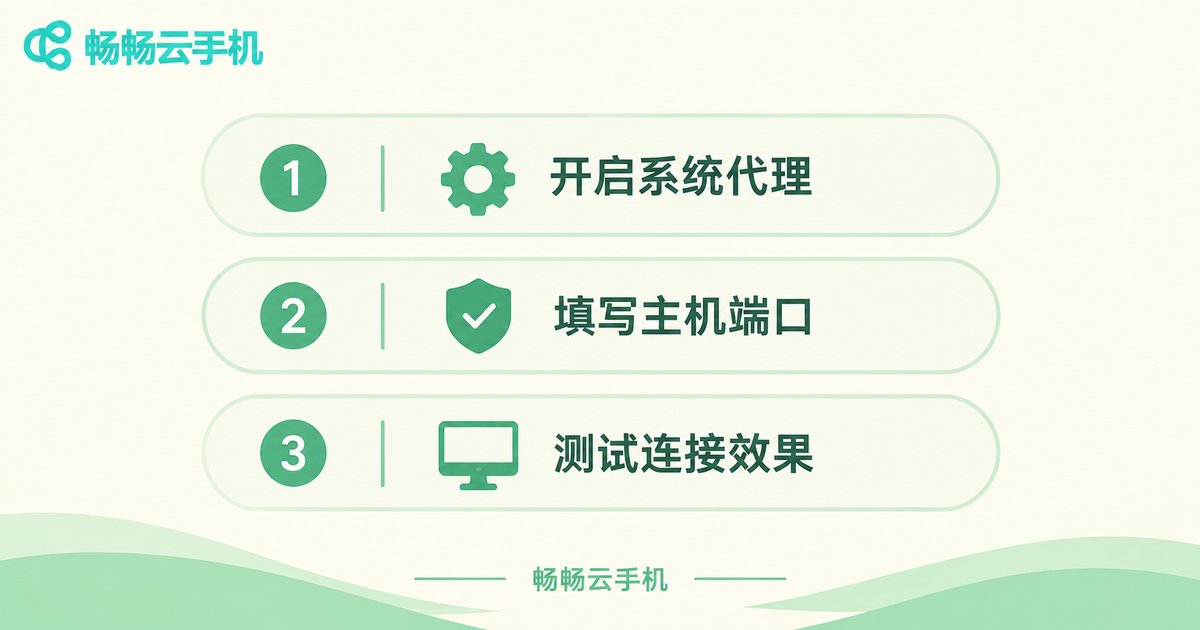
Device Side: Clean the Traces Off Your Physical Phone
On the device side, many people assume that uninstalling the app is enough. It is not. Once the app is gone, local caches, auto-login credentials, notification permissions and account details left in the clipboard can still linger in the system.
The right order is this: first sign out inside the cloud phone app and confirm the sign-out succeeded; then go into your phone's app management, find the app, and choose clear data and clear cache; only then uninstall it. If you are selling the phone or passing it to a family member, also check system-level account sync, your password manager and the input method's learned word list — account names occasionally survive in those places.
One more reminder: if you logged into third-party apps such as messaging or payment tools inside the cloud phone, remove that unfamiliar device from their login device management page before you leave the cloud phone. Otherwise your next login from a different location may trigger a security check.
Account Side: Deal With the Cloud Instance and the Authorizations
The account side is what unbinding really means. Here you need to log into the cloud phone provider's website or admin console, open the device and instance management page, and release or delete the cloud phone instances you no longer use. Then, in the account settings, remove the payment methods, third-party login authorizations and team member permissions tied to this account.
One easily missed point: cloud phones shared by a team. If the cloud phone was purchased by your company and several people use it, your personal sign-out is not the same as unbinding. Either ask the administrator to remove your sub-account, or transfer the instance ownership to whoever is taking over. Otherwise the machine stays under your name and you are still the one people call when something goes wrong.
Four Common Scenarios and How to Handle Each
| Scenario | What to do on the device side | What to do on the account side |
|---|---|---|
| New phone, old phone still in use | Sign out on the old phone and clear its data | Nothing needed; just sign in on the new phone |
| Selling or gifting the old phone | Sign out, clear data, uninstall, check system accounts | Change the password once and remove all old login devices |
| Handing the cloud phone to a colleague | Sign out on your own device | Transfer instance ownership, remove your sub-account permissions |
| Done with it entirely | Sign out and uninstall | Release the instance, unbind payment methods, close the account |
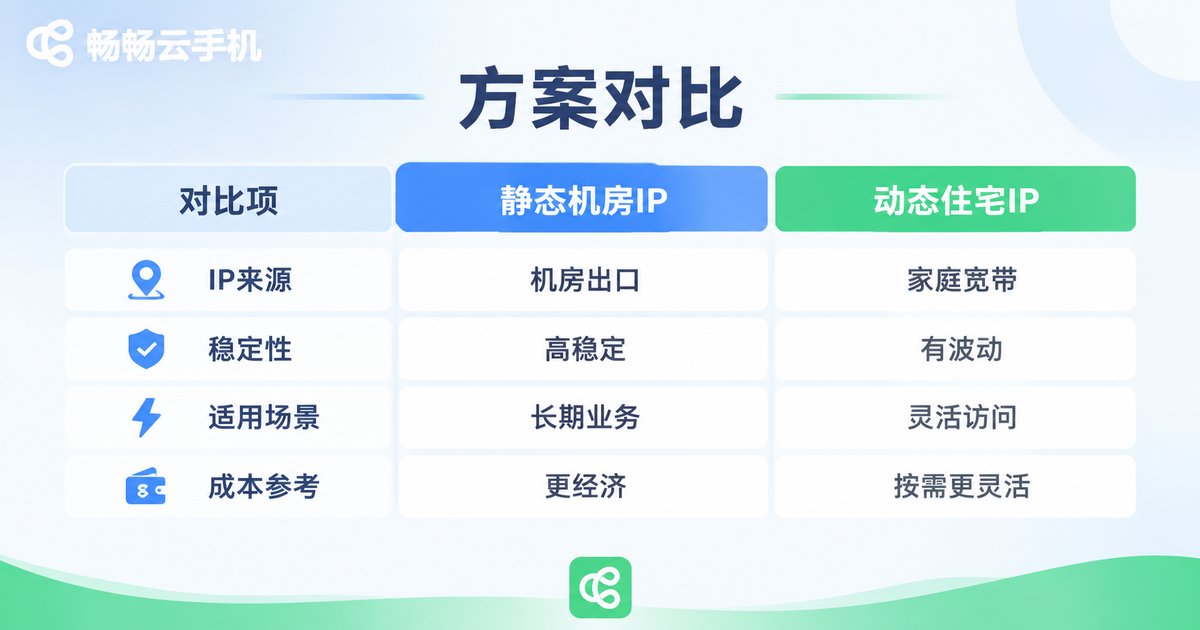
After Unbinding, How to Confirm It Is Really Clean
Once you have finished both steps, do not just close the page. Run three checks. First, reopen the app and see whether it asks for your account and password again — if it does, the local credentials are cleared. Second, log into the cloud console and confirm the machine is gone from the instance list or shows as released. Third, check the auto-payment list in your payment channel to make sure no subscription is left behind.
If all three pass, the unbinding is clean. If any one fails, go back and redo the matching step.
With ccloudphone, Unbinding Is Not Complicated in the First Place
At the end of the day, unbinding is painful because many cloud phone products tangle device, account, instance and payment into one knot, and users have no idea which layer they just cut. ccloudphone separates these layers fairly clearly: device management, instance management and account security each live in their own module, and signing out versus releasing an instance are two distinct actions — you will not hit sign out and find the instance still running.
On top of that, ccloudphone instances run on servers, so they do not consume your local phone's storage or battery, and very little data settles on the local side. That makes device-side cleanup simpler than you would expect: sign out, clear cache, uninstall — three steps and you are done. For specific features and usage, refer to what is published on the official website.

Frequently Asked Questions
Q: Does uninstalling the app without signing out count as unbinding?
No. Uninstalling only removes the local program; the account is still logged in on the cloud side and the instance is still running. To truly unbind, you must sign out inside the app first, then handle the instance on the account side.
Q: Can I recover the data in the cloud phone after unbinding?
If you only signed out and did not release the instance, signing back in will show your original data. If the instance has been released or deleted, the data is usually unrecoverable, so always export important files before unbinding.
Q: I changed my phone number and cannot receive verification codes on the old one. What now?
Handle this while you can still log in: update the bound phone number in the account security settings in advance. If you can no longer log in, use the account appeal channel provided on the official website and have your registration details ready.
Q: A friend borrowed my cloud phone. What should I do when it comes back?
Ask them to sign out, change your password once, and remove any unrecognized devices from the login device list. If payment apps were used inside the cloud phone, also review their password-free payment authorizations.
Q: If I sign out of a team-shared cloud phone, will it affect others?
No. You are only ending your own login session; the instance keeps running. But if you plan to release the instance, confirm with the other users first so you do not shut down a machine someone is actively using.


