
Does Cloud Phone Support HarmonyOS? HarmonyOS Cloud Phone Setup Guide
HarmonyOS and Cloud Phones: What Is the Actual Relationship?
HarmonyOS is one of the fastest-growing mobile operating systems, powering phones, tablets, smart screens, and more. As the HarmonyOS user base keeps expanding, one question comes up again and again: Do cloud phones support HarmonyOS? Can you create and use a cloud phone on a HarmonyOS device?
To answer it, you first need to separate two concepts: a cloud phone is a virtual smartphone running in a remote data center with its own independent system, while HarmonyOS is the system on the physical device in your hand. Running HarmonyOS on a cloud phone and controlling a cloud phone from a HarmonyOS device are two different things. Let's break them down layer by layer.
Does Cloud Phone Support the HarmonyOS Version?
Here is the straight answer, in three layers:
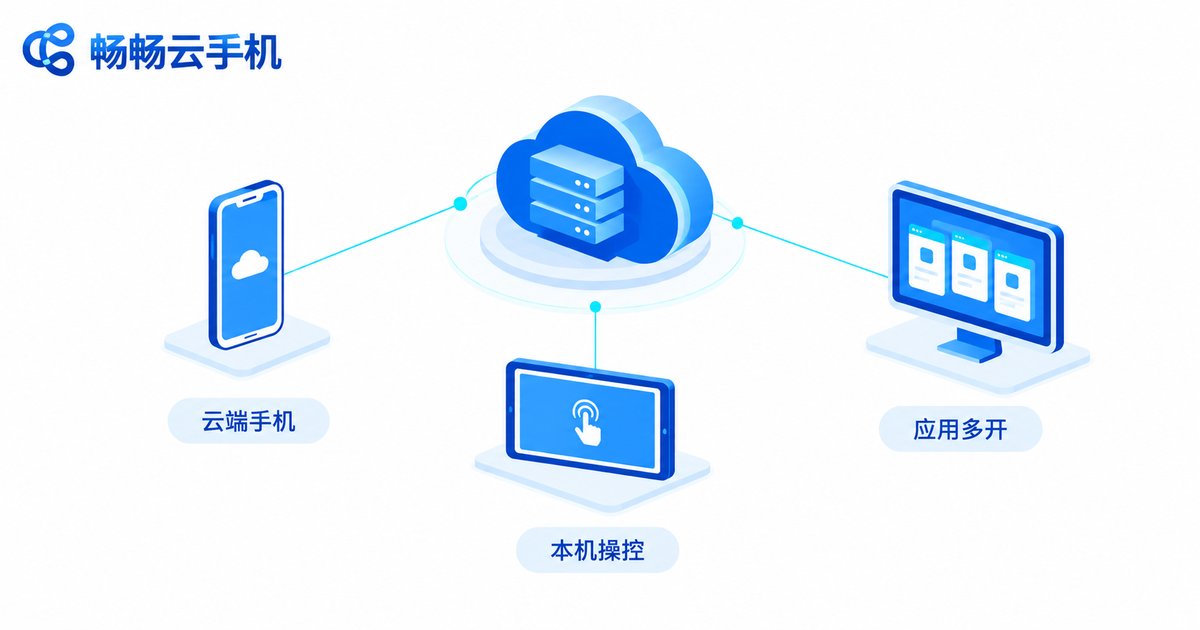
1. Cloud-side system: Most cloud phones today are built on an Android base, while native HarmonyOS uses an independent app ecosystem and has not yet become a standard option on the cloud side. Strictly speaking, you cannot flash HarmonyOS onto a cloud phone.
2. Client access: No problem at all. HarmonyOS phones and tablets can open a cloud phone's web console in the browser and control the cloud device smoothly, just like a real phone. A HarmonyOS device can fully serve as the command center for your cloud phones—which is exactly what most users actually care about.
3. App compatibility: Cloud phones run Android apps. As long as your target app has an Android version, it installs and runs normally inside the cloud phone; apps released only as native HarmonyOS versions must wait for cloud phone providers to adapt to the HarmonyOS ecosystem.
| Dimension | Cloud Phone (Cloud Side) | HarmonyOS Device |
|---|---|---|
| System base | Android ecosystem | Native HarmonyOS |
| Multi-instance | Bulk multi-open and group control | Limited by local hardware |
| 24/7 online | Always on in the data center, even if your phone is off | Depends on the device being powered on |
| Local resource usage | Nearly zero | Uses storage and battery |
HarmonyOS Cloud Phone Tutorial: Five Steps
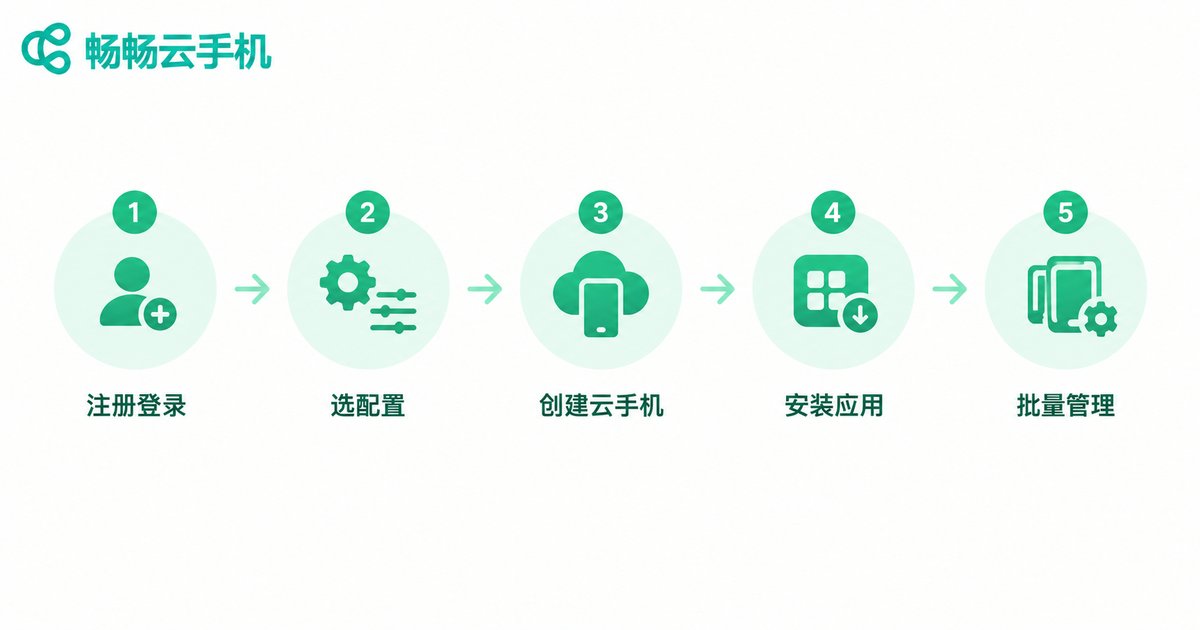
Creating a cloud phone on a HarmonyOS device is simple and requires nothing but an internet connection—no local storage or performance is consumed. Taking ChangChang Cloud Phone (ccloudphone) as an example, just follow along:
Step 1: Visit the official website and register.Open the ccloudphone website in your HarmonyOS browser, complete registration and login, and enter the user console.
Step 2: Choose a device profile.Pick the device model and region based on your use case: high-spec devices for demanding games, cost-effective ones for daily multi-account and hanging tasks.
Step 3: Create the cloud phone.Click the create button and wait a moment while deployment completes automatically—an independent smartphone running in the cloud is now yours.
Step 4: Install apps and log in.Enter the cloud phone desktop and download apps, then log in to your game or social accounts just like on a real phone.
Step 5: Multi-open and group control.As your accounts grow, add more cloud phones and manage them in bulk with multi-instance and group-control features.
Four Popular Scenarios for HarmonyOS Users
Multi-account gaming:One account per cloud phone, multiple instances running daily tasks simultaneously—efficiency multiplies.
24/7 cloud hanging:Cloud phones keep running in the data center while your physical phone sleeps or powers off; tasks never drop.
App cloning:Completely separate work and personal accounts; every cloud phone is an independent, isolated account space.
Account matrix operations:Manage multiple short-video or e-commerce accounts in the cloud without the hassle of switching logins on one physical device.
How to Choose a Cloud Phone Service: Four Key Factors
Quality varies widely across providers, so focus on four things: stability (frequent disconnects or lag?), image quality and latency (does control feel responsive?), multi-instance and group control (bulk management support?), and customer support (are issues resolved quickly?). If you are on a HarmonyOS phone and want a ready-to-go cloud phone, try ChangChang Cloud Phone (ccloudphone)—register on the official website and start creating in minutes, beginner-friendly from day one.
FAQ
Q: Can a cloud phone be flashed with HarmonyOS?
Not currently. The cloud-side system is deployed and maintained by the provider and cannot be replaced by users; however, HarmonyOS devices can connect to and control cloud phones normally.
Q: Will a cloud phone lag on a HarmonyOS phone?
Smoothness depends mainly on your network, not the phone's operating system. On Wi-Fi or 5G, image quality and control latency remain excellent.
Q: Are my accounts and data safe inside a cloud phone?
Cloud phone data is stored in the provider's data center, fully separated from your physical device—changing or losing your phone does not affect the assets inside your cloud phones.
Q: How many cloud phones can one HarmonyOS phone control?
There is no local performance limit; the number depends on how many cloud phones you purchase, and all of them can be managed in bulk via group control.
Q: Can I use the web version without installing an app?
Yes. ChangChang Cloud Phone lets you log in to the console via browser to create and manage cloud phones; see the official website for details.


