

What Is a Dual Network Switcher? How to Switch Networks on Dual-SIM Phones
What Is a Dual Network Switcher?
In simple terms, a dual network switcher is a tool or feature that lets a dual-SIM phone switch freely between the two networks associated with its SIM cards. Think of it as a network remote control built into your phone — when you feel the current SIM has poor signal, slow speed, or you want to save data, you can switch to the other SIM's network with a single tap.
A dual network switcher can exist as software (such as the phone's built-in network settings or third-party switching apps) or as hardware (certain routers or network management devices). For most everyday users, the built-in switching function in the phone's system is the most common and convenient dual network switcher.
Why Do Dual-SIM Phones Need Network Switching?
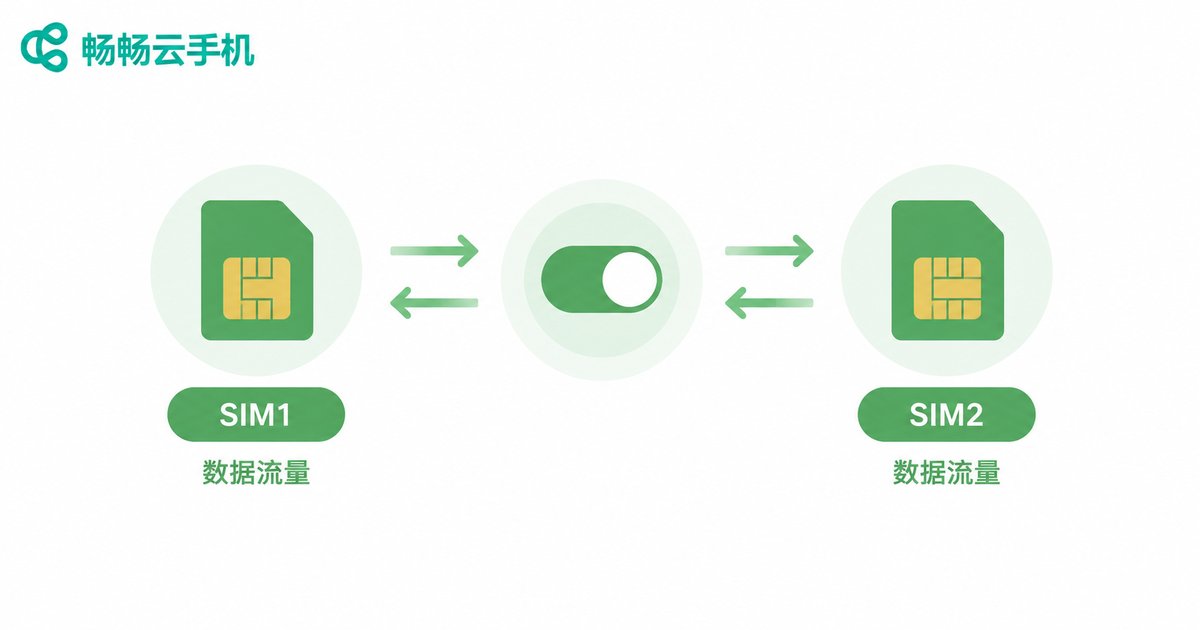
A dual-SIM phone has two SIM cards inserted simultaneously, but due to hardware design limitations, only one card can use the data network at any given time (the other card is typically limited to calls and SMS). This creates a core challenge: you need to flexibly choose which card handles your data connection based on the situation.
Common use cases include:
Signal differences: Indoors, in basements, or in elevators, Carrier A's signal might be weak while Carrier B is at full bars. Switching to the stronger signal card instantly improves your experience.
Data management: One SIM's data is almost used up while the other still has plenty of allowance — switch over to keep browsing smoothly.
Speed optimization: Different carriers perform differently at different times of day. During peak hours, switching to the less-loaded carrier can noticeably boost download and page-load speeds.
Balancing calls and data: When your primary SIM is in a call, the secondary SIM can take over data, so you can still check messages or look up maps without dropping the connection.
5 Methods to Switch Networks on a Dual-SIM Phone
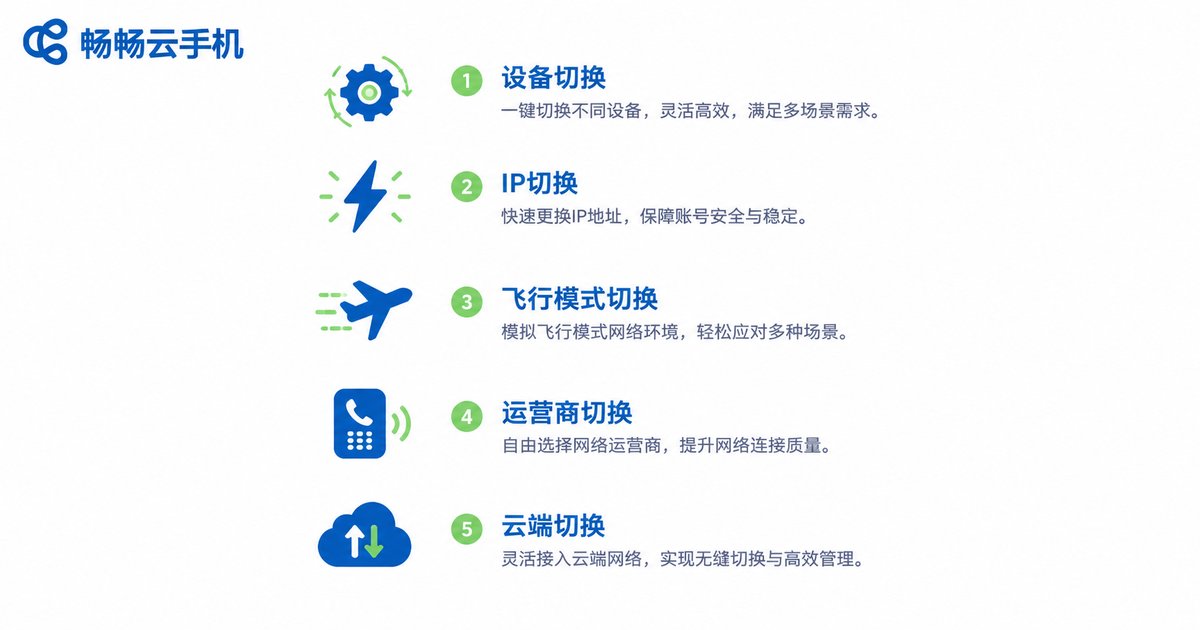
Below are five commonly used network switching methods, listed from easiest to most advanced:
Method 1: Manual Switching in System Settings (Most Common)
This is the most straightforward method, supported by virtually all dual-SIM phones:
Android phones: Go to Settings → Mobile Network / SIM Card Management → Default Data SIM and select the SIM you want for data. The phone will reconnect to the network within a few seconds.
iPhone (dual eSIM models): Go to Settings → Cellular → Cellular Data and select the corresponding line. Note: iPhones with the traditional dual-SIM setup (one physical + one eSIM) also support similar switching on newer iOS versions.
Pros: Simple and available anytime.
Cons: Requires manual action; it won't automatically detect signal changes.
Method 2: Enable Smart Data Switching (Auto-Switch)
Some Android phones (brands like Huawei, Xiaomi, OPPO, etc.) offer a Smart Data Switching feature. Once enabled, the system automatically monitors signal strength and data speed on both SIMs and automatically switches to the stronger-signal card when the current data SIM's signal weakens.
The typical settings path is: Settings → Mobile Network → Smart Data Switching / Dual-SIM Smart Switch → Enable.
Pros: Fully automatic, no manual intervention needed.
Cons: Not available on all models; switching logic varies by brand.
Method 3: Airplane Mode Quick Reset
When your phone shows signal bars but can't connect to the internet, or it's still sluggish after switching networks, try an airplane-mode reset:
1. Turn on Airplane Mode (swipe down the notification bar and tap the airplane icon)
2. Wait 10–15 seconds
3. Turn off Airplane Mode
4. The phone will re-search and re-register with the network
This is essentially making your phone re-handshake with the cell tower, which resolves most temporary network glitches. Note: Airplane Mode also disables Wi-Fi and Bluetooth — remember to re-enable them if needed.
Method 4: Switching via Dial Codes (Advanced Users)
Some carriers support switching network modes or resetting data connections through USSD dial codes. For example:
*#*#4636#*#* (universal on Android): Opens test mode, where you can view network information and manually select the network mode (4G/5G/3G).
Codes vary by carrier, so it's best to contact your carrier's customer service for the exact code. This method is suitable for users with some technical background. Regular users are advised not to experiment freely to avoid misconfigurations that could prevent internet access.
Method 5: Smart Dual-Network Management with a Cloud Phone
If you frequently need to switch between different network environments, or you need to maintain multiple online statuses simultaneously, consider using CcCloudPhone. CcCloudPhone runs a full virtual phone in the cloud, allowing you to:
Configure networks independently: The cloud phone's network environment is completely separate from your local phone — no interference. Your local phone uses SIM A for internet while the cloud phone uses SIM B's network to run apps, achieving true dual-network parallelism.
Switch anytime, anywhere: Through the CcCloudPhone client, you can check the cloud phone's network status and switch network configurations with one tap — no need to pick up your physical phone.
Multi-tasking without conflicts: Games, social media, and productivity tasks run on the cloud phone while your local phone handles calls and daily use, ensuring the most efficient allocation of both SIMs' resources.
Best Switching Strategies for Different Scenarios
| Scenario | Recommended Method | Notes |
|---|---|---|
| Daily commute (subway, bus) | Smart Data Switching | Frequent signal changes — auto-switch is the most hassle-free |
| Office / Home | Manual Switch + Wi-Fi | Stable signal in fixed locations; prefer Wi-Fi to save data |
| Weak-signal indoor / basement | Manually switch to the stronger-signal SIM | Check both SIMs' signals first, then switch to the stronger one |
| Data almost used up | Manually switch to the SIM with more data | Set data usage alerts in advance to avoid overage charges |
| Need data during a call | Let the secondary SIM handle data | Primary SIM for voice, secondary for data — no interference |
| Multi-device / multi-task parallel | CcCloudPhone | Independent cloud network, dual-network parallel with your local phone |
What to Watch Out for When Switching Networks
Expect a brief disconnection: Regardless of the method, there will be a 3–10 second network interruption during switching. Ongoing downloads or video calls will experience a brief hiccup — this is normal.
Avoid frequent switching: Repeatedly switching networks in a short period increases the registration load on cell towers, which can cause your phone to heat up or drain the battery faster. Switch only when needed, not just to "test it out."
Make sure both SIMs have active data plans: If there's still no network after switching, first check whether the other SIM has a data plan activated and isn't in a suspended state.
5G vs. 4G switching: Some phones automatically fall back to 4G when the 5G signal is weak — this is normal behavior and doesn't require manual intervention. If you notice a "fake" 5G signal (icon is present but speed is very slow), you can manually lock the network to 4G.
Frequently Asked Questions
Q: Is a dual network switcher the same thing as dual-SIM dual-standby?
No. Dual-SIM dual-standby means the phone maintains call and SMS standby on both SIM cards simultaneously — it's a hardware-level capability. A dual network switcher lets you choose which SIM handles the data network on top of dual-standby — it's a feature-level operation. Dual-standby is the prerequisite; dual-network switching is the application.
Q: Will an ongoing download be lost after switching networks?
Most download tasks (app store updates, file downloads) support resume-after-interruption and will automatically resume after the network switch. However, highly real-time tasks (online games, live video streaming) will experience a brief interruption.
Q: My phone doesn't support Smart Data Switching. What can I do?
You can switch manually and develop the habit of switching when signal weakens. Alternatively, consider using CcCloudPhone to manage the network environment independently in the cloud, free from your local phone's hardware limitations, for more flexible dual-network management.
Q: Can a dual-SIM phone use data from both SIMs at the same time?
Traditional dual-SIM phones cannot use data from both SIMs simultaneously (only one card carries data at any given time). If you need true dual-network parallelism, you can use CcCloudPhone — your local phone and the cloud phone each use a different network line without conflicting.
Q: Will switching networks affect call quality?
If you're on a call using SIM A and switch data to SIM B, the call itself is unaffected (voice goes through SIM A's voice channel). However, if SIM A's signal is extremely poor, call quality may degrade. In that case, it's recommended to switch to the stronger-signal SIM B for the call and set SIM A as the data SIM.


