
Cloud Script Tutorial: The Complete Process from Recording to Running
What Is a Cloud Script?
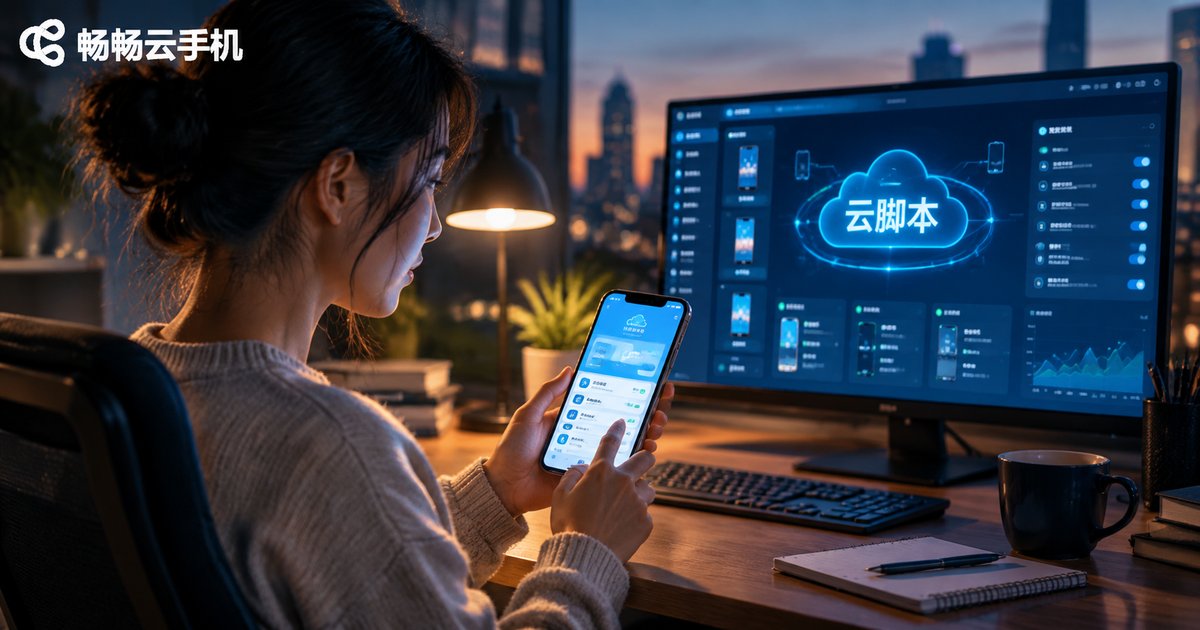
A cloud script is simply a set of automation instructions that runs inside a cloud phone. Following the steps you define, it mimics real human actions—tapping, swiping, and typing—to automatically complete repetitive jobs such as daily check-ins, routine quests, and idle grinding. Because the script runs in the cloud, shutting down or locking your local phone does not interrupt the task, which is the biggest advantage cloud scripts have over local ones.
Preparation Before You Start
Sorting out a few things before recording will save you a lot of trial and error:
1. Map out the task flow: Walk through the operation you want to automate from start to finish, for example: 'open the app — tap the check-in button — claim the reward — return to the home page.' The clearer the steps, the more stable your recorded script will be.
2. Get a cloud phone: We recommend ChangChang Cloud Phone (ccloudphone), which provides an independent Android environment in the cloud and supports around-the-clock script hosting, manageable anytime via web or app.
3. Get familiar with the script tool: Most script tools offer two core functions—'record' and 'edit.' Recording captures your operations, while editing fine-tunes the details.
Step 1: Record the Script
Recording is the easiest part of script creation, and it boils down to one sentence: however you operate, the script records.
How to do it: turn on the record function of your script tool, then use the cloud phone screen just as you normally would—every tap, swipe, and input is automatically logged as a command. Three tips while recording:
· Slow down your pace so every step is captured completely;
· Tap the center of buttons rather than the edges;
· Finish one action before starting the next—avoid rapid double-taps.
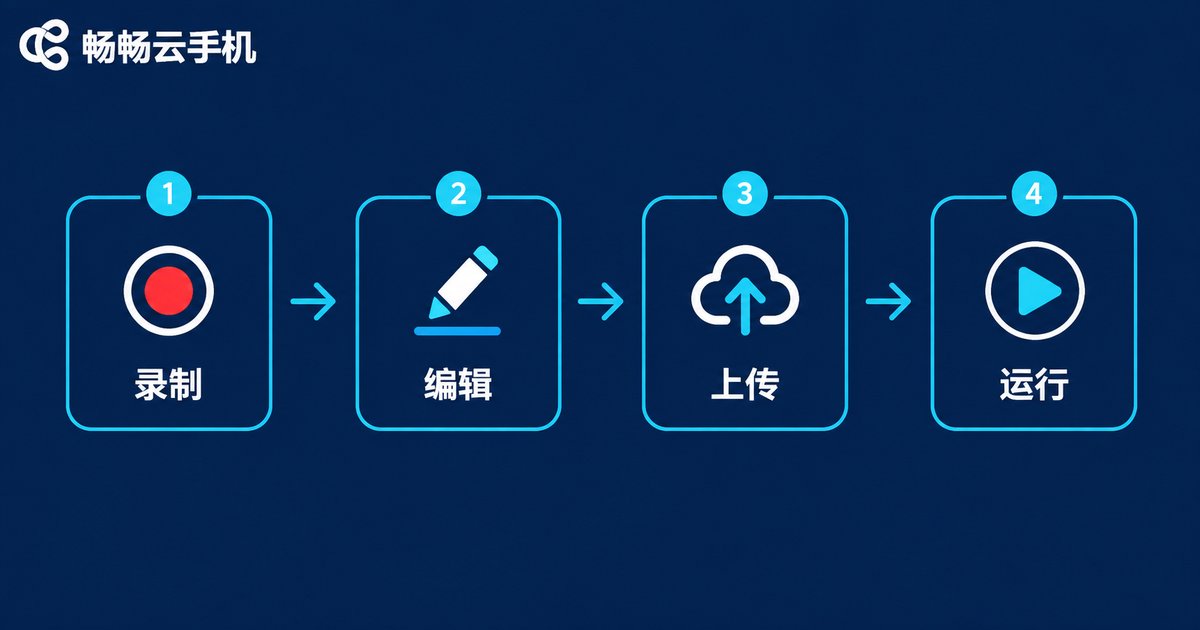
Step 2: Edit and Optimize the Script
A freshly recorded script is often 'fragile'—a slow page load or one extra pop-up can stall it. So after recording, always optimize:
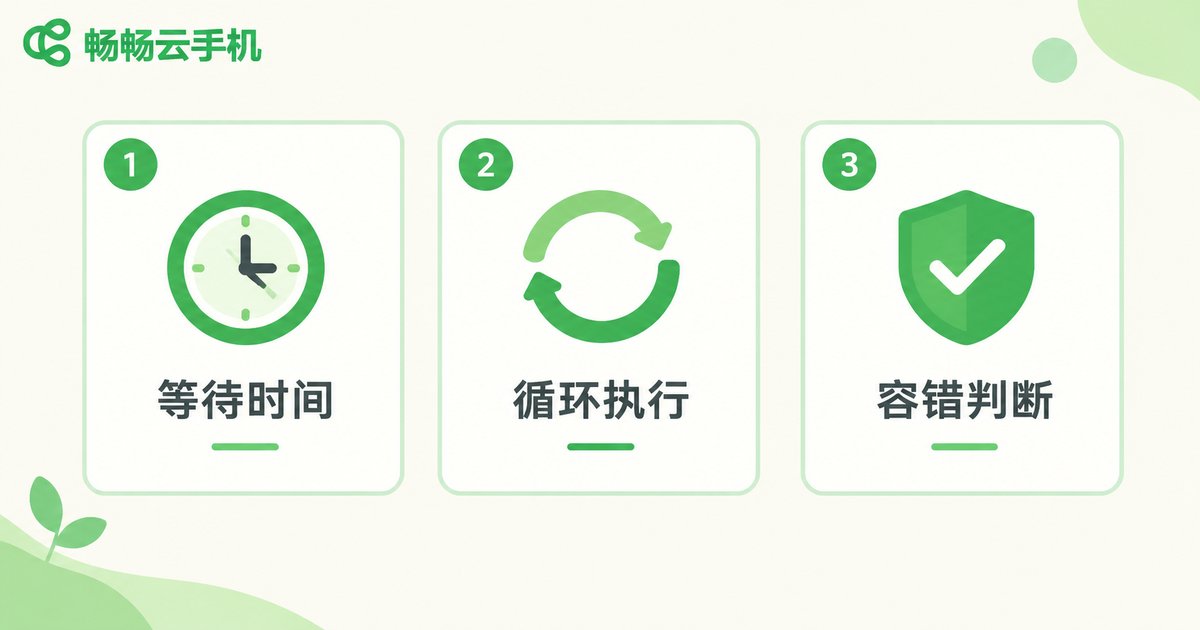
1. Add wait times: Insert fixed delays or 'wait for element' steps between key actions to leave room for page loading.
2. Set up loops: Tasks like check-ins are usually done multiple times a day; wrap the core steps in a loop so the script can repeat them.
3. Add fallback logic: For example, 'if a pop-up appears, close it,' so the script keeps running even when ads interrupt.
Step 3: Upload and Run on the Cloud Phone
Once the script is ready, upload it to your cloud phone and run it. Taking ChangChang Cloud Phone as an example, the process is straightforward:
| Stage | What You Do | Result |
|---|---|---|
| Upload | Import the script file to your cloud device | Script appears in the task list |
| Configure | Set run frequency and execution window | Task triggers automatically on schedule |
| Run | Start the task and close your local app | Cloud keeps executing non-stop |
While it runs, you can check the execution status in the dashboard anytime—turn off your own phone and the cloud task keeps going.
Step 4: Monitor and Debug
Getting the script to run is not the finish line. For the first few runs, watch the full flow once and pay attention to:
· Steps that frequently stall or miss the target;
· Button positions that changed after an app update;
· Error messages in the execution log.
When you find an issue, go back to the editor and fine-tune it. Usually two or three iterations are enough for long-term stable operation.
Why Run Scripts on a Cloud Phone?
Compared with running scripts locally, the cloud phone approach has clear advantages:
| Aspect | Local Phone | Cloud Phone |
|---|---|---|
| Device load | Occupies your phone, heats and drains battery | Runs in the cloud, zero local burden |
| Uptime | Limited by battery and shutdowns | Online 24/7 |
| Multi-tasking | One phone, one task | Multiple cloud devices in parallel |
| Safety | Interferes with daily use | Isolated cloud environment |
If you plan to run idle tasks or multiple accounts long term, visit the ChangChang Cloud Phone official website (ccloudphone) to explore device options that fit your needs.
FAQ
Q: Can I create a cloud script without knowing how to code?
Yes. The record function is designed exactly for non-programmers—just use the phone normally and the tool generates the script automatically; then fine-tune it in a simple editing interface.
Q: Can I use the cloud phone for other things while a script is running?
It is not recommended to operate the same cloud device at the same time, as taps may conflict. For multi-tasking, run different scripts on separate cloud devices.
Q: What if the script fails halfway through?
Check the execution log to locate the stuck step. It is usually caused by slow page loading or pop-ups—add a wait time or fallback logic for that step in the editor.
Q: Will the script keep running if my own phone is off?
As long as the cloud phone stays on, the script keeps running. Your local phone being off or locked does not affect cloud tasks—that is exactly the value of cloud scripts.


