
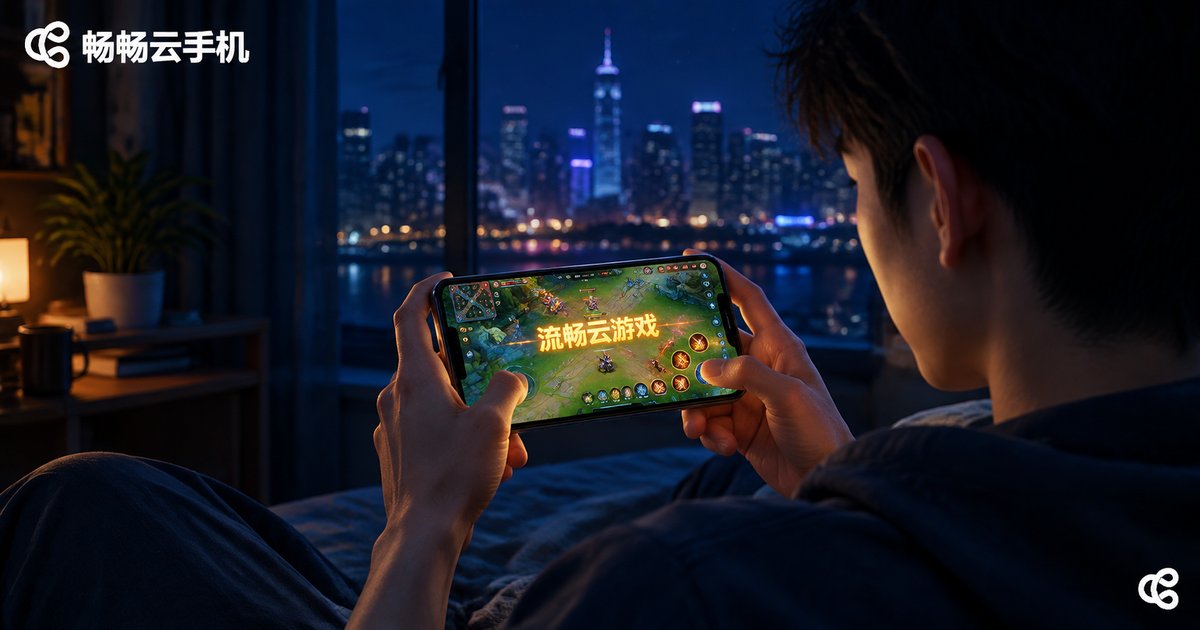
How to Fix Cloud Phone Gaming Lag: Graphics and Network Optimization Tips
Why Does Cloud Phone Gaming Lag?
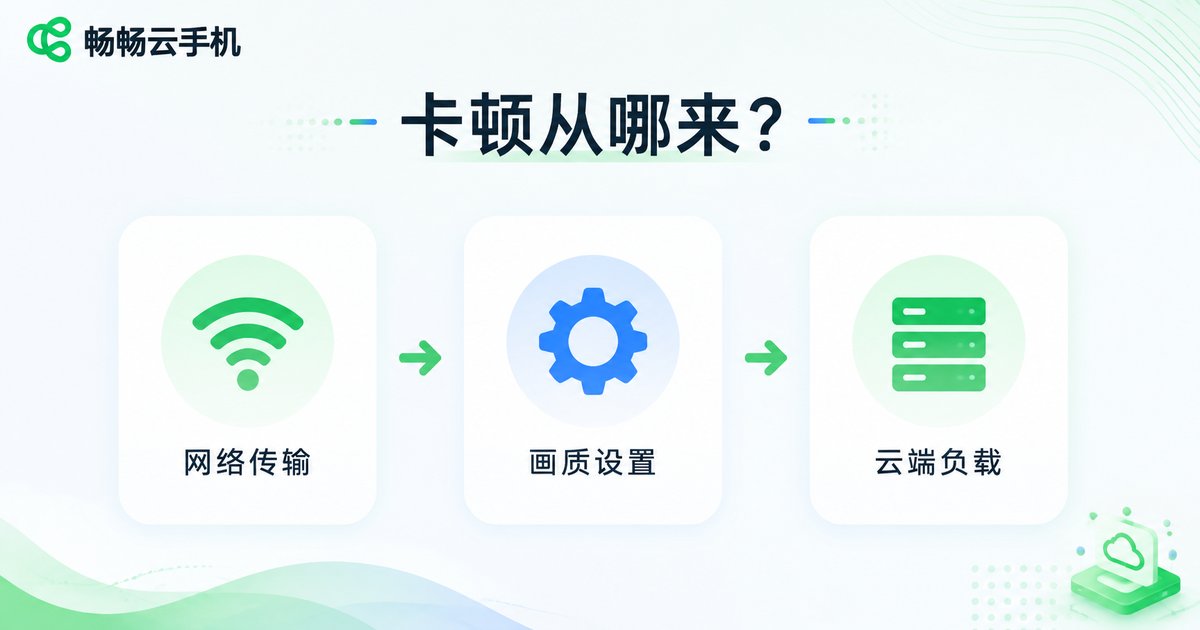
Many players run into stuttering and input delay the first time they play games on a cloud phone. To fix the problem, you first need to understand it. A cloud phone runs your game on a remote server in a data center, while your local device only receives the video stream and sends touch commands. As a result, lag usually comes from three places: network transmission, graphics settings, and server load.
In short: an unstable network makes the picture stutter; graphics settings that are too high push too much data through the stream; and a busy server slows down response times. Identifying the cause is the first step to fixing it.
Graphics Optimization: Balancing Smoothness and Clarity
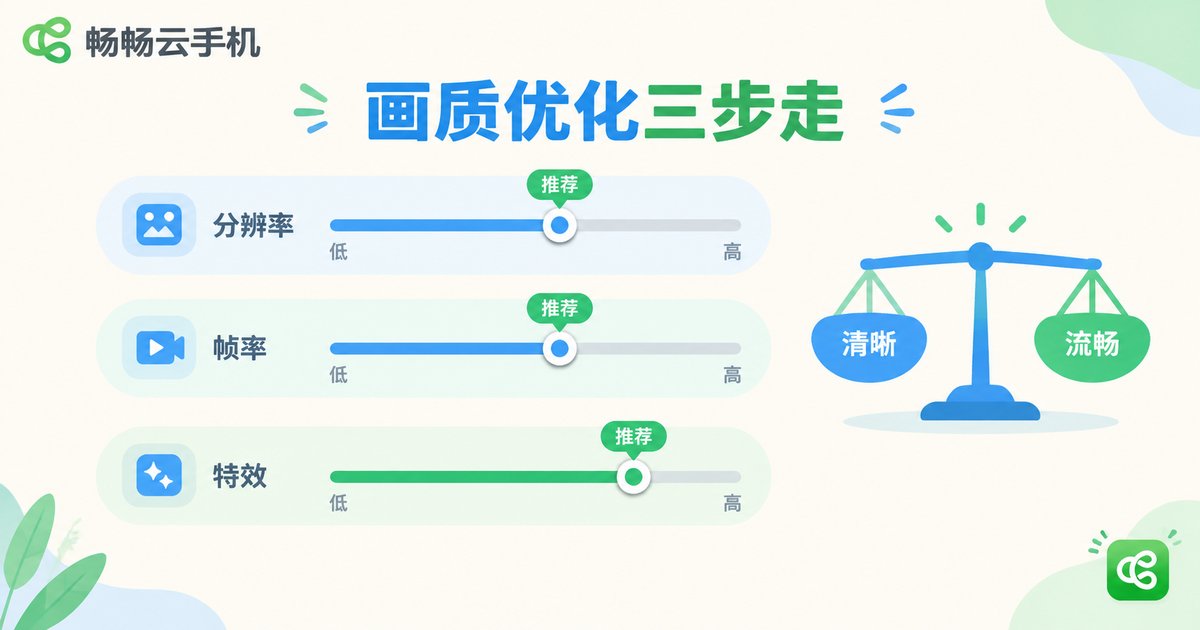
The higher the graphics settings, the more data must be streamed, and the greater the demands on your network. If your connection is average, lowering the graphics settings can actually make the game run more smoothly. Start here:
1. Lower in-game resolution and effects. In the game settings, set resolution to medium and turn off shadows, anti-aliasing, water reflections, and similar effects. These have little impact on how the game looks but add significant streaming pressure.
2. Lock in a suitable frame rate. A stable 30 or 45 fps feels far better than 60 fps that keeps dropping. Consistency matters more than big numbers, and your controls will feel noticeably more responsive.
3. Adjust the streaming quality. Cloud phone services usually offer streaming quality options. Choose HD on a strong connection, or standard and smooth modes on an average one, and the picture will run noticeably more fluidly.
Here is a quick reference for graphics presets—adjust flexibly based on your own network conditions:
| Quality Preset | Best For | Experience |
|---|---|---|
| Smooth | Weak or unstable networks | Slightly blurry image, but responsive controls with almost no stutter |
| Balanced | Stable home WiFi or 5G | A good mix of clarity and fluidity; the best choice for most players |
| HD | Gigabit broadband plus 5GHz WiFi | Crisp visuals, but demanding on your network |
Network Optimization: Keep the Stream Stable
The network is the lifeline of cloud gaming. Two connections with the same bandwidth can perform completely differently depending on stability. These tips can noticeably improve your connection:
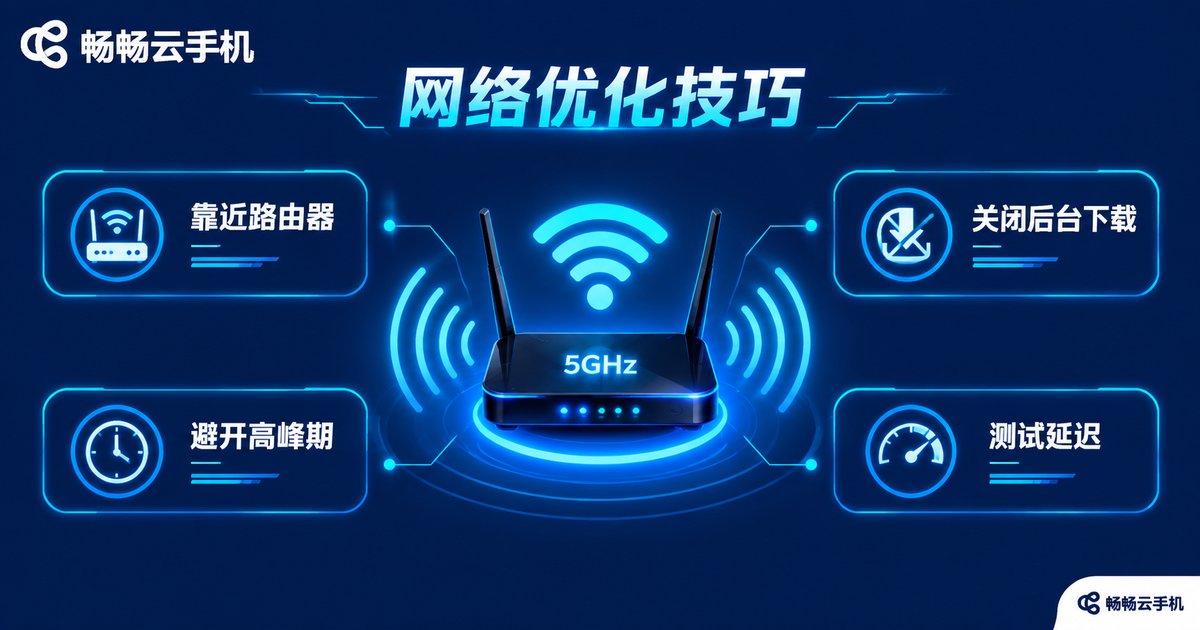
1. Prefer 5GHz WiFi. Compared with the 2.4GHz band, 5GHz suffers less interference and delivers faster speeds with lower latency. If your router is old and does not support 5GHz, consider upgrading it.
2. Stay close to the router. WiFi signals weaken significantly through walls, so play in a room close to the router with as few obstructions as possible.
3. Close bandwidth-hungry background apps. Downloads, cloud sync, and video buffering all compete for bandwidth—shut them down before playing.
4. Avoid peak hours. Network traffic peaks between 8 p.m. and 11 p.m.; if your schedule allows, playing off-peak gives a better experience.
5. Test your connection first. Check your latency before playing. As a rule of thumb, a ping under 50 ms with a stable download speed above 10 Mbps delivers a good cloud gaming experience.
Choose a Reliable Cloud Phone Platform
Beyond your own tweaks, the stability of the cloud phone platform itself directly determines your gaming experience. ChangChang Cloud Phone (ccloudphone) runs capable Android devices in the cloud, where games operate at full speed while your local phone only handles display and controls—so even an ordinary phone can smoothly play a wide range of mobile games.

When using ChangChang Cloud Phone, combine it with the graphics and network tips above: test different quality presets in a good network environment, find the settings that suit you best, and you will be able to enjoy stable gaming sessions over the long term.
FAQ
Q: If a cloud phone game lags, is my local device underpowered?
No. All the game computation happens in the cloud; your local phone only displays the stream, so hardware requirements are minimal. Lag is usually caused by network issues or graphics settings that are too high—optimize them as described in this article.
Q: How much bandwidth does cloud gaming need?
Generally, a stable download speed above 10 Mbps with latency under 50 ms is enough for smooth play. The better your connection, the higher the quality preset you can choose.
Q: My WiFi shows full bars—why is it still laggy?
Full signal bars mean a stable connection, not sufficient bandwidth. Someone may be streaming or downloading on the same network, or too many devices may be connected to the router. Try pausing downloads on other devices or switching to the 5GHz band.
Q: Does playing on a cloud phone consume a lot of mobile data?
Yes. Cloud gaming streams video in real time, which uses far more data than ordinary browsing. Play on WiFi when possible; if you must use mobile data, choose 5G and lower the quality preset.


