
Cloud Phone Crashing or Won't Connect? A Complete Troubleshooting Guide
Don't Panic — Most Issues Can Be Fixed in Minutes
You are in the middle of a game or running an app on your cloud phone when it suddenly crashes, the screen freezes, or it simply refuses to connect. Before reinstalling anything, take a breath: the vast majority of cloud phone problems come down to your network, the app version, or your device and account status. Work through the steps below and most issues can be resolved within minutes.
Cloud Phone Keeps Crashing: Causes and Fixes
Typical symptoms include apps closing seconds after launch, the cloud screen going black back to the desktop, or a game dropping mid-session. Check the following one by one:
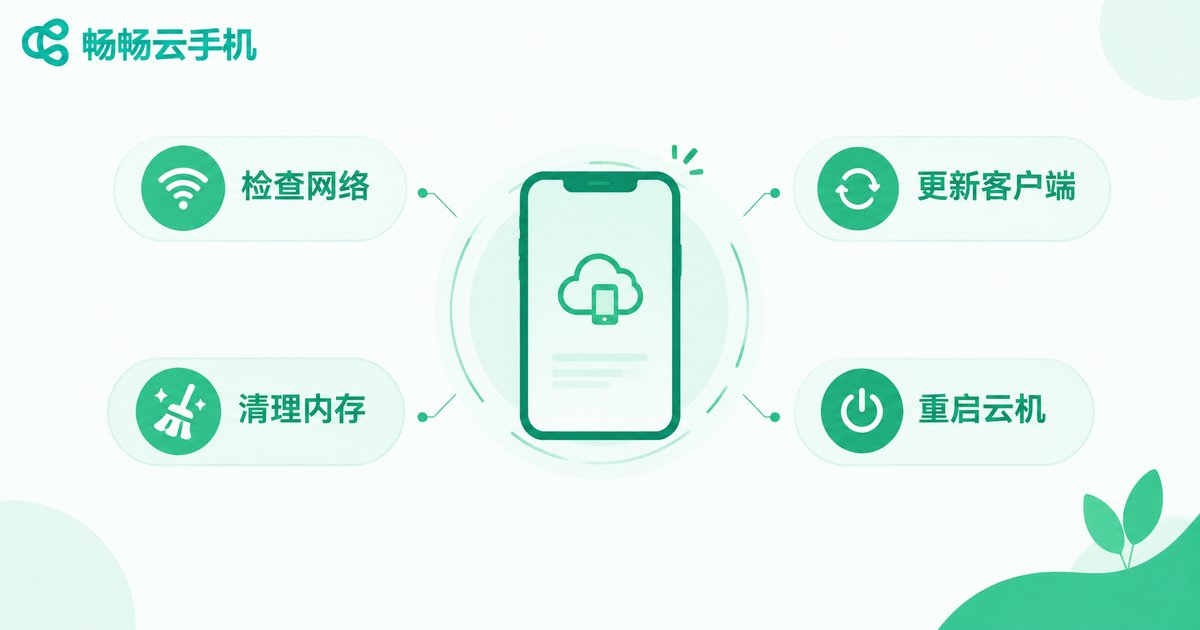
1. Check your local network. Everything on a cloud phone travels through the network, so any fluctuation can trigger crashes or disconnects. Try switching between Wi-Fi and mobile data, or move closer to your router and test again.
2. Update the client to the latest version. Outdated apps may not be compatible with newer systems and can crash repeatedly. Check the official website or your app store for updates.
3. Free up device memory. When your phone runs low on RAM, the system may force-close the cloud phone client. Close unneeded background apps to leave enough room for it to run.
4. Restart your cloud device. A cloud device that has been running for a long time accumulates cache and stray processes. Use the restart option inside the client, then open your app again.
5. Check for simultaneous logins. One account signed in on multiple devices can cause sessions to kick each other offline. Review the active devices on your account.
Cloud Phone Won't Connect? Follow This Checklist
If the client stays stuck on a connecting or load-failed message, work through these steps in order:
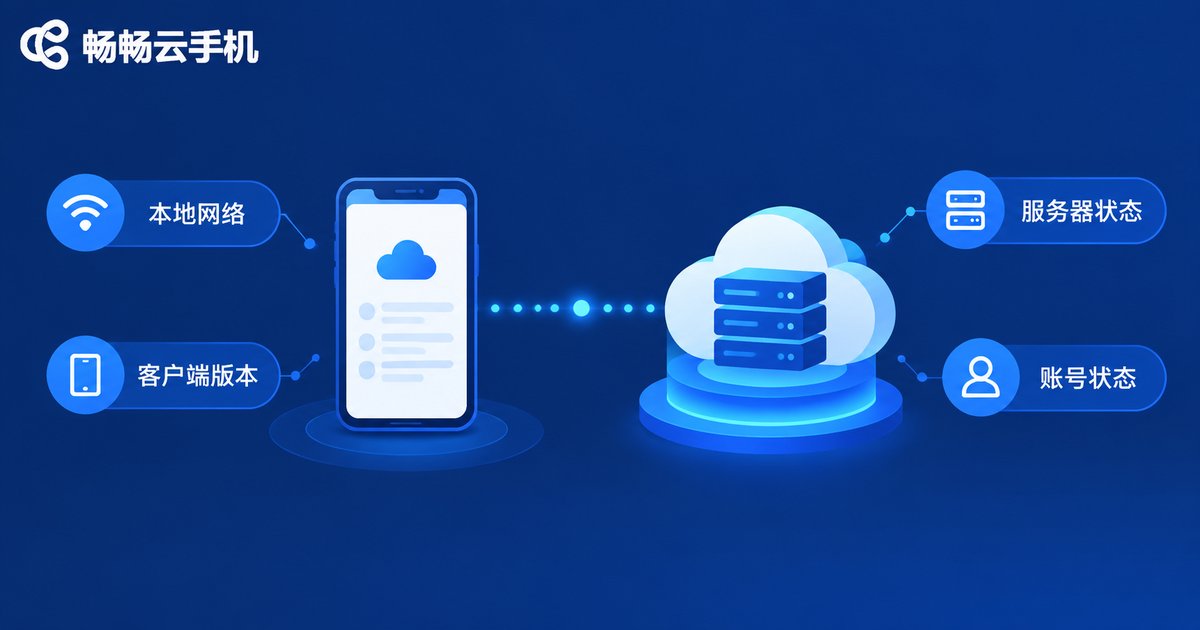
1. Confirm your local network first. Open a browser and load any webpage to make sure your phone can actually get online. If your own connection is down, the cloud phone cannot connect either.
2. Consider peak hours or maintenance. During evening peak times (roughly 7 PM to 11 PM), heavy server load can cause queues or slow connections. Try again off-peak or check official announcements.
3. Check the app version. Old versions may fail to reach updated servers — updating to the latest release usually solves it.
4. Check security software blocking. Some security apps or firewalls may block the client's network requests. Add the app to your trusted list and try again.
5. Verify your account status. Account issues, overdue balances, or too many active devices can all block connections. Log in to the official website to check your account.
Quick Symptom Reference Table
| Symptom | Likely Cause | Fix |
|---|---|---|
| App crashes on launch | Unstable network / low memory | Switch networks, close background apps |
| Stuck on connecting | Local network down / busy server | Check network, try off-peak |
| Lag and high latency | Low bandwidth / high quality settings | Lower picture quality, change network |
| Kicked offline after login | Simultaneous logins | Sign out other devices |
| Blurry picture | Resolution set too low | Raise the quality setting |
Build Good Habits to Prevent Problems
Prevention beats troubleshooting. A few simple habits keep issues away:
1. Keep the client updated. Turn on auto-updates or check manually on a regular basis to avoid compatibility problems caused by old versions.
2. Use a stable network. Prefer strong Wi-Fi whenever possible, and avoid long sessions in places where the signal swings wildly, such as elevators or subways.
3. Restart the cloud device regularly. Just like a computer, a periodic restart clears cache and keeps things running smoothly.
4. Exit properly. Close your cloud session through the normal flow instead of killing the app, which reduces the chance of data anomalies.
Choose a Reliable Platform to Cut Problems in Half
Beyond your own troubleshooting, the stability of the cloud phone platform itself directly shapes your experience. ChangChang Cloud Phone (ccloudphone) focuses on stable operation and smooth connections, with a clean interface that is easy to pick up — well suited to everyday use and long sessions online. If crashes and connection failures keep bothering you, visit the official ChangChang Cloud Phone website to learn more; a dependable platform saves you a great deal of troubleshooting effort.
FAQ
Q: Will I lose data after a cloud phone crash?
No. Your data lives in the cloud, so a crash only drops the connection. Log back in and everything is still there.
Q: Why is it more likely to lag or fail to connect at night?
Evenings are peak hours for both home broadband and cloud servers. Lowering the picture quality or using the service off-peak usually helps a lot.
Q: I switched networks and it still won't connect. What now?
Make sure the client is the latest version, then check your account status and the number of active devices. If everything looks fine, contact ChangChang Cloud Phone customer support for help.
Q: What kind of network does a cloud phone need?
A stable 4G/5G or Wi-Fi connection is enough for everyday use. For large games, choose a network with higher bandwidth and lower latency.


