
Cloud Phone WiFi vs Mobile Network: Stability and Data Cost Comparison
Why Your Network Makes or Breaks the Cloud Phone Experience
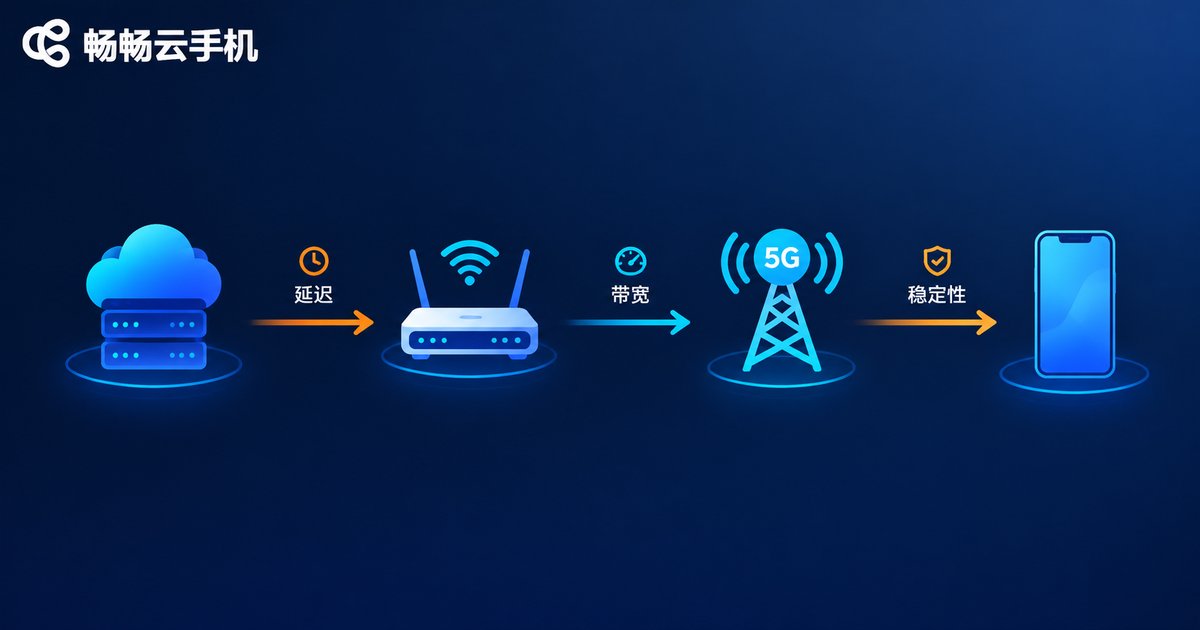
Many first-time cloud phone users wonder: if my apps run in the cloud, why does the network still matter so much? The answer is simple — a cloud phone does all its computing on a cloud server. Your physical phone is essentially a remote screen. The server compresses and streams the picture to you, and your taps travel back to the cloud. Every bit of it rides on your network.
So: latency decides responsiveness, bandwidth decides picture quality, and stability decides whether you get disconnected. WiFi and mobile data can feel very different in practice. Let's break down both options.
Running a Cloud Phone on WiFi: Stable and Cheap
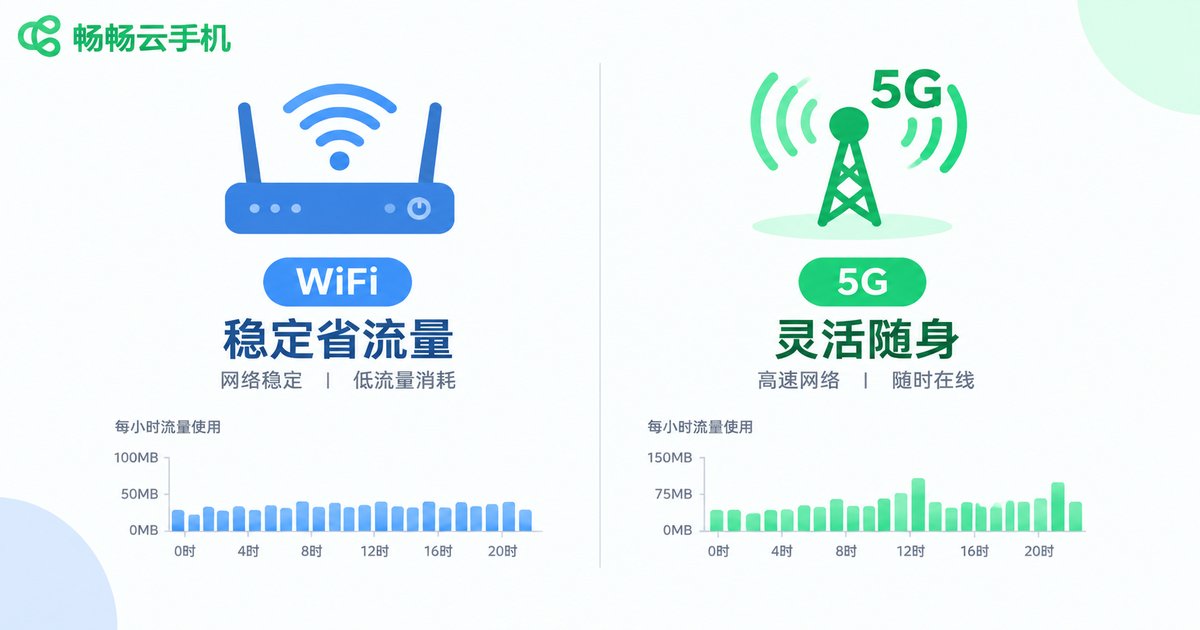
Home broadband is almost always flat-rate and unlimited, so running a cloud phone over WiFi costs virtually nothing extra. As long as your household isn't streaming several 4K videos at once, a cloud phone runs comfortably.
On stability, home WiFi latency typically sits between 10–40 ms with little jitter, and long AFK sessions rarely drop. The obvious downside: you're tethered to your router. Move to another room and the signal weakens; a wall or two adds latency. Public WiFi in cafes or malls is free but crowded and jittery, with real security risks — avoid signing into important accounts on it.
Running a Cloud Phone on Mobile Data (4G/5G): Flexible, but Watch Your Data
The biggest advantage of mobile networks is being anywhere. On the commute, on a business trip, waiting outdoors — take out your phone and your cloud phone is right there. 5G latency is especially impressive: with a good signal it can hit 10–30 ms, faster than many home WiFi setups.
The price is data. A cloud phone continuously streams video-like content, which consumes far more data than casual browsing. Signals also fluctuate as you move and as cell towers get loaded — subways, elevators, and parking garages carry a much higher disconnect risk than WiFi.
Stability Head-to-Head: Latency, Packet Loss, and Disconnects
| Factor | WiFi | Mobile (4G/5G) |
|---|---|---|
| Typical latency | 10–40 ms, low jitter | 4G ~30–60 ms; 5G ~10–30 ms |
| Stability | Affected by router and interference, overall steady | Fluctuates with signal and tower load |
| Disconnect risk | Low | Notably higher in weak-signal areas |
| Data cost | Flat-rate broadband, nearly zero extra cost | Metered; expensive for heavy use |
| Best for | Long AFK sessions at home or office | Outdoors, commuting, quick check-ins |
In one line: WiFi wins on stability, good 5G matches it on speed, and WiFi wins hands-down on cost.
The Data Cost Ledger: How Much Per Hour?
Data consumption depends mainly on stream quality and how much the picture changes. Idling on a static screen versus playing a demanding game can differ several-fold. Here are realistic estimates:
| Usage pattern | Approx. data per hour | Monthly (2 h/day) |
|---|---|---|
| Light AFK, simple taps | ~50–150 MB | ~3–9 GB |
| Casual gaming, short videos | ~300–600 MB | ~18–36 GB |
| High-quality demanding games | 1 GB+ | 60 GB and up |
As you can see, running a cloud phone on mobile data for over an hour a day can easily burn through a dozen or more gigabytes a month. That's why experienced users say: use WiFi whenever you can, and save mobile data for when you're out.
Which One Should You Use? A Scenario Guide
AFK farming and tasks at home: WiFi, no contest. Connect and forget — stable and zero data cost.
Checking in during commutes or outdoors: 4G/5G is perfectly fine; drop the stream quality one notch and consumption falls immediately.
Latency-sensitive gaming outside: Find a spot with strong 5G, or wait until you're on WiFi.
Switching between both environments: Beware of smart network-switching features that quietly jump from weak WiFi to mobile data, causing surprise data usage.
Five Practical Tips: Stable and Data-Friendly
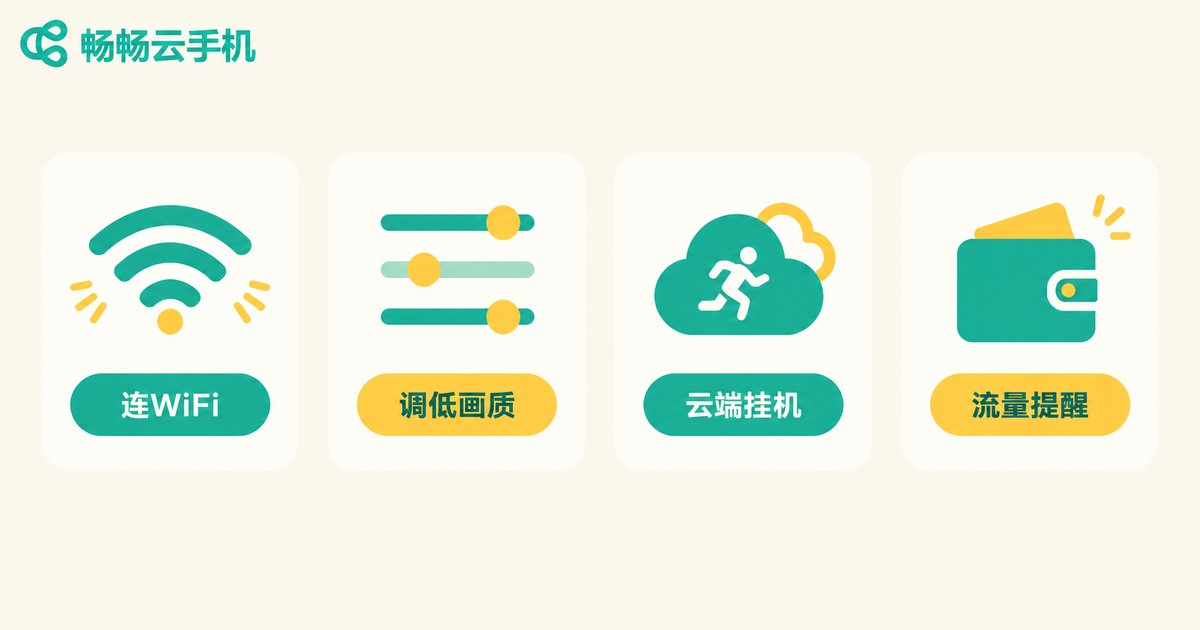
1. Lower the stream quality one notch: going from high to medium often cuts data use by 30% or more, with little visible difference for everyday tasks.
2. Use cloud-side AFK: cloud phone apps run on the server, and tasks keep running after you disconnect. You don't need to watch the screen — check in occasionally. This is the most data-efficient way to use a cloud phone.
3. Save heavy operations for WiFi: app updates, downloads, and long videos should all happen on WiFi.
4. Set a data alert: give the cloud phone app a monthly data cap reminder in system settings so you always know where you stand.
5. Don't fight a weak signal: poor signal means poor experience and wasted data from constant reconnects — wait for the network to recover.
ChangChang Cloud Phone: Minimizing the Network Burden
Beyond choosing the right network, choosing the right platform matters too. With ChangChang Cloud Phone (ccloudphone), apps run on cloud servers while your local phone only handles the video stream and your inputs. That means:
AFK tasks keep running in the cloud around the clock — you don't need to stay connected, and your physical phone doesn't need to stay awake burning battery and data. Check in when you want to see progress, disconnect when you're done, and the cloud keeps working. For long-running AFK and account-management scenarios, this connect-anytime, keep-running-offline model combined with home WiFi pushes data costs close to zero.
If you often log in over mobile data, lowering the stream quality inside ChangChang Cloud Phone plus the tips above will save a meaningful amount of data every month.
FAQ
Q: How much data does a cloud phone use per hour on mobile data?
Light AFK use: about 50–150 MB. Casual gaming: 300–600 MB. High-quality demanding games: over 1 GB. Lowering stream quality in settings is the easiest way to save.
Q: Which has lower latency, WiFi or 5G?
Good 5G can reach 10–30 ms, matching home WiFi. But 5G latency fluctuates with signal and tower load, while WiFi is steadier. For latency-sensitive games, use whichever has the better signal.
Q: Do I need to stay connected while AFK farming?
No. Cloud phone apps run on the server and keep working after you disconnect. Checking in periodically is enough — the key reason a cloud phone saves data compared to a physical device.
Q: Is public WiFi safe for my cloud phone?
It works technically, but public networks are crowded, jittery, and carry security risks. Avoid signing into important accounts on public WiFi, and log out afterward.
Q: What's the best way to save data?
Three rules: prefer WiFi whenever possible; use the disconnect-and-let-the-cloud-run mode for AFK; lower stream quality one notch. Together they cut data use by more than half.


