
What to Do When Your Cloud Phone Won't Connect: Network, Account, and Client Troubleshooting
Don't Panic: Narrow Down the Problem in One Minute
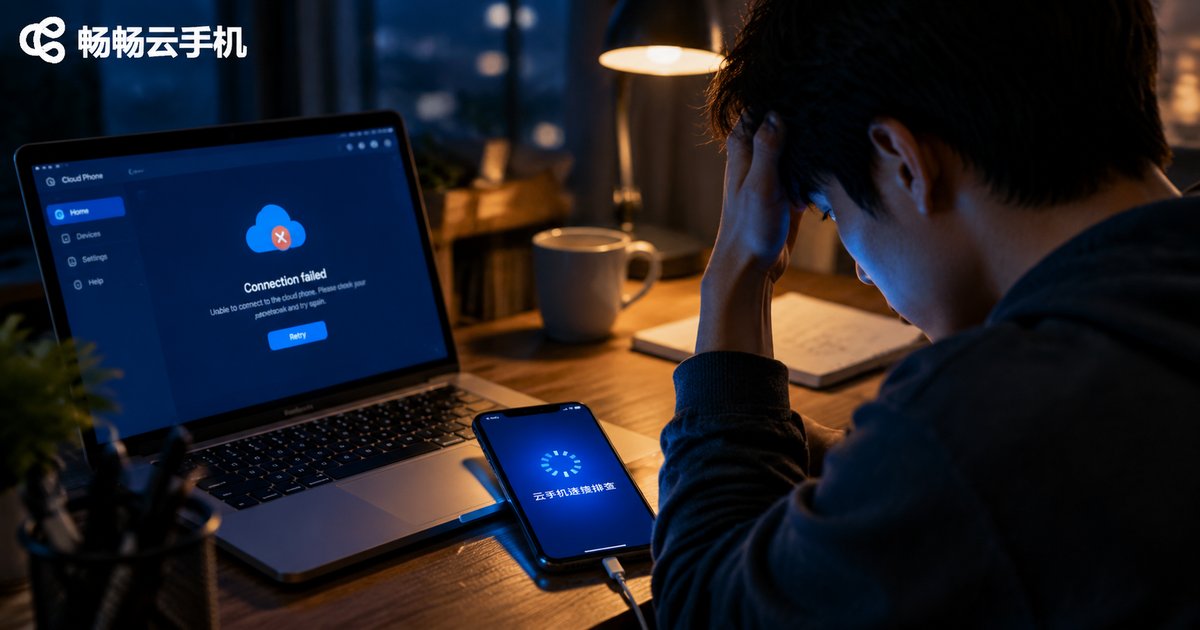
Opening your cloud phone app only to see it stuck on 'Connecting' or showing a 'Connection failed' message happens to almost everyone. Before uninstalling and reinstalling, remember that connection failures usually involve just three areas: your local network, your account status, and the client app itself. Work through them in order and most issues are solved within minutes.
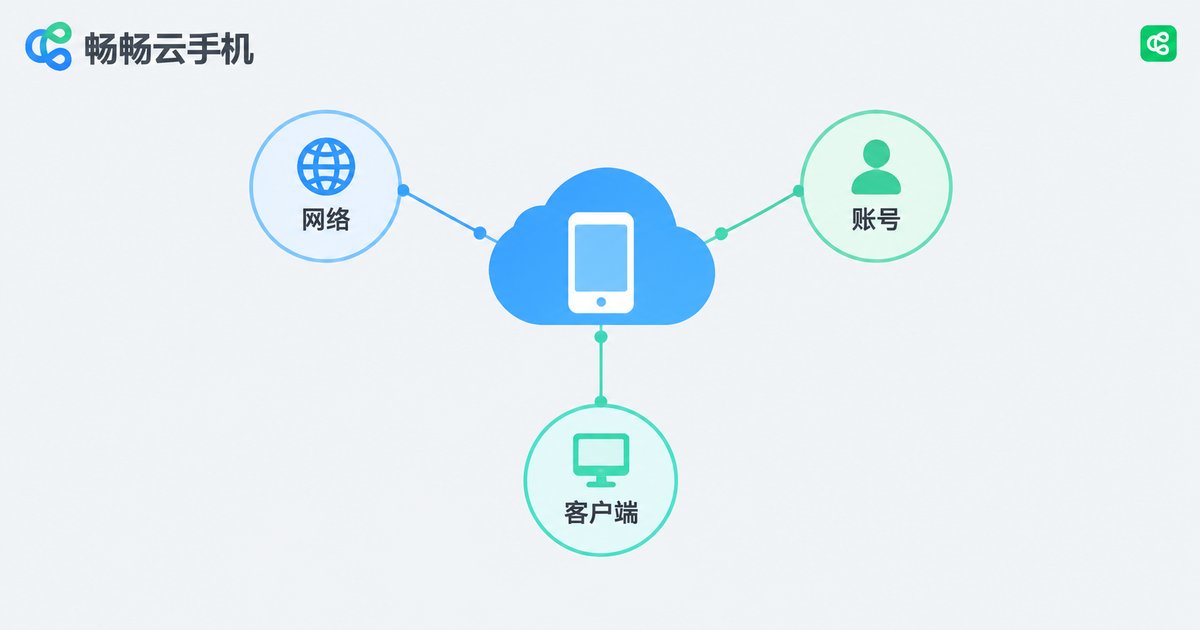
A simple way to narrow things down: if the app cannot even reach the server, you will usually see a network error or a timeout; if you can log in but the cloud phone itself will not open, the issue is more likely the instance status or device allocation. Distinguishing 'cannot connect' from 'cannot log in' makes the whole troubleshooting path much clearer.
Step 1: Check Your Network (the Most Common Cause)
More than half of all connection failures are network related. Work through this checklist:
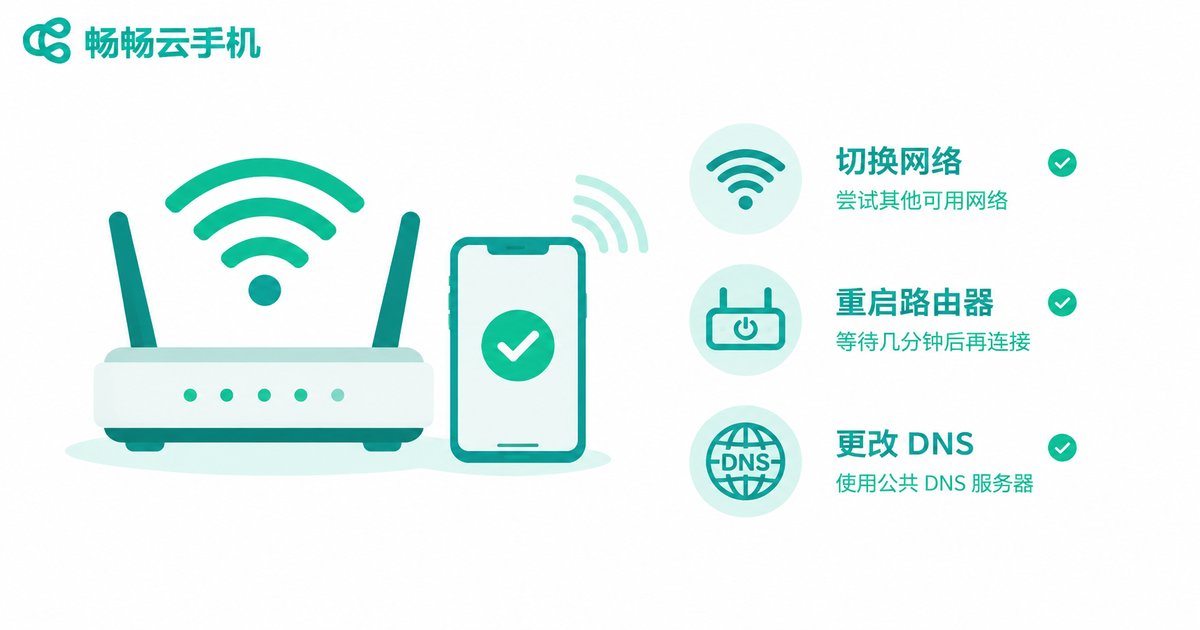
1. Switch networks. Toggle from Wi-Fi to mobile data (or the other way around). If it connects, the original network is at fault. Wi-Fi in offices and schools often restricts uncommon ports, preventing the cloud phone from establishing a connection.
2. Test connection quality. Use a speed test to check latency and packet loss. Latency above 100 ms or obvious packet loss can easily cause timeouts.
3. Reboot your router and modem. Networking gear that runs for weeks can develop cache issues. Power it off for 30 seconds and restart — this fixes many strange connection problems.
4. Change your DNS. Domain resolution failures can also look like connection errors. Try a public DNS such as 114.114.114.114.
5. Disable network booster tools. These apps alter your network path and can sometimes cause cloud phone connection issues, so turn them all off while troubleshooting.
Step 2: Check Your Account
Network is fine and the app opens, but you cannot log in or enter the cloud phone? Check your account:
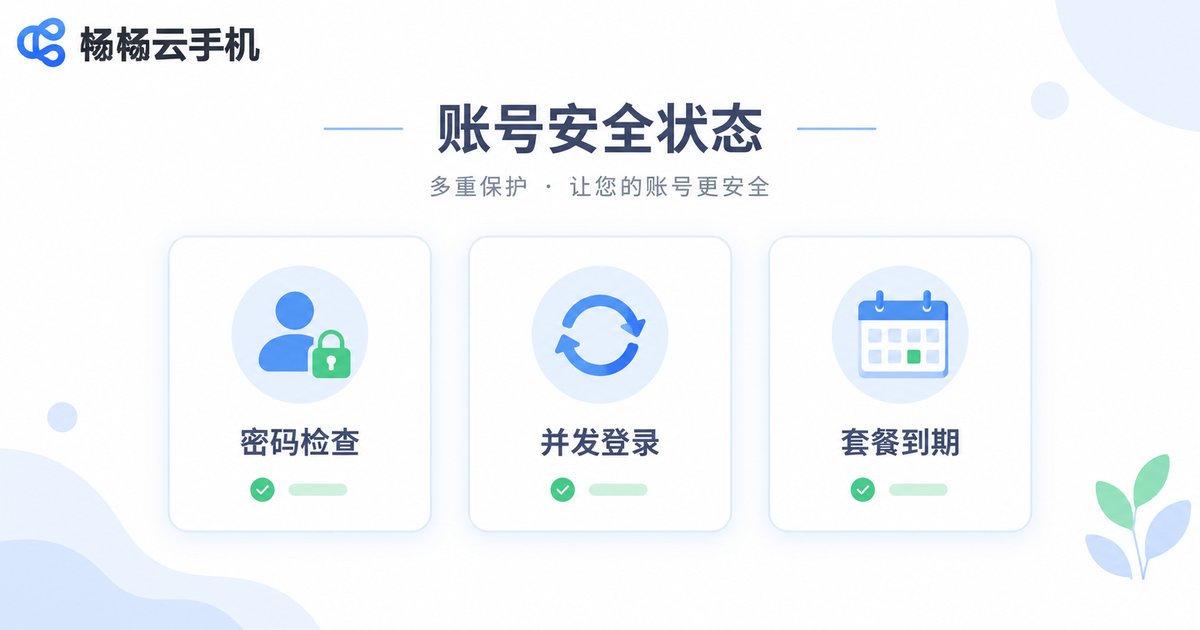
1. Verify your credentials. Watch for capitalization and input method issues, and use the 'Forgot password' option to reset if necessary.
2. Check concurrent logins. Some cloud phone services limit how many devices can stay online at once. If your account is still signed in on another phone or computer, you may be kicked offline — log out there first.
3. Look for account restrictions. A message about a locked or abnormal account usually means risk-control rules were triggered; contacting support is the fastest fix.
4. Confirm your plan has not expired. Cloud phone instances are released automatically when a plan expires. Renew or re-activate to restore the connection.
Step 3: Check the Client App
Network and account both look fine but you still cannot connect? The client itself is the likely culprit:
1. Update to the latest version. Outdated clients may fail to connect after server address changes — update from the official website or your app store.
2. Clear the cache and log in again. Corrupted cache can break the login state. Clear the app cache in system settings (avoid 'Clear data', which may wipe local configuration).
3. Restart the app or the phone. It sounds basic, but it resolves a surprising number of 'frozen' connections.
4. Reinstall the app. If nothing else works, uninstall and reinstall to rule out a corrupted installation package.
5. Check system permissions. Make sure the app has network permission and is not blocked from background data by battery-saving policies.
Advanced: Is It Your Side or the Server?
Still stuck after all that? Use the table below to quickly work out where the fault lies:
| Symptom | More Likely Local | More Likely Server-Side |
|---|---|---|
| Fails on every network | Client or account issue | Server outage |
| Only the current Wi-Fi fails | Router or network restriction | Probably unrelated |
| Logs in but the cloud phone shows a black screen | Outdated client | Instance issue |
| Disconnects frequently after connecting | Unstable local network | High server load |
If it looks like a server-side problem, do not retry login over and over — repeated failures may trigger risk controls. Wait a few minutes and try again, or contact support to confirm the service status.
Prevent Connection Issues at the Source: Pick a Reliable Cloud Phone
Troubleshooting only fixes today's problem. For long-term peace of mind, the provider you choose matters most. ChangChang Cloud Phone (ccloudphone) performs well on connection stability: its server nodes are sensibly distributed, login and video streaming run smoothly, and if something does go wrong you can reach support through the official website or the in-app help entrance, with quick response times.
If you keep running into connection failures and stuttering video, put ChangChang Cloud Phone (ccloudphone) on your shortlist and try it yourself — it beats endlessly troubleshooting the same old problems.
FAQ
Q: My cloud phone keeps showing 'Connecting' with a spinning loader. What should I do?
Switch networks first (toggle between Wi-Fi and mobile data). If it connects after switching, the original network is at fault. If it still spins, update the client to the latest version; if that fails too, contact support.
Q: I can log in, but the cloud phone opens to a black screen. What now?
This usually means an abnormal instance state. Restart the instance from the device list first. If that does not work, the instance may have expired or failed — contact support.
Q: The connection succeeds but the video is laggy. Is that a connection failure?
No, that is a connection quality issue. Check your local bandwidth and latency first, close other bandwidth-heavy apps, and switch the quality setting to 'Smooth' mode in the client.
Q: How do I know whether the provider's server is down?
Sign in to the same account from a different network and a different device. If neither can connect, it is most likely a server-side issue — wait patiently or ask support instead of retrying endlessly.
Q: Will reinstalling the client delete the data inside my cloud phone?
No. Cloud phone data lives on the cloud server; reinstalling only replaces the local app, and everything is still there once you log back in. Just make sure you can log in before reinstalling.


