

Fixing Cloud Phone Crashes and Lag in 2026: From Settings to Resource Management
Crashes and Lag: Identify the Real Culprit First
Cloud phone crashes and lag are the two most commonly reported issues in 2026. Many users blame the provider right away, but the real cause is often more complex. Think of a cloud phone's performance chain as: local device → network → cloud server → cloud phone system → the app itself. A failure at any link shows up as crashes, black screens, or stuttering.
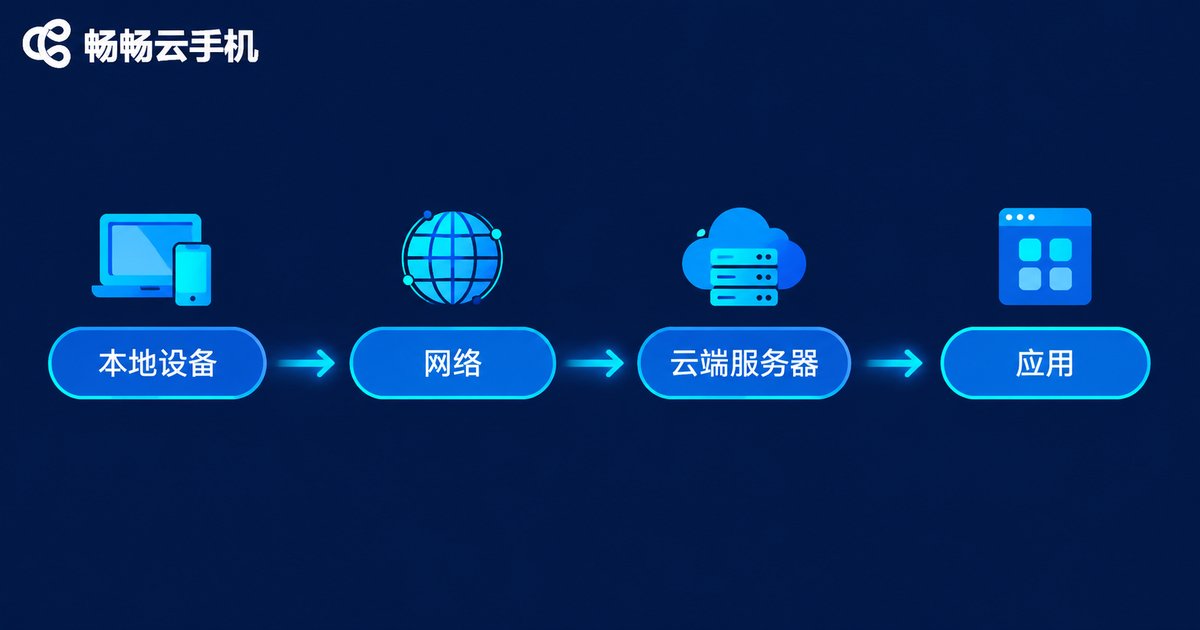
The fastest way to locate the problem is elimination. Log into the same cloud phone from a different local device: if the issue disappears, your local device is to blame. Switch networks (say, from Wi-Fi to a mobile hotspot) and things improve clearly? That points to the network. If it lags no matter what you change, focus on the cloud configuration and the app itself.
| Common Symptom | Likely Cause |
|---|---|
| App crashes on launch | Compatibility issues, insufficient cloud storage |
| Crashes mid-session | Low memory, background apps piling up |
| Stuttering and frame drops | High latency, saturated bandwidth |
| Noticeable input delay | Network jitter, poor decoding settings |
Settings: Five Fixes You Can Apply Right Now
Most lag issues can be noticeably reduced by adjusting settings — no extra cost, no new hardware.
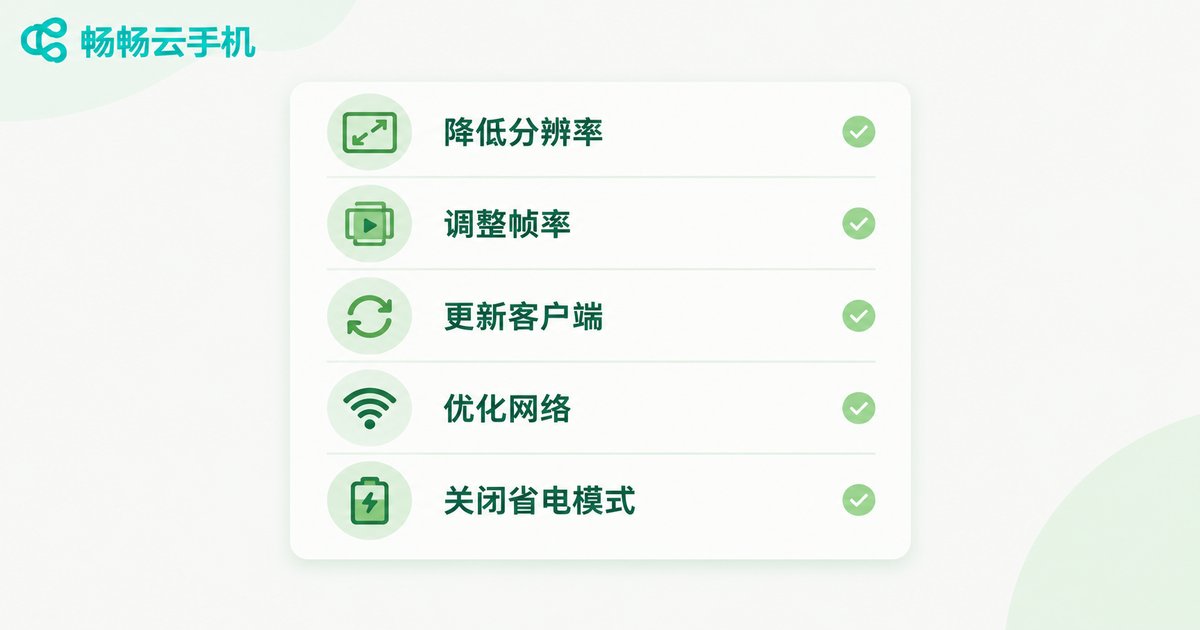
1. Lower resolution and frame rate. A cloud phone screen is essentially a live video stream: the higher the resolution and frame rate, the harsher the network requirements. On an average connection, dropping from 60 to 30 fps and one resolution step down often delivers instant improvement.
2. Pick the right quality mode. Choose smooth mode for input-heavy games; raise sharpness for video playback or idle-farming tasks. Match the mode to the scenario instead of maxing everything out.
3. Keep the client updated. Older client versions can suffer from inefficient decoding and compatibility gaps — some crashes are simply caused by an outdated app.
4. Optimize how you connect. Prefer 5GHz Wi-Fi or a wired connection, sit closer to the router, and avoid evening peak hours.
5. Disable power-saving limits on your local device. Power-saving modes throttle decoding and network activity; turn them off during cloud phone sessions to avoid self-inflicted lag.
Resource Management: Keep the Cloud Side Light
A cloud phone runs in the data center, but its memory, storage, and compute are still finite — and how you manage them directly determines how often it crashes.
Limit always-on apps. Every background resident app takes a share of memory. Keep only the idle-farming apps you truly need, close them when done, and never let a dozen apps crowd the background at once.
Clear cache and storage regularly. App caches, chat histories, and downloads keep growing; as storage approaches full, crash probability rises sharply. Check weekly and keep usage below 70%.
Avoid overloading a single device with too many instances. Multi-opening is a double-edged sword: exceed what the configuration can handle and every instance slows down — or crashes together. Scale within your means; provision more devices rather than cramming.
Schedule heavy tasks off-peak. Batch uploads and batch updates should avoid network peak hours to keep everything smooth.

Network: Stability Matters More Than Bandwidth
Many people assume lag means slow internet and rush to upgrade bandwidth, only to find the problem persists. For cloud phones, latency and packet loss matter more than raw bandwidth: even with high bandwidth, latency above 80 ms or packet loss over 2% will keep the picture stuttering.
A quick self-check: run a speed test focusing on latency and packet loss, then compare across different times and networks. Lagging at night but fine by day points to peak-hour congestion; lagging around the clock suggests hardware issues like an aging router or channel interference.
Choose the Right Platform: Fewer Crashes at the Source
If you have done all of the above and problems persist, consider the platform itself. Server specifications, node quality, and scheduling capability set the floor of your cloud phone experience.
Take ccloudphone as an example: it offers a stable cloud runtime environment with multi-instance management, well suited to users who run long idle sessions or manage multiple accounts. Pairing a stability-focused platform with the settings and resource habits described above will visibly reduce crashes and lag.

FAQ
Q: Will I lose data when the cloud phone crashes?
Usually not. Data lives in the cloud, so after a crash you simply log back in and everything is still there. However, if the crash happens mid-write, certain operations may need to be redone — another reason to keep healthy storage headroom.
Q: My speed test looks great, so why is the cloud phone still laggy?
Speed tests measure bandwidth, while cloud phones depend more on latency and packet loss. A high-bandwidth connection with high latency or heavy packet loss will still stutter. Watch those two numbers instead.
Q: Does lowering the quality ruin the experience?
Barely, for idle farming and multi-account management. For graphics-heavy games, start in smooth mode for stability, then raise quality when network conditions allow.
Q: How many instances should I run at once?
It depends on your plan's configuration. The rule of thumb is to keep headroom: maintain each instance's memory and storage at healthy levels, and cut back as soon as things slow down instead of pushing through.
Q: Crashes keep coming back — what now?
Troubleshoot in order: local device → network → settings → resources → platform, noting what changes after each step. If local and network issues are ruled out, contact ccloudphone support and let the platform side help investigate.


