
Forgot Your Cloud Phone Password? Account Recovery Steps and Security Tips
Forgot Your Password? Stay Calm and Understand How Recovery Works
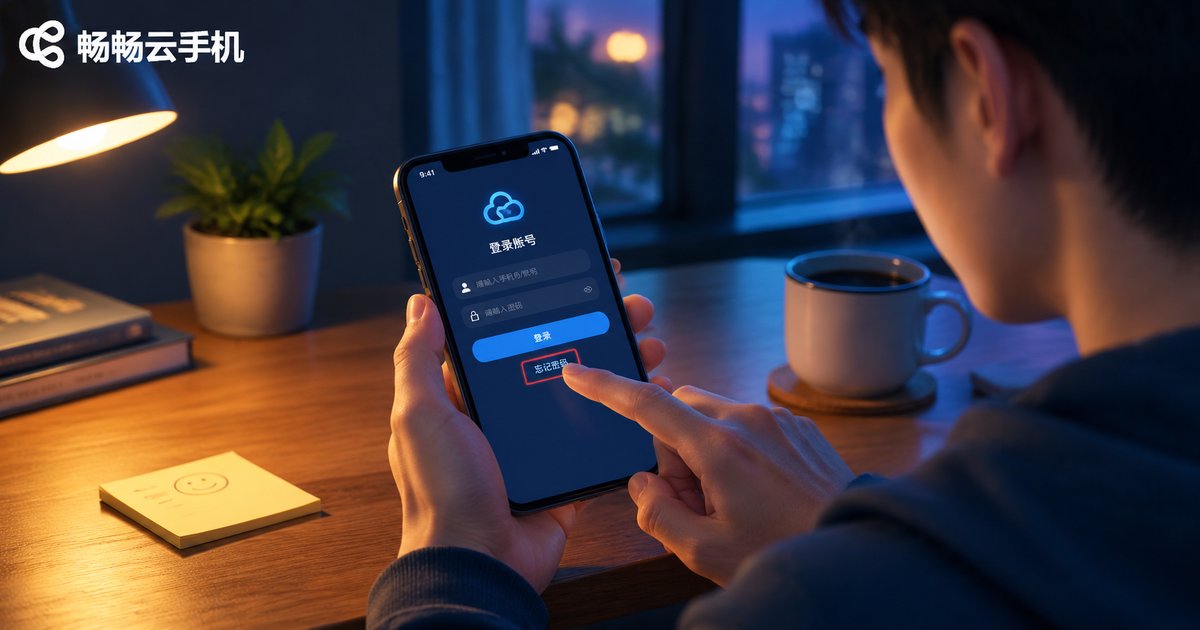
Forgetting a password happens to everyone—especially with tools like a cloud phone that you may not open every day. Don't panic, and don't waste attempts guessing. The core logic of account recovery is simple: prove the account belongs to you. Once you verify your identity through the phone number or email bound to the account, you can set a new password, and your cloud devices, apps, and data will be waiting exactly where you left them.
Account Recovery Process: Four Steps to Regain Access
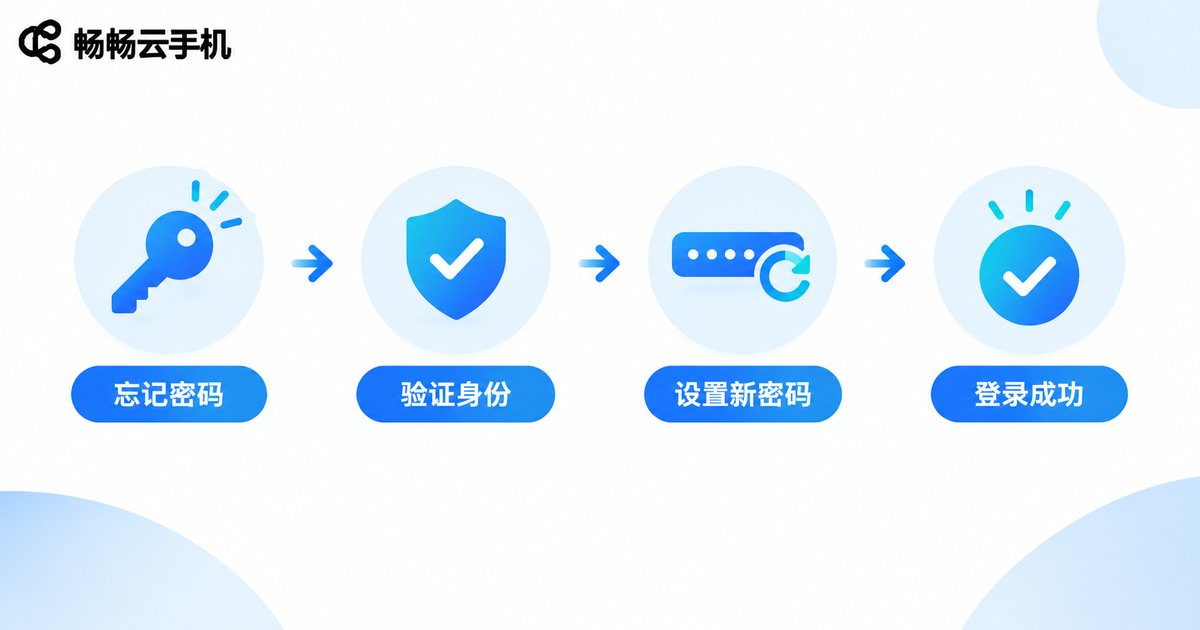
Using CC Cloud Phone (ccloudphone) as an example, most cloud phone services follow a similar four-step recovery flow:
Step 1: Open the login page and tap “Forgot Password.” Launch the app or visit the official login page and find the “Forgot Password” link below the password field.
Step 2: Enter your registered phone number. Type in the phone number you used to sign up. The system will send a verification code by SMS.
Step 3: Enter the verification code. Fill in the code you received. Note that codes usually expire within a few minutes, so enter it promptly.
Step 4: Set a new password and log in again. Choose a strong new password—ideally a mix of letters, numbers, and symbols—then sign in with it.
What If the Verification Code Never Arrives?
The verification code is the key to recovery. If it doesn't arrive, check the following in order:
1. Check blocked or spam messages. Some phones filter verification texts into a spam folder—look there first.
2. Confirm the phone number. Make sure it is the number used at registration. Many people switch numbers or registered with a family member's phone.
3. Wait a moment and retry. Code requests are rate-limited; tapping resend repeatedly may trigger a temporary block. Wait a minute or two.
4. Contact official support. If nothing works, reach out through the CC Cloud Phone official website or in-app support and verify your identity with your registration details.
Three Things to Do Right After Recovering Your Account
First, review logged-in devices. Check the login history in your account center. If you spot an unfamiliar device, sign it out and change your password again.
Second, update your bound contact info. If your phone number has changed, update it immediately so future recovery codes don't go to the old number.
Third, turn on available security settings. Enable device lock, login alerts, and any other protective features your account offers.
How to Create a Password That Is Strong and Memorable
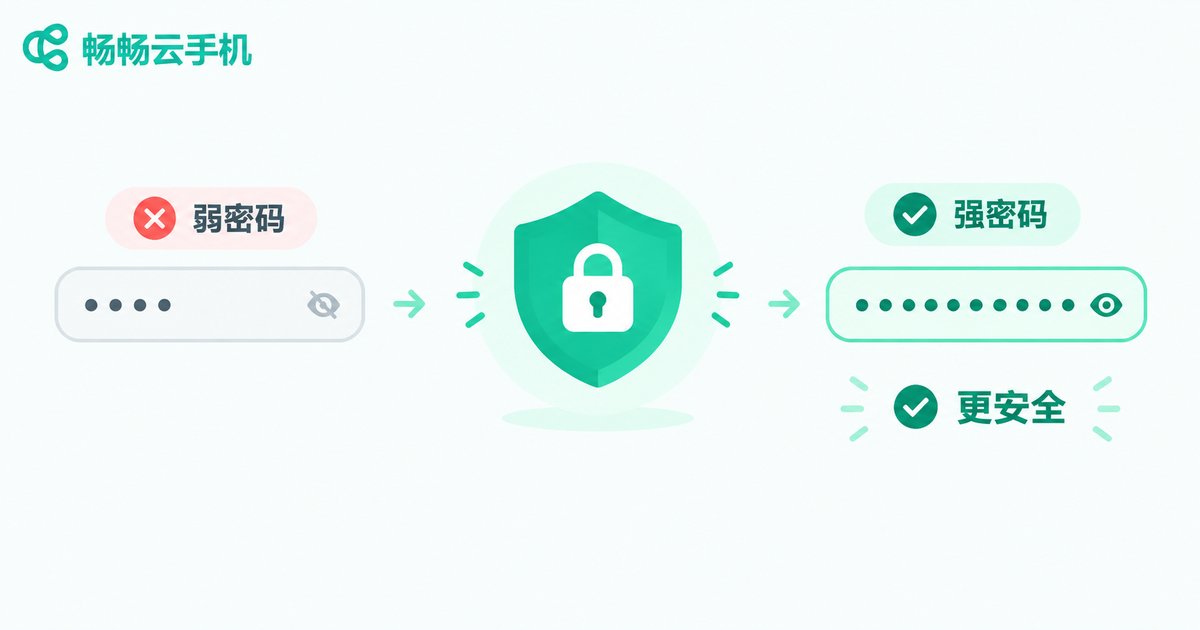
Most forgotten passwords trace back to habits that are either too random or too reused. Use this comparison to upgrade yours:
| Aspect | Habits to Avoid | Recommended Habits |
|---|---|---|
| Composition | Pure digits like 123456 | Letters + digits + symbols, 12+ characters |
| Reuse | One password for every platform | Unique passwords for important accounts |
| Memorization | Random strings memorized by rote | Acronyms from a personal phrase plus a date |
| Storage | Plaintext notes or chat history | Your phone's built-in password manager |
A practical trick: turn a sentence only you would know into a password. For example, “I watched a concert in Hangzhou in 2018” could become I2018hz@cct—strong yet easy to recall.
Daily Security Habits to Prevent the Next Lockout
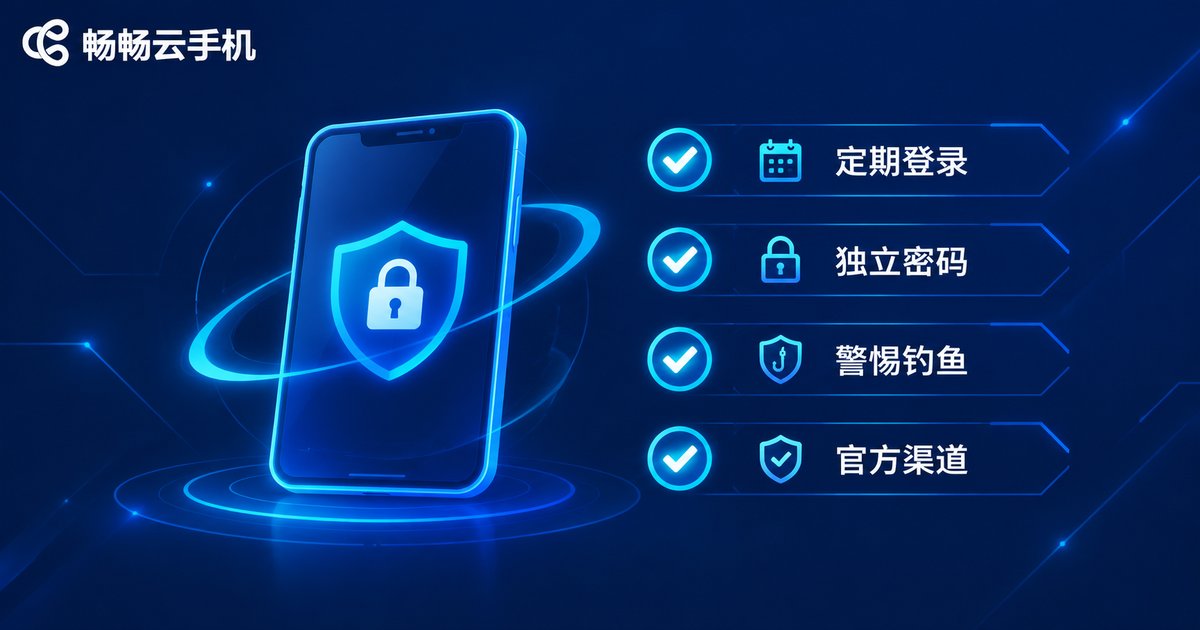
1. Log in regularly. Sign in to your cloud phone account at least once a month to keep it fresh in memory and spot anomalies early.
2. Separate passwords by importance. Keep payment and cloud phone accounts distinct from forum or casual accounts.
3. Never save passwords on public devices. On shared or public computers, always log out and clear the browser data.
4. Watch out for phishing. Recover passwords only through the official app or website—never through “reset password” links in unknown texts.
5. Use a trusted password manager. A built-in password manager is far safer than paper notes or chat messages.
Choose a Cloud Phone Service That Makes Account Management Easy
Personal habits matter, but so does the platform you choose. CC Cloud Phone (ccloudphone) supports verification-code login and a standard password recovery channel, and you can change your password in the account center after logging in. When comparing cloud phone services, weigh account security capabilities and support responsiveness alongside price—these matter most at the moment something goes wrong.
FAQ
Q: Will I lose my games and apps after resetting the password?
No. A password is only a login credential. After recovery, your cloud devices, installed apps, and data remain intact.
Q: My registered phone number is no longer in use. Can I still recover the account?
Contact CC Cloud Phone official support and verify your identity with your account details. Going forward, keep your bound contact information up to date.
Q: How often should I change my password?
Every 3 to 6 months for important accounts—and immediately after any unusual login or security alert.
Q: Should I give my password to customer service?
No. Legitimate support never asks for your password. Identity checks are done via verification codes or registration details—be cautious of anyone requesting it.


