
How to Use Cloud Phone Web Version? Browser-Based Setup Without Installation
What Is the Cloud Phone Web Version?
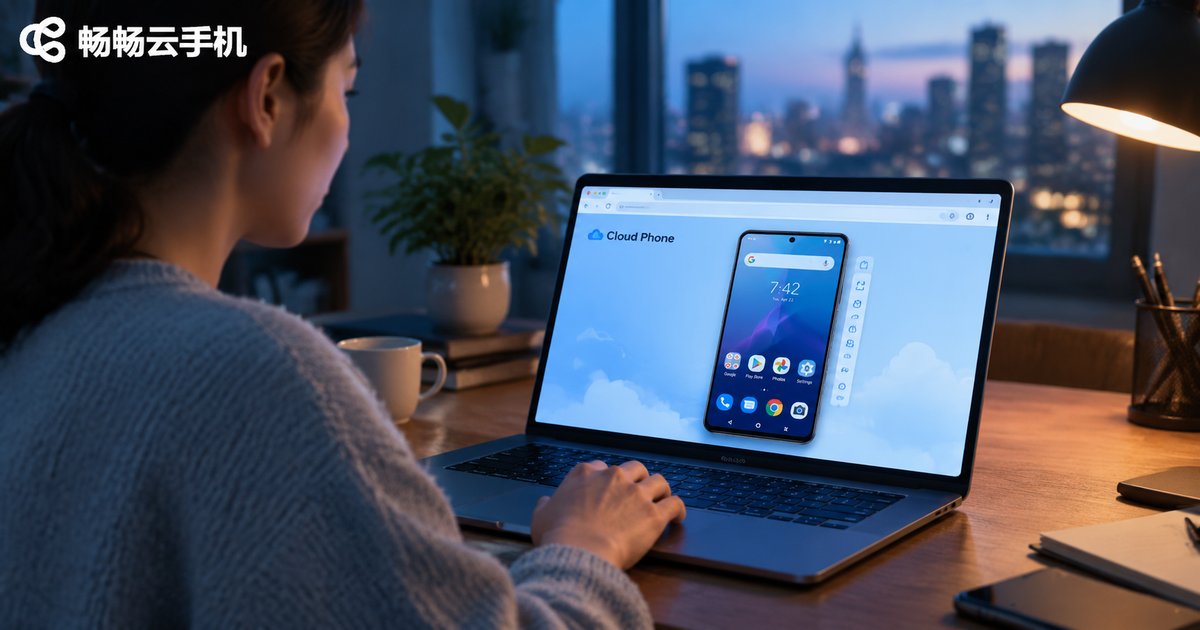
In short, the cloud phone web version means using a cloud phone directly in your browser without downloading or installing any software. A cloud phone is an Android device running on cloud servers; the web version simply acts as a remote screen — you see the display and send tap commands in your browser, while all the actual computing happens in the cloud. Whether you are on a desktop, laptop, tablet, or another phone, as long as the device can open a browser and connect to the internet, you can use a full Android cloud phone anytime.
Web Version vs. Client App: What Is the Difference?
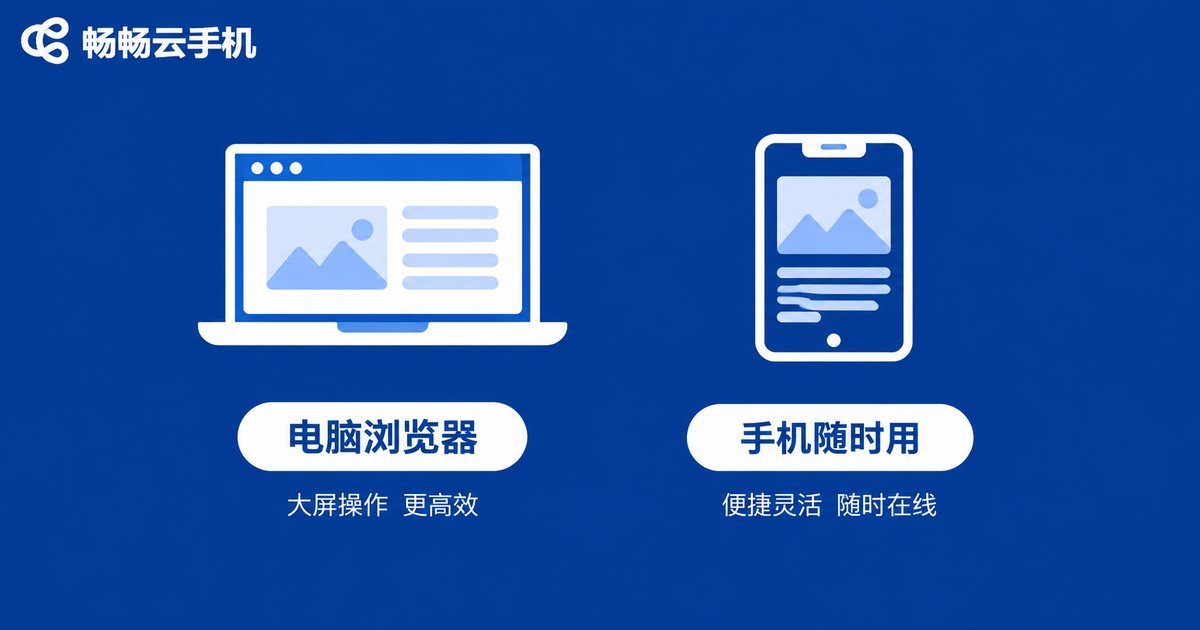
Many new users wonder whether to use the web version or download the client. In fact, both connect to the same cloud phone — accounts, data, and installed apps are fully synchronized. The only difference is the entrance you use. Here is a quick comparison:
| Item | Web Version | Client App |
|---|---|---|
| Installation | None — open a browser and go | Download and install required |
| Time to start | Ready in seconds | Depends on download speed |
| Device compatibility | PC, tablet, and phone | Must match the OS version |
| Best for | Quick access, multi-device switching | Long-term heavy use |
If you just want to try it quickly, run temporary idle tasks, or use it on a computer where installing software is not convenient, the web version is almost always the best choice.
Open Your Browser and Go: A Five-Step Walkthrough
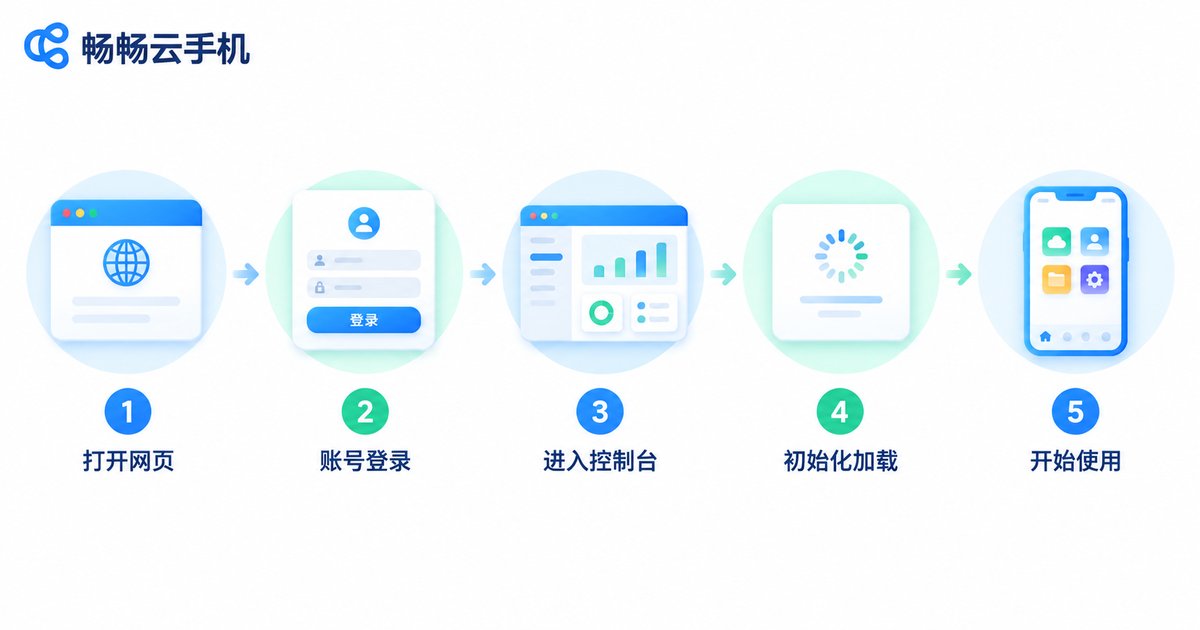
Using ChangChang Cloud Phone (ccloudphone) as an example, the whole process from opening your browser to entering your cloud phone is very simple:
Step 1: Open the official website. Type the ChangChang Cloud Phone official site ccloudphone.com into your browser address bar. A recent version of Chrome, Edge, or another mainstream browser is recommended.
Step 2: Register and log in. First-time users can sign up by following the on-screen verification steps; existing users can log in directly.
Step 3: Enter the console and select your cloud phone. After logging in, you will see your device list. New users can activate a cloud phone by following the on-screen instructions.
Step 4: Click Enter to load the cloud phone screen. The system will establish the connection, and within seconds a complete Android phone interface appears in your browser window.
Step 5: Use it like a real phone. Mouse clicks work like finger taps — install apps, sign in to accounts, run games or idle tasks. When you are done, simply close the browser tab; the cloud device keeps running according to your settings.
Which Scenarios Suit the Web Version Best?
1. On-the-go emergencies: If your phone is low on battery, borrow any computer and keep using the apps and accounts inside your cloud phone.
2. Restricted work computers: When your office computer does not allow software installation, the web version works with zero installation — close the browser after work and leave no trace.
3. Multi-device switching: Monitor idle tasks on the web version at your desk during the day, then continue on another device at home at night — the same cloud phone connects seamlessly.
4. Newcomer trials: Not sure about long-term use yet? Start with the zero-barrier web experience first, then consider a long-term plan once you are convinced.
Tips to Make the Web Version Run Smoother
Prioritize your network: Use a wired connection or stable Wi-Fi whenever possible; the steadier your bandwidth, the smoother the stream.
Use full screen: After entering your cloud phone, press the browser full-screen shortcut (such as F11) for a near-native visual experience.
Lower the quality: If your network is average, choose the smoothness-first option in the quality settings — trade a little sharpness for stability.
Close unused tabs: When you are away for a long time, close the browser tab to save bandwidth and avoid accidental operations.
FAQ
Q: Can the web version and the client log in to the same cloud phone at the same time?
Operating the same device from two places at once is generally not recommended, as it may cause input conflicts. Finish your session in one place before switching to the other.
Q: Will the web version lag when playing on a cloud phone?
Smoothness mainly depends on your network quality. With a stable connection, the gap between the web version and the client is minimal; when the network fluctuates, lower the quality settings to keep things smooth.
Q: If I close the browser, do tasks keep running on the cloud phone?
Yes. The cloud phone runs independently in the cloud — the web page is just the control entrance. Closing the browser does not stop the cloud device; log back in anytime to check on it.
Q: Is the web version safe? Could my account leak?
Choosing a reputable provider matters. ChangChang Cloud Phone uses isolated cloud devices, and account data is stored in the cloud. Enable the available account security settings and keep your login credentials safe.
Q: Can I open the cloud phone web version in a mobile browser?
Yes. Any standard mobile browser can access the official site, but the experience on a small screen is less comfortable than on a computer, so a desktop browser is recommended.


