
What Can You Modify After Rooting a Cloud Phone? A Detailed Guide to IMEI and Sensor Modification
Why Root Access on a Cloud Phone Matters
On a physical phone, getting root means unlocking the bootloader and flashing firmware — a slow, risky process. A cloud phone runs on remote servers, so the provider can simply hand you a rooted environment. Root gives you low-level control over the whole virtual device: system properties, device identifiers and sensor data can all be adjusted on demand.
For developers, that means emulating many device models for compatibility testing. For multi-account users, it means every cloud phone can present itself as a truly independent device. Let's walk through exactly what can be changed after root.
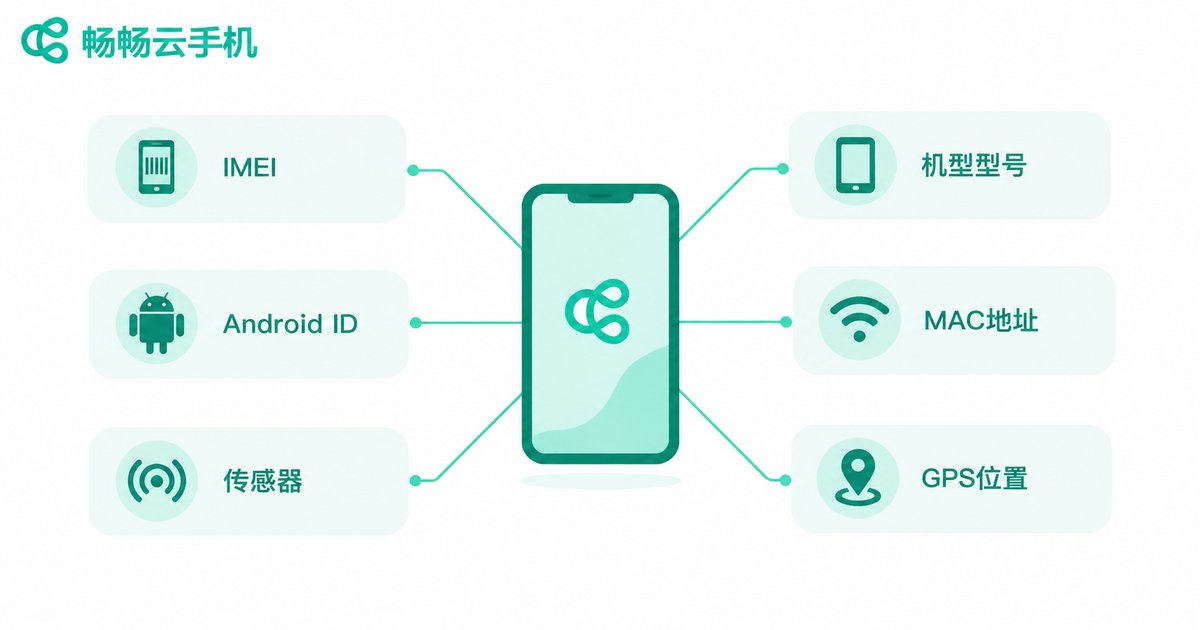
What Can You Modify? A Quick Overview
After root, the parameters you can change fall into two groups: device identity and environment simulation:
| Parameter | Purpose | How to Change | Typical Use |
|---|---|---|---|
| IMEI | Device identity number | One-click panel | Multi-device testing |
| Model and brand | How apps identify the device | Panel or resetprop | Model compatibility tests |
| Android ID | App-level unique identifier | One-click panel | Isolated multi-account setups |
| MAC address | Network hardware identifier | One-click panel | Network isolation |
| Sensor data | Key signal for real-device checks | Simulation modules | Motion-based app testing |
| GPS location | Location information | One-click panel | Location feature testing |
Together, these parameters form the device fingerprint that apps see. The more complete and unique the fingerprint, the more each cloud phone looks like a real phone the app has never met before.
IMEI Modification: Step by Step
IMEI works like a device's ID number, and many apps use it to check device uniqueness. On a cloud phone there are two ways to change it:
Method 1: One-click panel (best for beginners). Most cloud phones turn modification into a visual panel: select the device, click modify, and the system generates a whole new set of device parameters at the virtualization layer — IMEI, model, Android ID and more, all in one go, with no commands required.
Method 2: Command line (for advanced users). If you need fine-grained control over specific properties, the basic flow looks like this:
# Connect to the cloud phone via ADB (address shown in your console)
adb connect 127.0.0.1:5555
adb shell
su

# Check current model and serial number
getprop ro.product.model
getprop ro.serialno

# Check IMEI (command varies slightly by system version)
dumpsys telephony.registry | grep 'mImei'

# Change a system property with Magisk resetprop (example: model)
resetprop ro.product.model Pixel-9
Note that on a real phone the IMEI lives in the baseband and cannot be changed by ordinary commands. A cloud phone is virtual, so the provider can map a new IMEI directly at the virtualization layer — that's why the one-click panel works. Use the command line mainly for system properties like model and build number; for low-level identifiers such as IMEI, the panel is the reliable route. Reboot the cloud phone afterwards so every parameter takes effect.

Sensor Modification: Making a Virtual Device Feel Real
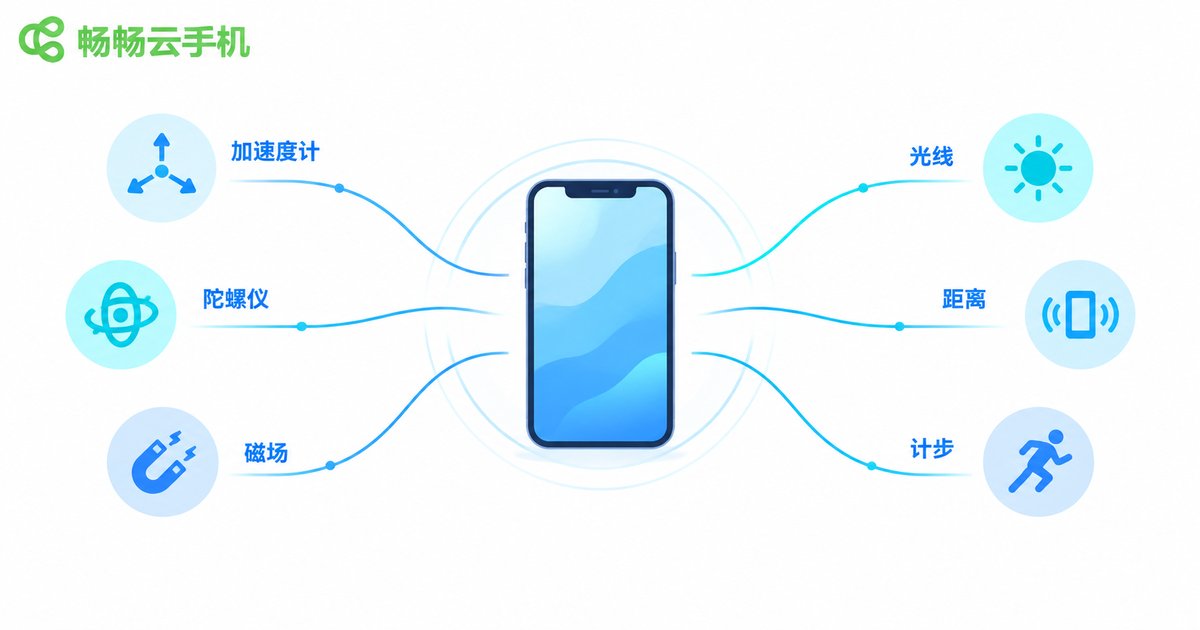
Many apps read sensors to decide whether they are running on a real phone: does the accelerometer produce data, does the gyroscope drift naturally, does the proximity sensor respond? A cloud phone has no physical sensors, but after root you can fill the gap in two ways:
1. Sensor simulation modules. Install an Xposed/LSPosed-based sensor module inside the cloud phone, tick the sensors you want to simulate (accelerometer, gyroscope, magnetic field, light, proximity, step counter and so on), set fixed values or random fluctuation, then restart the scope to apply.
2. Built-in virtual sensors. Some cloud phones ship a virtual sensor service at the system level — just toggle sensor simulation in settings. Data is emitted at a realistic frequency and amplitude, so apps read values identical to a real device.
# List sensors on the cloud phone
adb shell dumpsys sensorservice | grep 'Sensor'

# Show detailed sensor service status
adb shell dumpsys sensorservice
After modifying, verify everything with a sensor-testing app: every reading should sit in a normal range and change smoothly. That's when the simulation truly passes.
Other Parameters and Compliance Notes
Beyond IMEI and sensors, root also lets you change Android ID, MAC address, model and build info in build.prop, GPS location, language and timezone, resolution and DPI. When modifying, swap the whole parameter set together — a mismatch between model and IMEI is an obvious giveaway.
Compliance note: device modification itself is neutral technology, widely used for compatibility testing, automated testing and compliant multi-account operations. However, tampering with the IMEI of a real device is illegal in most countries and regions. Always use these features lawfully.

Why We Recommend ChangChang Cloud Phone (ccloudphone)
If you would rather skip flashing and command lines, try ChangChang Cloud Phone (ccloudphone): it offers a ready-to-use rooted environment, independent device parameters for every instance, and panel-based modification, multi-instance and batch management. Devices stay online around the clock in the cloud, so tasks keep running even when your local machine is off. Whether you run compatibility tests or manage many independent devices, it removes a lot of repetitive work. Search for ChangChang Cloud Phone to visit the official website.
FAQ
Q: Is it legal to change the IMEI on a rooted cloud phone?
Device modification is commonly used for legitimate testing; however, tampering with a real device's IMEI is illegal in most regions. A cloud phone is virtual — always stay compliant.
Q: Will changes affect my other cloud phones?
No. Every cloud phone is independent; changes apply only to the current instance.
Q: Do I need to flash or unlock anything myself?
No. With ChangChang Cloud Phone, the rooted environment is ready out of the box — no bootloader unlocking required.
Q: Which sensors can be simulated?
Common ones include accelerometer, gyroscope, magnetic field, light, proximity and step counter; check your module's supported list for details.
Q: Will modifying parameters delete my app data?
Normally no — modification only changes device parameters. Still, back up important data before you start.


