
Which Devices Can Access a Cloud Phone? Web vs PC vs Mobile Comparison
Why Is a Cloud Phone Almost Device-Agnostic?
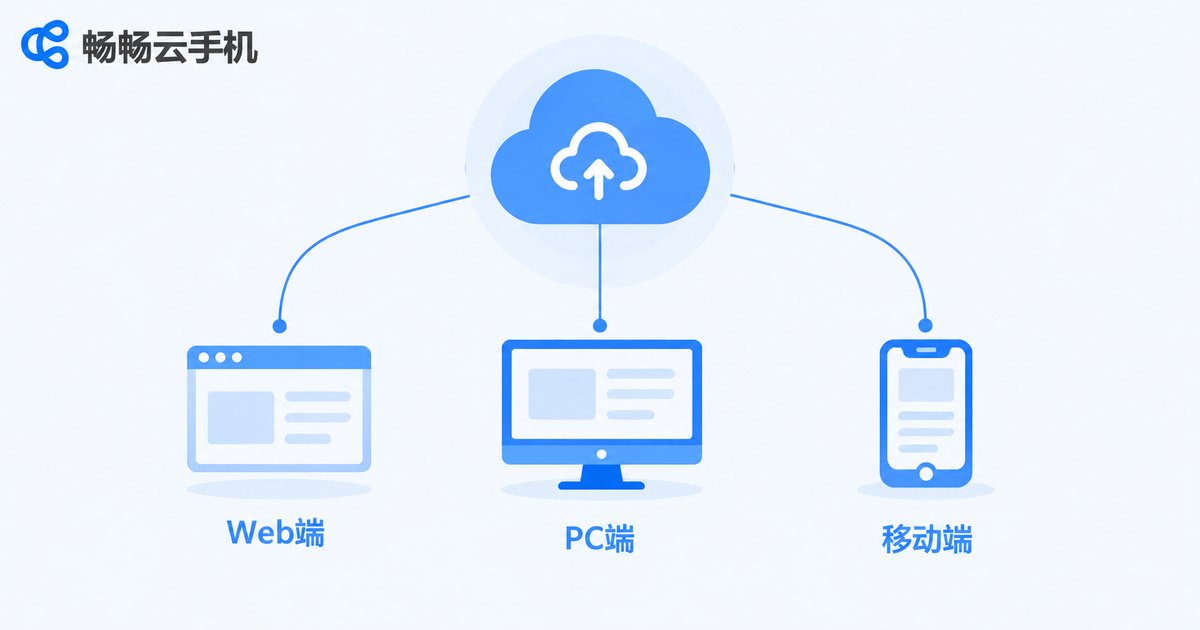
A common first question about cloud phones is: 'Do I need to buy new hardware?' The answer is no. A cloud phone is a virtual smartphone running on remote servers — the system, apps, and all computing happen in the cloud, while your local device only handles displaying the screen and transmitting your input. Because of this architecture, cloud phones place minimal demands on local hardware. As long as a device can get online, almost any screen can become your 'second phone.' There are three mainstream access methods: the Web browser, the PC client, and the mobile app. Let's break them down one by one.
Web Access: Just Open a Browser
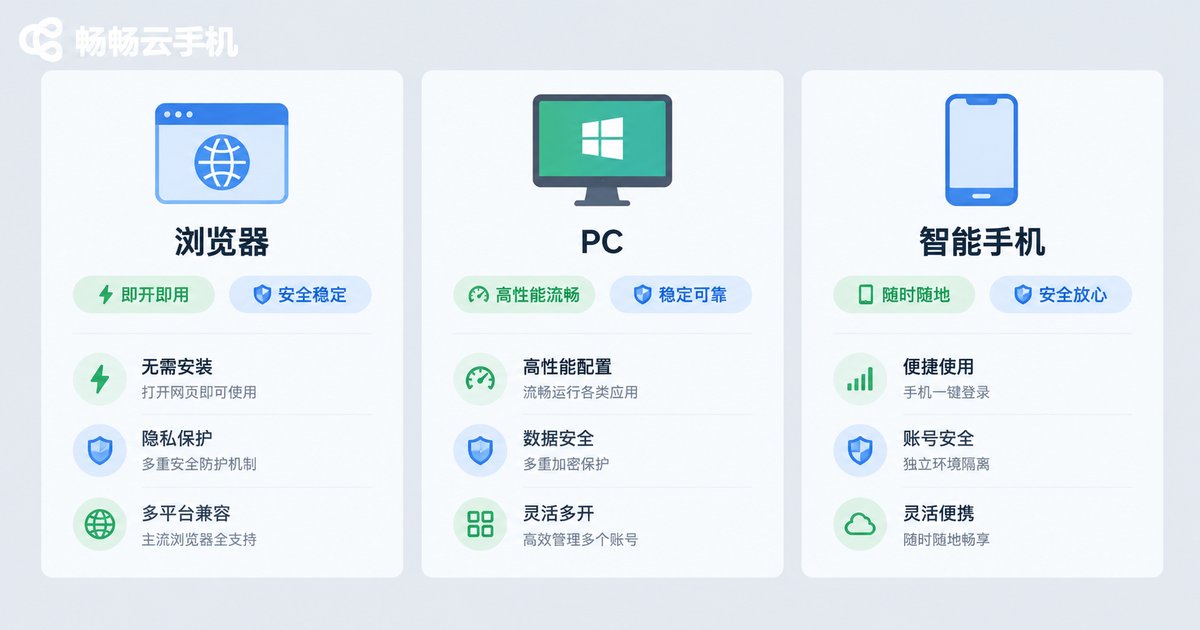
Web access has the lowest barrier to entry. Whether you are in front of a Windows PC, a Mac, or a tablet, simply open a browser, log in to your account, and start controlling your cloud phone — no software installation required.
Its biggest advantage is instant availability: on a borrowed computer, at an internet café, in a library, or at your office desk, you can log in within seconds. The trade-off is that streaming depends on browser performance, so during long, intensive sessions the smoothness and stability are usually slightly below a dedicated client.
PC Client: The Efficient Choice for Big-Screen AFK Tasks
The PC client is built specifically for computer users. It generally delivers a more stable connection than the browser, plus advanced features such as multi-instance management, batch operations, and keyboard/mouse mapping.
For scenarios that require long hours of AFK running — game farming, keeping apps alive, or batch task processing — the PC client combined with a desktop's wired network and large screen is the most efficient setup. You can work normally on your computer while checking on your cloud phone in the background whenever you like.
Mobile App: A Cloud Phone in Your Pocket
The mobile app installs on your physical phone or tablet, effectively putting an 'extra phone' in your pocket. During a commute, a business trip, or while waiting in line, just take out your phone and log in to your cloud phone.
The mobile app's strengths are portability and a native touch experience: controlling a cloud phone feels exactly like using your own device, with zero learning curve. For users who mainly play games or use apps on their phones, this is the most natural option.
Quick Comparison of the Three Access Methods
| Dimension | Web Browser | PC Client | Mobile App |
|---|---|---|---|
| Installation | Not required | Required | Required |
| Convenience | Highest, open and go | High, install once | High, always with you |
| Connection stability | Depends on browser | Most stable | Stable |
| Screen experience | Depends on monitor size | Large screen, great for multi-instance | Small screen, native touch |
| Best for | Temporary or emergency use | AFK tasks, multi-instance, batch work | On-the-go, daily use |
Which Access Method Should You Choose?
The three methods are not mutually exclusive — the best strategy is to combine them: if you switch devices often and dislike installing software, the Web version covers daily needs; heavy users who run long AFK sessions or multiple accounts on a computer should make the PC client their main tool; and if you want access anytime, anywhere, the mobile app is essential.

ChangChang Cloud Phone: Full Multi-Terminal Coverage with Real-Time Sync
Take ChangChang Cloud Phone (ccloudphone) as an example. It supports multiple access methods including the Web browser, PC client, and mobile app. When you log in with the same account on different devices, you always see the same cloud phone — apps, files, and data stay in sync in real time. A game you left running on your computer can be continued on your phone on the way home: truly 'one cloud phone, accessible everywhere.'
Whether you are a gamer, a multi-account operator, or a user who needs to manage apps in batch, you can freely choose the terminal that fits your habits and switch anytime without missing a beat.
FAQ
Q: Does the access device need high specifications?
No. All computing happens in the cloud; the terminal only displays the screen and transmits input. Any ordinary PC or phone with a smooth internet connection is enough.
Q: Is data shared when logging in from different devices?
Yes. The same account always reaches the same cloud phone, so apps, files, and data remain consistent across terminals.
Q: Can I use a cloud phone with only a phone and no computer?
Absolutely. The mobile app is designed for phone users, and its core features match the PC client.
Q: Which is smoother, the Web version or the client?
The client is usually specially optimized and more stable for long sessions; the Web version wins on convenience for temporary, lightweight use.


