

What to Do When Your Cloud Phone Won't Connect: Network and Account Troubleshooting Guide
Common Symptoms of a Cloud Phone Connection Failure
Almost every cloud phone user has run into connection problems at some point. The usual symptoms include being stuck on a loading screen, seeing a connection timeout message, getting a black or white screen after login, or receiving a network error alert. Before you uninstall and reinstall anything, stay calm: most connection failures come down to just two causes — network issues or account issues. Work through the steps below and you can usually restore your connection within a few minutes.
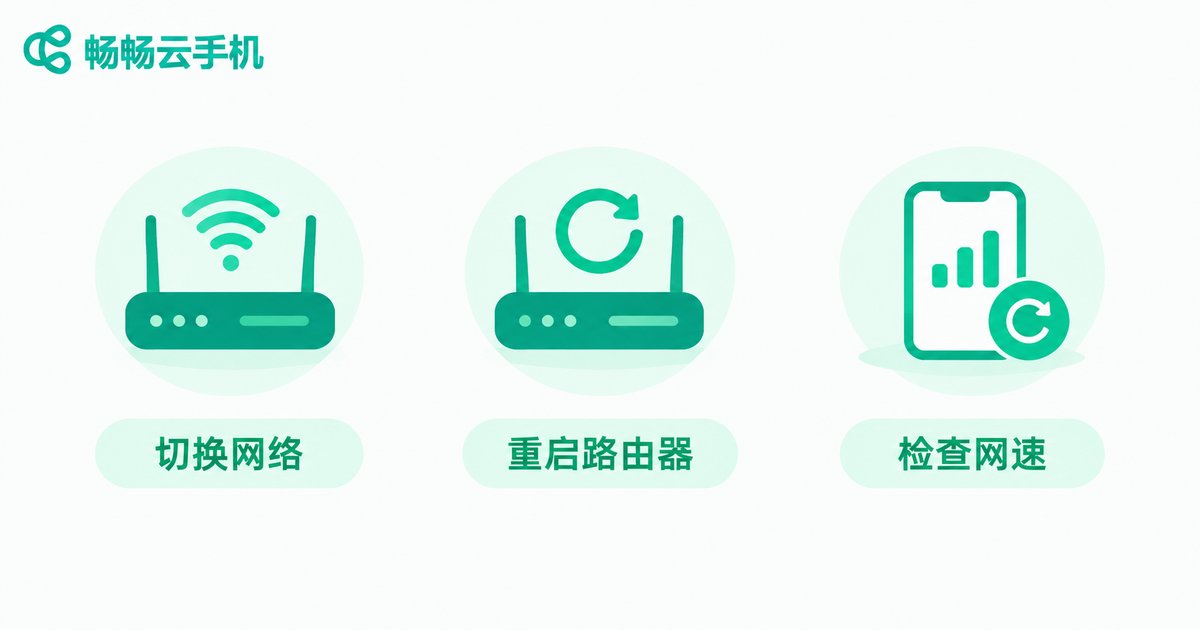
Step 1: Check Your Local Network
Everything you see and do on a cloud phone travels through the internet, so an unstable local network is the most common culprit.
1. Switch networks: If you are on Wi-Fi, switch to mobile data, or vice versa. If the connection works afterward, the problem lies with the original network.
2. Restart your router: Routers that run for a long time can slow down. Power it off, wait 30 seconds, then power it back on and try again once the lights are stable.
3. Test your connection quality: Stream a video or load a few web pages. If your internet itself is slow, the cloud phone will struggle to connect. Use it in a spot with a strong signal.
4. Avoid peak hours: Networks get congested in the evening. If everything else fails, try again at a different time of day.
Step 2: Check the Cloud Phone Service Status
If none of the networks work, the issue may not be on your side. Cloud phone servers occasionally undergo maintenance or upgrades, during which connections may temporarily fail.
Visit the official website of ccloudphone (ChangChang Cloud Phone) to check for maintenance announcements, or contact online customer service to confirm the service status. If the server is under maintenance, simply wait — no extra action is needed.
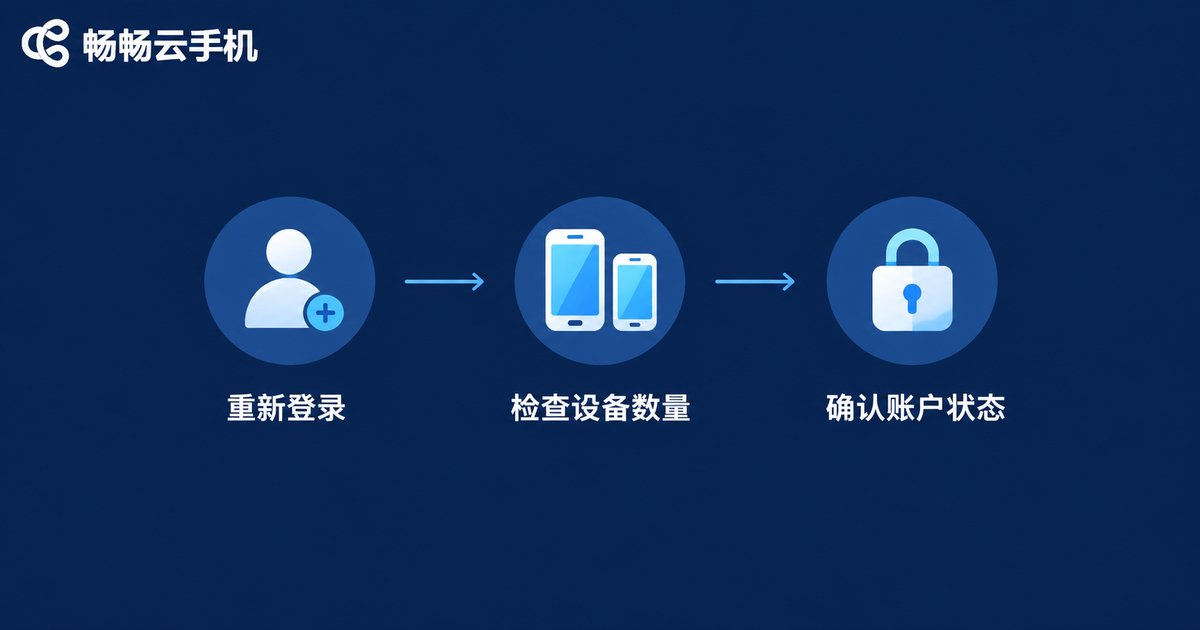
Step 3: Troubleshoot Account-Related Issues
If your network is fine but you still cannot connect, it is time to look at your account.
1. Log in again: Login sessions can expire. Sign out and sign back in with your credentials — this alone fixes many connection failures.
2. Check the number of logged-in devices: One account usually has a device limit. If you have signed in on multiple phones, you may have been signed out. Log out on other devices first, then reconnect.
3. Verify your account status: Check whether your account has an expired plan, overdue payment, or usage restriction. Contact customer service if anything looks wrong.
4. Double-check your credentials: Too many wrong password attempts can temporarily lock your account. Wait a moment, or reset your password through the recovery option.
Step 4: Check the App and Its Cache
If none of the above works, inspect the app itself:
1. Update to the latest version: Older app versions may have compatibility issues. Update from your app store and try again.
2. Clear the cache: Find the app in your phone settings, clear its cache, then reopen it.
3. Restart your phone: A restart frees up background resources and resolves many mysterious connection glitches.
4. Reinstall the app: As a last resort, uninstall and reinstall the latest version.
Quick Troubleshooting Reference Table
| Symptom | Likely Cause | Solution |
|---|---|---|
| Endless loading spinner | Unstable local network | Switch networks, restart router |
| Connection timeout message | Server maintenance or congestion | Check official announcements, retry later |
| Account error message | Expired session or device limit | Log in again, reduce logged-in devices |
| Black screen after login | Outdated app or corrupted cache | Update the app, clear cache |
Choose a Reliable Cloud Phone Service
Connection stability depends largely on the provider behind the service. ccloudphone (ChangChang Cloud Phone) offers solid connection stability with ample server resources and a simple, easy-to-use interface, and its customer service team is ready to help when issues arise. If connection problems keep bothering you, visit the official website to learn more and switch to a worry-free option.
FAQ
Q: My cloud phone keeps showing a connecting message. What should I do?
Switch networks first (alternate between Wi-Fi and mobile data), then restart the app. If it still fails, check the official website for maintenance announcements.
Q: It says my account is logged in on another device. How do I fix this?
Your account has reached its device limit. Sign out on the previous device or manage logged-in devices in account settings, then reconnect.
Q: Wi-Fi works but mobile data does not. Why?
This is usually caused by carrier network fluctuations or a weak signal. Move to an area with better coverage or restart your phone before reconnecting.
Q: I tried everything and still cannot connect. What now?
Contact the online customer service of ccloudphone, provide your account and the error message, and the support team will help you locate the problem.


