
How to Fix Cloud Phone Screen Lag: Resolution and Bitrate Adjustment Guide
Why Does a Cloud Phone Screen Lag?
A cloud phone does not run apps directly on your physical device. The screen is rendered on a cloud server, compressed, transmitted over the internet, and then displayed on your device. Along this pipeline, resolution and bitrate are the two most critical parameters. When they do not match your network bandwidth, you get stuttering, blurring, ghosting, or even blocky artifacts.
In short: the higher the resolution and bitrate, the sharper the picture—but also the more data must travel through your network. Once the network cannot keep up, frames drop and the image stutters. The core fix is to match your quality settings to your actual bandwidth.
Resolution vs. Bitrate in One Minute
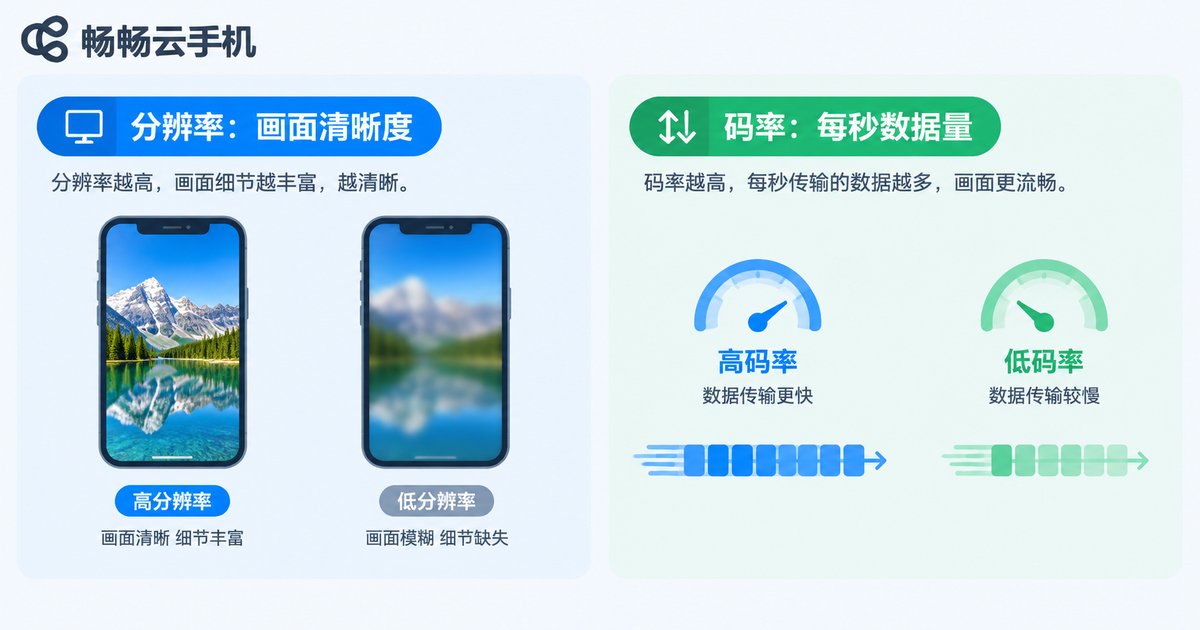
Resolution determines how sharp the image looks—720P, 1080P, and so on. Higher numbers mean finer detail.
Bitrate determines how much data is transmitted per second, measured in Mbps. Think of it as the amount of picture information. Too low a bitrate makes even a high resolution look blurry; too high a bitrate causes constant stuttering on weak networks.
| Parameter | Role | Set Too High | Set Too Low |
|---|---|---|---|
| Resolution | Image sharpness | More data, easier to lag | Blurry picture |
| Bitrate | Detail and smoothness | Heavy bandwidth use, buffering on weak networks | Blocky artifacts, ghosting |
How to Adjust Resolution
Open the settings or picture quality options in your cloud phone app and follow these steps:
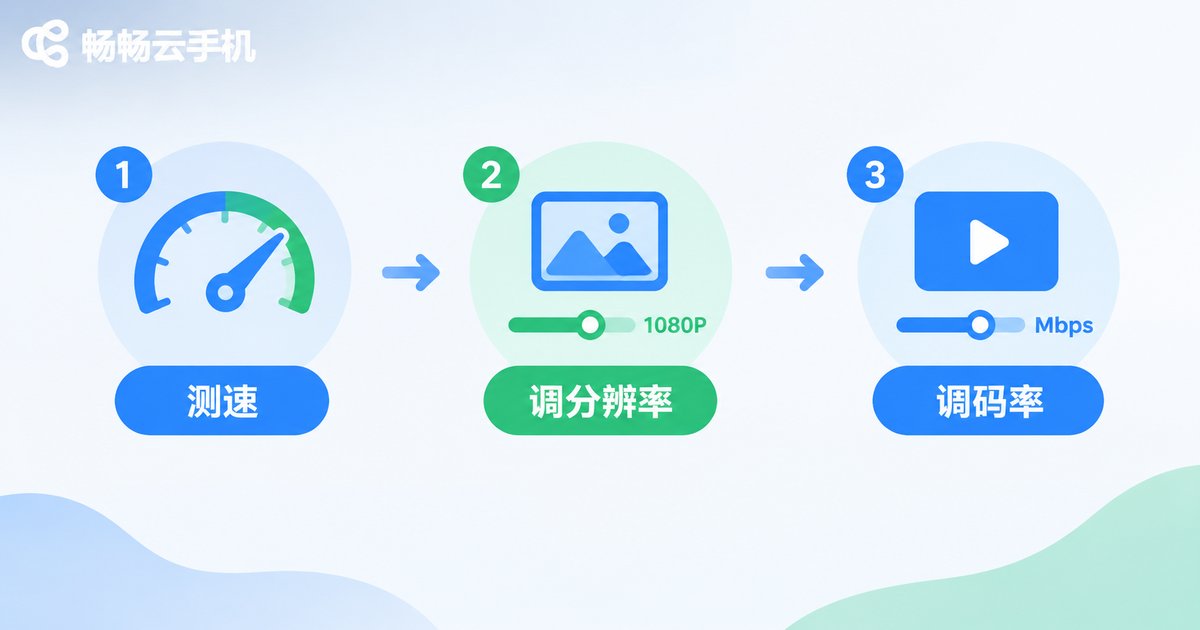
Step 1: Test your speed first. Use a speed test tool to check your current upload and download speeds.
Step 2: Pick a suitable resolution. Choose 1080P when your network is stable with plenty of bandwidth; 720P for ordinary Wi-Fi or 4G; drop to 480P-720P on poor connections and prioritize smoothness.
Step 3: Compromise for gaming. If you mainly play games, lower the resolution by one step and save bandwidth for frame rate—controls will feel more responsive.
How to Adjust Bitrate
The golden rule for bitrate is slightly lower rather than higher: staying just below your bandwidth ceiling leaves headroom for network fluctuations.
As a reference, set 6-8 Mbps on 5G or home broadband, 4-6 Mbps on ordinary Wi-Fi, 2-4 Mbps on 4G, and 1-2 Mbps on weak connections. Watch for a few minutes after each change: if stuttering persists, lower one more step; if the picture is clear and smooth, raise it gradually to find your sweet spot.
Recommended Settings by Network Type
| Network | Resolution | Bitrate | Expected Result |
|---|---|---|---|
| 5G / Gigabit Wi-Fi | 1080P | 6-8 Mbps | HD and smooth |
| Ordinary home Wi-Fi | 720P-1080P | 4-6 Mbps | Smooth and stable |
| 4G | 720P | 2-4 Mbps | Mostly smooth |
| Weak network | 480P-720P | 1-2 Mbps | Smoothness first |
Still Lagging? Check These Too
1. Local network quality: move closer to your router or switch to 5G; avoid others streaming or downloading large files on the same network.
2. Background apps: close apps on your device that consume bandwidth and performance.
3. Server node distance: choose a cloud node closer to you for lower latency and faster response.
4. App version: update your cloud phone app to the latest version—older versions may have transmission inefficiencies.

ChangChang Cloud Phone: Smoothness Built Into Every Detail
If you would rather not fine-tune settings manually, try ChangChang Cloud Phone (ccloudphone). It supports flexible picture quality adjustments in settings, backed by stable cloud nodes and transmission optimization, so the stream stays smooth even when your network fluctuates. Whether you are gaming, keeping apps running, or managing multiple accounts, the experience stays fluid. When lag appears, test your speed first, then adjust resolution and bitrate as described—improvement usually takes just a few minutes.
FAQ
Q: Will lowering the resolution make the picture very blurry?
A: Sharpness drops somewhat, but on a poor network a smooth picture feels far better than a stuttering HD one. You can always switch back once the network recovers.
Q: Is a higher bitrate always better?
A: No. A bitrate above your bandwidth limit causes constant buffering and stuttering. Slightly below the limit is ideal.
Q: Why is it still lagging after adjusting the settings?
A: Check whether your local network is stable, whether you picked a nearby node, and whether background apps are consuming bandwidth. If everything looks fine, restart the app or try another network.
Q: How much bandwidth do I need?
A: At least 10 Mbps of stable bandwidth is recommended. The more bandwidth you have, the higher the resolution and bitrate you can use.


