

What to Do When Your Cloud Phone Shows Insufficient Memory: Storage Cleanup and Expansion Guide
First, Tell the Difference: Running Out of RAM or Out of Storage?
When a cloud phone pops up an insufficient-memory warning, it usually means the storage is full, not that the running memory (RAM) is exhausted. In short: RAM decides how many apps you can run smoothly at the same time, while storage decides how many apps and files your cloud phone can hold.
Telling them apart is easy. If the warning appears while you are installing a new app or downloading a file, it is almost always a storage problem. If the phone lags or crashes during use, RAM is the more likely culprit. The two problems call for different fixes, so diagnose first and save yourself a detour.

What Fills Up a Cloud Phone's Storage?
A cloud phone keeps its data on cloud servers, but it consumes storage just like a physical phone: every app you install, video you watch, and file you receive adds up. The most common space killers fall into four groups:
App caches: the longer you use video, shopping, and news apps, the bigger their caches grow — several gigabytes is common.
Chat files: photos, videos, and documents in chat apps are saved automatically and pile up quickly.
Leftover installation packages: packages that were downloaded, installed, and then forgotten.
Old downloads: files sitting in the download folder that never get cleaned out.
Four Steps to Free Up Storage Fast
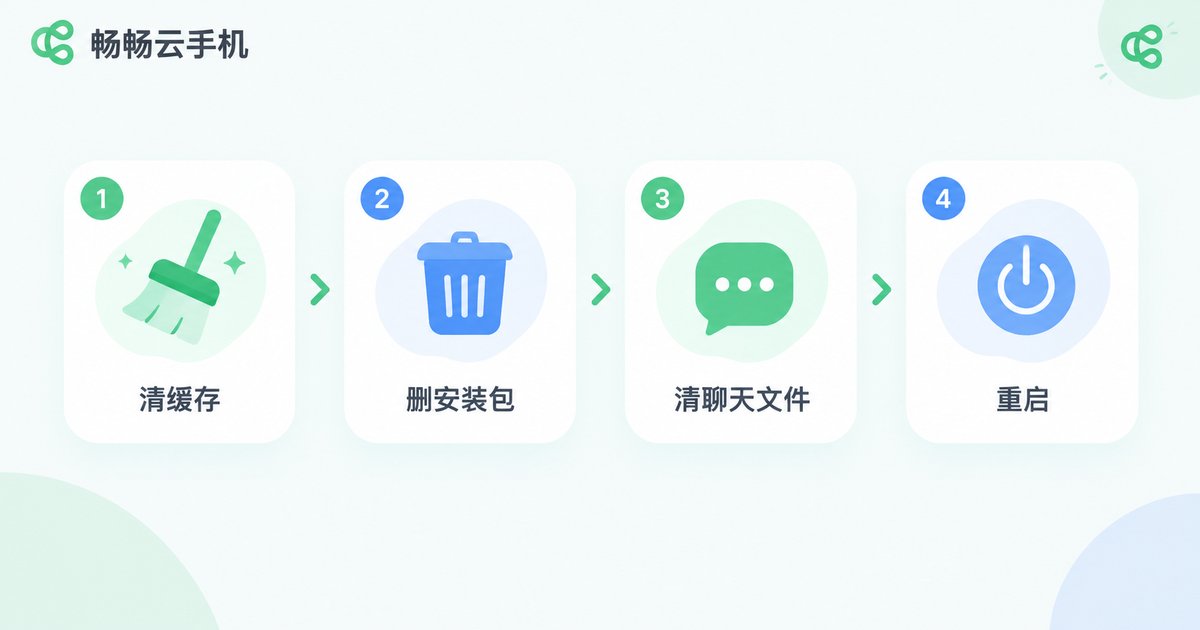
Step 1: Clear app caches. Open Settings → Apps on your cloud phone, find the apps that take up the most space, and tap Clear cache. This does not delete your account or personal data; the app will simply reload some content the next time it opens.
Step 2: Uninstall unused apps and delete installation packages. Remove apps you have not opened in ages, then check the download folder and delete leftover packages and old files.
Step 3: Tidy up chat history files. Use the storage management tool inside your chat apps to delete photos, videos, and documents you no longer need. Remember to back up important files first, because deleted chat history may be impossible to recover.
Step 4: Restart the cloud phone. A restart releases occupied running memory and lets the system reorganize storage, which makes the whole cleanup more effective.
Still Not Enough? Expand in the Cloud
If you keep many apps resident or run background tasks around the clock, cleanup is only a stopgap — expansion is the long-term solution. Here is a big advantage of cloud phones: your storage lives in the cloud, so you need neither a new device nor a memory card. Just choose a cloud phone configuration with more storage.
Take ChangChang Cloud Phone (ccloudphone) as an example. First do the math: list the apps you keep running and estimate how much data they generate, then compare the cloud phone configurations introduced on the official website and pick one with more generous storage. If you are unsure, contact the official customer service, describe your use case, and ask for a recommendation. Because everything lives in the cloud, your daily use is not interrupted — one more reason cloud phones are less hassle than physical phones.
| Approach | Best for | How fast it works | Cost |
|---|---|---|---|
| Manual cleanup | Piled-up caches and packages | Instant | Free |
| Cloud expansion | Many apps, long-term use | More space once a larger configuration is chosen | Depends on the configuration you pick |
Daily Habits to Keep Storage in Check
Beyond cleanup and expansion, a few habits keep a cloud phone lean: clear caches once a month, turn off unnecessary auto-downloads, uninstall apps you no longer use, and check from time to time how much data your background apps generate. With these habits in place, the storage-full warning should rarely bother you again.
FAQ
Q: Does an insufficient-memory warning on a cloud phone mean RAM or storage?
In most cases it means storage is full, especially when the warning pops up while installing apps or downloading files. Lagging or crashing during use points more to RAM, and restarting the cloud phone usually helps.
Q: Will clearing the cache delete my account or data?
Clearing the cache generally does not affect your account or chat history, but clearing app data or uninstalling an app removes its data. Back up important files before you start.
Q: Can I insert a memory card into a cloud phone like a physical phone?
No. A cloud phone's storage lives on cloud servers; the way to expand it is to choose a configuration with more storage, not to insert a card.
Q: How do I expand storage on ChangChang Cloud Phone?
Visit the ChangChang Cloud Phone official website (ccloudphone) to review the available cloud phone configurations and choose one with more storage. If you are not sure what to pick, contact official customer service and describe your needs for a recommendation.
Q: Why does the storage fill up again right after a cleanup?
Apps keep generating caches. Make monthly cleanup a habit and limit auto-downloads; if space stays tight, consider expanding your storage.


