
How to Fix App Location Issues on Cloud Phones: Permission & Mock Location Setup Guide
Why Do Apps Fail to Get Location on a Cloud Phone?
Many users find that map, ride-hailing, or check-in apps show “unable to get location” or keep searching forever when they first start using a cloud phone. This is usually not a malfunction — in most cases it simply means the location permission was never granted, or the mock location is not configured properly.
A cloud phone runs on a remote server and has no real GPS hardware, so an app gets its position through two channels: the system location service and the location permission granted to that app. If either link breaks, the app reports a location failure. The common causes fall into these categories:
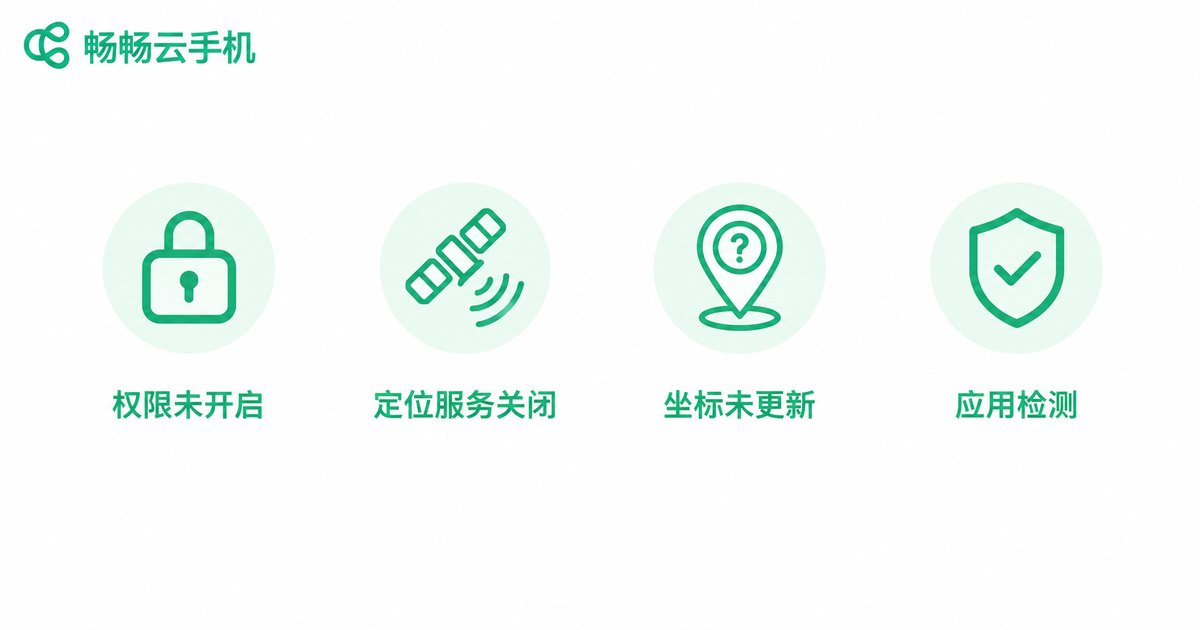
| Symptom | Likely Cause | Fix |
|---|---|---|
| App says “location permission denied” | Permission was rejected | Enable it manually in system settings |
| Location keeps spinning | System location service is off | Turn on the location toggle in the control center |
| Position shows in the wrong city | Mock coordinates not refreshed | Reset the mock location and refresh |
| App crashes or flags an anomaly | App detects the mock location | Check the mock location provider in developer options |
Step 1: Check and Enable the App’s Location Permission
This is the most important step. A cloud phone is Android-based, so permission management works exactly like a regular phone:
1. Open Settings on the cloud phone desktop;
2. Go to Apps and find the app that fails to locate;
3. Tap Permissions, then Location;
4. Set it to Allow only while using the app or Allow all the time.
After that, pull down the control center and make sure the system location toggle (GPS) is on as well. Many users grant the app permission but forget the system-level switch, so the app still cannot read any coordinates.
Step 2: Configure the Mock Location
If you need the app to show a specific city or spot — for check-ins or region-limited events, for example — you will need the mock location feature:
1. Open the mock location tool inside the cloud phone (some cloud phones have one built in, or you can install your own);
2. Pick a point on the map or enter the target latitude and longitude directly;
3. Tap Start simulation to lock the instance’s position to the target coordinates;
4. Force-close the target app and reopen it so it reads the location again.
Note: always restart the app after changing the location. Many apps read the position only once at launch, so the on-screen location will not refresh until you do.

Step 3: Advanced Troubleshooting Checklist
If the app still cannot locate after the first two steps, work through this checklist:
· Restart the cloud phone instance: clear background processes and re-enter, to rule out a temporary glitch;
· Check for multi-instance conflicts: running the same app in several instances at once can interfere with location state;
· Verify the mock location provider: in developer options, confirm the correct app is selected;
· Update the app: older versions may not support newer location interfaces;
· Clear the app cache: Settings → Apps → Storage → Clear cache, then try again.
Why Run Location-Based Apps on ccloudphone?
Location-based apps demand a stable device — disconnects or lag can mean a failed check-in or a drifting position. ccloudphone provides a native Android environment in the cloud, where app permission management feels exactly like a real phone and the location settings path is clear, with no complicated rooting or flashing required.
For users who need to keep check-in, travel, or fitness apps running for long hours, a cloud phone consumes none of your local phone’s battery and is unaffected by local network fluctuations. Combined with the right permission and mock location setup, it can hold a fixed position steadily over long periods. For the latest features and plans, please refer to the official ccloudphone website.

FAQ
Q: A cloud phone has no GPS hardware — is the location fake?
A cloud phone provides coordinates through the system location service and mock location mechanisms. For most apps the experience is identical to real GPS, and check-ins, navigation, and weather all work normally.
Q: Why does it still fail after granting permission?
Double-check two things: whether the system-wide location toggle is on, and whether you restarted the app after changing settings. Most “granted permission but still failing” cases come from not restarting the app.
Q: Can mock location be detected by apps?
Some strictly risk-controlled apps do detect simulated positions. Prefer the built-in or better-compatible location method on your cloud phone, and keep coordinates realistic — avoid frequent teleporting.
Q: Can one cloud phone hold several different locations?
Each instance runs independently and can be set to a different virtual location, which suits scenarios that require being online in multiple regions at once.


