
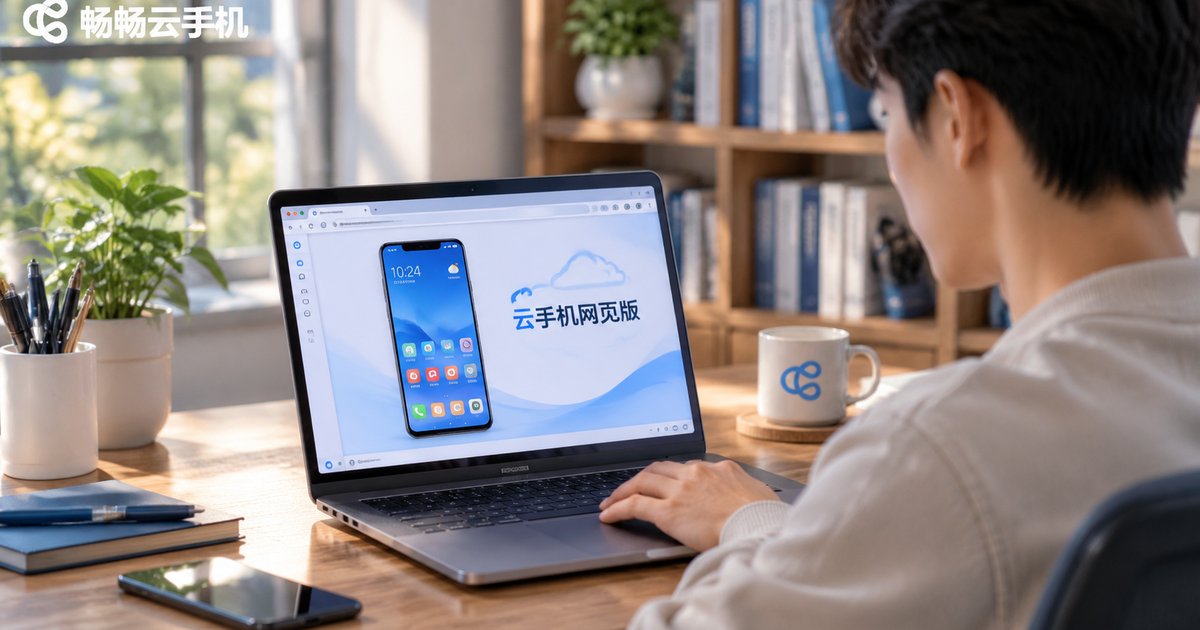
Cloud Phone Web Login Guide: Feature Entrances and Troubleshooting
What the Web Version of a Cloud Phone Actually Solves
A cloud phone is an Android device that runs in the cloud. Its system, apps and data all live on a server, while your computer only renders the screen and sends your clicks and keystrokes back. In other words, you do not need to install an emulator locally, and you do not need to worry about running out of memory when running several devices — open a browser, sign in, and the whole phone is right there.
The real value of the web version is zero installation and cross-device access. Windows, Mac, or even a borrowed laptop: sign in with the same account and you see the same device, with your apps and login states intact.
Three Things to Prepare Before You Log In
1. A registered account. If you cannot remember your password, recover it on the official site first. Repeated wrong attempts on the login page may trigger a temporary restriction.
2. A reasonably modern browser. Use a recent version of Chrome, Edge or a similar mainstream browser. Also check your blocking extensions — some ad blockers mistake the cloud phone's screen-streaming script for an advert and block it, which shows up as a successful login followed by a permanently black screen.
3. A stable network. The screen is streamed in real time, so any jitter instantly turns into stutter and ghosting. Use a wired connection if you can; on Wi-Fi, prefer the 5GHz band.
The Complete Web Login Flow
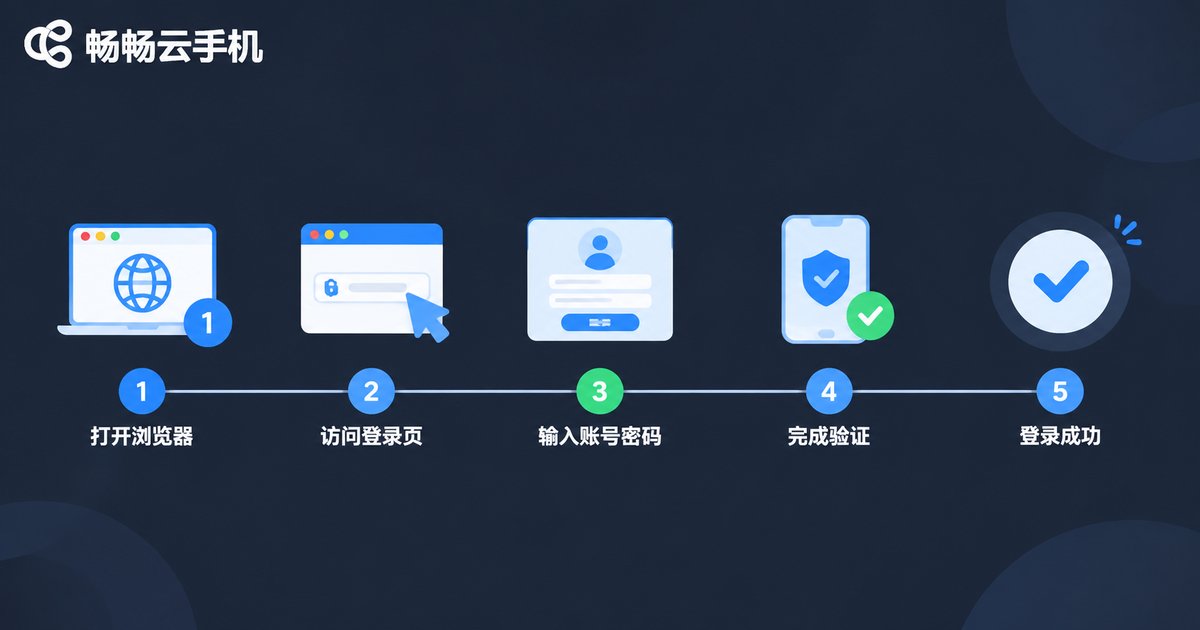
Step 1: Start from the official site. Type the official ccloudphone address into your browser manually and look for the login or console entry on the page. Avoid jumping in from unknown group chats, short links or ad slots in search results — account security comes first.
Step 2: Enter your credentials. Follow the on-screen prompts. Make sure your input method is not producing full-width characters, which is one of the most common causes of a false password error.
Step 3: Complete the security check. If a verification code is required, follow the instructions. If the code does not arrive, check whether SMS filtering is on, or wait a minute and request it again.
Step 4: Pick your device in the console. Once signed in, the console lists the cloud phones under your account, each with a status indicator. Click the target device to open it.
Step 5: Connect and open the screen. The first connection usually takes a few dozen seconds for environment initialisation, so give it a moment. Once the screen appears, the mouse becomes touch input and your keyboard types straight into the cloud phone.
Feature Entrances: What You Can Do Once Signed In
Almost every feature lives in one of two places: the console home page and the device screen itself. The positions are fixed, so you only need to learn them once.
| Feature | Where to find it | What it does |
|---|---|---|
| Device list | Console home | Check device status and remaining time, open a single device |
| App management | Device detail page | Install, uninstall and launch apps |
| File upload | Sidebar of the device screen | Send installers, images and documents to the cloud device |
| Screenshot and recording | Toolbar on the screen | Keep a record of your operations or capture demo material |
| Resolution and quality | Device settings | Adjust quality to match your network and reduce lag |
| Restart and reset | Device action menu | Recover from frozen apps or system errors |
Troubleshooting: Getting In, and Getting Comfortable
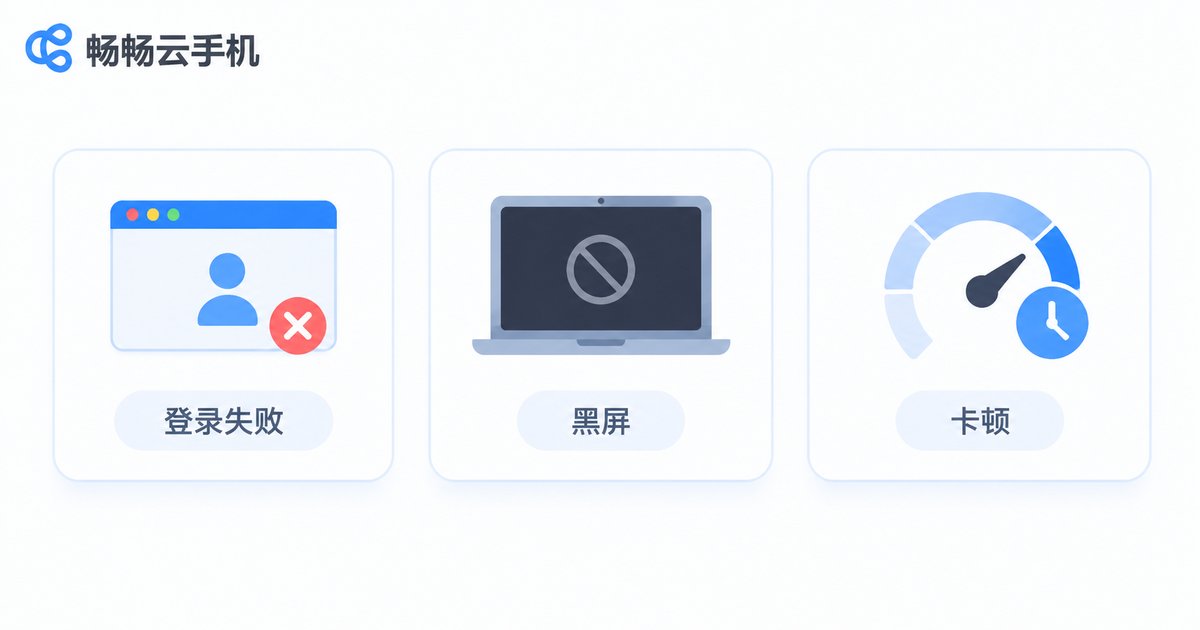
Most web version issues fall into two groups: you cannot get through the login, or you connect but the experience feels off. The table below gives a troubleshooting order by symptom — work from top to bottom and you will usually find the cause.
| Symptom | Likely cause | What to do |
|---|---|---|
| Login page keeps spinning | Unstable network or corrupted browser cache | Switch networks, clear the cache, or retry in an incognito window |
| Wrong account or password shown | Full-width characters, wrong case, trailing space from a paste | Type it manually in half-width mode, or use the official password recovery |
| Verification code never arrives | SMS filtering or an incorrect phone number | Disable the filter, confirm the number, wait a minute and resend |
| Logged in but the screen is black | Extension blocking, or the device is still initialising | Disable ad blockers and refresh, wait one minute, restart the device if it persists |
| Stuttering and ghosting | Insufficient bandwidth or weak Wi-Fi | Move to wired or 5GHz, and lower the image quality in settings |
| Mouse clicks do nothing | The screen lost focus | Click a blank area of the screen first, then retry, or reconnect |
| Device shows as offline | Unexpected shutdown or a server-side restart | Restart it from the console, wait for the status to refresh, then connect |
| File upload fails | File too large or unsupported format | Compress and retry; prefer standard installer formats |
Habits That Make the Web Version Smoother
Stick to one browser. Using the same browser over time keeps the cache and environment stable, and makes problems easier to diagnose.
Wait for the screen to settle. The first ten seconds or so after connecting are still in transit, so clicking early often lands in the wrong place. Start once the picture stops trembling.
Take a screenshot before anything important. A local screenshot beats trying to remember what you did, especially during batch operations.
Pin the devices you use most. Once you have several devices, hunting for the right one in the console becomes a real cost. Pinning saves that time.
About ccloudphone
ccloudphone provides cloud-based Android devices that you can access through a browser or a client. It suits scenarios such as app testing, multi-account operations and long-running online sessions. Device specifications, usage duration and feature details are subject to what the official website actually shows.
A sensible approach: get the full flow working in your browser first, confirm your own usage rhythm and requirements, and then decide on a long-term setup. That way you skip the client installation and avoid picking the wrong direction from the start.
Frequently Asked Questions
Q: What is the difference between the web version and the client?
The core is the same cloud device, only the entry point differs. The web version needs no installation and is convenient across computers; the client is steadier for long sessions and high-frequency operations. Both sign into the same account, and the data is shared.
Q: Will a cloud phone slow down my own computer?
No. Computing and storage happen in the cloud, and your machine only renders the picture, so the footprint is small and an ordinary office laptop runs it smoothly.
Q: If I close the browser, does the cloud phone shut down?
No. Closing the browser only disconnects the screen. The cloud device keeps running, and you can pick up where you left off next time.
Q: If I log in from another computer, are my installed apps still there?
Yes. Apps and data are stored on the cloud device, independent of which computer you sign in from.
Q: Login keeps failing — what should I check first?
Confirm three things: whether the URL came from the official site, whether your input method is in half-width mode, and whether the network is working. Once those are ruled out, the rest is almost always an account issue — use the official recovery flow.


