
Cloud Phone PC Edition Download and Installation Guide: Connecting to Your Computer and Adjusting Display Settings
Why a cloud phone is simply better on a computer
A cloud phone is essentially an Android device running in the cloud. The phone or computer in your hands is only responsible for showing the picture and sending your input. Since your local device is really just a display, using a computer is far more comfortable than squinting at a small screen.
Once you switch to a PC, three things change immediately: the screen gets bigger, so short videos, live streams and game graphics are much easier to follow; keyboard and mouse come back, which makes replying to messages or filling in forms much faster than tapping on glass; and windows can sit side by side, so when you are running a community account, idling in a game or testing an app, you can watch two or three devices at a glance instead of switching back and forth.
This guide walks you through everything, from downloading and installing to connecting to your computer and tuning the display settings. Follow it in order and you should get up and running on the first try.
Three things to check before you install
A lot of people install the client and then find it laggy, blurry or unable to connect. The problem is usually preparation, not installation. Check these three points first.
One: your network. The cloud phone streams its screen to you in real time, so it is basically video down plus input up. More bandwidth and lower latency mean a smoother picture. Use a wired connection or 5GHz Wi-Fi where possible, and avoid using the cloud phone while downloading large files or streaming 4K video.
Two: your system and browser. The PC edition generally installs on mainstream 64-bit desktop systems, and you should use a reasonably recent browser. If the web version keeps spinning, update the browser and disable blocking extensions before trying again.
Three: your account. Register an account and log in once on your phone to confirm the device boots properly. The computer is only the entry point; the device itself runs in the cloud, so if the account state is wrong, no computer will fix it.
The complete download and installation steps
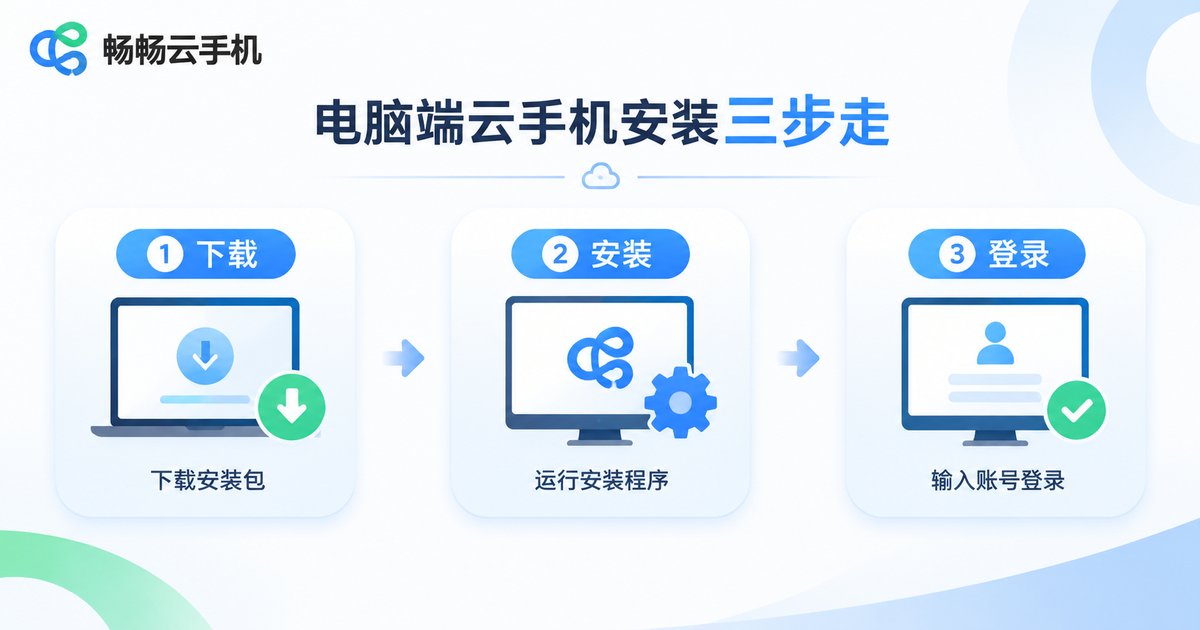
There are usually three ways to use a cloud phone on a computer: install the client, open the web version, or connect from the command line. For most people the client is the easiest, while the web version is best when you are borrowing someone else's machine.
Option 1: install the client
- Go to the official ccloudphone website, find the PC download entry and pick the installer that matches your system.
- After the download finishes, double-click the installer, choose an install path (avoiding the outermost directory of the system drive helps prevent permission issues), and follow the prompts to finish.
- If the firewall prompt appears on first launch, allow access; otherwise the picture may never connect.
- Log in with the same account you use on mobile, open the device list, select a cloud phone and click Connect, or just double-click the device card to enter the screen.
Option 2: open the web version
If you do not want to install anything, log in to the web console on the official site in your browser. You will see the same device list and can enter the screen directly. The advantage is that you can use any computer without installing a thing; the downside is that the web version is more sensitive to browser performance and network quality, so the client is steadier for long sessions.
Option 3: connect from the command line (advanced)
If you do automation testing, or want to drive the cloud phone with mirroring tools or scripts on your PC, enable the debugging channel on the service side and connect from the command line:
adb connect cloud-address:port
adb devices
If the second command lists a device, the connection succeeded. Most users never need this step, but it is good to know the option exists.
Connecting the cloud phone to your computer: three common methods
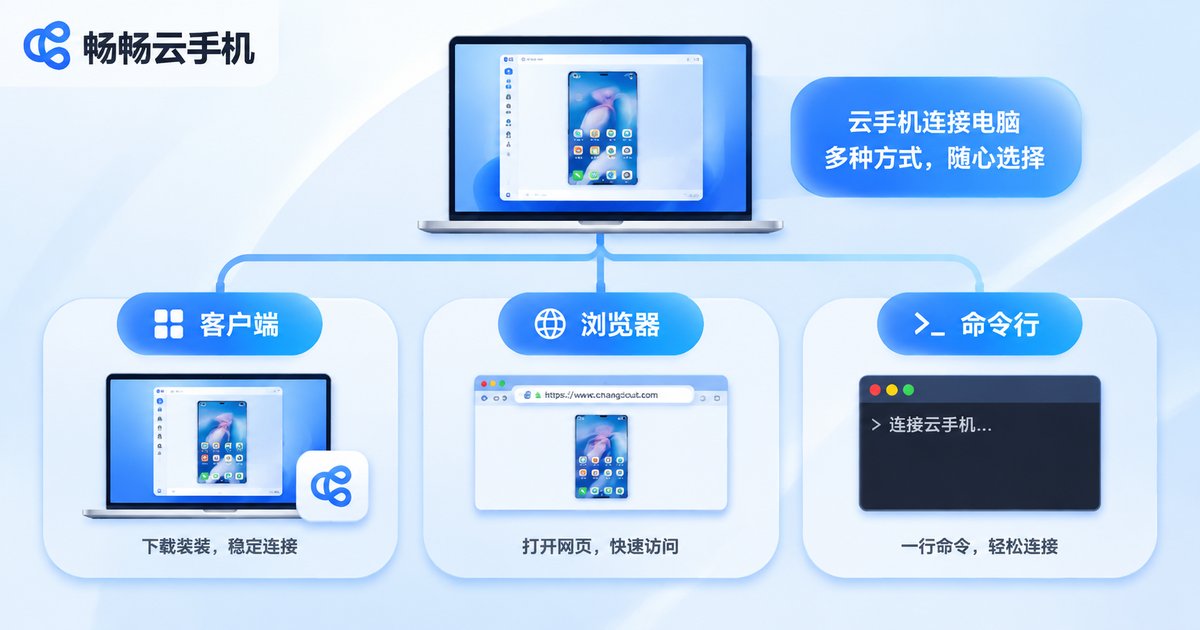
Installing is only the first step. Whether the experience actually feels good depends on how you connect. There are three common methods; pick the one that matches your situation.
QR code login: the PC shows a QR code, you scan it with your already-logged-in phone and you are verified within seconds. Ideal for personal use and for people who do not want to type a password.
Account and password login: enter your credentials directly on the PC. Good for a fixed office computer, since the session is usually remembered.
Multiple devices at once: for multi-instance work or batch operations you can open several windows, each bound to one cloud phone. This is exactly where your computer's memory and network matter most, so more windows is not automatically better.
| Method | Best for | Watch out for |
|---|---|---|
| QR code login | Daily personal use, quick sign-in | Your phone must stay logged in |
| Account and password | A fixed office computer | Log out on shared machines |
| Multiple windows | Multi-instance work, batch operations, testing | Keep an eye on memory and bandwidth |
Display settings: making the cloud phone comfortable on a PC
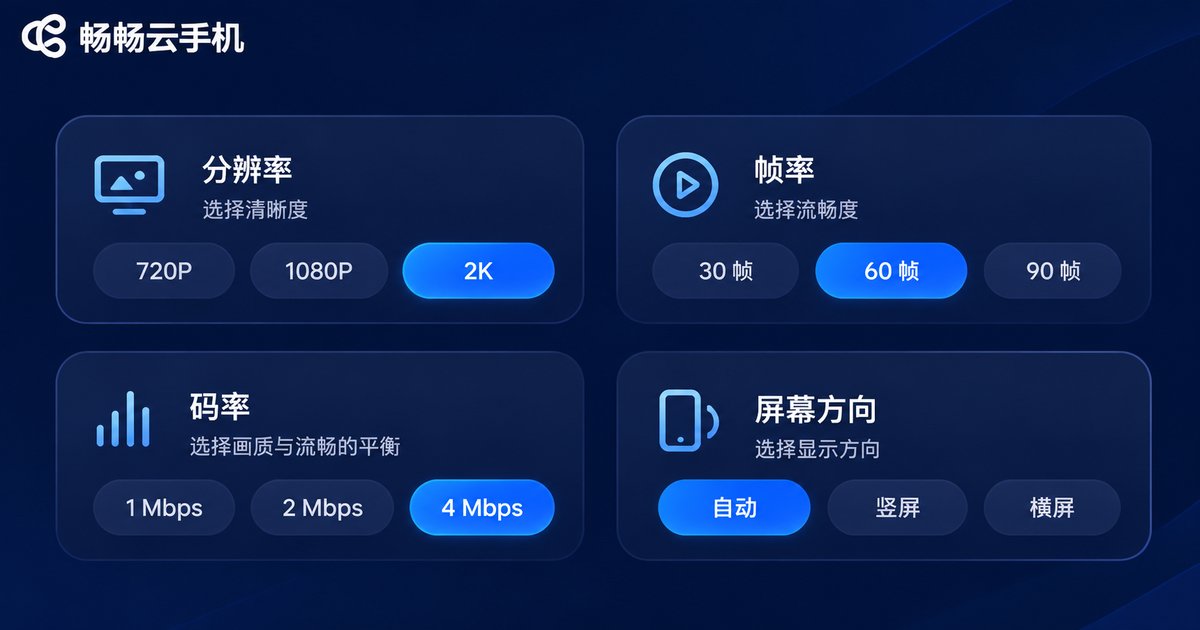
Display settings are the step most people skip. The defaults are generic and may not suit your network or your monitor. Two minutes of tuning makes a very obvious difference.
Resolution: with a good network, go higher for crisper text and more detail; with an average network, drop to the middle setting. The image softens slightly but smoothness improves noticeably.
Frame rate: higher frame rates feel smoother for videos and light gaming; if you are only idling, reading documents or managing a dashboard, a lower frame rate saves a lot of bandwidth.
Bitrate / quality: this is what decides crisp versus mushy. A higher bitrate gives a clearer picture but demands more bandwidth. If you keep seeing blocky artifacts, reduce the bitrate first rather than the resolution.
Orientation: on a computer, lock it to landscape so the window matches your monitor ratio; switch back to portrait only when you specifically run portrait apps.
| Scenario | Resolution | Frame rate | Bitrate |
|---|---|---|---|
| Short videos and live streams | Higher | High | Higher |
| Games needing responsive input | Medium-high | High | Medium |
| Idling, admin panels, office apps | Medium | Low | Low |
| Poor network (public Wi-Fi etc.) | Low | Low | Low |
A small tip for tuning: change one setting at a time and watch the picture for ten seconds before deciding whether to go lower. If you change three things at once, you will never know which one helped.
Black screen, lag and blurry image: what to do
Below are the most common symptoms with a suggested troubleshooting order. Work down the table; most issues are solved within two steps.
| Symptom | Likely cause | What to do |
|---|---|---|
| Permanent black screen | Device not booted, or connection blocked by a firewall | Confirm the cloud device is running, then check whether the firewall or security software is blocking the client |
| Laggy picture, slow response | Network jitter or bitrate set too high | Switch to wired or 5GHz Wi-Fi and drop the bitrate one step |
| Blurry picture, visible blocks | Insufficient bandwidth, heavy compression | Lower bitrate and frame rate, and close other high-traffic programs |
| Wrong aspect ratio, stretched image | Orientation setting does not match window shape | Lock to landscape or portrait, then resize the window |
| Clicks land in the wrong place | Unusual window scaling | Reset the window to 100% scale or use full-screen mode |
Why we recommend ccloudphone
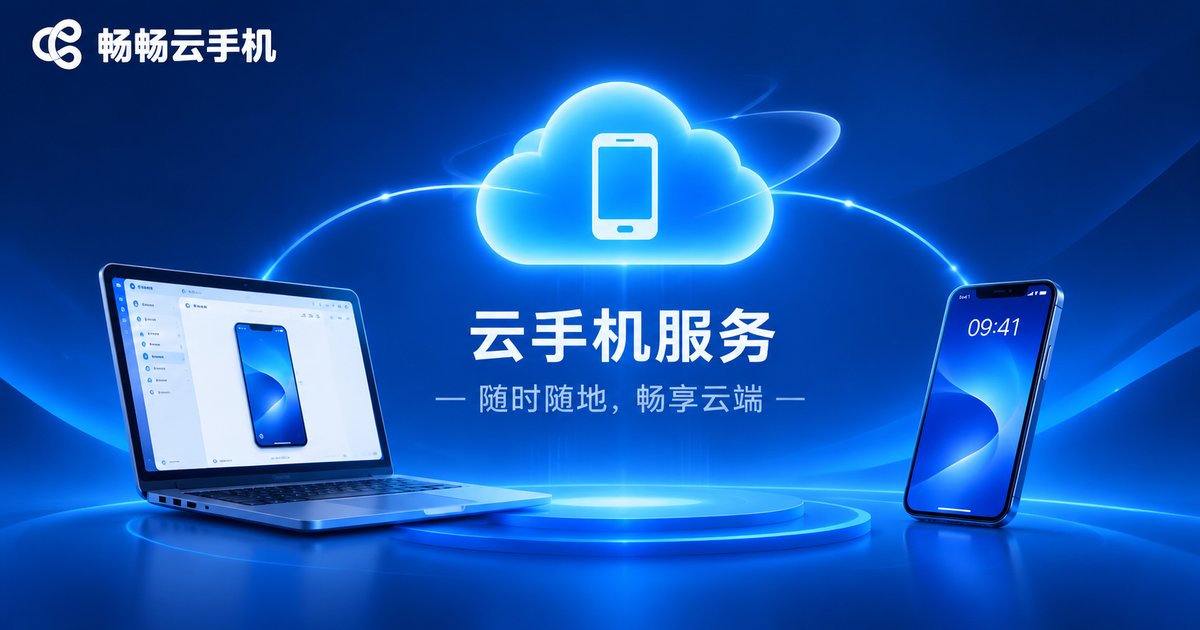
Picking the right tool makes every step in this guide smoother. ccloudphone provides exactly this model: Android running in the cloud, with your local device handling only the display. The device runs server-side, and you access it by logging in from a computer or a phone, with no extra local performance required.
For desktop users there are a few practical benefits: you can log in and operate from a computer with a large screen, keyboard and mouse; the device state lives in the cloud, so logging in from another computer still shows the same device and the same apps inside it; and when you need multiple instances, you can manage several devices in one interface instead of buying several physical phones.
For the specific configurations, supported models and usage details available today, check the official ccloudphone website for the latest information and choose according to your actual scenario. That is usually more cost-effective than chasing the highest specification.
Frequently asked questions
Q: Do I have to install the client on my PC?
No. You can log in and operate from the web console in your browser. The client is simply more stable for long sessions and multiple windows.
Q: The installation finished but it keeps saying the connection failed. What now?
First confirm the cloud device is booted, then check whether your firewall or security software is blocking the client, and finally try a different network. That normally isolates the problem.
Q: Can I use it on a modest computer?
Yes. The computing happens in the cloud, and your machine mainly decodes and displays. An ordinary office laptop is usually enough. What really eats resources is opening several windows at once, so start with one or two.
Q: If the picture is blurry, should I lower resolution or bitrate first?
Bitrate first. Stutter and blockiness caused by an excessive bitrate respond fastest to a lower bitrate. Resolution mainly affects sharpness and window size, so adjust it last.
Q: Do I need to set everything up again when I move from my phone to a computer?
No. After logging in you see the same cloud device, with the apps, data and settings intact. You may simply want to re-tune the quality settings for your computer's network.
Q: Can I switch between landscape and portrait while using it?
Yes, but the window ratio changes, so resize the window at the same time to avoid a stretched picture or misplaced clicks.


