

Cloud Phone Web Version Experience: Login Methods, Feature Limits, and Compatibility Tips
What Is the Cloud Phone Web Version, and Who Is It For?
In short, the cloud phone web version lets you use a cloud phone directly in your browser with no client to install. The cloud phone itself runs on remote servers, and the web version simply streams its live screen into your browser window while your mouse and keyboard input is sent back to the cloud. All you need is a computer with internet access and a modern browser.
It is especially suitable for a few types of users: people temporarily borrowing someone else's computer, office workers whose company computers do not allow software installation, those who want to keep tasks running quietly on a work PC, or anyone who wants to try a cloud phone at zero cost before committing long term. For light and occasional users, the web version is the easiest entry point.
A Complete Guide to Web Version Login Methods
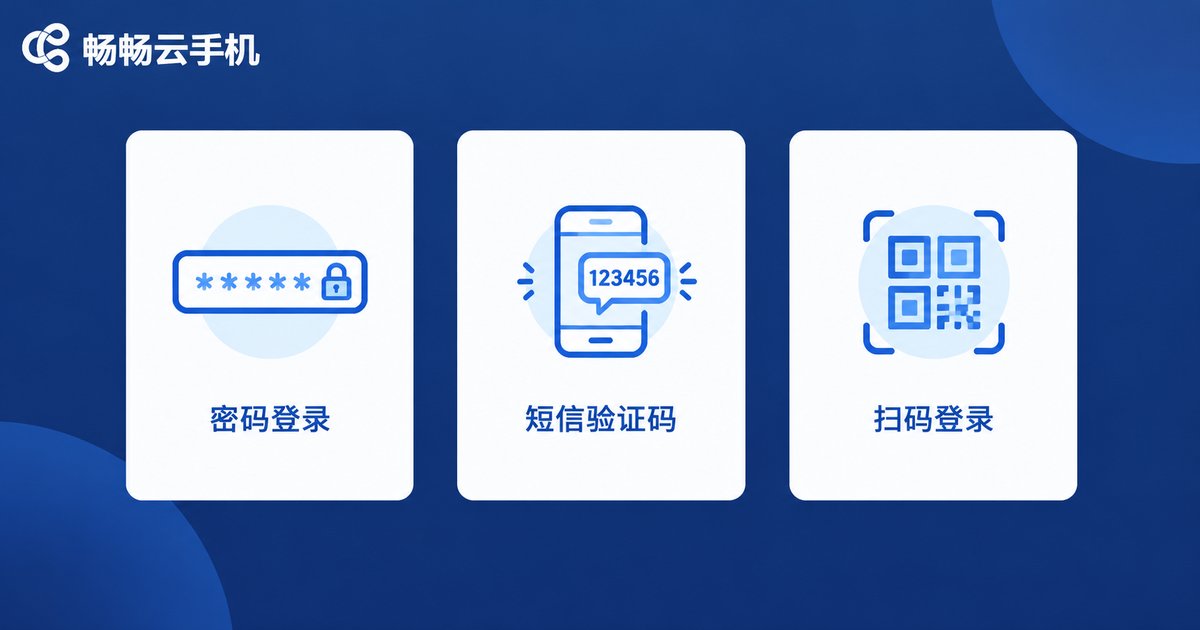
Mainstream cloud phone web versions usually offer three login methods, each suited to different scenarios:
1. Account and password: The most traditional option, ideal for your personal computer. Once you stay signed in, the browser takes you straight back in next time. The downside is that you need to remember your password, and you should not save it on public computers.
2. SMS verification code: Enter your phone number and the code sent by text message. No password to remember and good security, making it perfect for occasional use on someone else's device.
3. QR code login: Scan the QR code on the web page with the cloud phone app on your phone. Authentication takes seconds, it is secure and fast, and it is currently the smoothest option.
| Login Method | Convenience | Security | Best For |
|---|---|---|---|
| Account and password | Medium | Medium | Personal computers |
| SMS verification code | High | High | Temporary use on borrowed devices |
| QR code login | Very high | Very high | All scenarios |
Whichever method you choose, remember to sign out and clear browser data on public computers to avoid leaving account information behind.
Feature Limitations of the Web Version: Know Before You Use
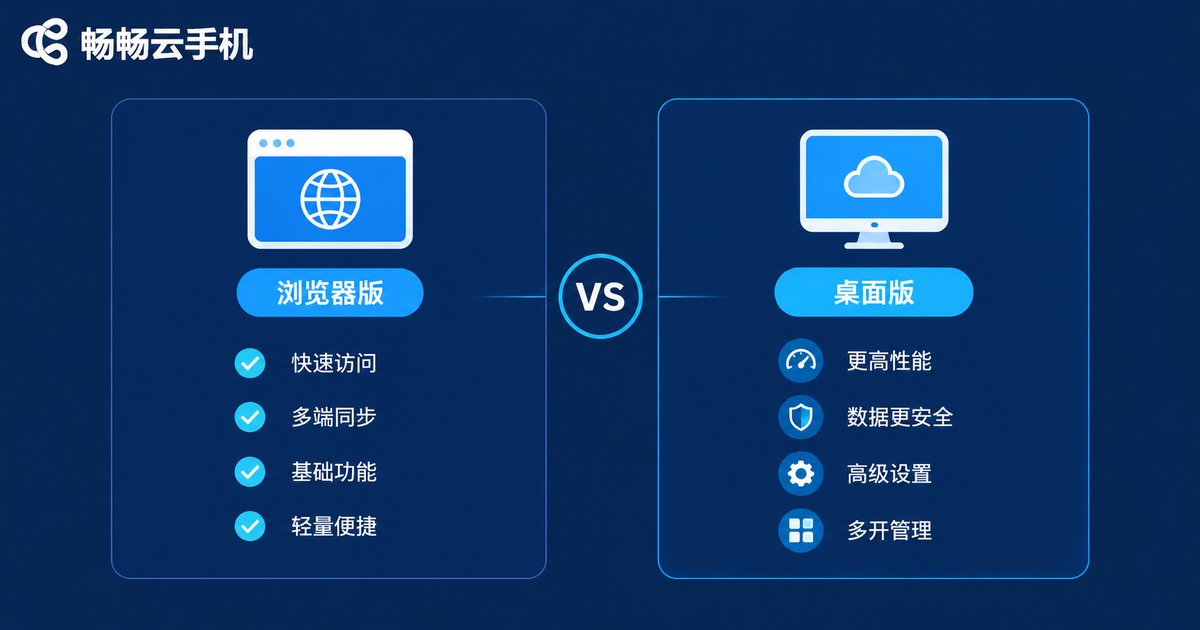
The web version is convenient, but it does have some limitations compared with the dedicated client, so set your expectations accordingly:
Picture quality and frame rate caps: Video decoding depends on your browser, so during long high-frame-rate gaming sessions smoothness may fall slightly short of the client, with fewer quality options available.
Missing advanced peripheral features: Deep features such as key mapping, gamepad support, and multi-touch simulation mostly rely on the client; the web version is better suited to basic taps and swipes.
Clunkier file handling: Uploading APKs, photos, or videos through the browser is slower and less convenient for large files than the client's drag-and-drop.
Less efficient batch management: If you run a dozen or more cloud phones at once, the client's batch control features are far more efficient; the web version suits managing a small number of devices.
One thing worth stressing: closing the web page does not shut down your cloud phone. The cloud device stays online around the clock, and tasks such as idle grinding and downloads keep running — you simply cannot see the live screen until you log back in. This is one of the core advantages of cloud phones over physical devices.
| Comparison | Web Version | Desktop Client |
|---|---|---|
| Getting started | Zero install, instant access | Download required |
| Quality and frame rate | Limited by browser | Higher and more stable |
| Key mapping and advanced features | Partially supported | Fully supported |
| Batch multi-device management | Few devices | Efficient batch control |
| Cross-device use | Any computer, open and go | Install on each machine |
Compatibility Tips for a Smoother Web Experience
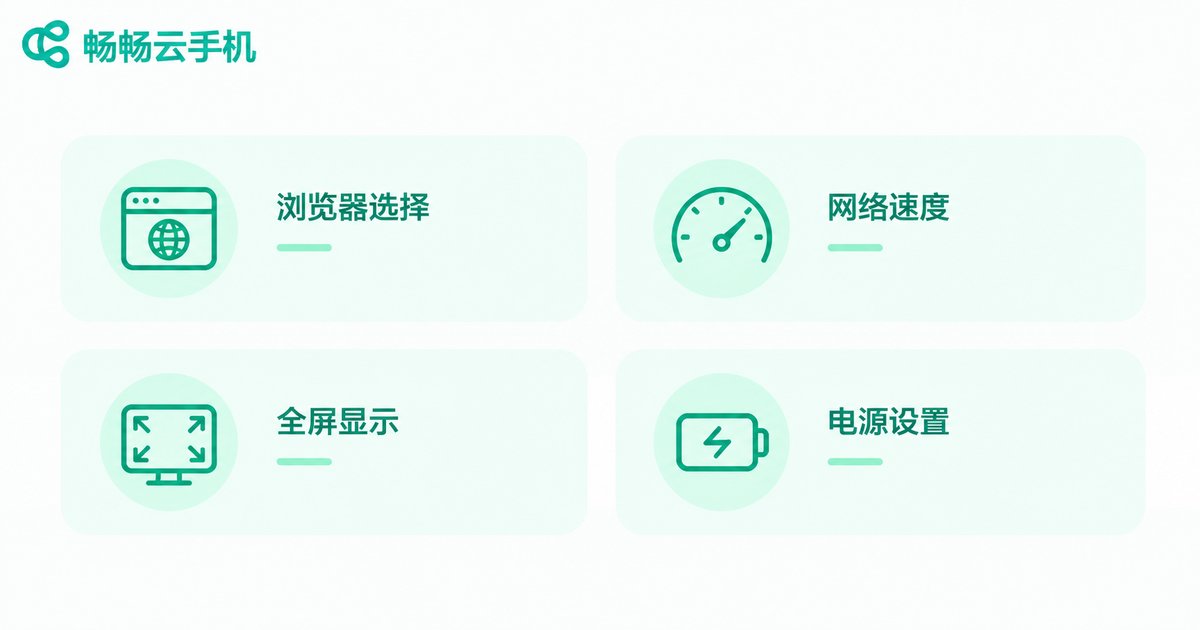
To get an experience close to the client in your browser, pay attention to these details:
Pick the right browser: Use the latest Chrome or Edge, which offer the best video decoding and graphics rendering support and the fewest compatibility issues. Avoid outdated browser kernels.
Ensure network quality: Aim for bandwidth of at least 20 Mbps and latency below 50 ms; a wired connection is usually steadier than Wi-Fi. When the network is unstable, lower the picture quality in exchange for smoothness.
Use full screen mode: Switch the browser to full screen or a large window for a bigger picture and more precise control, close to a real phone. There is no need to set your monitor resolution excessively high, as exceeding the cloud device's output spec only wastes performance.
Prevent your computer from sleeping: Before long sessions, disable automatic sleep in power settings and turn off tab sleeping in the browser so the live connection is not frozen by the system.
Clear cache regularly: Clearing browser cache and cookies after extended use effectively reduces stutter and loading glitches.
ChangChang Cloud Phone Web Version: An Easy Starting Point
If you are choosing a cloud phone service, take a look at ChangChang Cloud Phone (ccloudphone). It offers a web-based entry: after registering and signing in, you can control a cloud Android device directly in your browser without installing anything, which is ideal for a low-cost first experience. The cloud device stays online around the clock, and tasks keep running even when you close the page; once you are satisfied with the experience, you can then consider a long-term plan. Visit the official ChangChang Cloud Phone website at ccloudphone to learn more.
FAQ
Q: Is the cloud phone web version safe? Could my account be leaked?
Reputable cloud phone services encrypt all data transmission, so the web version itself is safe. Mind your habits: do not save passwords on public computers, and sign out and clear browsing history when finished.
Q: Do tasks keep running after I close the browser?
Yes. A cloud phone is an independent cloud device that does not depend on your browser. After closing the page, idle grinding, downloads, and game tasks continue, and you can check on them at your next login.
Q: Can I play demanding mobile games on the web version?
Yes, but the experience depends on your network and browser. Casual games and medium-quality settings are fine; for high frame rates, high graphics, or complex key mapping, the client delivers a more stable experience.
Q: Is data synced between the web version and the mobile app?
Yes. The cloud phone lives in the cloud, so whether you sign in via the web or the app with the same account, you see the same device with identical apps and data.
Q: What should I do if the web version stutters?
First check your network, then switch to the latest Chrome or Edge, close other bandwidth-heavy programs, lower the picture quality, and clear the browser cache — most stuttering issues can be resolved this way.


