
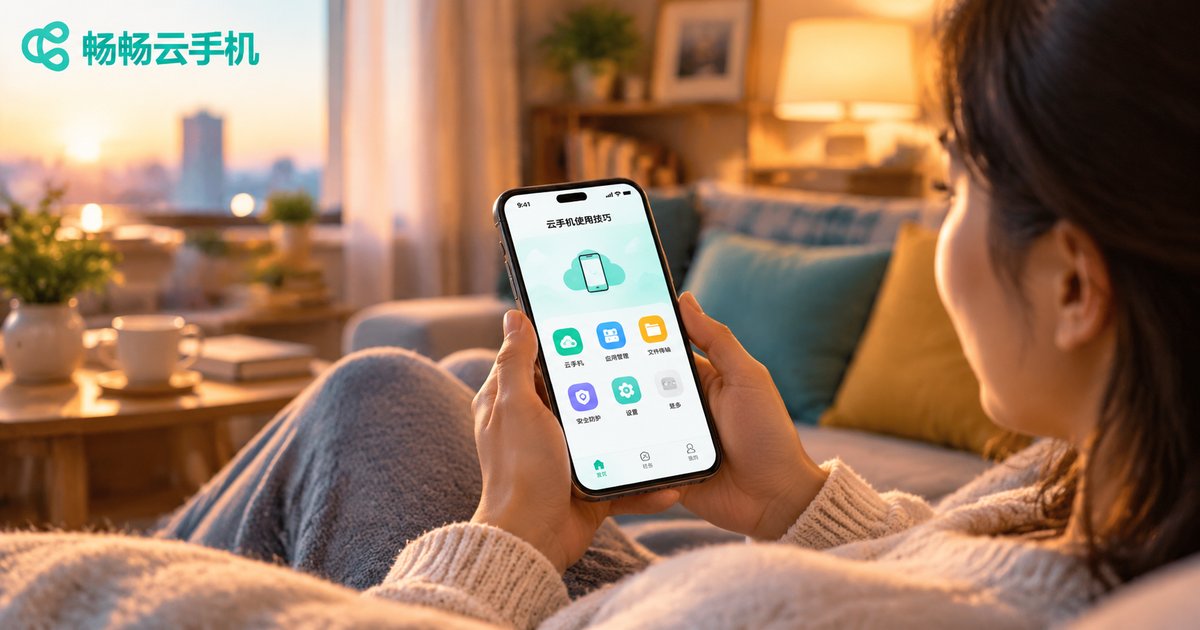
Cloud Phone Mobile Tips: Getting Started with Gestures, Input, and Display Settings
Why Spending Ten Minutes Tuning Your Cloud Phone Is Worth It
When people open a cloud phone for the first time, it looks just like the phone in their hand, so most of them simply tap around and start using it. But a cloud phone is essentially a complete Android system running in a remote data center — the screen you hold is more like a remote control plus a monitor: every swipe and tap you make is sent to the cloud, processed there, and streamed back to your screen in real time.
Once you understand this, it becomes clear why how you swipe, how you type, and how you set the picture directly determine how good your cloud phone experience feels. The same cloud phone can feel effortless for one user and laggy, blurry, and awkward for another. This article explains these three basics in the plainest possible way.
Gestures: Make the Virtual Screen Obey You
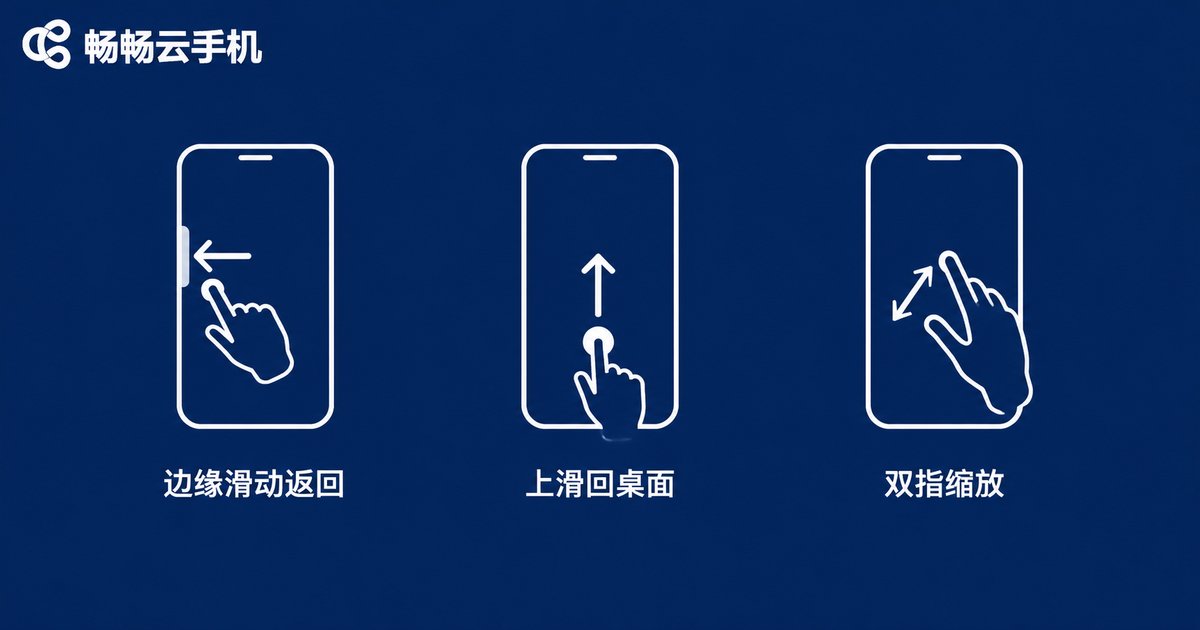
A cloud phone runs a standard Android system, so most gestures are identical to a physical phone, and there is almost no learning curve:
1. Back: Swipe inward from the left or right edge of the screen. This works like the Back button and is the gesture you will use most when browsing.
2. Home: Swipe up from the bottom of the screen to return to the cloud phone's home screen. Swipe up and pause to open the recent-apps view and switch between apps quickly.
3. Pinch to zoom: The cloud phone's picture is compressed onto your physical screen. When text looks small, spread two fingers apart to zoom in and reading becomes instantly easier.
4. Long press and drag: Long-press icons on the home screen to move and organize them; long-press text to select and copy — exactly like a real phone.
If you prefer the classic three-button navigation, go to the cloud phone's Settings → System navigation and switch to virtual buttons. Before playing games, lock the screen in landscape to avoid accidentally triggering the back gesture. Many cloud phones also offer a floating ball or quick toolbar that groups screenshots, volume, back, and other frequent actions into one small dot you can reach with a single hand.
Input: Typing, Pasting, and Verification Codes Made Easy
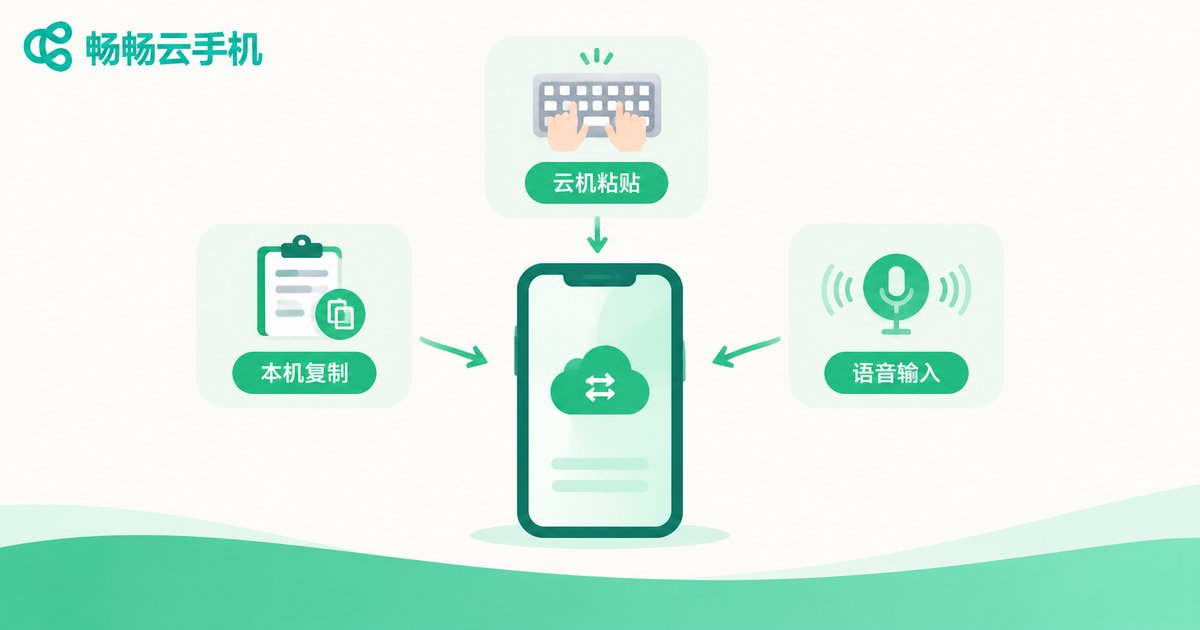
Input is where many beginners feel awkward, but three tricks are all you need:
Trick one: use clipboard sync. This is one of the most useful cloud phone features. Copy text or a link on your physical phone, then paste it directly inside the cloud phone; the reverse works too — verification codes and addresses received in the cloud can be copied back to your phone. For long texts, don't type character by character in the cloud: draft it in your phone's notes app first and paste it over in one go.
Trick two: pick the right input method. Cloud phones come with a built-in Android keyboard that supports pinyin, a 9-key layout, and voice input. If typing feels slow, try voice-to-text; for heavy input, pair a Bluetooth keyboard with your physical phone — most cloud phones pass the keystrokes straight through to the cloud, giving an experience close to a real device.
Trick three: handle verification codes with copy and paste. If your logins and SMS verification happen inside the cloud phone, long-press the code to copy it, then paste it into the input field. It is much faster — and far less error-prone — than switching screens to memorize the digits.
Display Settings: Sharp, Smooth, or Data-Friendly?
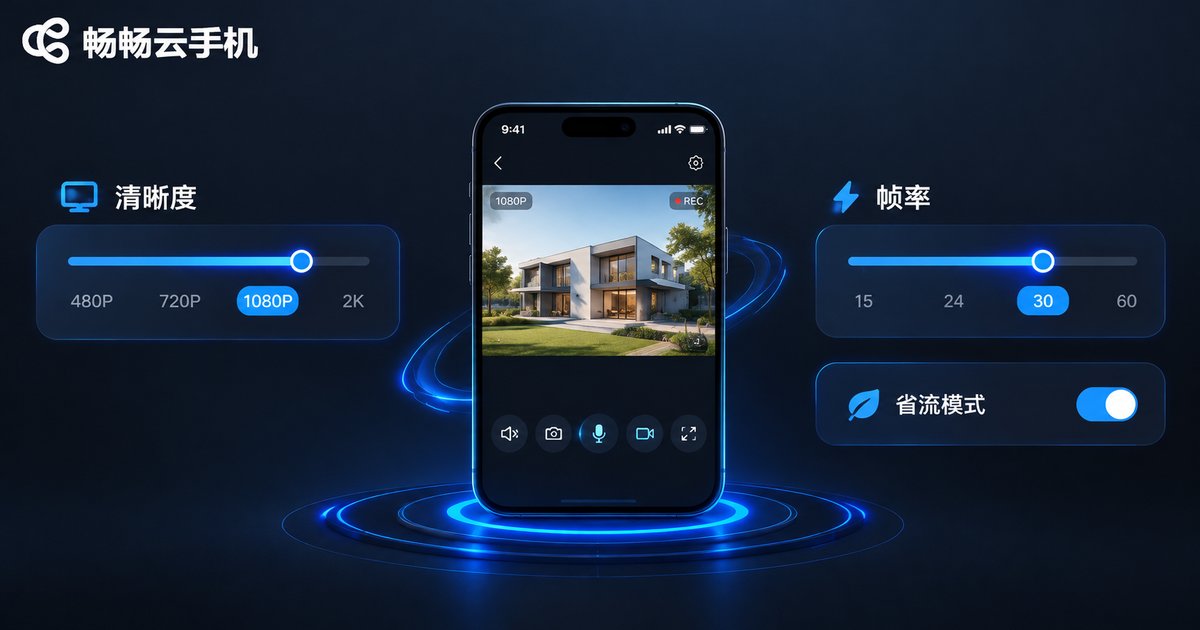
A cloud phone's picture is a video stream encoded in the cloud and delivered to you in real time, so the higher the resolution and frame rate, the better it looks — and the more data and network stability it demands. The core rule is simple: pick a profile that matches the scene, and prioritize smoothness on weak networks.
| Profile | Resolution | Frame Rate | Best For |
|---|---|---|---|
| Quality first | High | 60 fps | Videos, photos, visually rich games |
| Smoothness first | Medium | 60 fps | Mobile games, frequent app use |
| Data saving | Low | 30 fps | Outdoor mobile networks, tight data plans |
A few practical tips: at home, prefer a 5GHz Wi-Fi network, which is faster and more stable than 2.4GHz; if the picture looks blurry or stutters, lower the quality one notch first instead of exiting and re-entering; when running background tasks, feel free to lower the picture quality — you are not staring at the screen anyway, cloud apps keep running, and you save plenty of data.
Put These Tips to Work on ChangChang Cloud Phone
The right tool makes these tips shine. If you are choosing a cloud phone, take a look at ChangChang Cloud Phone (ccloudphone). Its operation feels close to native Android, and the entry points for gestures, keyboards, and picture quality are intuitive and easy to find, so new users can get comfortable within minutes using the methods in this article.
More importantly, apps on ChangChang Cloud Phone run on cloud servers, so turning off or locking your physical phone never interrupts cloud tasks — background running, multi-instance use, and dual accounts online at the same time, all without consuming your phone's storage or battery. Search for 'ChangChang Cloud Phone' to visit its official website, choose a plan that fits your needs, and put these gesture, input, and display tips to work right away.
FAQ
Q: Are cloud phone gestures exactly the same as a real phone?
Mostly yes. Edge-swipe back, swipe-up home, and pinch-to-zoom all work. Minor details may differ slightly due to system customization; check 'System navigation' in the settings or the beginner's guide inside the cloud phone.
Q: Typing in the cloud phone feels slow. What should I do?
Use clipboard sync first: copy content on your physical phone and paste it in the cloud. You can also switch keyboards, use voice input, or connect a Bluetooth keyboard.
Q: The picture is blurry — is it my network or my settings?
First check whether the quality preset has been lowered, then check the frame rate. If the settings look fine but it is still blurry, the cause is most likely network fluctuation; switch to a more stable Wi-Fi or a spot with better signal.
Q: Does raising the quality consume a lot of data?
Yes. The higher the resolution and frame rate, the more data is transferred per second. On tight data plans, use the data-saving profile and switch back to high quality on Wi-Fi.
Q: Does the cloud phone keep running when my phone screen is off?
Yes. The cloud phone runs on cloud servers, so cloud apps keep working even when your physical phone is locked or you exit the app — that is exactly why cloud phones are great for background tasks.


