
How to Set Cloud Phone Resolution: Image Quality Tips for Different Scenarios
Why Cloud Phone Resolution Settings Matter
First-time cloud phone users often experience one of two extremes: a blurry picture with fuzzy text, or a razor-sharp picture that stutters and drops frames. Both issues usually trace back to the same setting — resolution.
A cloud phone does not run on the chip in your hand; it runs on servers in a remote data center. Every frame travels through encoding, network transmission, and local decoding before it reaches your screen. The higher the resolution, the more pixels each frame carries, and the more bandwidth and decoding power it demands. Setting the resolution is essentially about balancing clarity, smoothness, and data consumption.
The Basics: 720P vs 1080P vs 2K
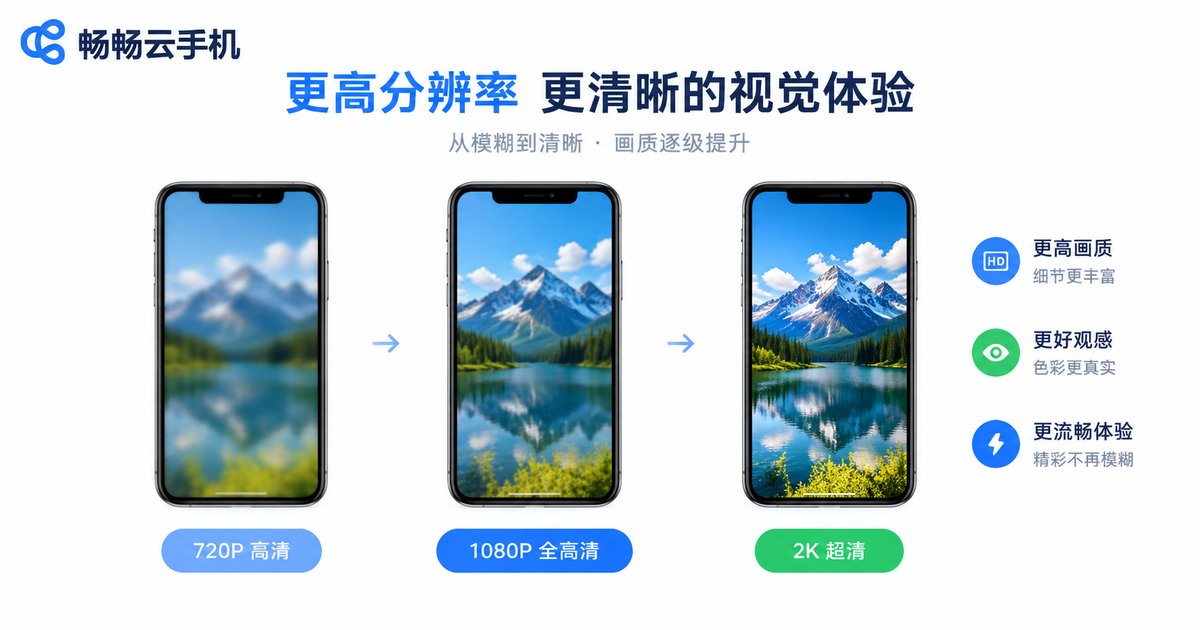
Mainstream cloud phones typically provide three resolution tiers:
| Tier | Typical Pixels | Image Quality | Bandwidth / Performance | Best For |
|---|---|---|---|---|
| 720P HD | 720×1280 | Good enough for daily use | Low, saves the most data | Idle farming, multi-instance |
| 1080P Full HD | 1080×1920 | Sharp and comfortable | Medium, needs stable network | Gaming, video streaming |
| 2K Ultra HD | 1440×2560 | Extremely fine detail | High, demanding on network | Quality enthusiasts, big screens |
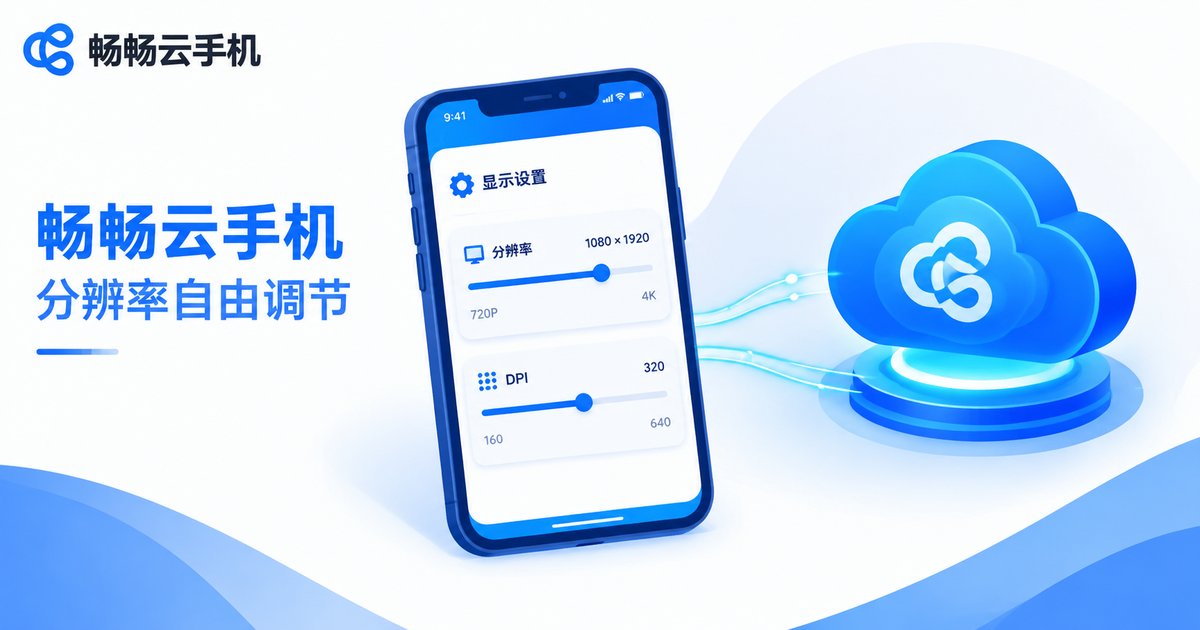
Beyond resolution, another often-overlooked parameter is DPI (pixel density). DPI controls how large interface elements appear: at the same resolution, a higher DPI makes icons and text bigger with less content per screen, while a lower DPI fits more information but shrinks each element. Resolution governs how sharp things look; DPI governs how big they are. Tuning both together gives the most comfortable display.
Scenario 1: Mobile Gaming — Smoothness Comes First
Gaming is the most resolution-sensitive scenario. Treat different genres differently:
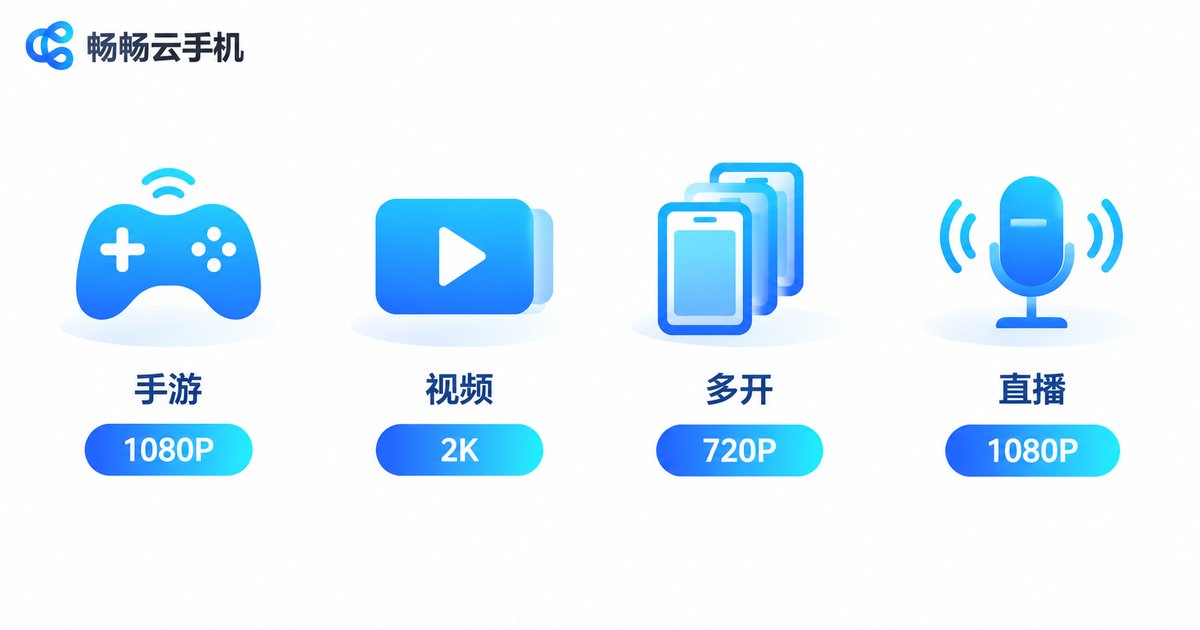
Competitive games (MOBA, shooters, battle royale): frame rate is combat power. On broadband or stable 5G, go with 1080P plus a high frame-rate mode to see skill effects and distant enemies clearly. If your network fluctuates, drop to 720P without hesitation — trading sharpness for smoothness, because a lag-free team fight matters more than pretty pixels.
Idle and turn-based games: the screen barely changes, so 720P is more than enough. It also cuts data and battery drain dramatically, letting you farm all day without worry.
Large 3D titles (open world, AAA mobile games): these games are made to be looked at, so start at 1080P. If your plan supports it and your network is solid, 2K delivers noticeably finer detail — just keep an eye on frame stability.
Scenario 2: Video and Streaming — Crank It Up
When watching videos, real-time response does not matter and occasional buffering is tolerable, so feel free to pick 1080P or even 2K. The sharper subtitles and richer detail are immediately noticeable when binge-watching shows or movies.
One caveat: the source video is the ceiling. If the stream itself is only 480P, no cloud phone at 2K can invent missing detail. Also, on mobile data, remember that 2K consumes considerably more bandwidth per hour — check your data plan before committing.
Scenario 3: Multi-Instance and Office Use — Stability First
Running several cloud phones at once divides total bandwidth and computing power, so each instance should stay modest:
Idle farming: set every instance to 720P with a lower DPI to reserve resources for more concurrent devices.
Office work and dual chat accounts: mostly text and messages, so 720P is plenty. For long reading sessions, raise the DPI slightly for larger, easier-on-the-eyes text.
Quick testing: verify things at 720P first, then switch to 1080P temporarily when you need fine detail or screenshots.
Scenario 4: Streaming, Recording, and Demos — Image Is Everything
If you broadcast gameplay, record tutorials, or demo an app to clients from a cloud phone, output quality shapes the first impression. Start at 1080P, move up to 2K if the network allows, disable unnecessary in-phone animations to reduce encoding load, and run a short test recording before going live to confirm stable frame rates.
How to Change Resolution in ccloudphone
Taking ccloudphone as an example, adjusting the resolution only takes a few steps:
Step 1: Log in to ccloudphone and open the cloud device you want to adjust.
Step 2: In the in-phone settings panel or floating toolbar, find the display or resolution option.
Step 3: Pick the resolution tier and DPI value that match your scenario using the suggestions above.
Step 4: Save and restart the cloud phone app so the new resolution takes effect.
ccloudphone supports flexible combinations of resolution and DPI tiers; available options may vary slightly between plans, so refer to what is shown in the app. We recommend testing each tier on your usual network to find your personal sweet spot.
Resolution Troubleshooting in Three Steps
Blurry image: confirm the tier has not dropped below 720P, then check whether other devices are hogging your bandwidth. When upstream bandwidth is tight, the cloud phone automatically lowers the bitrate and the picture turns soft.
Heavy stuttering: drop the resolution one tier or set the in-game frame rate to medium; moving closer to the router or switching from weak Wi-Fi to a wired connection often works instantly.
Text too small or too large: that is a DPI issue, not resolution. Lower the DPI to fit more on screen, raise it for bigger, more readable text.
FAQ
Q: Is a higher cloud phone resolution always better?
A: No. Higher resolution demands more bandwidth and decoding power. On a weak network or an older device, forcing 2K often causes lag. Choose by scenario instead.
Q: Does raising the resolution use more data?
A: Yes. Higher resolutions push more data every second. For video, 2K can consume more than twice the data of 720P per hour, so stick to 720P or 1080P on mobile data.
Q: For gaming, which matters more — resolution or frame rate?
A: For competitive games, protect the frame rate; smooth controls influence outcomes more than sharp visuals. For story-driven or scenic single-player games, prioritize resolution.
Q: Do I need to set the resolution separately for each instance?
A: Check each device individually. Most cloud phones allow per-device settings; setting idle instances to 720P in bulk relieves overall bandwidth pressure during multi-instance sessions.
Q: Which resolution tiers does ccloudphone support?
A: ccloudphone offers multiple resolution and DPI combinations covering everything from data-saving idle play to high-definition big-screen use; see the app for the exact tiers available on your plan.


