

Using a Cloud Phone on Weak Networks: Tips for Stable Connections and Reconnection
Why a cloud phone stutters and disconnects on a weak network
A cloud phone works in a simple way: the real device is an Android instance running in the cloud, and your phone only displays the picture and sends your taps back. That means a whole network path sits between what you see and what you do — network quality directly determines how the phone in your hand feels.
The moment the link wobbles, the picture goes blurry, taps lag, and nothing responds. Push it a little further and the frame freezes, followed by a "connection lost" message. Many people assume their own device is the problem, but most of the time the link is simply fluctuating.
Weak-network situations are extremely ordinary: signal handover when a subway enters or leaves a tunnel, a brief drop inside an elevator, crowded public Wi-Fi at a mall or exhibition, Wi-Fi that has to pass through two walls at home, throttling after a data cap, and public hotspots that keep asking you to re-authenticate.
First, check whether it is really the network
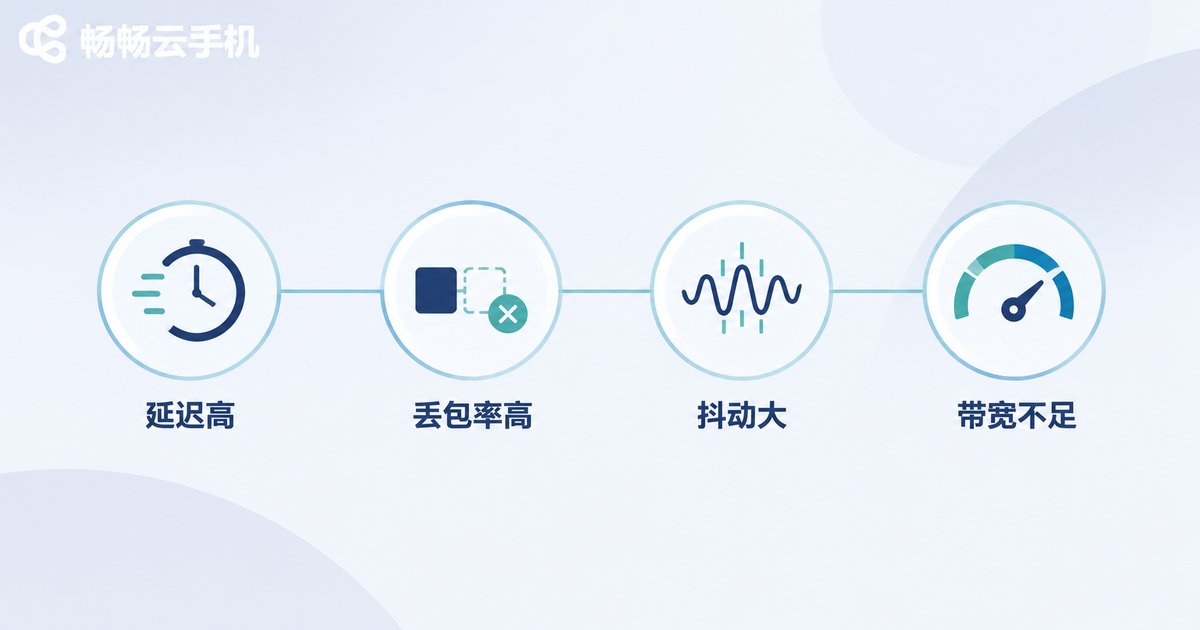
Before changing any settings, spend a minute confirming where the problem comes from. A common speed test can show latency and packet loss, or you can match your experience against the table below.
| Metric | Healthy range | Weak-network level | What it feels like |
|---|---|---|---|
| Latency (RTT) | Under 50 ms | Above 150 ms | Every tap waits; swipes feel heavy |
| Packet loss | Under 1% | Above 3% | Blocky artifacts and smearing |
| Jitter | Under 20 ms | Above 50 ms | Speed keeps changing; audio breaks up |
| Bandwidth | Stable 2 Mbps up | Keeps dropping below 1 Mbps | Quality auto-drops, frequent reconnects |
If latency looks fine but everything still stutters, the cause may be local: the device overheating and throttling, background apps competing for resources, or a cloud node that sits far away. Troubleshoot them separately so you do not waste time on the wrong fix.
Six practical settings for a stable connection
You cannot eliminate a weak network, but you can minimise its impact. The six items below are ordered by cost-effectiveness, starting with the easiest wins.
1. Trade image quality for smoothness. This is the single most effective move. Drop the resolution from HD to smooth, lower the bitrate ceiling, and reduce the frame rate from 60 to 30. The picture becomes less detailed, but responsiveness improves noticeably. On a weak network, "operable" matters far more than "pretty".
2. Prefer a stable link. Use wired if you can. On Wi-Fi, prefer the 5 GHz band and stay close to the router. Mobile data with one or two bars of signal usually fluctuates more than a fixed broadband line.
3. Stop background apps from eating bandwidth. System updates, cloud drive sync and short-video preloading quietly saturate your uplink, and a cloud phone depends heavily on the uplink.
4. Turn off battery saver and background restrictions. Many systems limit app network activity in power-saving mode and freeze the cloud phone client in the background, so every return to the foreground requires a fresh handshake.
5. Choose a closer node. Greater physical distance means higher latency and a bigger chance of detours. When your account lets you pick a region, choose the data centre that is geographically nearest to you.
6. Do not run too many instances at once. Multiple instances share local decoding and network resources and drag each other down, especially on a weak network. During bad signal periods, focus on one.
Reconnection: keep interruptions to a few seconds
Even a good network will break sometimes. What defines the experience is not whether it disconnects, but how fast you get back. A solid reconnection design has four parts:
Session persistence: when the connection drops, the cloud instance is not destroyed immediately but kept alive for a period. When you reconnect you land on the same desktop and running tasks are still going. This is the foundation of a good reconnection experience.
Heartbeat detection: the client periodically sends a small packet to confirm the link is alive, instead of discovering the drop only when the user taps. Too short a heartbeat wastes bandwidth; too long and failures are noticed late. Every ten seconds or so is a reasonable balance.
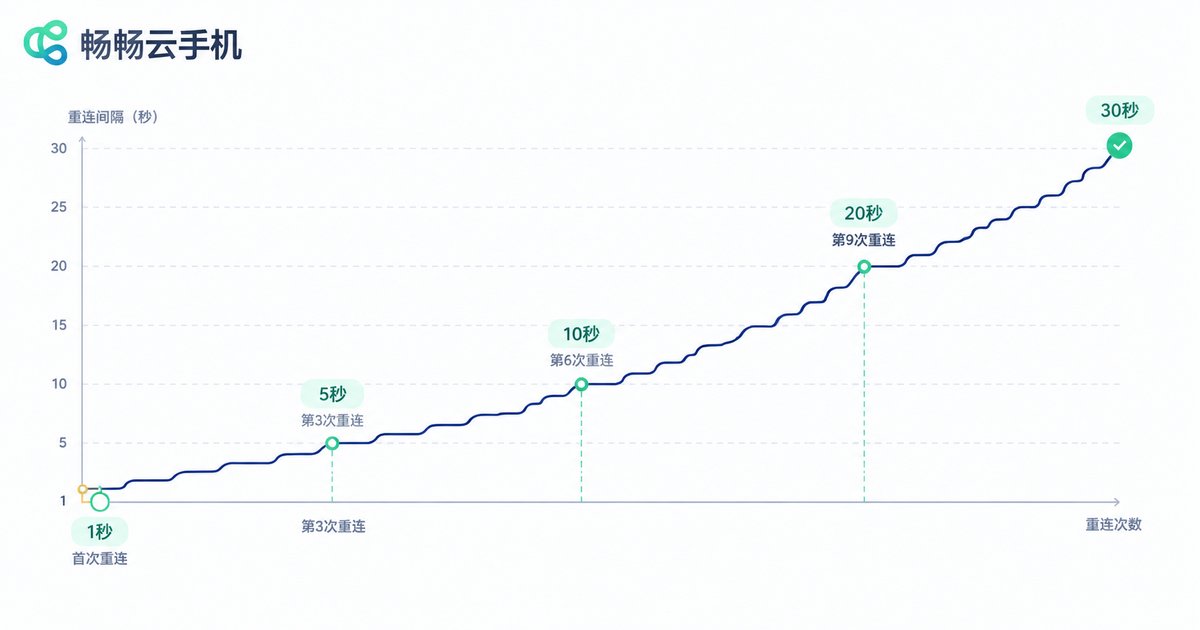
Automatic reconnection with backoff: do not retry in a tight loop after a drop — that only makes a weak network worse. Stretch the retry interval gradually and cap it.
// Exponential backoff reconnection (pseudocode)
let attempt = 0;
const BASE = 1000;       // first wait: 1 second
const MAX_DELAY = 30000; // cap at 30 seconds

function onDisconnected() {
  attempt++;
  const delay = Math.min(BASE * Math.pow(2, attempt - 1), MAX_DELAY);
  const jitter = Math.random() * 500; // avoid a thundering herd
  setTimeout(() => connect(), delay + jitter);
}

function onConnected() {
  attempt = 0; // reset on success
}
Visible status: during reconnection, show something like "reconnecting (attempt 2)" instead of leaving the user staring at a frozen frame. A perceivable state is far better than silent waiting.
Usage habits matter on a weak network
Beyond settings, adjusting how you use the cloud phone saves a lot of frustration. On a poor link, favour low-interaction-density work such as leaving tasks running, checking progress, or making simple confirmations. Avoid sequences that need precise timing while the network is fluctuating.
Do your heavy setup — accounts, environment, applications — while the signal is good. Later, when you connect briefly from the road on a weak link, you only need to glance and tap, which places far lower demands on the connection.
What CCloud Phone offers on weak networks
CCloud Phone (ccloudphone) runs Android instances in the cloud, so your local device only renders the picture and sends input. Local performance and heat therefore never become the bottleneck. For weak-network use, it provides several practical basics:
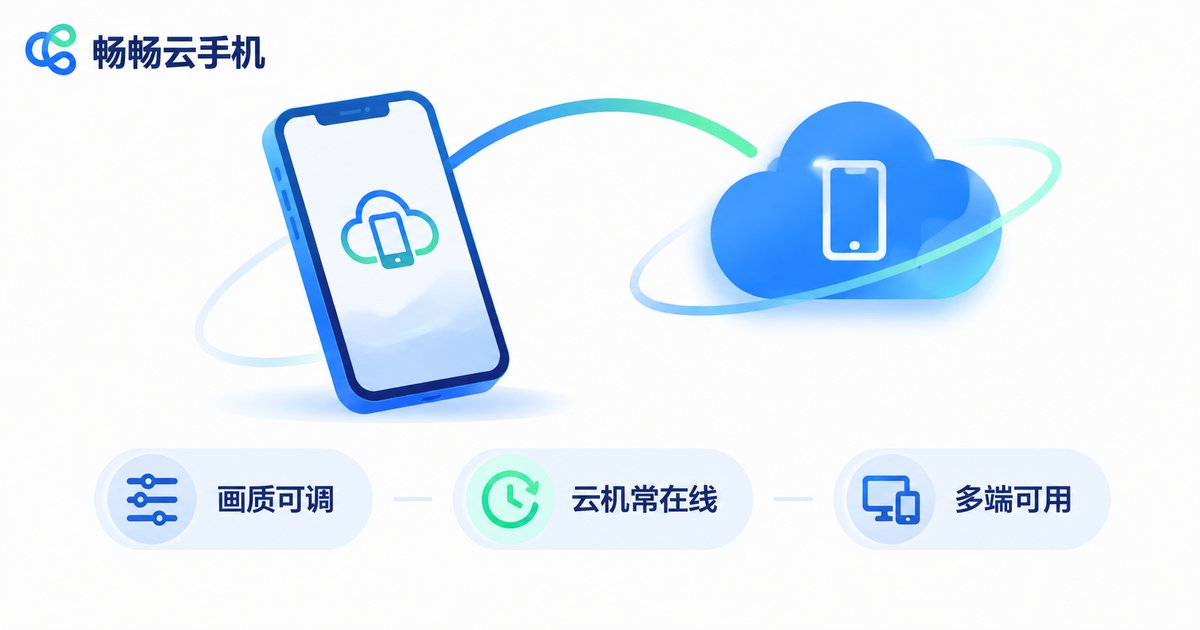
Adjustable quality and bitrate: you can choose a lower-bandwidth quality level that matches your current network, keeping input responsive in smooth mode and switching back to a sharper mode once the link recovers.
Instances keep running in the cloud: a client disconnect does not immediately stop work in the cloud; when you reconnect you return to the same screen, which suits long-running and idle-farming scenarios.
Multiple access points: you can sign in to the same account from a phone, a computer and other devices, which makes switching between Wi-Fi and mobile data more flexible.
One honest reminder: a cloud phone solves where the computing happens — it cannot make your local network better. Standing somewhere with a stable signal and choosing the right quality level will always be the most effective first step.
Frequently asked questions
Q: I already set quality to the lowest level and it still lags. What now?
Check local factors first: is the phone hot and throttling, is a background app eating bandwidth, is the node far away? Try a closer node, or switch to wired or 5 GHz Wi-Fi. If latency stays above 200 ms, the link itself is limited, and reducing interaction density is more realistic than tweaking quality further.
Q: Does a running task stop when the connection drops?
Not immediately. After a disconnect the cloud instance is usually kept for a period while it waits for you to return. So do not rush to restart the instance — try reconnecting first, and you will often resume the existing session.
Q: Why does reconnecting take a few seconds instead of being instant?
Instant reconnection requires the link to become stable immediately, which a weak network cannot provide. A gradually stretched retry strategy avoids hammering a very poor connection and actually reaches stability sooner. Waiting a few seconds is usually more effective than tapping repeatedly.
Q: Any specific advice for using a cloud phone on the subway?
Open the apps you need and lower the quality before entering the station. When the tunnel cuts the connection, avoid repeated tapping and let the client reconnect after the train leaves. Using subway time for idle or background tasks makes the experience much smoother.
Q: Wi-Fi or mobile data on a weak network?
Judge signal quality, not the type. A strong 5 GHz Wi-Fi connection is usually the most stable option, but if Wi-Fi has one bar and keeps fluctuating while mobile data is strong, switching to data works better. The key is to avoid automatic switching back and forth, which forces the cloud phone to reconnect over and over.


