
2026 Cloud Phone Data-Saving Settings Guide: Quality Adjustment and Background Management
Why Cloud Phones Also Need to Save Data
Many people assume that because cloud phones run computing in the cloud, the local device should barely use any data. In reality, the cloud phone's screen must be streamed to your phone or computer in real time. The higher the quality and the more stable the frame rate, the more data it consumes. If you often use mobile data with a cloud phone, or your home broadband has a data cap, learning to adjust quality and manage background apps can save you a lot of data.
Quality Adjustment: Balancing Clarity and Data
Most of a cloud phone's data goes to video streaming. Resolution, frame rate, and bitrate together determine data usage. The comparison table below helps you quickly understand the rough differences between tiers:
| Quality Tier | Resolution | Data Usage | Best For |
|---|---|---|---|
| HD | 1080P | Higher | Wi-Fi environments, seeing fine details |
| Standard | 720P | Medium | Everyday use, mobile data |
| Smooth | 540P and below | Lower | Idle running, chatting, light tasks |
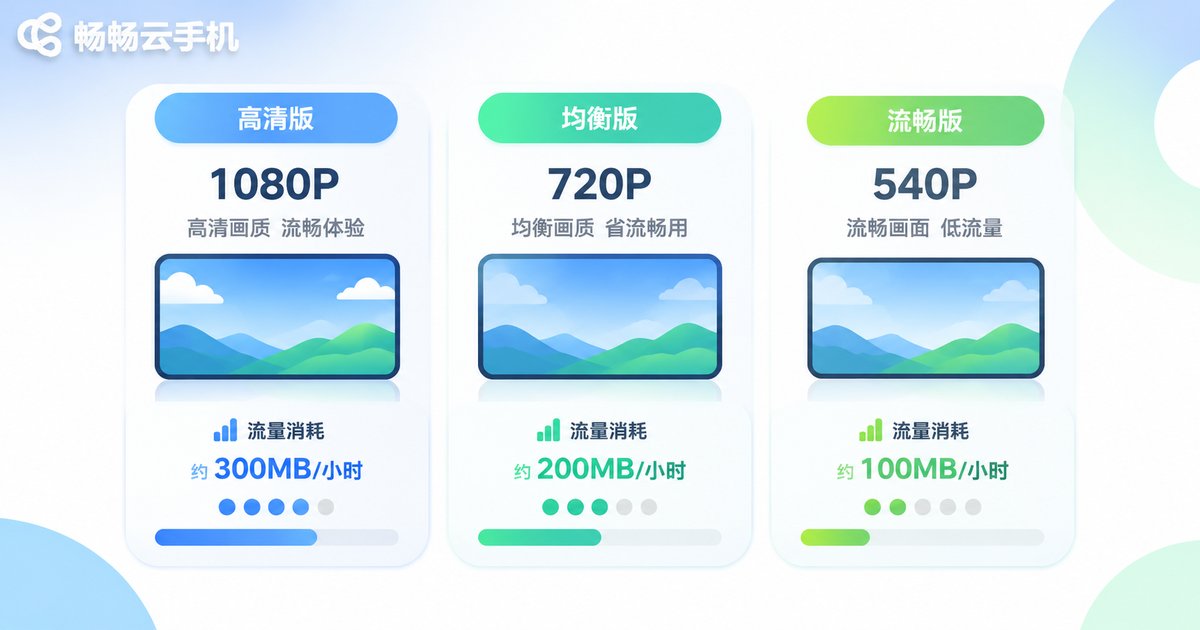
Switch flexibly based on your network: use HD at home on Wi-Fi, and drop to Standard or Smooth when on mobile data. CCloudPhone (ccloudphone) offers quality tier options in its console, making switching straightforward. Available options are subject to what the official console actually shows.
Background Management: Plugging the Data Leak
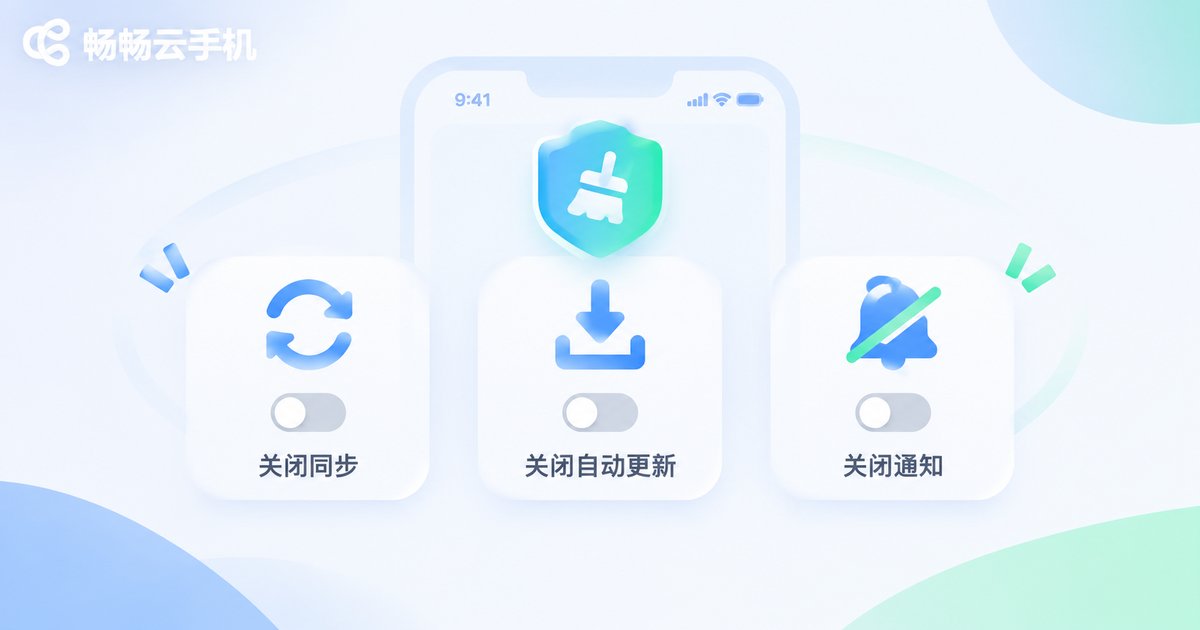
Apps running inside a cloud phone may still sync data, auto-update, and push notifications in the background even when you are not actively using them. These activities consume streaming bandwidth and indirectly increase data usage.
Several practical background management habits:
- Turn off background refresh and auto-sync for unnecessary apps
- Set auto-updates to manual, or only update over Wi-Fi
- Fully exit apps you don't need when idle running, instead of leaving them in the background
- Disable dynamic wallpapers and excessive animations to reduce bitrate fluctuations caused by constant screen changes
CCloudPhone's Data-Saving Approach
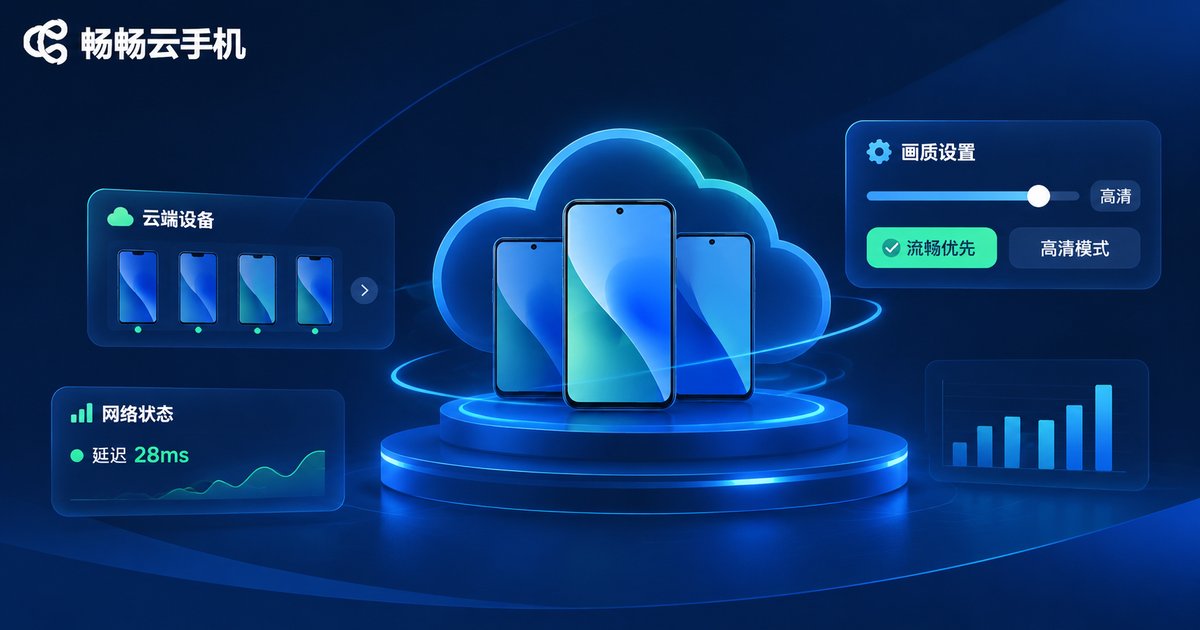
CCloudPhone (ccloudphone) places quality adjustment and resolution switching in a prominent spot in the console, so you can adjust anytime based on your network. For users who need to run tasks for long periods, choosing a lower quality tier helps reduce data costs while keeping basic operations smooth. Quality options may change with product updates, so please refer to what the official console actually displays.
Frequently Asked Questions
Q: Does lowering cloud phone quality affect game controls?
The Smooth tier mainly reduces visual detail and has little impact on touch response latency. It is perfectly adequate for idle running and quest tasks; switch back to HD temporarily if you need to see fine details.
Q: If I just close an app inside the cloud phone, does it stop using data?
Not necessarily. A closed app may still sync data in the background. Use background management to fully exit unneeded apps, and turn off auto-sync and auto-update.
Q: Which quality tier should I choose when using mobile data?
Generally, start with Standard and use it if the picture looks good enough; if you are just idle running or chatting, Smooth saves more data.
Q: How much data can lowering quality save?
Exact numbers depend on screen content, frame rate, and network conditions, so a fixed figure is hard to give. The general rule: the lower the resolution and the less the screen changes, the less data is used.
Q: Where can I adjust quality in CCloudPhone?
Quality-related settings can be found in the console. For exact location and available options, please refer to the current official version.


