

Cloud Phone Network Switching Tips: Wi-Fi and Mobile Network Handover Issues
Why cloud phone network switching can go wrong
A cloud phone keeps computing and storage in the cloud, while your local device works more like a remote screen. When your local network switches from Wi-Fi to mobile data, or the other way around, the connection has to be re-established. During this process, IP address changes, signal fluctuations, and background app cleanup can freeze the cloud phone screen, increase lag, or even cause a short disconnection.
Understanding these handover issues can help you avoid trouble during meetings, background tasks, and remote operations. The following sections explain the differences, common problems, and practical things to check.
Key differences between Wi-Fi and mobile networks
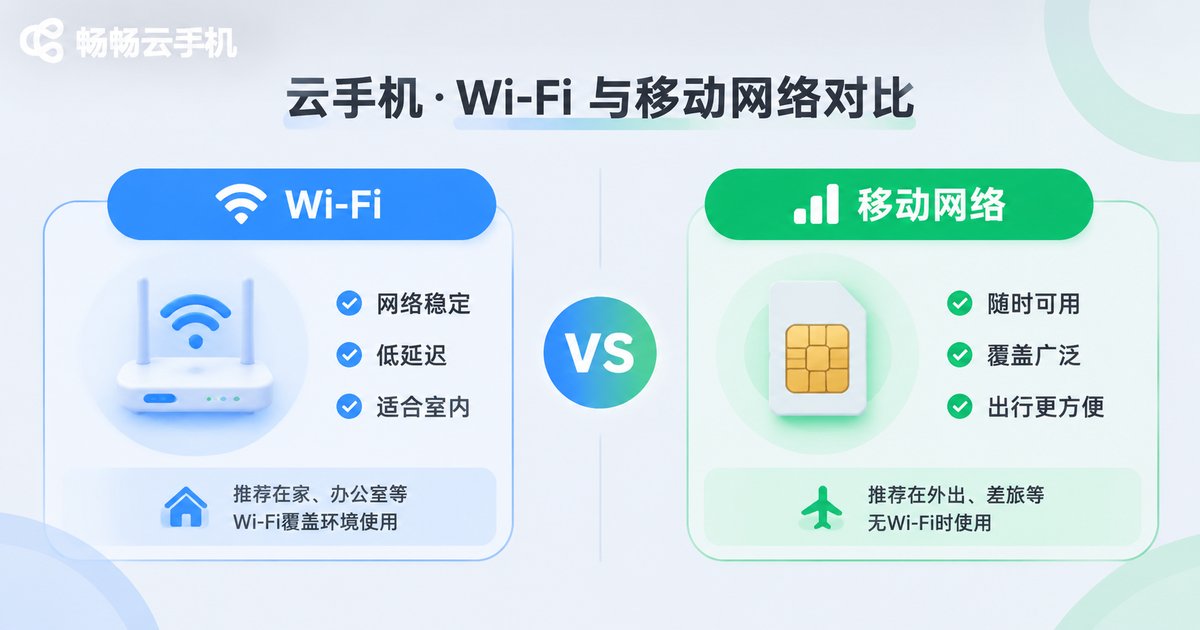
Wi-Fi usually offers higher bandwidth and lower latency, but limited coverage. Mobile networks cover a wider area and are convenient outdoors, but signal quality and data costs vary by location. Cloud phones are more sensitive to connection stability than to raw speed alone.
| Item | Wi-Fi | Mobile network |
|---|---|---|
| Typical latency | Lower and more stable | Affected by signal, more variable |
| Coverage | Mostly indoors, limited range | Wide outdoor coverage |
| Data cost | Often unlimited or low cost | Check your data plan |
| Best for | Office and home background tasks | Commuting and temporary outdoor use |
The table is only a rough reference. Real experience also depends on router quality, carrier signal, and the cloud phone service connection.
Common handover problems and troubleshooting
1. The screen freezes but no disconnect message appears. During a network switch, the old connection may not be fully released while the new one is being established. Wait a few seconds and avoid repeated clicking. If there is still no response, exit and reopen the cloud phone.
2. A network error or connection timeout appears. This usually means the new network is temporarily unavailable, or DNS resolution is slow. Toggle airplane mode on and off to let the phone register on the network again.
3. Latency suddenly rises. Mobile networks can become slower when uploading large data or when signal is weak. Move closer to a window or temporarily close other apps that use upload bandwidth.
4. Apps inside the cloud phone ask you to sign in again. A network switch may change the IP address, and some apps trigger security checks. Save your progress before switching, and avoid switching during payments or form submissions.
7 things to check before and after switching
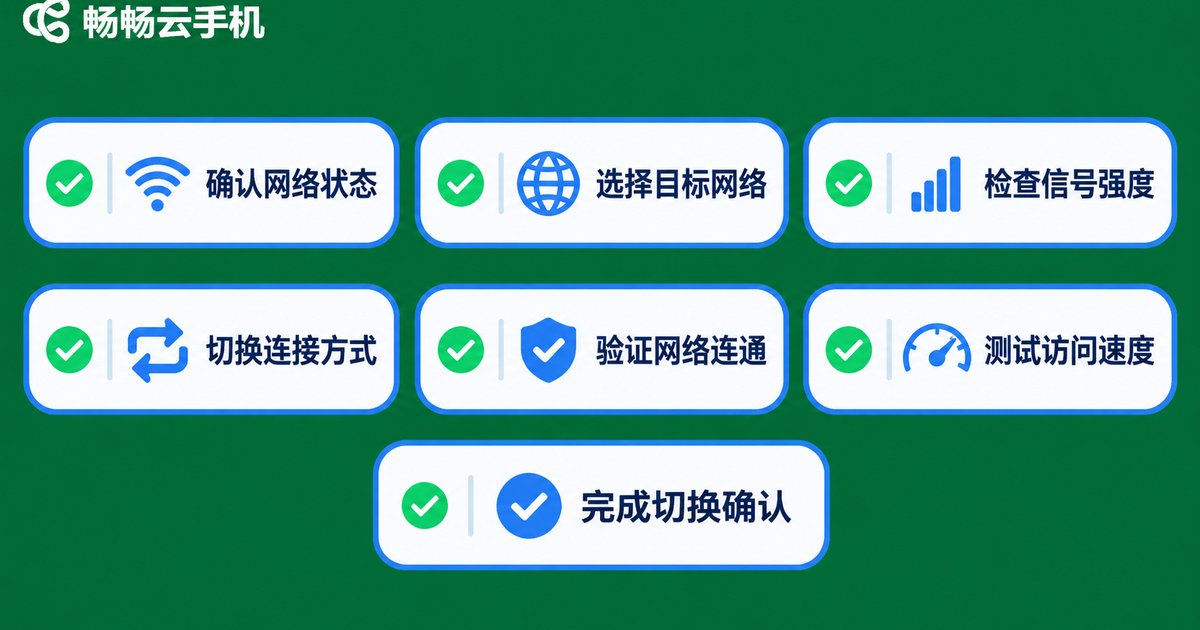
- Save your progress before switching. This is especially important when editing documents, filling forms, or playing games. Confirm key data has been submitted.
- Keep the cloud phone app in the background. Do not force-close it, or you may lose the session when reconnecting.
- Avoid operating while the switch is happening. Repeated tapping during a handover can trigger duplicate submissions or lag.
- Choose a stable network first. If Wi-Fi is weak, manually switching to mobile data is often more controllable than relying on automatic switching.
- Watch your data usage. A cloud phone online for a long time will keep using data. Check your plan before using mobile data outdoors.
- Check the session after reconnecting. See whether the cloud phone desktop and running apps are still there, and reopen them if needed.
- Use Wi-Fi in fixed locations. Stable home or office Wi-Fi is usually better for long-running background tasks.
How to reduce interruptions with CCloudPhone
CCloudPhone (ccloudphone) provides a cloud phone environment, while your local device mainly handles display and operation. To reduce the impact of Wi-Fi and mobile network handovers, keep a stable login state in CCloudPhone. After switching networks, first check whether the screen has recovered before tapping.
If you often use it on the go, open the apps you need while still on Wi-Fi to reduce loading after the switch. When a short disconnect happens, use the in-app reconnect option first instead of repeatedly force-closing the app. For specific features and plans, please refer to the official CCloudPhone website.
FAQ
Q: Will a cloud phone always disconnect when switching from Wi-Fi to mobile data?
Not always. A short switch may recover automatically, but IP changes and signal fluctuations increase the risk. Avoid switching before important operations.
Q: Why is the cloud phone still laggy when mobile signal bars are full?
Full bars only mean coverage, not stability. Latency, packet loss, and upload bandwidth also affect the cloud phone screen.
Q: Is it normal for apps in the cloud phone to ask me to sign in again after a network switch?
Some apps treat an IP change as a security risk and trigger verification or re-login. Check the app security settings and avoid switching during critical operations.
Q: Should I always use Wi-Fi with CCloudPhone?
Prefer stable Wi-Fi in fixed locations and use mobile data when outdoors. Choosing by scenario is more reliable than depending on automatic switching.
Q: What should I do if the screen goes black after switching networks?
Wait a few seconds and try the in-app reconnect option. If the screen is still black, exit and reopen the cloud phone, and check whether your local network is actually working.


