
Cloud Phone vs Emulator: In-Depth Performance Comparison of ARM Native and X86 Translation
The Core Difference in One Sentence: Native Execution vs Real-Time Translation
Many people assume a cloud phone is just another emulator. In reality, the two take completely different paths at the architecture level. An emulator runs on your PC's X86 chip and translates the ARM instructions of Android apps in real time, while a cloud phone runs directly on real ARM servers in the cloud — a native ARM environment from day one. One is simultaneous interpretation, the other is speaking your mother tongue, and that is exactly where the performance gap begins.

What Is a Cloud Phone? What Is an Emulator?
Emulator: software installed on a PC that simulates an Android device through virtualization. Because PC CPUs use the X86 architecture while most Android apps are built on ARM instructions, the emulator must translate ARM instructions into X86 instructions on the fly — a process that inevitably introduces performance overhead and compatibility risks.
Cloud phone: a virtual Android phone running on ARM servers in a data center. You connect to it remotely from a phone, a PC, or a browser, and what you see is a live video stream from the cloud. Since the underlying architecture is ARM, apps run without any translation, delivering an experience identical to a physical device.
Think of it this way: an emulator is like a meeting run through an interpreter — everything gets translated and something is always lost; a cloud phone is like everyone speaking the same native language.
ARM Native vs X86 Translation: Where Does the Performance Gap Show Up?
1. Instruction execution efficiency: X86 translation dynamically converts instructions at runtime, adding measurable overhead that grows in compute-heavy scenarios. ARM native environments have no translation layer at all — instructions execute directly.
2. Graphics rendering: an emulator's graphics calls must also be translated and mapped to the PC's GPU, which can cause frame drops or glitches in demanding mobile games. Cloud phones render with server-grade GPUs in the cloud; your local device only displays the stream.
3. Resource usage and heat: running multiple emulator instances saturates your CPU and memory, and an overheating, throttling PC becomes the norm. Cloud phone workloads happen in the data center, leaving your local device nearly idle.
4. Long-run stability: emulators live on personal computers, where system updates, pop-ups, or power cuts can interrupt tasks. Cloud phones run 24/7 in professional facilities, and shutting down your local device does not affect cloud tasks.
| Dimension | Cloud Phone (ARM Native) | Emulator (X86 Translation) |
|---|---|---|
| Instruction execution | Native ARM instructions, zero translation overhead | Real-time ARM-to-X86 translation with performance loss |
| App compatibility | Identical to a real device | Some apps detect the environment or fail during translation |
| Multi-instance | Elastic cloud scaling on demand | Limited by local hardware, stutters when stacked |
| Uptime | 24/7 in the cloud | Offline when the PC shuts down |
| Local resource usage | Nearly zero, streaming only | Heavy CPU, memory, and GPU load |

Compatibility: Why Some Apps Fail on Emulators but Work on Cloud Phones
Many finance and gaming apps check their running environment and restrict or block emulators on sight. X86 translation environments leave traces: abnormal sensor data, mismatched CPU architecture information, and crashes in features that rely on ARM-specific capabilities.
Cloud phones run in a native ARM environment that is nearly indistinguishable from a real device at the system level. To the app, it looks like an ordinary Android phone — a critical advantage for anything that must run stably over long periods.
Stability and Multi-Instance: What Heavy Users Care About Most
If you manage multiple accounts, run game automation, or keep apps alive around the clock, emulator bottlenecks show up fast: even a high-end PC struggles beyond five or six instances, and every task is tied to that one machine — shut it down and everything stops.
Each cloud phone instance is an independent Android environment in the cloud; scaling up is as simple as adding devices from the console. Tasks run in the cloud, so turning off or disconnecting your local device changes nothing. That is why more and more studios and individual users are switching from emulators to cloud phones.
Which One Should You Choose? It Depends on Your Scenario
Emulators fit: casual mobile gaming on a PC, local app debugging, and cases where your computer is powerful and stability requirements are low.
Cloud phones fit: 24/7 online tasks, multi-account and multi-device management, limited local hardware, or anyone who wants to pick up the same phone seamlessly from either a phone or a PC.
Recommended Cloud Phone: ChangChang Cloud Phone (ccloudphone)
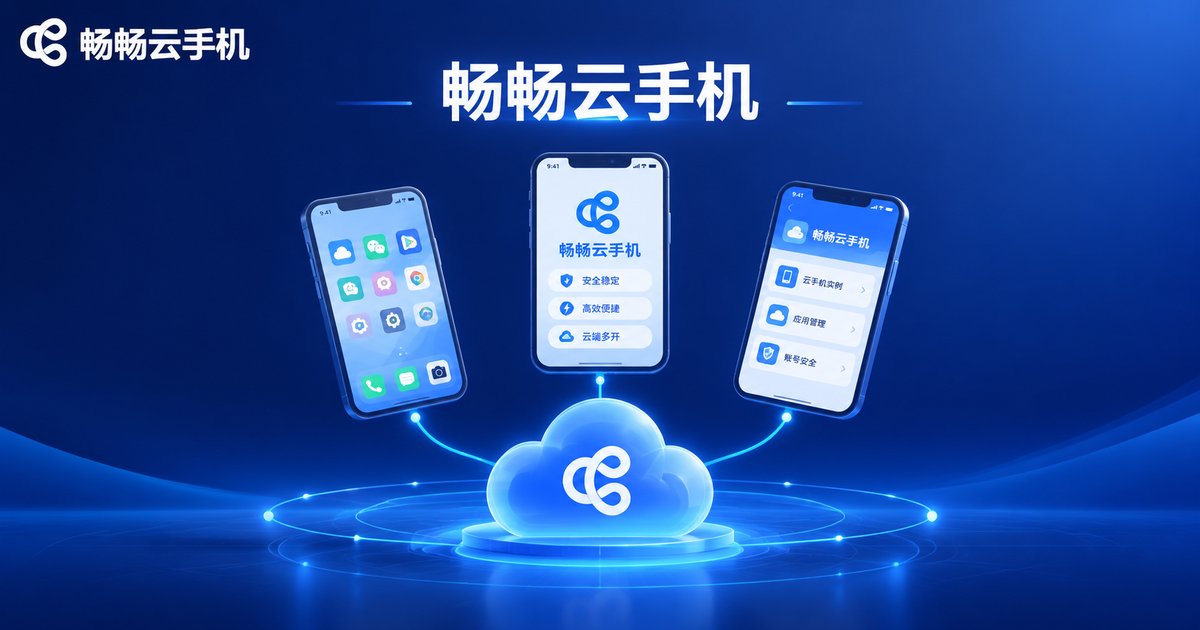
If you are ready to try a cloud phone, take a look at ChangChang Cloud Phone (ccloudphone). Built on a native ARM cloud environment, it supports sign-in from phones, PCs, and more, keeping your apps running in the cloud even after you log out locally. Game automation, multi-account management, and always-on apps can all be handled from the web or the app. For the latest plans and pricing, check the official ccloudphone website.
FAQ
Q: Which is actually smoother, a cloud phone or an emulator?
Smoothness depends on different factors: cloud phones depend on network quality — with a stable connection, cloud ARM servers guarantee smooth visuals and input; emulators depend on local hardware, and a weak CPU or GPU means stutters and frame drops. Overall, ARM native cloud phones clearly win on compatibility and stability.
Q: Does a cloud phone use a lot of data?
Cloud phones stream video back to your screen, which consumes some bandwidth — WiFi or an unlimited data plan is recommended. The control commands themselves use very little data.
Q: Why can some games run on a cloud phone but not on an emulator?
Some apps detect and block emulator environments, and X86 translation setups easily expose telltale signs. A cloud phone's native ARM environment matches a real device, so the chance of being blocked is much lower.
Q: If I turn off my local device, do cloud phone tasks keep running?
Yes. Cloud phones run on cloud servers, so as long as the device is online, tasks keep running no matter what your local device is doing — the fundamental reason cloud phones are ideal for automation and idle grinding.


